Who is this article for?
At the end of a month, a quarter or a year, you need clear numbers: the taxes to remit, the fees deducted from your online payments, what each practitioner billed and collected, the refunds, the statement a client asks for. The Reports section gathers these reports in one place, with exports to Excel and PDF for your accountant.
This article presents the six reports, how to choose the period and the filters, and how to export them.
Before you start: you need the Access to the Reports section right and access to the clients' financial information (see Who can see the reports below). Your email address must also be confirmed.
1Open the Reports section
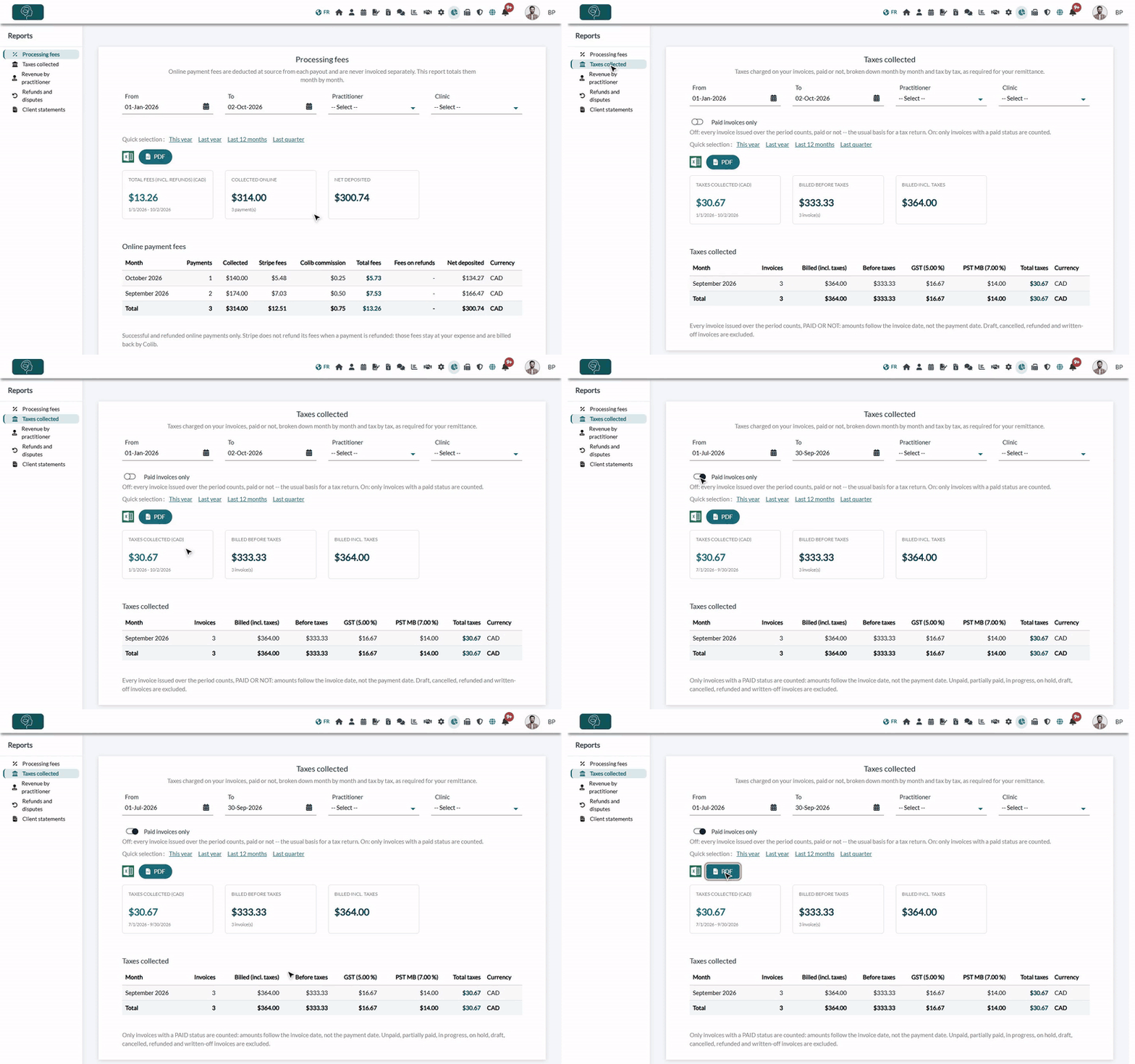
- Go to www.colib.io/reports. You can also click the Reports icon (pie chart) in the top bar.
- Choose a report in the menu on the left. The report is calculated right away for the default period: from January 1 of the current year to today.
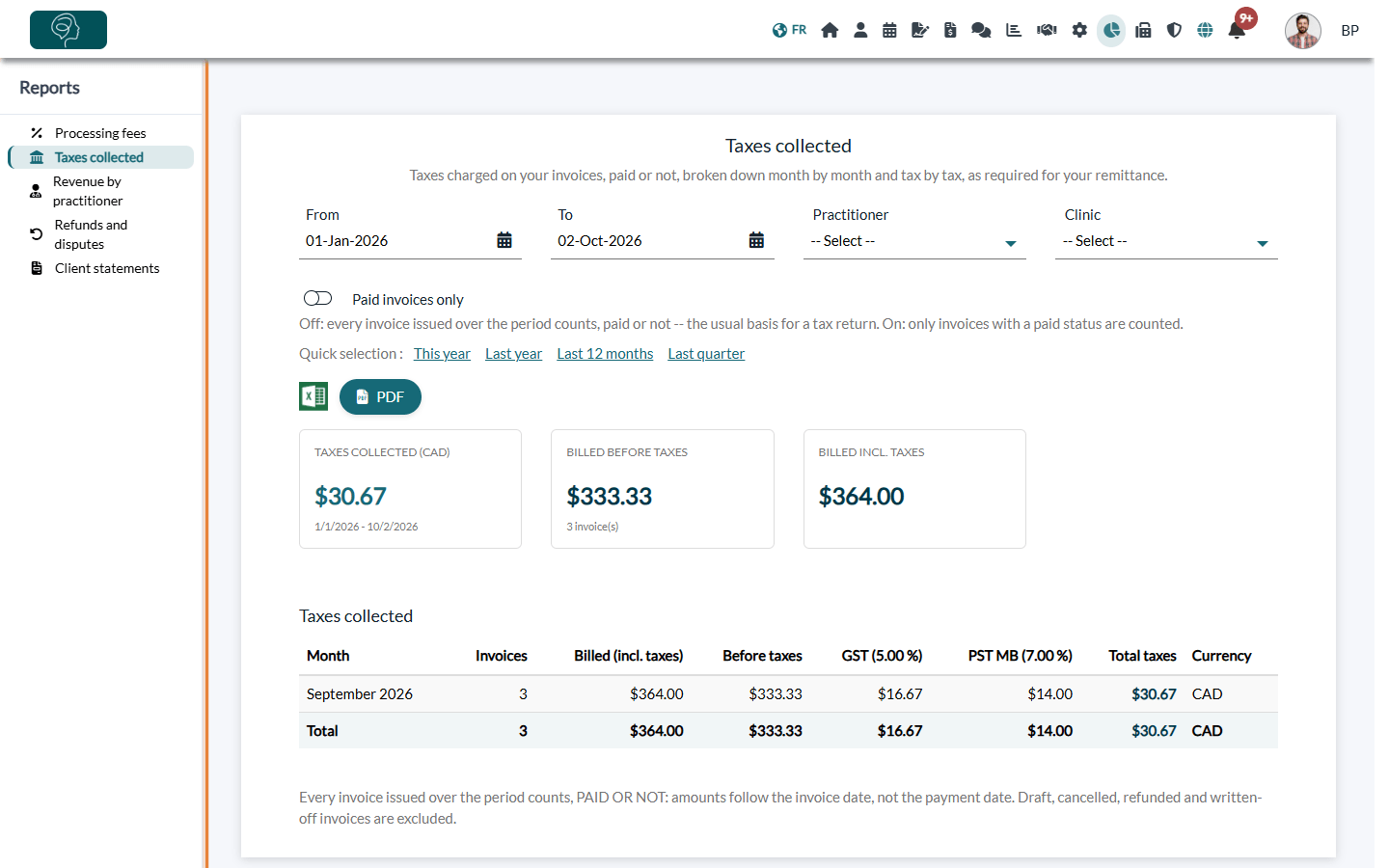
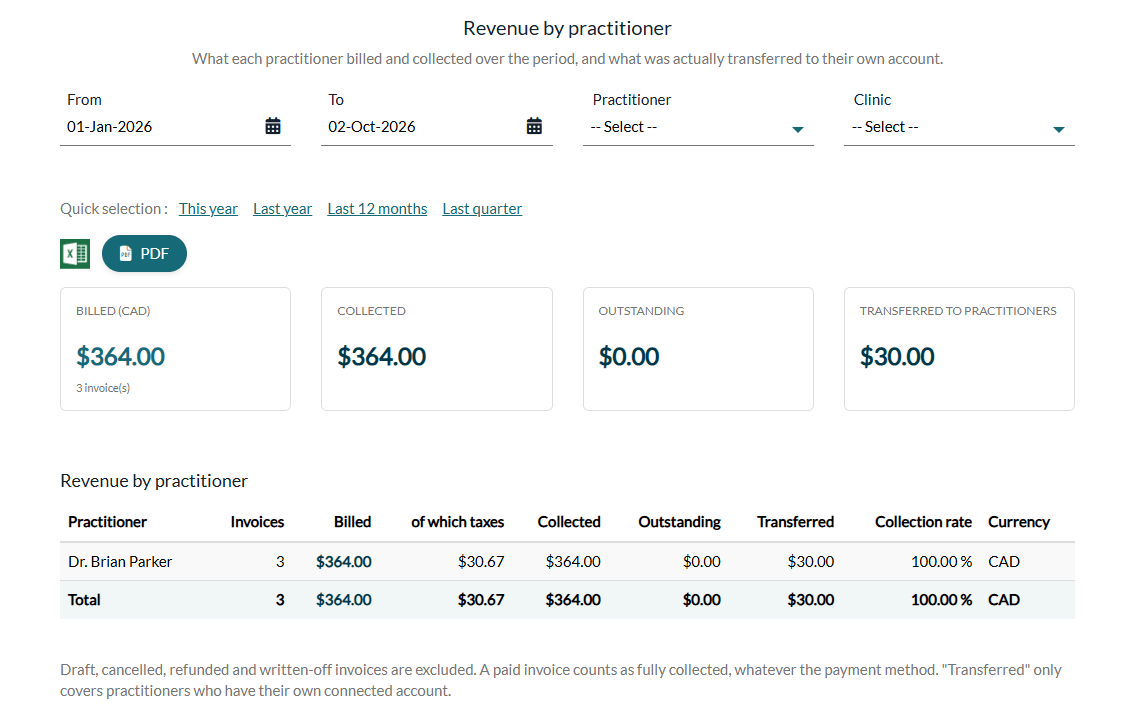
Each report starts with summary cards (totals for the period), followed by a detailed table and a note that explains exactly what is counted.
2Choose the period and the filters
- From and To — pick any start and end date in the calendars.
- Quick selection — This year, Last year, Last 12 months or Last quarter (the previous calendar quarter, handy for tax remittances).
- Practitioner — limit the report to one practitioner.
- Clinic — shown only if your practice has several clinics.
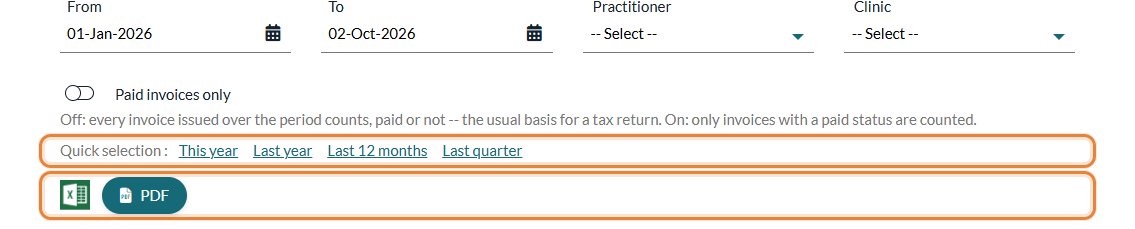
The report is recalculated as soon as you change a date or a filter: there is no button to click.
3Export to Excel or PDF
- Excel icon (Export to Excel) — downloads a workbook with one sheet per table. Each sheet starts with the practice, the report and the period, and the amounts are real numbers you can add up.
- PDF (Download the PDF report) — downloads a document with your logo and theme color, the period, the filters applied, the date it was issued and who issued it. It shows exactly the same numbers as the screen.
The export always uses the period and the filters currently displayed.
The six reports
| Report | What it gives you |
|---|---|
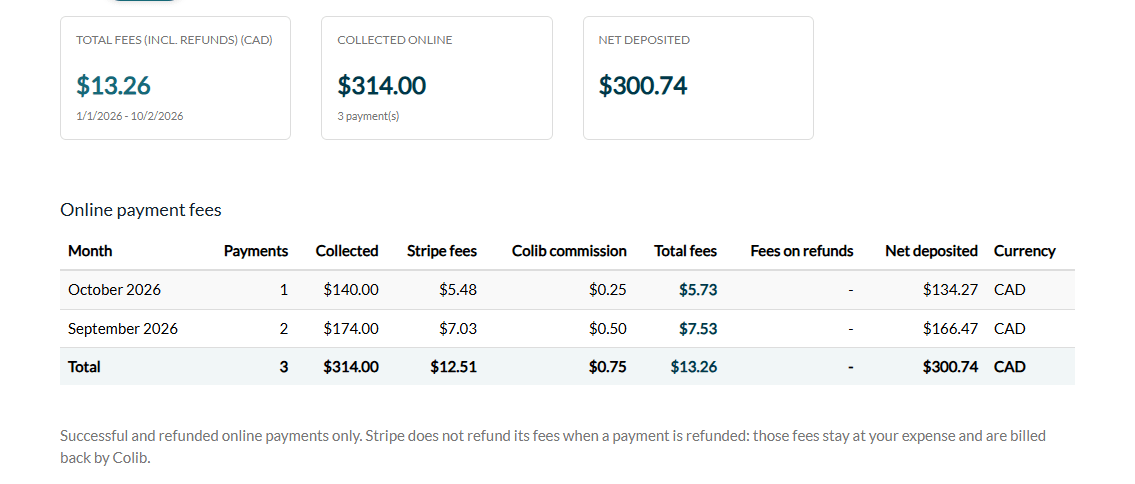
| Processing fees | The fees of your online payments, month by month: number of payments, amount collected, Stripe fees, Colib commission, fees on refunds and net amount deposited. These fees are deducted from each payout and never invoiced separately: this report gives you their total for your tax return. Practice administrators also see the invoices Colib sent to the practice. |
| Taxes collected | The taxes of your invoices, month by month and tax by tax (one column per tax), with the amounts before and including taxes. By default, every invoice issued over the period counts, paid or not. Turn on Paid invoices only to count only invoices with a paid status. In both cases, amounts follow the invoice date; draft, cancelled, refunded and written-off invoices are excluded. |
| Revenue by practitioner | For each practitioner: number of invoices, amount billed (and taxes), collected, outstanding, collection rate, and the amount transferred to their own account when they have one connected for online payments. |
| Deferred revenue | What has been paid for but not yet delivered: gift certificates (including packages) that still carry a balance. Shown only if your practice sells gift certificates. |
| Refunds and disputes | Every online payment refunded or disputed over the period, with the fees kept by Stripe (they stay at your expense and are billed back by Colib), then a monthly summary. |
| Client statements | What each client was billed and paid over the period. The PDF is an official statement a client can hand to their insurer. For more details, please see the article titled "How to produce an account statement for a client". |
Who can see the reports
- The right to open the section — in Settings > Team (www.colib.io/settings?show=team), edit the team member and turn on Access to the Reports section. Their Access level to the client's financial information must not be set to none.
- Each person sees their own scope — a team member without the Ability to see other practitioners information only sees their own numbers, and the client statements only list the clients whose financial information they can see.
- Traceability — each report displayed or downloaded is recorded in your activity log. See How to access the activity log (audit log)
For more about rights, see What are the different levels of rights/options for the members of my practice?
Good to know
- One line per currency — if you bill in several currencies, amounts are never added across currencies: each currency has its own summary cards and its own lines.
- Months follow your practice's time zone — a payment made late in the evening is counted in the right month, whatever the time zone of the person viewing the report.
- Paid invoices — an invoice with a paid status counts as fully collected, whatever the payment method (online, cash, Interac, etc.).
- No data? — the message No data over this period. means nothing matches the period and the filters: widen the period or remove a filter.
- Related articles — Where can I view the payouts to my practice and the associated payment fees?, How to update the default taxes for my invoices?, How to export my client data?
- An idea for a report? — the Reports page invites you to send us your ideas: write to support@colib.io.
Related articles
Each report has its own detailed article. Please see:
- How to export a report of payment provider fees and payment taxes
- the article titled "How to read the Taxes collected report"
- the article titled "How to read the Revenue by practitioner report"
- the article titled "How to read the Deferred revenue report"
- the article titled "How to read the Refunds and disputes report"
- the article titled "Who can access the Reports section and how to export a report to Excel or PDF"
For charts of your activity over time (revenue trends, projected revenue, appointments, clients, forms), please see:
- the article titled "How to see your revenue and projected revenue in Analytics"
- the article titled "How to follow your appointments in Analytics"
- the article titled "How to follow your client base in Analytics"
- the article titled "How to follow your forms in Analytics"
- the article titled "How to filter Analytics and who can see it"
Still have a question?
Write to us at support@colib.io, we will be happy to help.
Was this article helpful?
That’s Great!
Thank you for your feedback
Sorry! We couldn't be helpful
Thank you for your feedback
Feedback sent
We appreciate your effort and will try to fix the article