Who is this article for?
You need a copy of your data: for your own records, an accountant, a request from a client or a professional order, or to change software. Colib lets you export your client list, the complete record of a client, your appointments, your forms and your invoices. This article explains where each export is and what it contains.
Good to know: each export only contains what your user rights let you see. For example, a user who cannot see notes gets no notes in the files.
1Export your client list to Excel
- Go to your client list (www.colib.io/clients).
- If needed, filter the list: Active clients, clinic, practitioner.
- Click the Excel icon (Export to Excel) at the right of the filters.
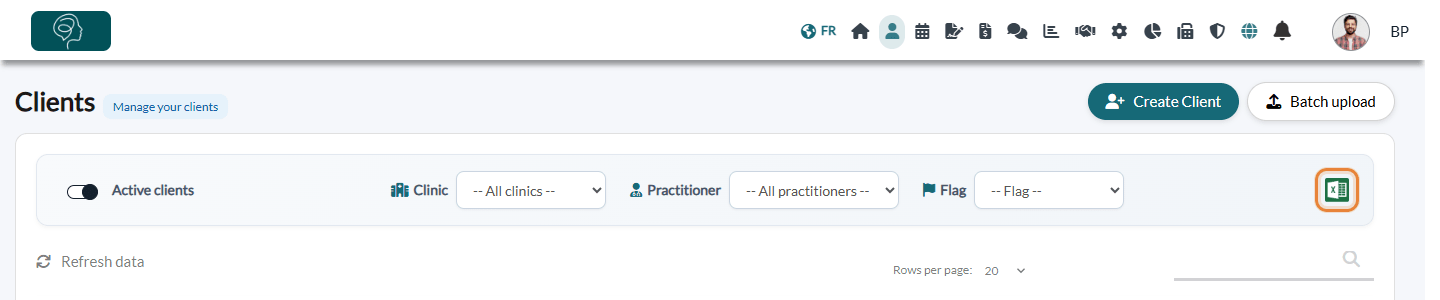
The Excel file has two tabs:
- Clients — reference, first and last name, email, phone, birth date, address, creation date, gender, link to the record, number of active appointments, date, type, practitioner and status of the last appointment, practitioner, referral, and one column per additional field of your practice.
- Notes — the notes of these clients: client, date, signed or not, appointment, practitioner, title and text.
2Download the complete record of a client
- Open the client's record from your client list (www.colib.io/clients).
- Under the client's name, click the Download icon (arrow). A zip file is downloaded.
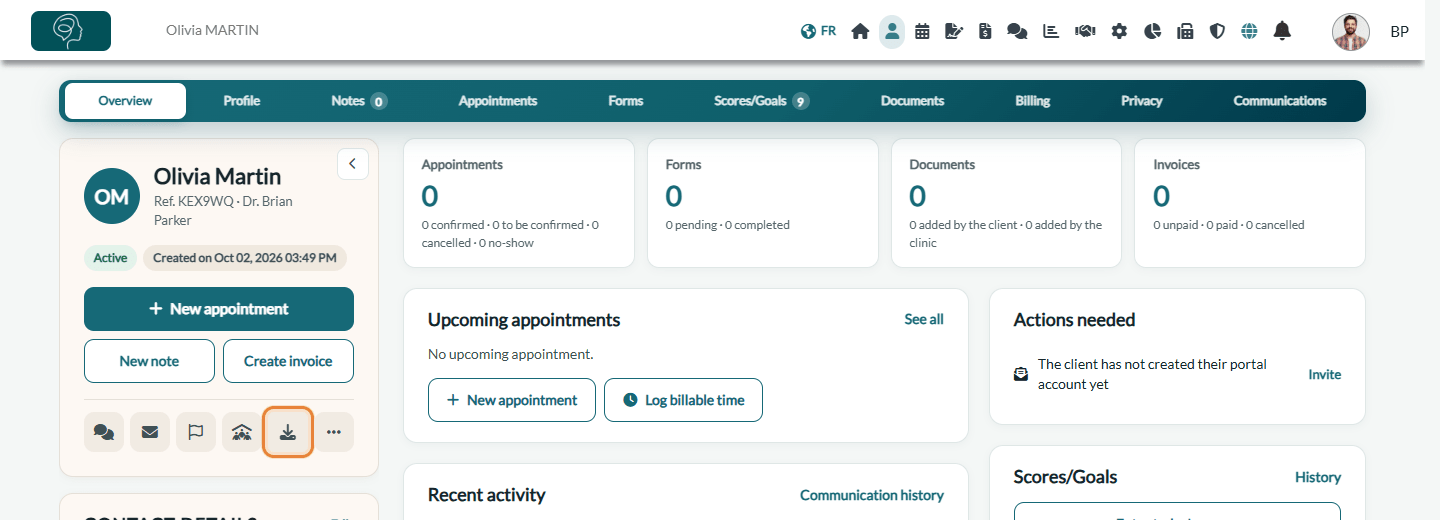
The zip file contains:
- a summary PDF (ClientInformation.pdf) with the profile, the additional fields, the notes and the appointments;
- each note as a PDF file;
- the completed forms as PDF files;
- the invoices as PDF files;
- the documents of the record.
Repeat for each client whose complete record you need.
3Export your appointments
- Go to the scheduler (www.colib.io/scheduler) and display the period and the practitioners you want.
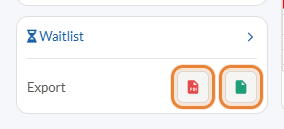
- In the left panel, under Export, click the PDF icon (Download PDF) or the Excel icon (Download Excel).
4Export your forms
- Go to the form results (www.colib.io/forms?show=results).
- Filter the list (form, status, dates, etc.).
- Click the ZIP icon (Export PDFs) to download the PDF of every form in the list, or the Excel icon (Export to Excel) to download the list.

5Export your invoices
- Go to your invoices (www.colib.io/invoices) and filter the list.
- Click the Excel icon (Export to Excel). The QuickBooks icon next to it (Export to QuickBooks) gives a file for your accounting software.

For financial reports (revenue, taxes, fees, etc.), use the Reports section (www.colib.io/reports), whose reports can also be exported to Excel.
Export the clients of one practitioner
Useful when a practitioner leaves the practice or moves to their own Colib account: each practitioner gets the list of their own clients.
- Go to your client list (www.colib.io/clients).
- In Practitioner, choose the practitioner. The list shows the clients whose main practitioner is this person (the Practitioner field of the client record).
- Click the Excel icon (Export to Excel). In the file, the Clients tab lists these clients, with the main practitioner in the Practitioner column, and the Notes tab contains the notes of these clients that you are allowed to see, with the practitioner who wrote each note.
- Turn off Active clients and export again to get the archived clients of the practitioner.
- For the documents, the completed forms and the invoices of a client, download their complete record (step 2).
Good to know: the Practitioner column only contains the main practitioner. The additional practitioners assigned to a client and the clinics of the client are not in the file, so a shared client only appears in the export of their main practitioner. Clients with no main practitioner only appear when All practitioners is selected, with an empty Practitioner column: assign them before exporting. See Assigning practitioners and configuring client visibility.
What can be exported in bulk?
| Data | In bulk | Format |
|---|---|---|
| Client information | Yes: all the clients of the list in one file (step 1) | Excel |
| Notes | Yes: the text of the notes, in the Notes tab of the same file (step 1), without formatting or images. Each note is also included as a PDF in the complete record of the client (step 2). | Excel, PDF |
| Completed forms (intake forms, questionnaires, consents...) | Yes: the PDF of every form of the filtered list (step 4) | ZIP of PDF files, Excel |
| Appointments | Yes: the period and the practitioners displayed (step 3) | PDF, Excel |
| Invoices | Yes: the list of invoices (step 5). The PDF of each invoice is in the complete record of the client (step 2). | Excel, QuickBooks file, PDF |
| Documents of the records | Client by client, in the complete record (step 2). There is no single download of the documents of all your clients. | ZIP file |
All the exports at a glance
Look for the Excel icon (or an Export to Excel button) on these screens. Each export uses the filters displayed on the screen.
| What you export | Where | Format |
|---|---|---|
| Client list and their notes | Client list (www.colib.io/clients), Excel icon (step 1) | Excel |
| Complete record of one client | Client record, Download icon (step 2) | ZIP file (PDF and documents) |
| Appointments | Scheduler (www.colib.io/scheduler), Export (step 3) | PDF or Excel |
| Form results | Forms > results (www.colib.io/forms?show=results) (step 4) | ZIP of PDFs or Excel |
| Invoices | Invoices (www.colib.io/invoices) (step 5) | Excel, or file for QuickBooks |
| Third-party payers and receivables | Invoicing > Third-party payers (www.colib.io/invoices?show=thirdpartypayers) and Receivables (www.colib.io/invoices?show=accountsreceivable), shown when third-party billing is turned on in your settings | Excel |
| Financial reports (taxes collected, processing fees, revenue by practitioner, client statements, etc.) | Reports (www.colib.io/reports) | Excel or PDF |
| Analytics charts | Analytics (www.colib.io/establishmentanalytics), Export to Excel button of each chart | Excel |
| Payouts of your online payments | Settings > Payments > Payouts (Online payments) (www.colib.io/settings?show=payment) | Excel |
| Team members | Settings > Team (www.colib.io/settings?show=team) | Excel |
| Audit log (who viewed or changed client data) | Audit menu (www.colib.io/establishmentadmin/audit), for users with the Access level for the audit log right | Excel or CSV |
| AI usage log and AI-generated notes | Settings > AI (www.colib.io/settings?show=artificialintelligence), panels AI usage log and AI-generated notes: practitioner decisions, for users with the audit log right | Excel or CSV |
Several clinics? In a multi-clinic practice, an export contains what the screen shows you: the data of the clinics you have access to, with the clinic filter of the screen applied when there is one.
Good to know
- Your clients can download their own data — in the client portal, the My access log page has a Download all my data button that gives them a zip file with their profile, appointments, invoices, documents, forms, notes and messages.
- Moving data into Colib — see How can I migrate clients from my old system to Colib?.
- Protect the files — the exported files contain health information: store them in a secure place and delete them when you no longer need them.
Still have a question?
Write to us at support@colib.io, we will be happy to help.
Was this article helpful?
That’s Great!
Thank you for your feedback
Sorry! We couldn't be helpful
Thank you for your feedback
Feedback sent
We appreciate your effort and will try to fix the article