Who is this article for?
A client asks you for a statement of what they paid over the year, for their insurer or their tax return. The Client statements report gives you, in a few clicks, what a client was billed and paid over any period, and an official PDF you can hand to them.
Before you start: you need access to the Reports section. For the rights required, please see the article titled "How to use the Reports section".
1Open the Client statements report
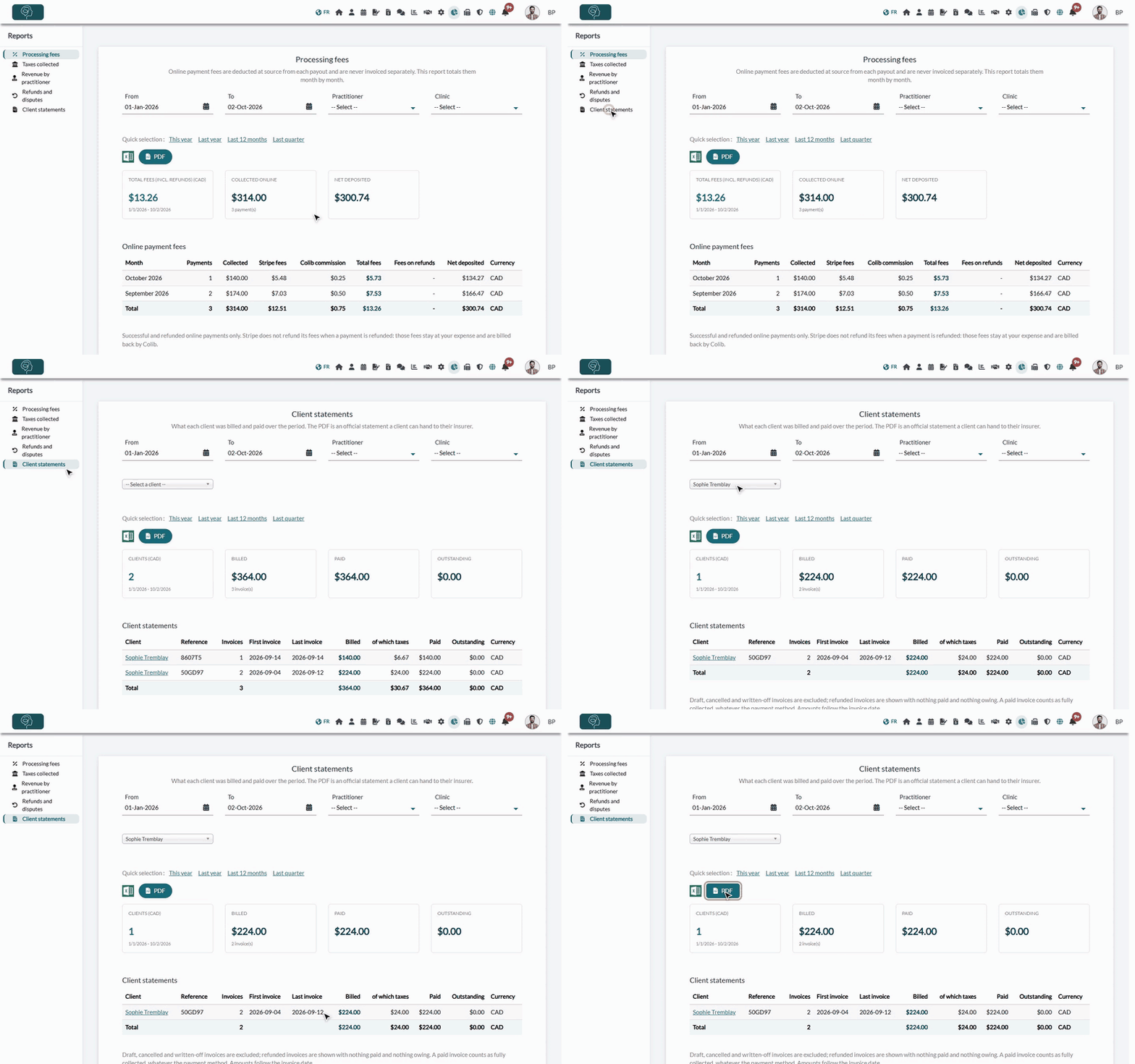
- Go to www.colib.io/reports?show=statements. You can also click the Reports icon (pie chart) in the top bar, then Client statements in the menu on the left.
- Without a client selected, the report lists every client billed over the period, with their totals.
2Choose the period and the client
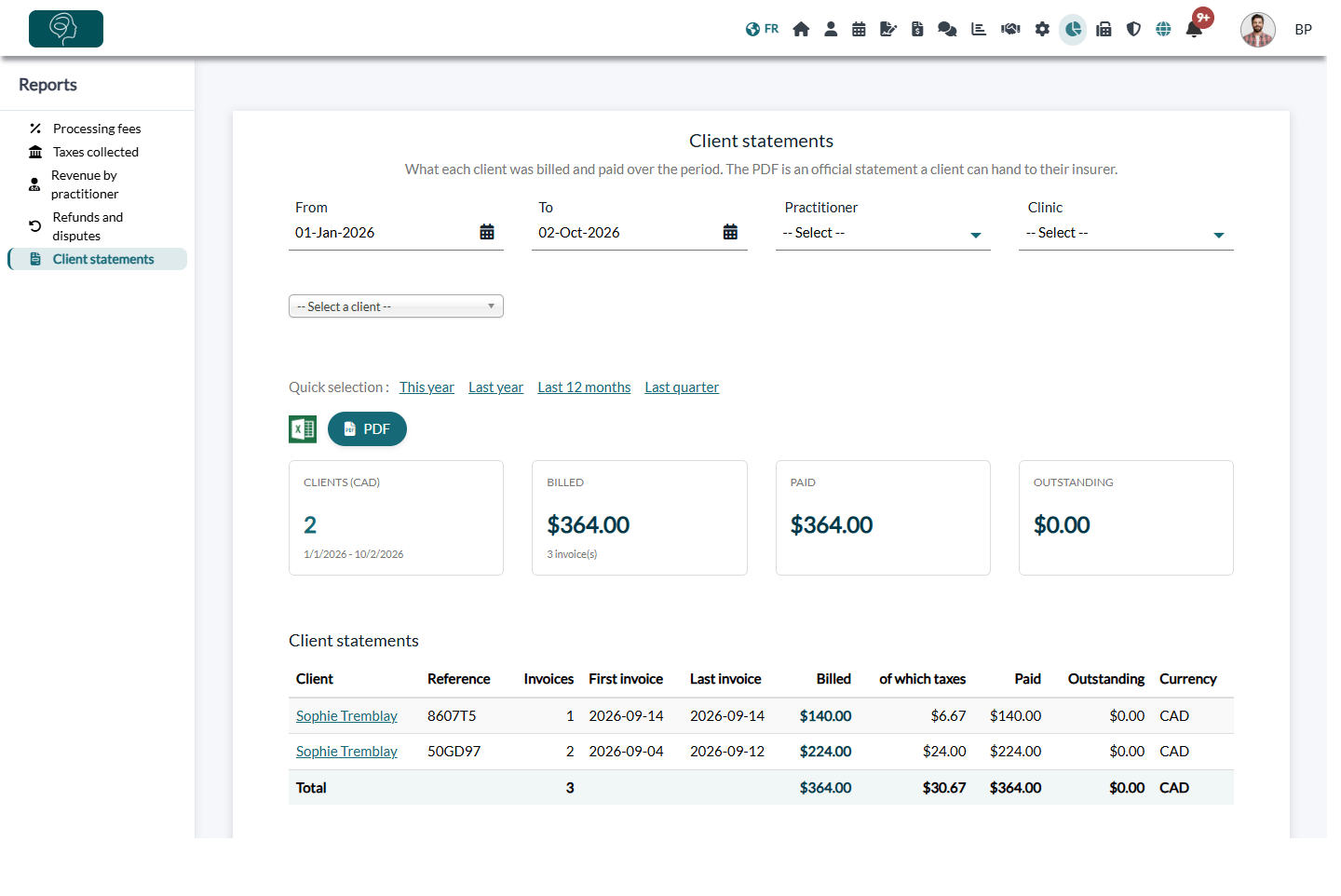
- Set the period with From and To, or a Quick selection link. For an annual statement, click Last year. By default, the period runs from January 1 of the current year to today.
- Click -- Select a client --, start typing the client's name, then click it in the list.
- The report now shows this client only: number of invoices, dates of the first and last invoice, amount billed (and the taxes included), amount paid and amount outstanding.
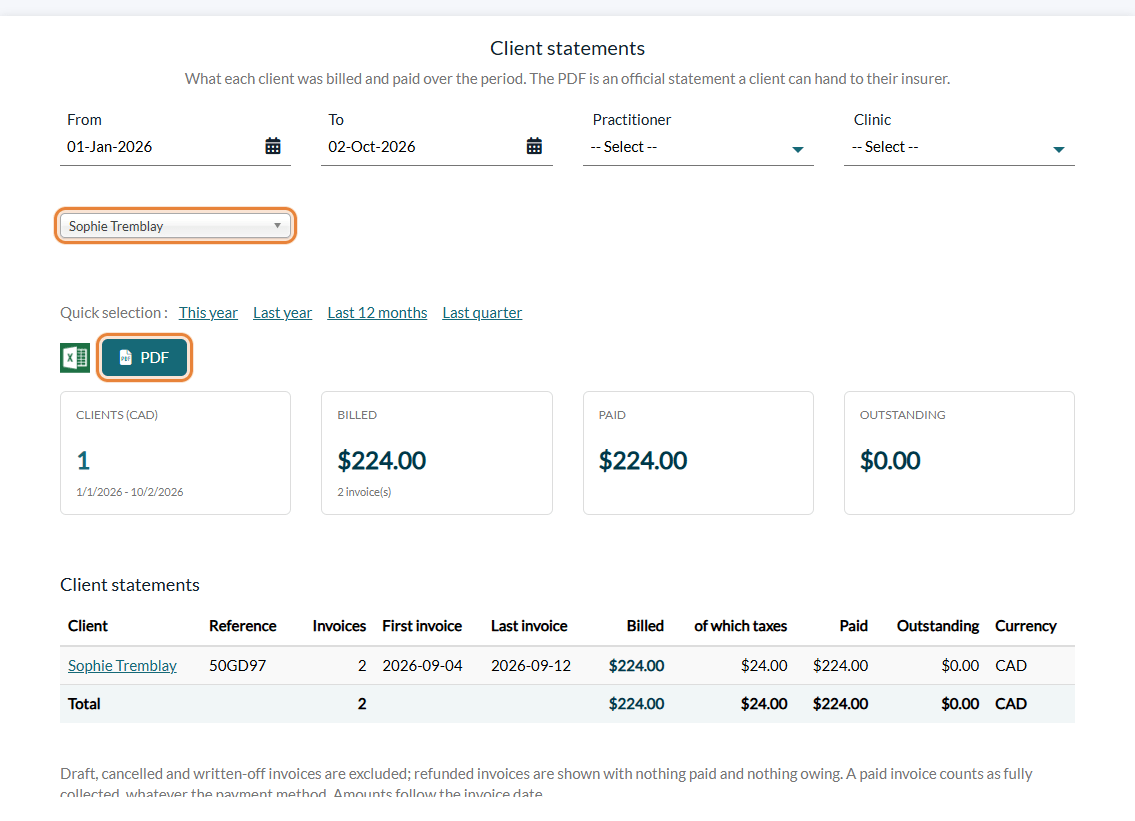
You can also narrow the report with the Practitioner filter (and Clinic if your practice has several clinics), for example for a statement of the sessions with one practitioner only.
3Download the PDF statement
- Click PDF. The statement is downloaded to your computer.
- Send it to your client, for example by sharing it as a document in their client portal (see How to share a document with a client).
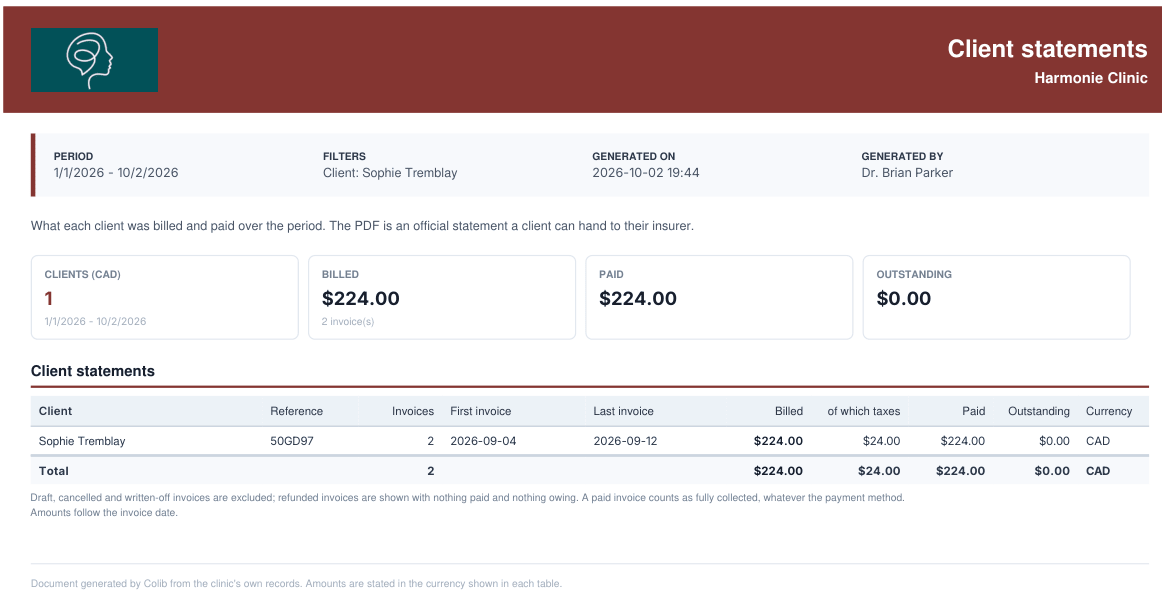
The PDF shows your logo and practice name, the period, the client (filter applied), the date it was issued and who issued it, the totals and the statement table.
Prefer a spreadsheet? The Excel icon next to it downloads the same report as an Excel file.
What the statement counts
- Invoice date — amounts follow the date of the invoice, not the date of the payment.
- Paid invoices — an invoice with a paid status counts as fully paid, whatever the payment method.
- Excluded invoices — draft, cancelled and written-off invoices are not counted. Refunded invoices are shown with nothing paid and nothing outstanding.
- Several currencies — if a client was billed in more than one currency, each currency has its own line.
Good to know
- Totals, not the invoice detail — the statement gives the totals of the period. If the insurer needs each session, send the receipts of the invoices: see How to create and send an invoice or a receipt
- Clients you can see — the client list only offers the clients whose financial information you are allowed to see.
- Traceability — when you display or download the statement of a client, it is recorded in your activity log.
Still have a question?
Write to us at support@colib.io, we will be happy to help.
Was this article helpful?
That’s Great!
Thank you for your feedback
Sorry! We couldn't be helpful
Thank you for your feedback
Feedback sent
We appreciate your effort and will try to fix the article