Who is this article for?
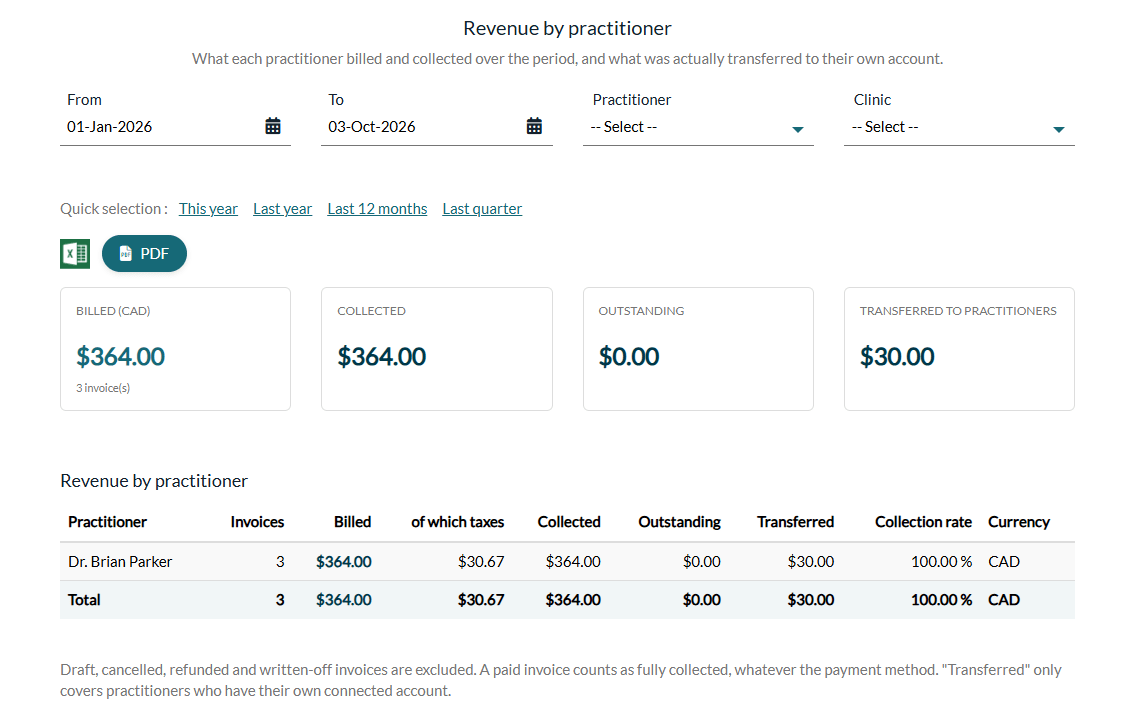
How much did each practitioner bill this quarter? How much of it has been collected, and how much is still owed? If you pay practitioners a percentage of their revenue, how much has already been transferred to them? The Revenue by practitioner report of the Reports section answers these questions for any period, and exports the answer to Excel or PDF.
Before you start: you need the Access to the Reports section right and access to the clients' financial information. For more details, please see the article titled "Who can access the Reports section and how to export a report to Excel or PDF".
1Open the Revenue by practitioner report
- Go to www.colib.io/reports?show=revenue, or click the Reports icon (pie chart) in the top bar, then Revenue by practitioner in the menu on the left.
- Choose the period with From and To or a Quick selection (This year, Last year, Last 12 months, Last quarter). By default, the report covers January 1 of the current year to today.
- To look at one practitioner only, choose them in Practitioner. If your practice has several clinics, the Clinic filter keeps only the invoices of one clinic: use it to compare your clinics one by one.
2Read the table
The table has one line per practitioner (in alphabetical order), then a Total line. Each invoice counts for the practitioner chosen on the invoice; invoices without a practitioner are grouped on a No practitioner line.
| Column | Meaning |
|---|---|
| Invoices | Number of invoices of the practitioner over the period. |
| Billed | Total of those invoices, taxes included. |
| of which taxes | The part of Billed that is taxes. Subtract it to get the revenue before taxes. |
| Collected | What has been paid on those invoices (see below). |
| Outstanding | Billed − Collected. Shown in orange when something is still owed. |
| Transferred | For practitioners who have their own bank account connected for online payments: what was actually transferred to the practitioners' own accounts from the online payments of these invoices (transfers cancelled since are not counted). It is the real amount received, not a theoretical split. The difference with Collected is what stayed with the practice. |
| Collection rate | Collected ÷ Billed, as a percentage. |
| Currency | A practitioner who bills in several currencies has one line per currency. |
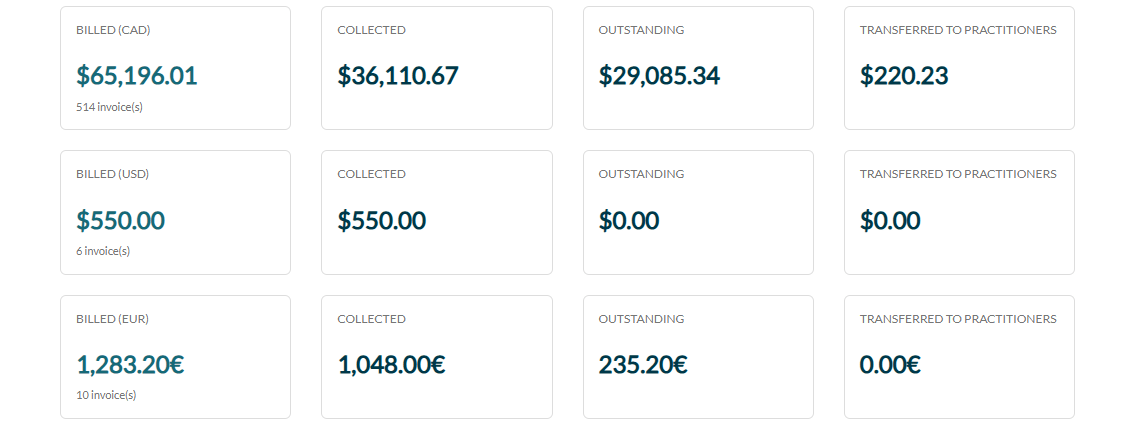
Above the table, four cards give the totals of the period: Billed (with the currency in brackets and the number of invoices), Collected, Outstanding and Transferred to practitioners. If you bill in several currencies, each currency has its own row of cards: amounts are never added across currencies.
What counts as revenue
- The invoice date, not the payment date — the report takes the invoices dated within the period. An invoice issued in August and paid in September counts in August, and the payment received in September appears in its Collected column. The date of the payment does not matter here.
- Invoices left out — draft, cancelled, refunded and written-off invoices are excluded: they are neither revenue nor an amount owed.
- The status decides what is collected — an invoice with a paid status counts as fully collected, whatever the payment method (online, cash, cheque, Interac, etc.). An unpaid invoice counts for nothing collected. For a partially paid, in progress or on hold invoice, the report uses the amount already paid recorded on the invoice.
- Refunded invoices — the grey note under the table tells you how many refunded invoices were excluded and for what amount. This is exactly the gap with the Client statements report, which keeps them (with nothing paid and nothing owing). For more details, please see the article titled "How to produce an account statement for a client".
3Export the report
Click the Excel icon (Export to Excel) or PDF (Download the PDF report). The file uses the period and the filters displayed and shows exactly the same figures; when a practitioner or a clinic is selected, the PDF names it in its filters.
Good to know
- Each person sees their own scope — a team member without the Ability to see other practitioners information only sees their own line, and the Practitioner list only offers them. The report also leaves out the clients whose financial information the user cannot see.
- Analytics or Reports? — the Analytics dashboard shows trends in charts, in Canadian dollars only (please see the article titled "How to read the Analytics dashboard"). The Reports section gives exact figures in every currency, ready to export.
- No data? — No data over this period. means that no invoice matches the period and the filters.
- Related article — for an overview of the six reports, please see the article titled "How to use the Reports section".
Still have a question?
Write to us at support@colib.io, we will be happy to help.
Was this article helpful?
That’s Great!
Thank you for your feedback
Sorry! We couldn't be helpful
Thank you for your feedback
Feedback sent
We appreciate your effort and will try to fix the article