Who is this article for?
The Reports section shows the financial figures of your practice: fees, taxes, revenue, refunds, client statements. This article is for administrators who decide which team members can open it, and for everyone who exports a report for an accountant or a client: what the Excel and PDF files contain, and what each person is allowed to see.
To discover the reports themselves, please see the article titled "How to use the Reports section".
Who can open the Reports section
A team member sees the Reports icon (pie chart) in the top bar, and can open www.colib.io/reports, when both conditions are met:
- the Access to the Reports section right is turned on in their team member settings;
- their Access level to the client's financial information is View only or Create-Edit-Delete, not None: a report shows amounts.
Without them, the icon is hidden and a direct link to the section brings the person back to the home page.
Email address not confirmed? Instead of the reports, the section then shows You need to confirm your email address to view your reports. Click Click here to receive a new confirmation email and follow the link in the email.
1Give a team member access to the reports
You need to be allowed to edit the team members of your practice.
- Go to Settings > Team (www.colib.io/settings?show=team).
- On the line of the team member, click the pencil icon (Edit team member).
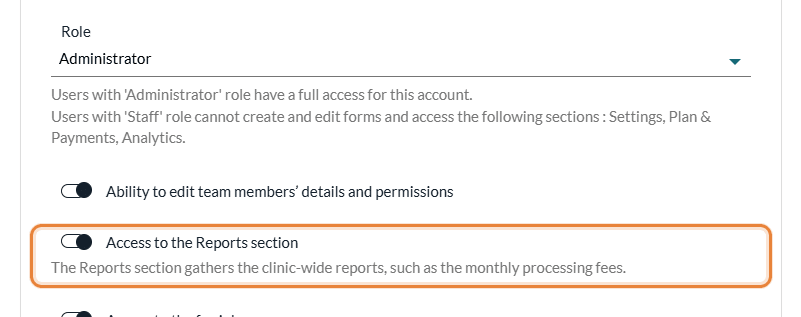
- Turn on Access to the Reports section, under the role.
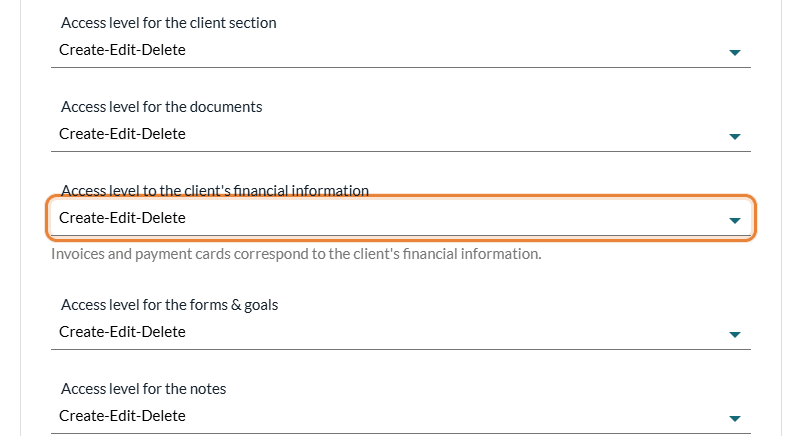
- Further down, check the Access level to the client's financial information: it must be View only or Create-Edit-Delete.
- Click Save.
To take the access away, turn the switch off and save. The right can be given to a team member who does not manage the team, for example the person who does your bookkeeping.
What each person sees
Opening the section does not give access to every figure. Each report is limited to what the person may see elsewhere in Colib:
- Clients — the reports only count the invoices and payments of the clients whose financial information the person can see. The Client statements report only offers those clients.
- Practitioners — without the Ability to see other practitioners information, a team member only sees the figures of their own invoices, and the Practitioner filter only offers their own name.
- Clinics — in a practice with several clinics, the Clinic filter only offers the clinics the team member is attached to.
- Colib invoices — the table of the invoices Colib sent to the practice, in the Processing fees report, is only shown to users with the Administrator role.
More about rights: What are the different levels of rights/options for the members of my practice? and, for several clinics, How does creating multiple clinics affect practitioners' rights?
2Export a report
- Open the report and set the period and the filters you want: the export always uses what is displayed.
- Click the Excel icon (Export to Excel) or the PDF button (Download the PDF report), above the summary cards. The file downloads right away.
The file name starts with the date of the day, followed by the name of your practice and the name of the report, so you can find it again a year later.
What the Excel file contains
- One sheet per table of the report (for example Detail and Monthly for the refunds).
- A heading on each sheet — the name of the report, your practice, the period, the filters applied and the name of the table, so a sheet never loses its context.
- Real numbers — amounts and counts are numbers, not text: your accountant can add them up or reuse them in formulas. Column headers use your theme color, totals are in bold and outstanding amounts in orange, as on the screen.
- The note of each table (what is counted) is repeated under it.
What the PDF contains
The PDF is a landscape document meant to be handed over as is:
- Your identity — your logo (the Colib logo if you have none), your theme color, the name of your practice and the title of the report.
- Four details — Period, Filters (None when no filter is applied), Generated on (date and time) and Generated by (your name). A report filtered on one practitioner can never pass for the report of the whole practice.
- The content of the screen — the introduction, the summary cards, every table and its note.
- A footer stating that the document was generated by Colib from your practice's own records, and that amounts are stated in the currency shown in each table.
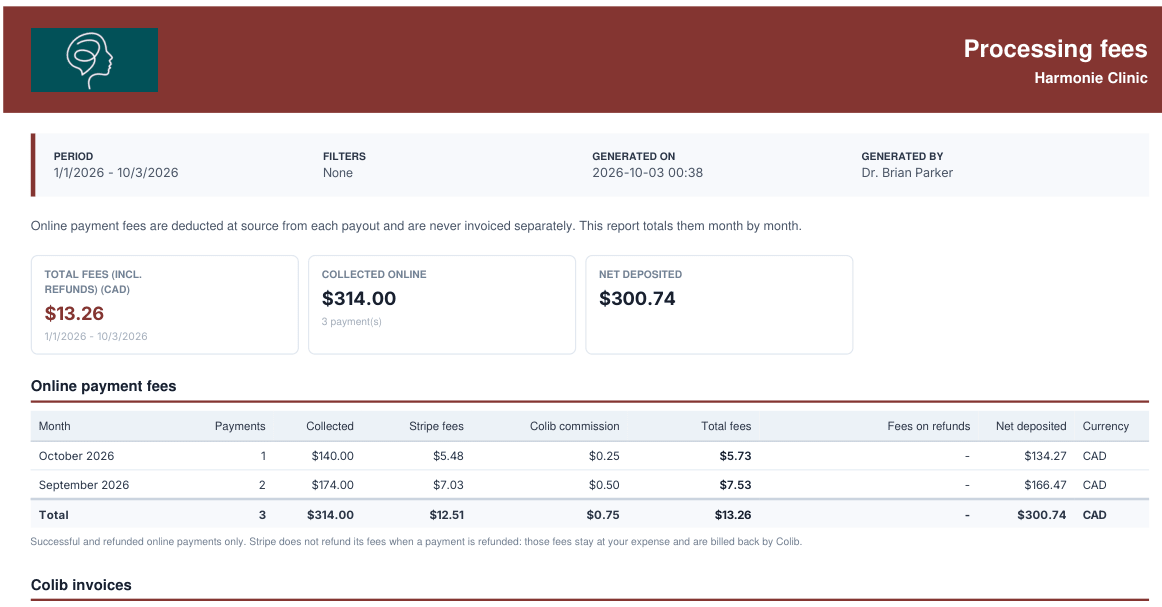
Same figures everywhere: the screen, the Excel file and the PDF are built from the same calculation. A figure you see on screen is, to the cent, the one in the files.
Your logo and your theme color are set in Settings > General (www.colib.io/settings?show=general), under Logo and Theme color (hexadecimal code).
Good to know
- Language of the reports — the titles, columns and notes of the reports, on screen and in the files, follow the Language of your Profile (www.colib.io/myprofile), whatever the language of the screen.
- Traceability — each report displayed, each change of filter and each file downloaded is recorded in your activity log. See How to access the activity log (audit log)
- Already turned on for some members — when the Reports section was introduced, the right was turned on for the team members who had the Ability to edit team members’ details and permissions. Check the other members one by one.
- The reports — each report has its own article: see How to export a report of payment provider fees and payment taxes for the Processing fees report, and please see the article titled "How to read the Taxes collected report", the article titled "How to read the Revenue by practitioner report", the article titled "How to read the Deferred revenue report", the article titled "How to read the Refunds and disputes report" and the article titled "How to produce an account statement for a client".
Still have a question?
Write to us at support@colib.io, we will be happy to help.
Was this article helpful?
That’s Great!
Thank you for your feedback
Sorry! We couldn't be helpful
Thank you for your feedback
Feedback sent
We appreciate your effort and will try to fix the article