Who is this article for?
Every invoice Colib creates gets a number, your logo and the texts you chose: a line at the top, notes or terms, a footer. You set all of this once, for the whole practice, in Settings > Invoices.
This article explains how to choose the invoice numbering (yearly sequence, yearly sequence per practitioner or random), the other options of the General section, the texts of the Invoice content and appearance section, and where the logo printed on your invoices comes from. It covers the Numbering, Logo, QuickBooks and Excel Export feature presented on our Billing & Payments page.
Before you start: these settings are in Settings > Invoices (www.colib.io/settings?show=invoices). You need access to the practice settings to change them. They apply to the invoices created after you save them.
1Choose the invoice numbering
- Go to www.colib.io/settings?show=invoices. You can also click the Settings icon (gear) in the top bar, then Invoices in the Admin menu on the left.
- Open the General section.
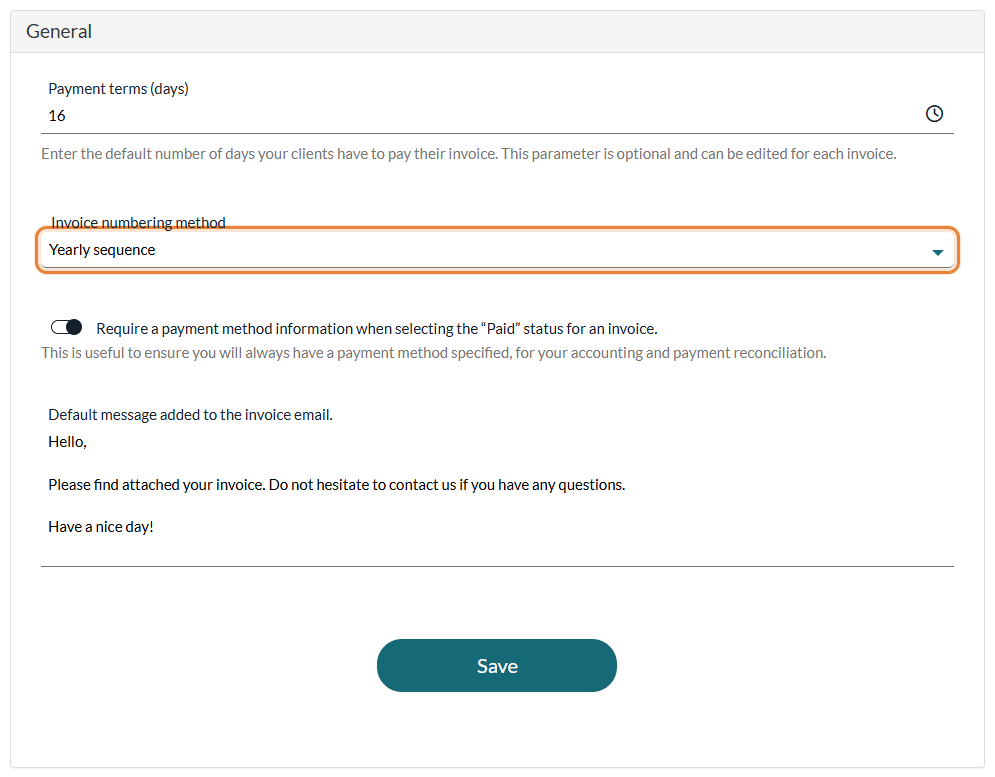
- In Invoice numbering method, choose Yearly sequence, Yearly sequence per practitioner or Random (see the table below).
- Click Save.
| Numbering method | What the numbers look like | When to choose it |
|---|---|---|
| Yearly sequence | The year, then a number that goes up by one for each new invoice of the practice: 2026-1, 2026-2, 2026-3... The count starts again at 1 with the first invoice created in a new year (2027-1). This is the method of a new account. | You want one continuous series of numbers for the whole practice, easy to follow in your accounting. |
| Yearly sequence per practitioner | The initials of the practitioner of the invoice (taken from their first and last name), the year, then a number: MT-2026-1, MT-2026-2... Each practitioner has their own series, which also starts again at 1 each year. | Each practitioner keeps their own accounting, or you share revenue and want to see at a glance whose invoice it is. |
| Random | A unique code of 8 letters and digits, for example K7Q2M9XA. | You do not want the number to show how many invoices your practice issues. |
The number is given when the invoice is created, by hand or automatically, even while it is still a draft. With Yearly sequence per practitioner, the practitioner is the one assigned to the invoice: see How to customize invoices for each practitioner in my clinic to know how Colib chooses them.
Important: changing the numbering method only applies to the invoices created afterwards. The invoices already created keep their number. If you come back to Yearly sequence (or Yearly sequence per practitioner) later, the series continues from the last number given with that method, in the same year.
You can still change the number of a given invoice: open it and edit its Reference field, then save. This does not change the numbers given to the next invoices.
2Set the other options of the General section
- Payment terms (days) — the number of days your clients have to pay, used to fill in the due date of each new invoice. Please see the article titled "How to set the default payment terms of your invoices".
- Require a payment method information when selecting the “Paid” status for an invoice. — when this option is on, an invoice cannot be set to Paid without a payment method: Colib shows Please enter a payment method. until one is chosen. This keeps your accounting and your payment reconciliation complete.
- Default message added to the invoice email. — the text added to the email that sends an invoice to your client. When you send an invoice yourself, it fills in the optional message of the confirmation window, where you can still change it for that email. It is also added to the invoices sent automatically.
Click Save at the bottom of the section.
3Set the content and appearance of your invoices
- In www.colib.io/settings?show=invoices, open the Invoice content and appearance section.
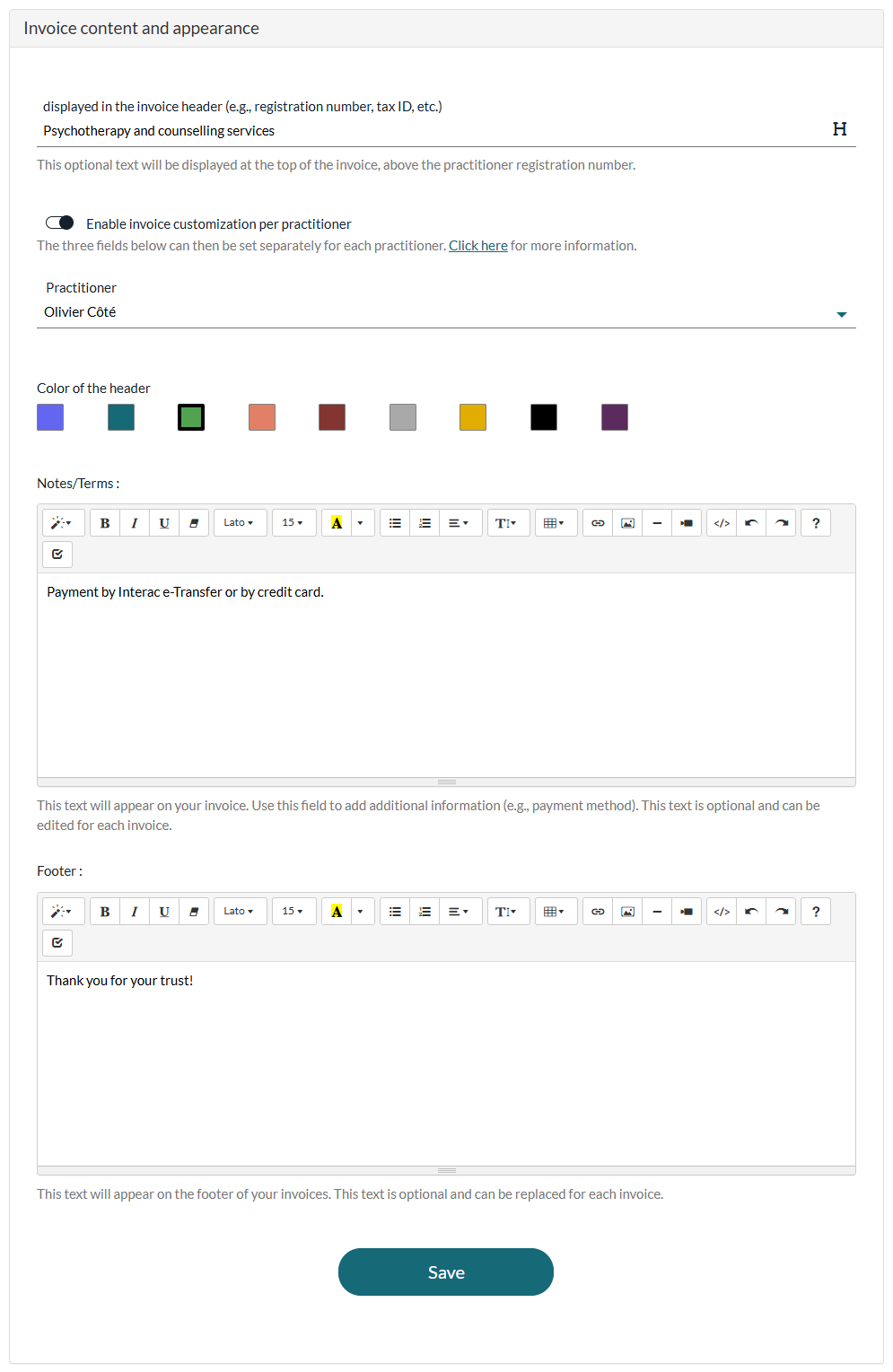
- Fill in the fields you need (see the table below). They are all optional.
- Click Save.
| Field | Where it appears on the invoice |
|---|---|
| Additional line displayed in the invoice header (e.g., registration number, tax ID, etc.) | One line, in bold, at the top of every invoice, above the practitioner registration number. It is the same for the whole practice. |
| Color of the header | The colour of the header of the invoice. Click a colour of the palette. |
| Notes/Terms | A text shown on the invoice, for example the payment methods you accept. It can be formatted, and changed on each invoice. |
| Footer | A text shown at the bottom of the invoice. It can be formatted, and replaced on each invoice. |
The Notes/Terms and the Footer are copied into each new invoice: the invoices already created keep their texts when you change these settings.
Enable invoice customization per practitioner — in a clinic with several practitioners, turn on this option to set the Color of the header, the Notes/Terms and the Footer separately for each practitioner: choose the practitioner in the Practitioner list, set their fields and click Save before moving on to the next one. See How to customize invoices for each practitioner in my clinic.
Your logo and contact details on every invoice
The logo printed at the top of every invoice and receipt (PDF) is the logo of your practice, set in Settings > General (www.colib.io/settings?show=general). There is no separate logo for invoices: change it there, and the next invoices use the new logo. If no logo is set, the invoice is printed without one.
The name, email address, phone number and address of your practice are printed automatically too. If you have several clinics, the details of the clinic of the invoice are used when they are filled in. To set your logo and your contact details, please see the article titled "How to set up your practice information (logo, contact details, address, opening hours)".
Good to know
- QuickBooks and Excel export — to send your invoices to QuickBooks or to an Excel file, see How to import your Colib invoices into QuickBooks.
- Default payment terms — please see the article titled "How to set the default payment terms of your invoices".
- Default taxes — the Taxes section of the same page sets the taxes added to your invoices. See How to update the default taxes for my invoices.
- Practitioner registration number — the licence number shown at the top of the invoice comes from the practitioner of the invoice, or from the practice when the practitioner has none. See How to customize invoices for each practitioner in my clinic.
- Create and send invoices — see How to create and send an invoice or a receipt and Invoices and receipts: how does it work?
- Feature overview — for an overview of invoicing and payments in Colib, see the Billing & Payments page.
Still have a question?
Write to us at support@colib.io, we will be happy to help.
Was this article helpful?
That’s Great!
Thank you for your feedback
Sorry! We couldn't be helpful
Thank you for your feedback
Feedback sent
We appreciate your effort and will try to fix the article