Who is this article for?
You are getting started with invoicing in Colib and want to understand how it works: what an invoice and a receipt are, how to create and send them, how your clients can pay, and what Colib can do automatically for you. Each section links to the detailed article.
Invoice or receipt?
- Invoice — the document you send to ask the client to pay. It shows the items (appointments, products, other fees), the taxes, the amount due and the due date.
- Receipt — the same document once the invoice is paid. It is titled RECEIPT and shows the payment date and the payment method. Your clients use it for their insurance claims.
In other words, you never create a receipt separately: you mark the invoice as paid (or the client pays it online) and the receipt is ready to be sent.
Create an invoice
Colib fills in the invoice for you with the client, the date and the price of the appointment type. You can start an invoice:
- from an appointment in the Scheduler, with More actions > Create invoice;
- from the Appointments tab of the client record;
- from the Invoices page (www.colib.io/invoices), with Create Invoice;
- for several appointments of the same client at once (one grouped invoice).
Step by step: How to create and send an invoice or a receipt and How to create one invoice for several appointments.
Follow your invoices
All your invoices are on the Invoices page (www.colib.io/invoices). You can search them by date, status, practitioner or client, change their status, send them, and export them to Excel or QuickBooks. The invoices of a client are also in the Billing tab of their record.
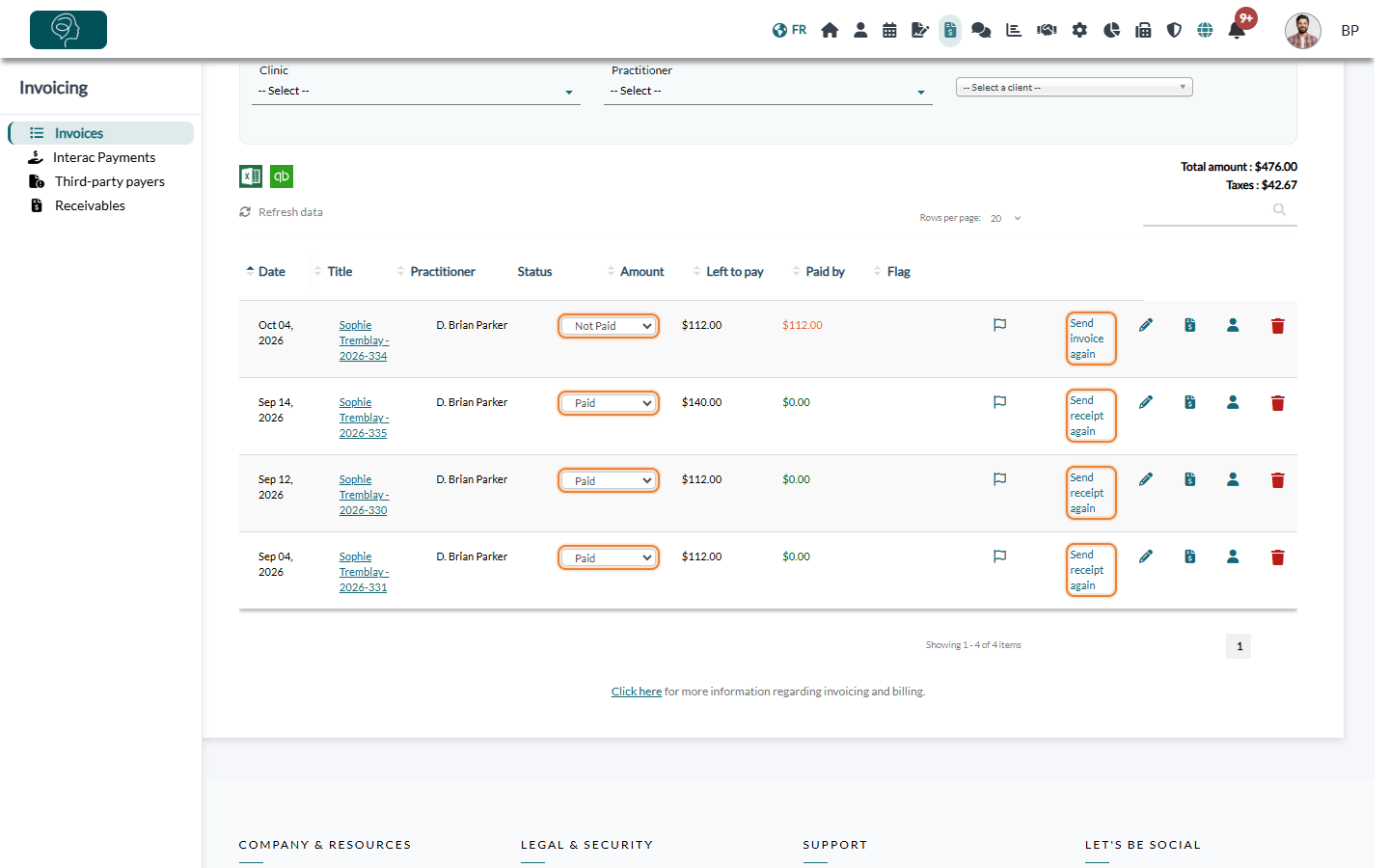
| Status | What it means |
|---|---|
| Not Paid | Status of a new invoice: the client has not paid yet. |
| In progress / On hold | For your own follow-up, for example a payment announced by the client or an invoice to review. |
| Partially paid | The client paid part of the amount. Colib asks you for the amount received. |
| Paid | The invoice is paid: the document becomes a receipt. |
| Refunded | Displayed when the online payment of the invoice has been refunded. |
| Cancelled / Written off | The invoice is no longer due, or you will not collect it. |
The Overdue choice of the Status filter helps you find the invoices that are overdue. More details: How to change the status of an invoice.
How your clients pay
- They pay you directly (cash, e-Transfer, card terminal...): you mark the invoice as paid and send the receipt. You can send the receipt again later at any time.
- They pay online: when online payments are enabled, a Pay button can be added to the invoice emails and to the client portal. See How do I activate the online payment system on Colib?
- You charge their saved card: the client gives their card once (when booking online, by a secure link sent by email, or to you directly), then you charge it in one click and Colib sends the receipt. See How to ask a client for their payment information and How to charge a client's saved credit card.
Tip: saving a card does not charge the client. Collecting the card with your cancellation policy at booking costs you nothing, helps reduce no-shows, and lets you charge the client only when needed: a no-show, a late cancellation, or a client who did not get the chance to pay by themselves. See How to charge no-shows and late cancellation appointments.
Let Colib do it automatically
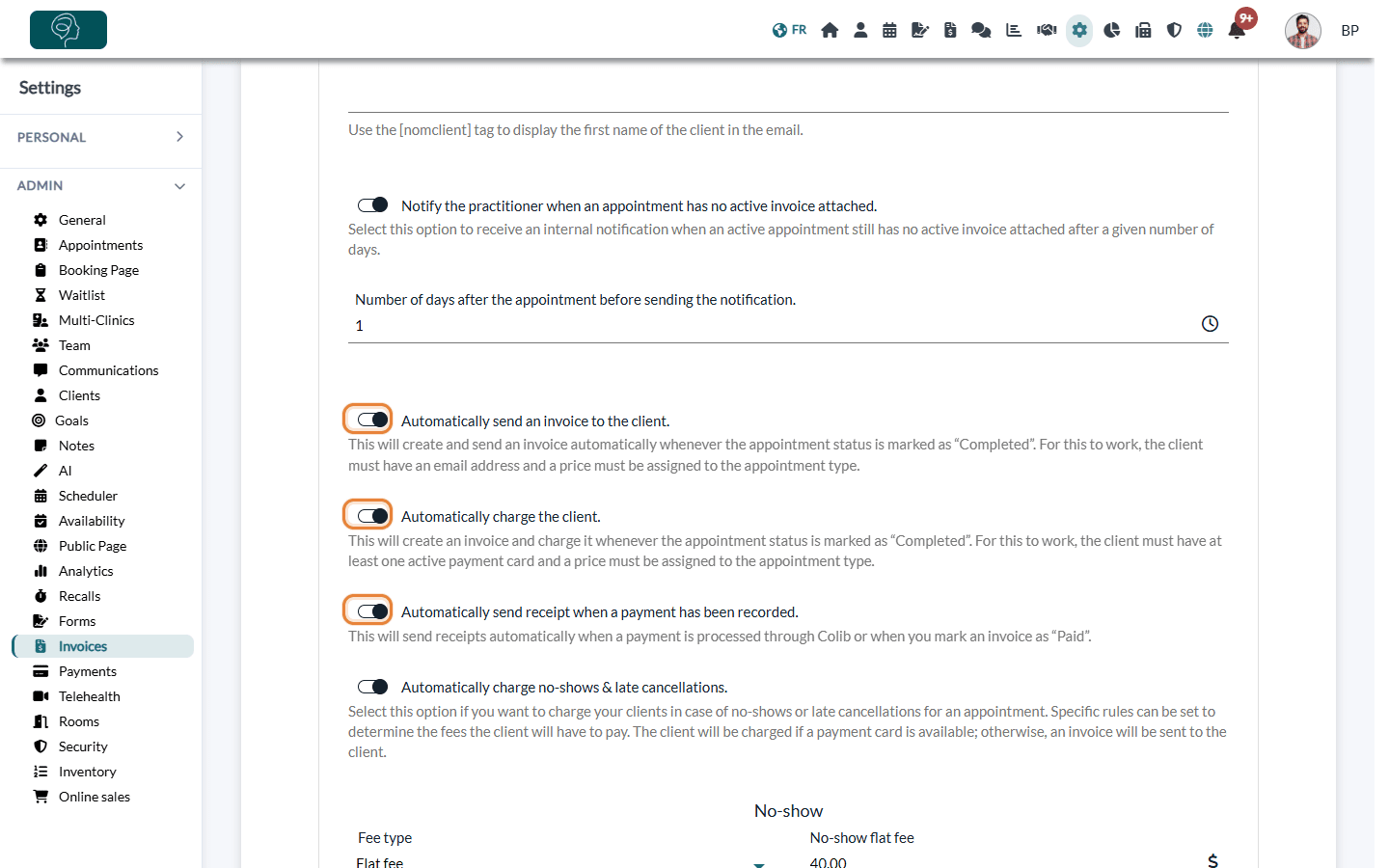
In Settings > Invoices (www.colib.io/settings?show=invoices), the Automation section lets you:
- Automatically send an invoice to the client. — when an appointment is marked as completed (the client needs an email address and the appointment type a price);
- Automatically charge the client. — when an appointment is marked as completed (the client needs an active payment card and the appointment type a price);
- Automatically send receipt when a payment has been recorded. — when a payment is processed through Colib or when you mark an invoice as paid;
- send payment reminders for unpaid invoices (How to automate invoice payment reminders);
- be notified when an appointment still has no invoice (How to get notified when an appointment has no invoice attached);
- charge no-shows and late cancellations.
To exclude some clients from these automations, see How to skip invoicing automation for specific clients.
Control what your clients receive and see
You decide which billing documents reach your clients. Colib sends invoices, receipts and payment reminders by email only: nothing is ever mailed on paper.
- Nothing is sent without you — an invoice or a receipt is emailed only when you click to send it, or when one of the automations of Settings > Invoices, section Automation (www.colib.io/settings?show=invoices) is turned on: Automatically send an invoice to the client., Automatically send receipt when a payment has been recorded. and Automatically send a reminder if an invoice sent to a client has not been paid. Turn them off to send everything yourself.
- For some clients only — turn on Skip invoicing automation in the client record: no invoice, receipt or reminder is sent automatically to this client. See How to skip invoicing automation for specific clients.
- When you mark an invoice as paid — uncheck Send receipt to client in the window that asks for the payment method if you do not want the receipt to be sent.
In the client portal, the Invoices tab lists only the invoices and receipts that were sent by email. An invoice that you never send stays visible to your team only. The tab itself cannot be hidden, and a client sees their invoices only once their email address is confirmed. An invoice addressed to a third-party payer appears there too once it has been sent by email. Online payments made by the client and the cards they saved are visible to them in the portal (cards show only the last four digits and the expiry date): please see the article titled "How do I manage my payment cards on the client portal?".
Good to know
- Invoice settings — the other sections of Settings > Invoices set the numbering method, the default payment delay, the default taxes and the content and appearance of your invoices. See How to update the default taxes for my invoices and How to customize invoices for each practitioner in my clinic
- Language — each invoice can be issued in English or in French.
- Accounting — export your invoices to QuickBooks: How to import your Colib invoices into QuickBooks
Still have a question?
Write to us at support@colib.io, we will be happy to help.
Was this article helpful?
That’s Great!
Thank you for your feedback
Sorry! We couldn't be helpful
Thank you for your feedback
Feedback sent
We appreciate your effort and will try to fix the article