Who is this article for?
You may have turned on invoicing automations that send invoices or receipts, or charge a client automatically for your sessions (www.colib.io/settings?show=invoices). For some clients, however, you may not want these automations to apply: a client billed by an organization, a client with a special payment arrangement, a pro bono follow-up, and so on.
Colib makes this possible with the Skip invoicing automation option of the client record. This article explains how to turn it on and what it changes.
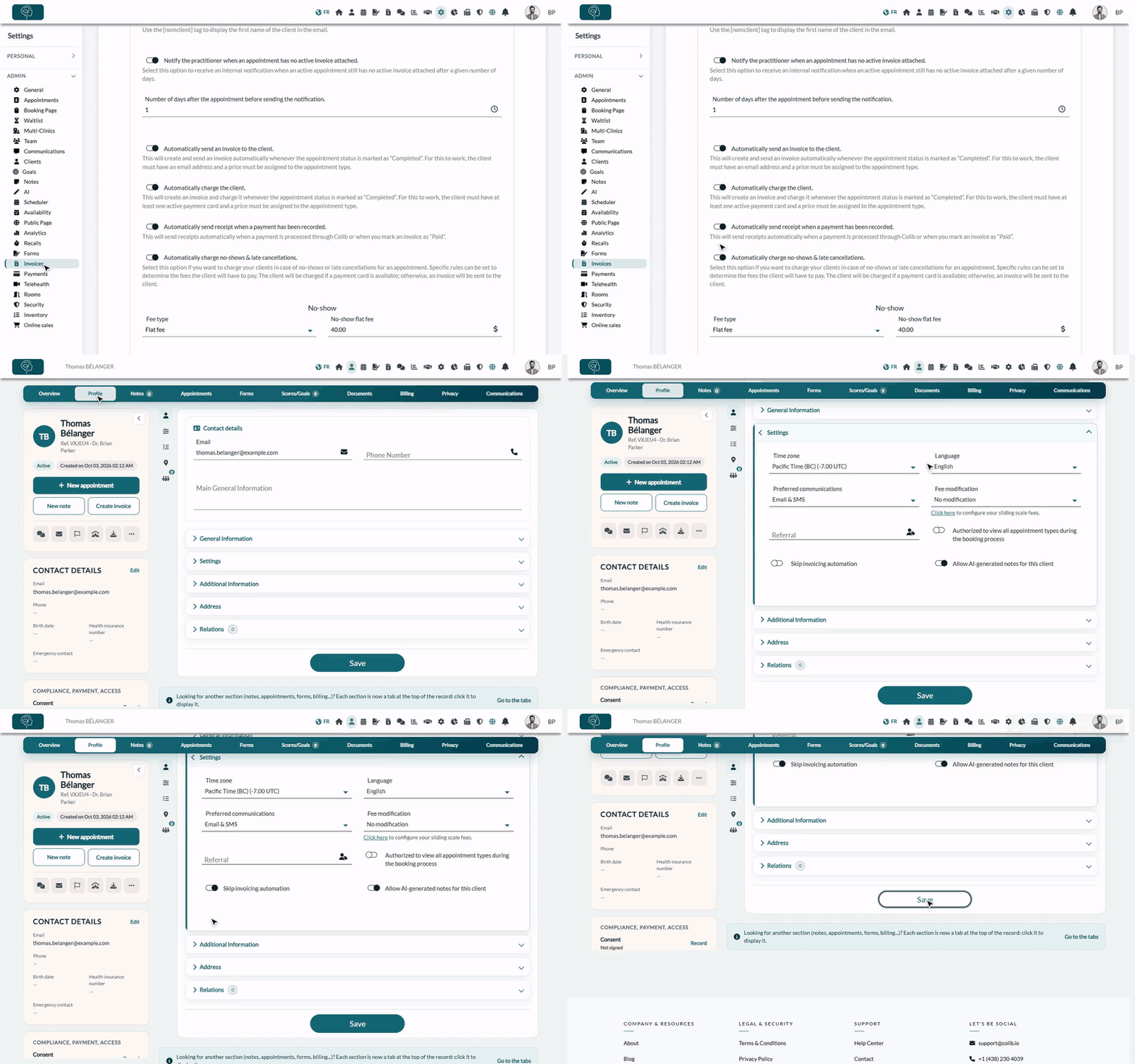
1Turn on the option in the client record
- Open the client's record from your client list (www.colib.io/clients).
- Click the Profile tab.
- Open the Settings section.
- Turn on Skip invoicing automation.
- Click the Save button at the bottom of the page.
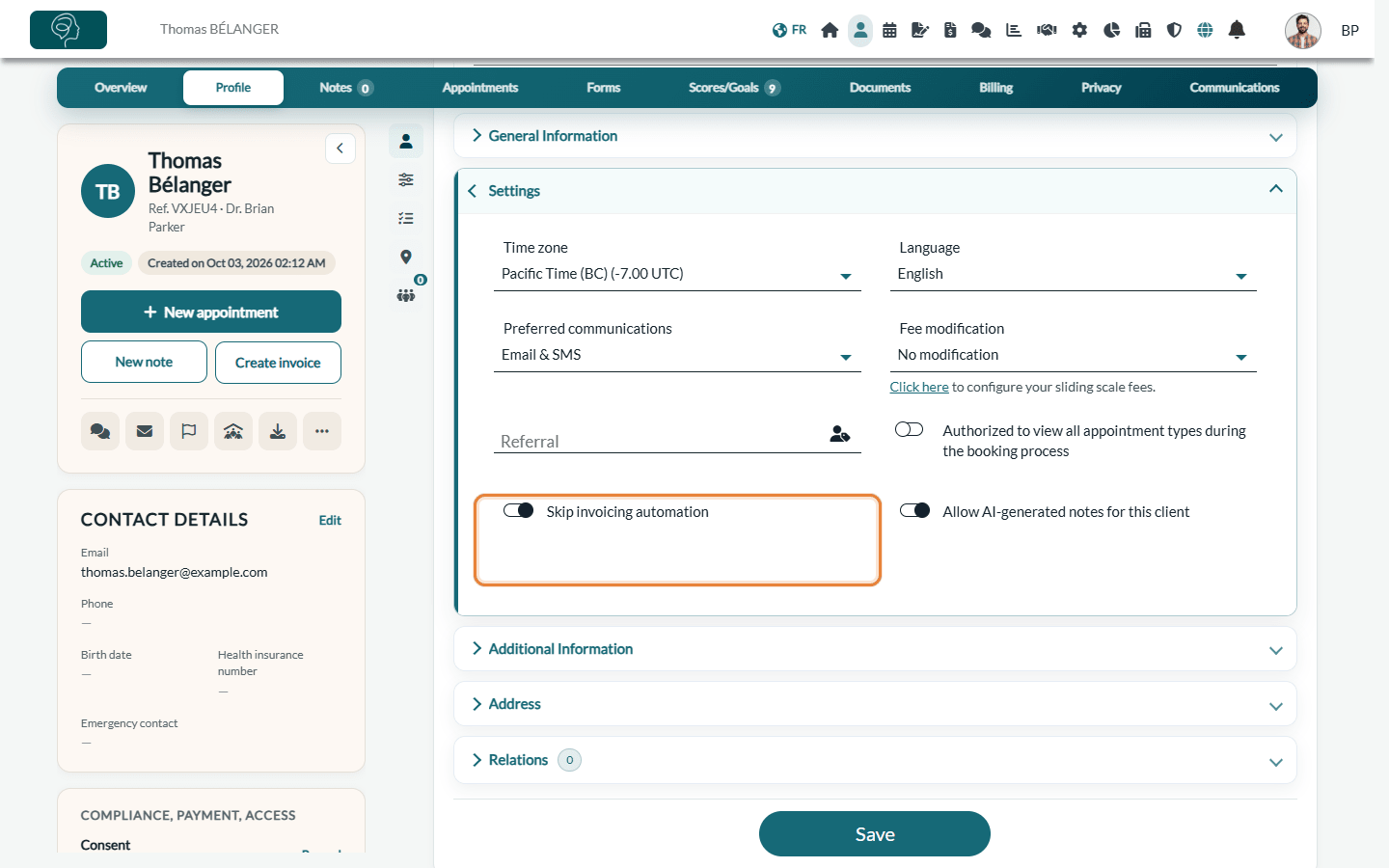
After this action, all the invoicing automations enabled in your clinic settings are ignored for this specific client. To apply them again, turn the option off and save.
2What is skipped for this client
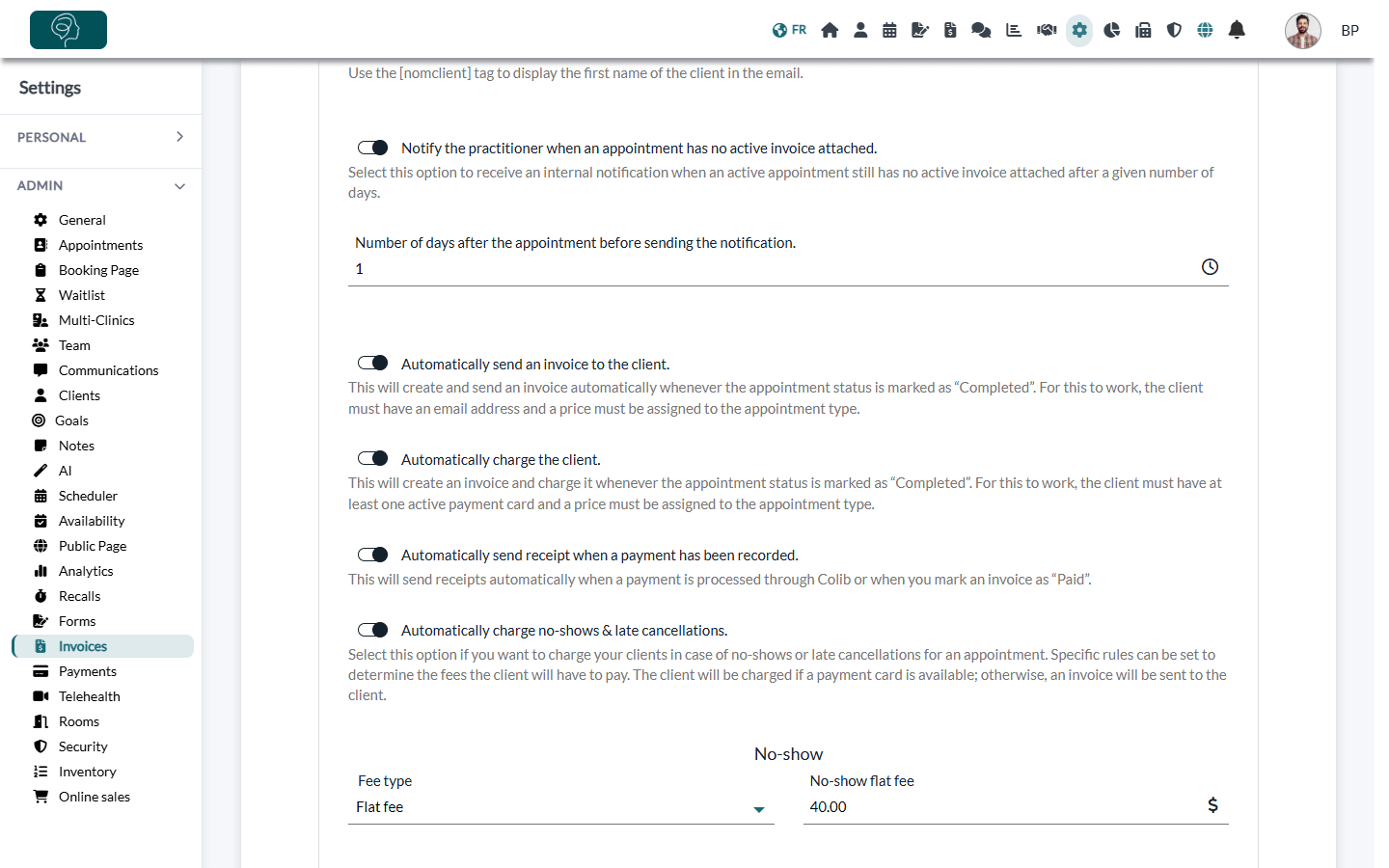
The automations are set in Settings > Invoices, section Automation (www.colib.io/settings?show=invoices). For a client with the option turned on:
| Automation in your settings | For this client |
|---|---|
| Automatically send an invoice to the client. | No invoice is created and sent when the appointment is marked Completed. |
| Automatically charge the client. | The client's card is not charged when the appointment is marked Completed. |
| Automatically charge no-shows & late cancellations. | No fee is charged or invoiced automatically for a no-show or a late cancellation. |
| Automatically send receipt when a payment has been recorded. | The receipt is not sent automatically when you mark an invoice as Paid. |
| Automatically send a reminder if an invoice sent to a client has not been paid. | No automatic payment reminder is sent to this client. |
Important: in an appointment with several clients, if at least one of them skips invoicing automation, no automation is applied to the appointment, for any of its clients.
Good to know
- You keep full control — you can still create, send and charge this client's invoices yourself, from the appointment or from www.colib.io/invoices. See How to create and send an invoice or a receipt.
- Marking an invoice as paid from the list — when Colib asks you for the payment method, the window contains a Send receipt to client box. What you choose there applies: uncheck it if you do not want this client to receive the receipt.
- Status of the appointment — the option does not prevent you from marking appointments as Completed, No-Show, Cancelled or Late-cancelled: only the invoicing automations are skipped.
- Payment reminders — see How to automate invoice payment reminders.
Still have a question?
Write to us at support@colib.io, we will be happy to help.
Was this article helpful?
That’s Great!
Thank you for your feedback
Sorry! We couldn't be helpful
Thank you for your feedback
Feedback sent
We appreciate your effort and will try to fix the article