Who is this article for?
You no longer want to create an invoice by hand after each session? Colib can do it for you: as soon as you mark an appointment as Completed, it creates the invoice and sends it to the client by email, or charges the client's saved payment card and sends the receipt.
This article explains the three invoicing automations, what you need before turning them on, and what happens when you complete an appointment.
Before you start: these options are in Settings > Invoices (www.colib.io/settings?show=invoices). You need access to the practice settings to change them. They apply to the whole practice.
1Choose your automations
- Go to www.colib.io/settings?show=invoices. You can also click the Settings icon (gear) in the top bar, then Invoices in the Admin menu on the left.
- Open the Automation section.
- Turn on the options you want (see the table below), then click Save at the bottom of the section.
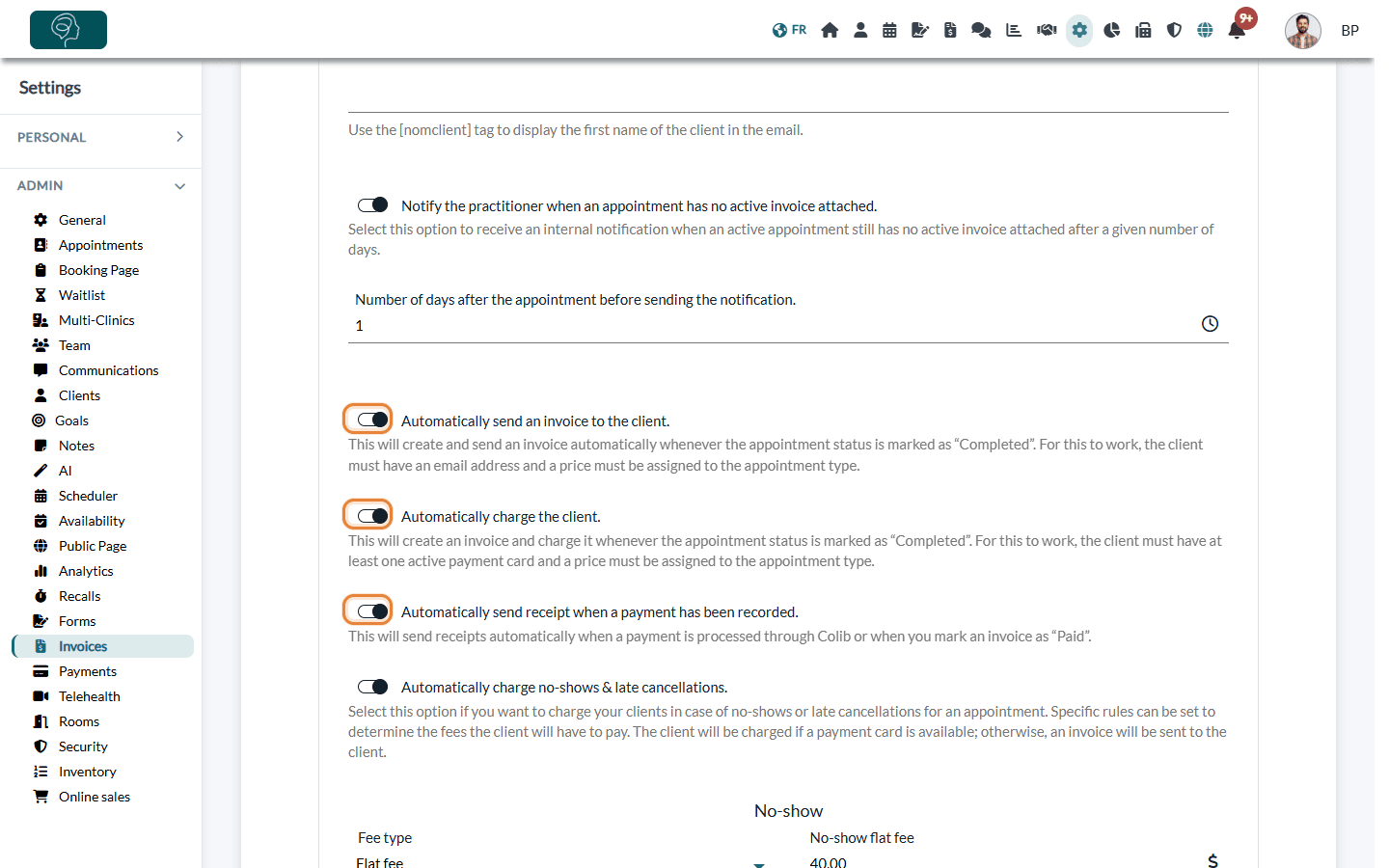
| Option | What it does | What you need |
|---|---|---|
| Automatically send an invoice to the client. | When the appointment is marked Completed, Colib creates the invoice and emails it to the client, who can pay it with the method of your choice (online payment, Interac e-Transfer, etc.). | A price on the appointment type and an email address in the client's record. |
| Automatically charge the client. | When the appointment is marked Completed, Colib creates the invoice and charges the client's saved payment card. The client receives the receipt by email. | A price on the appointment type, online payments activated (see How do I activate the online payment system on Colib?) and at least one active payment card saved for the client. |
| Automatically send receipt when a payment has been recorded. | As soon as a payment is processed through Colib or you mark an invoice as Paid, the receipt is emailed to the client. | An email address in the client's record. |
Good to know: with Automatically charge the client., if the client has no valid card or the payment fails, Colib emails the invoice to the client instead, so they can pay it.
2Check the price of your appointment types
The invoice amount comes from the price of the appointment type. Without a price, no invoice is created: Colib warns you that a price needs to be assigned to the appointment type. Prices are set on each appointment type in Settings > Appointments (www.colib.io/settings?show=appointments). See How to view, edit, duplicate and delete appointment types.
3Mark the appointment as Completed
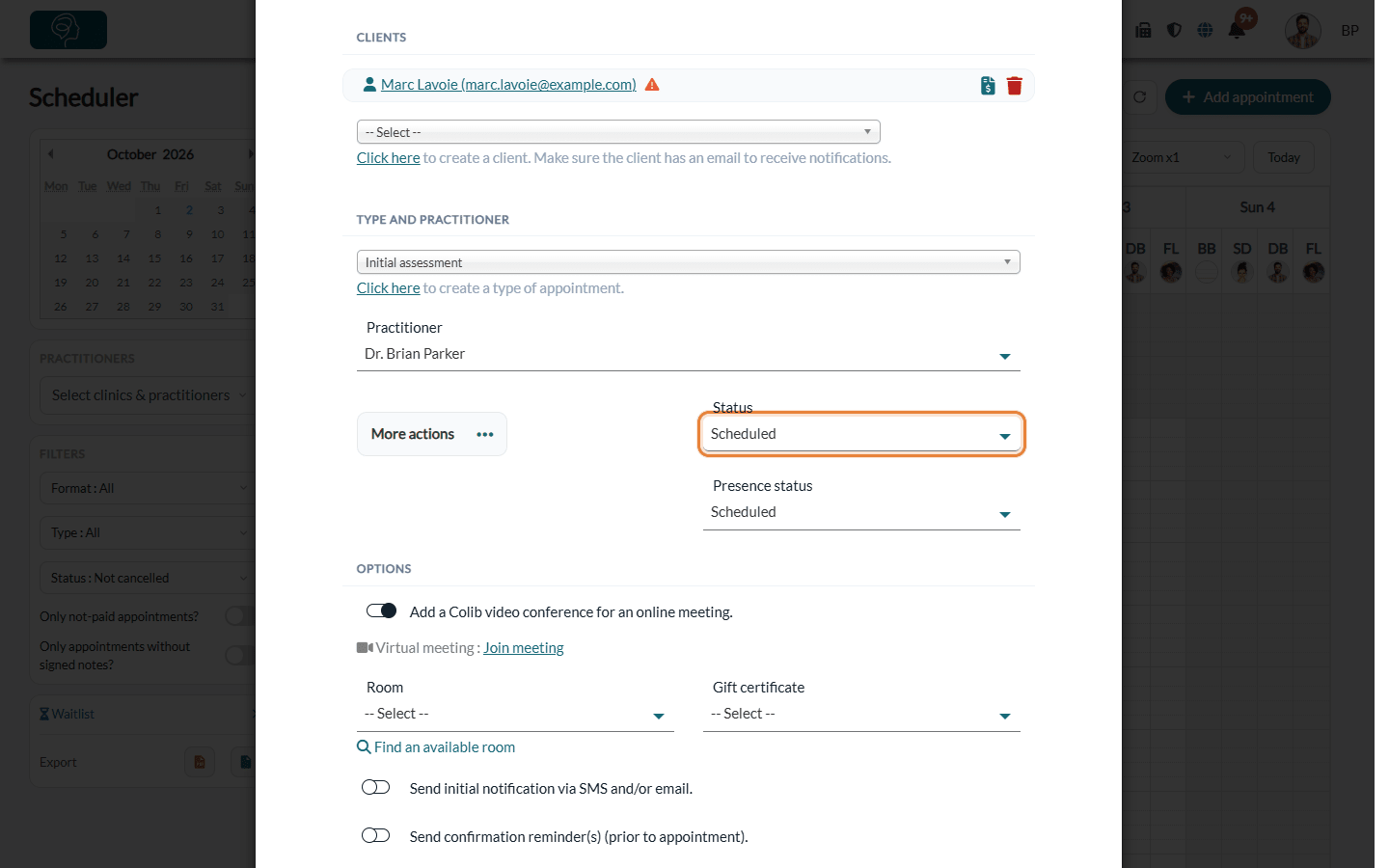
- In the Scheduler (www.colib.io/scheduler), open the appointment.
- In the Status field, choose Completed.
- A confirmation window tells you what is going to happen: The client(s) will be charged and notified or An invoice will be sent to the client(s), if the appointment has not already been paid.
- Click Yes to confirm. Click No to keep the previous status: nothing is invoiced.
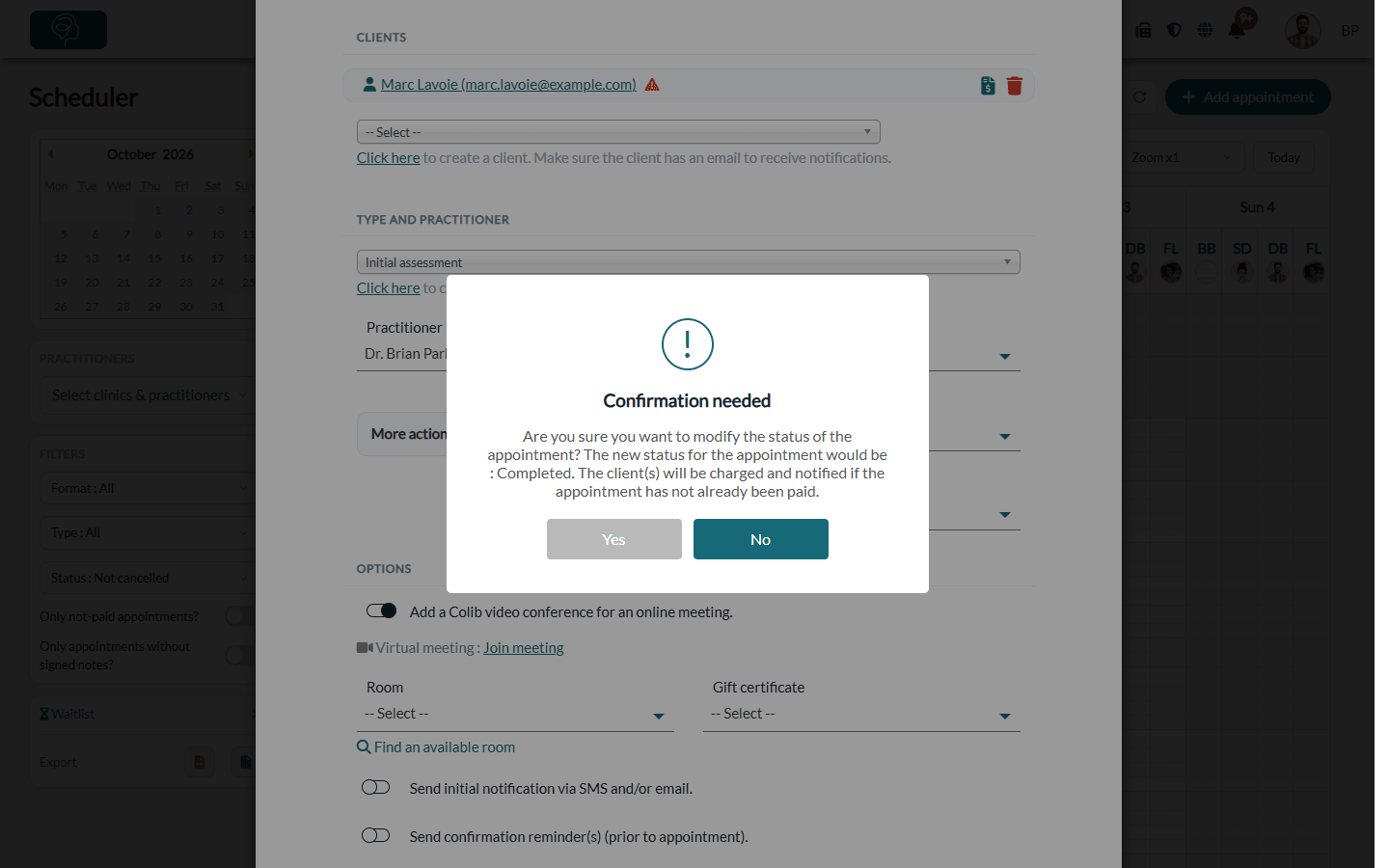
If an invoice already exists for the appointment, the confirmation window says so and offers a link to change the status without triggering invoice automation.
What Colib does next
- Already paid — if the appointment has already been paid, nothing is created, sent or charged.
- Existing unpaid invoice — if the appointment already has an unpaid invoice, Colib uses it instead of creating a new one.
- Group appointments — each participant receives their own invoice.
- Appointment with several clients (not a group) — only the default payer of the appointment is invoiced. See How to choose the payer for an appointment with multiple clients.
- Payment failed or no card — Colib tells you that the invoice could not be charged and emails the invoice to the client so they can pay it.
- No email address — the invoice is created but cannot be sent: Colib asks you to check the client's email address.
- Taxes based on the client's province — if your taxes depend on the client's province and no address is registered for a client to invoice, no invoice is created and no client is charged. Colib shows you a message.
- Appointment in the future — Colib warns you when you complete a session that has not occurred yet.
Good to know
- Exclude some clients — turn on Skip invoicing automation in a client's record: see How to skip invoicing automation for specific clients. For an appointment with several clients, nothing is automated if one of them has this option.
- Unpaid invoices — Colib can send automatic payment reminders: see How to automate invoice payment reminders.
- No-shows and late cancellations have their own automation: see How to charge no-shows and late cancellation appointments.
- Forgotten invoices — get notified when an appointment still has no invoice: see How to get notified when an appointment has no invoice attached.
- Collect the card — to charge automatically, ask your clients for their payment information: see How to request a client to enter their payment information.
- Manual invoices remain possible at any time: see How to create and send an invoice or a receipt.
Still have a question?
Write to us at support@colib.io, we will be happy to help.
Was this article helpful?
That’s Great!
Thank you for your feedback
Sorry! We couldn't be helpful
Thank you for your feedback
Feedback sent
We appreciate your effort and will try to fix the article