Who is this article for?
When the appointment type has not been configured as a group appointment (in Settings > Appointments, www.colib.io/settings?show=appointments, section Group/class appointment of the type), only one invoice should be issued for the appointment.
If several clients have been added to the appointment, for example in the case of couple therapy, you need to choose which client will be charged or receive the invoice by email. Colib has made this easy for you: this article explains the two ways to do it.
1Create the invoice for a specific client
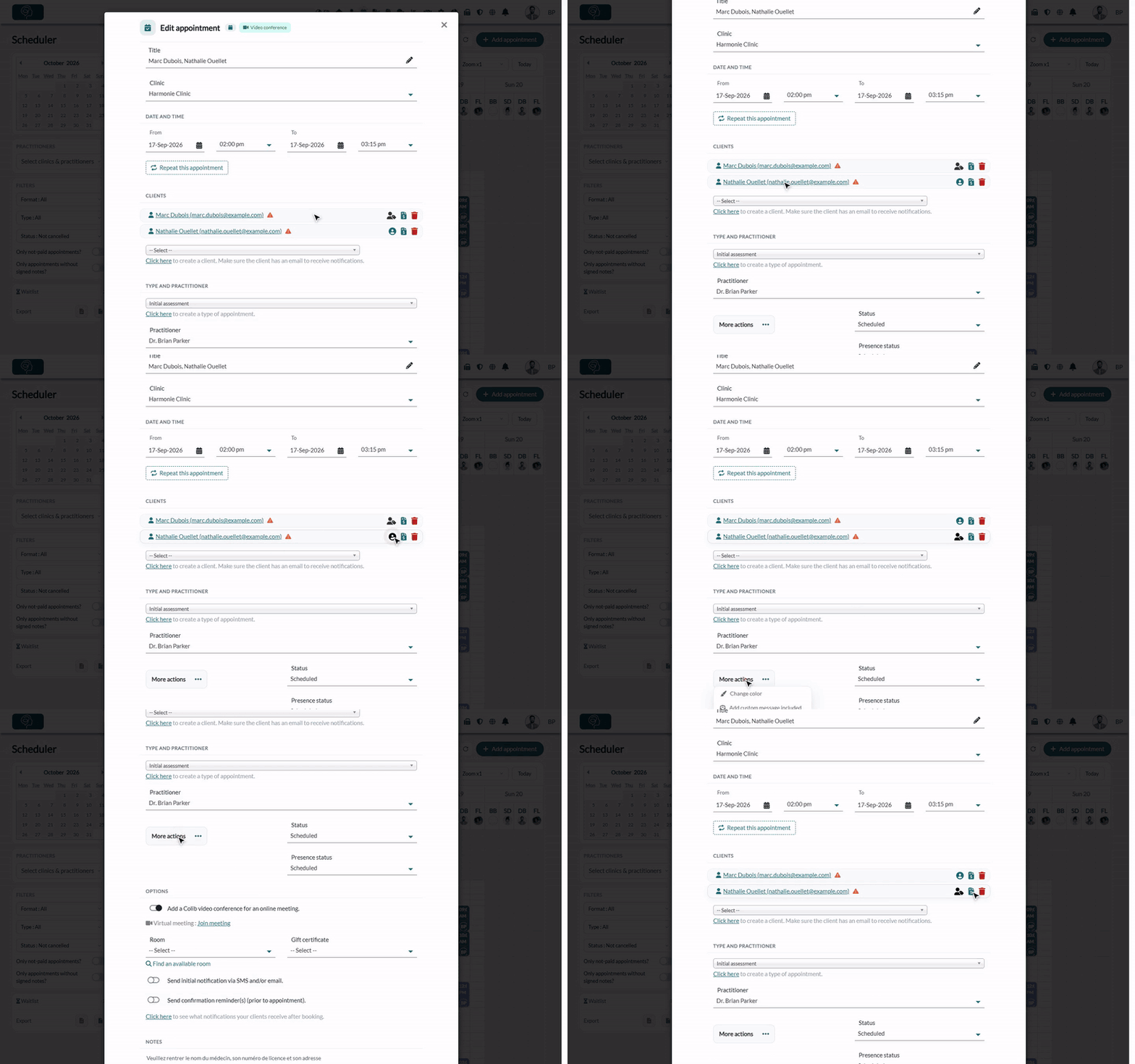
- Open the appointment from your scheduler (www.colib.io/scheduler).
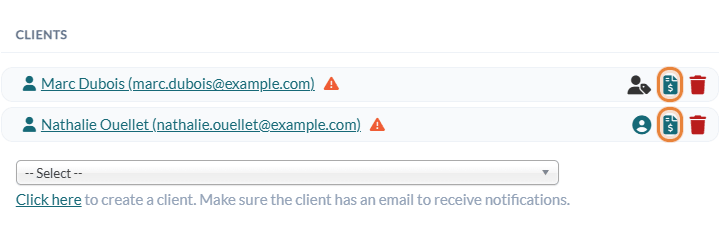
- In the Clients section of the appointment window, click the invoice icon (Create an invoice) next to the client you want to charge.
- The invoice opens, made out to this client. Check it and save it as usual.
2Change the default payer of the appointment
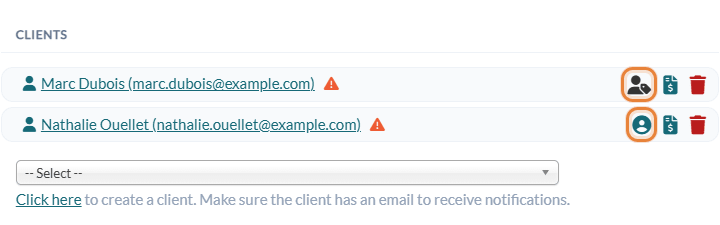
You can also change the default payer for the appointment using the icons of the column next to the clients:
- The client with the dark blue icon is the default payer for this appointment (This client is the default payer for this appointment).
- Click the icon in the same column for another client (Set as default payer) to select that client as the default payer for the appointment.
- A message confirms the change: the change is saved right away, there is nothing else to save.
This method has two benefits:
- Colib knows which payer to select when you create an invoice for this appointment (for example, with More actions > Create invoice in the appointment window), or when you use the invoicing automation (invoice or receipt generated automatically when the appointment status is set to Completed).
- Colib remembers your choice of payer and selects the same client as default payer for the next appointments you create with this client.
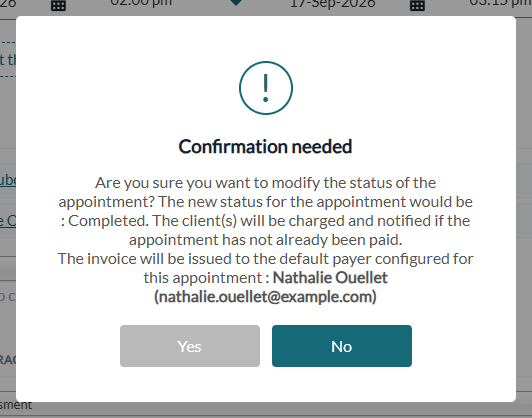
When your invoicing automation is on, the confirmation shown when you mark the appointment as Completed reminds you who will receive the invoice: The invoice will be issued to the default payer configured for this appointment.
Good to know
- When the icons appear — the default payer icons are shown once the appointment is saved with at least two clients, and only if its type is not a group appointment.
- Default choice — when you create an appointment, the default payer is the client you already chose as payer before; otherwise, it is the first client listed in the appointment.
- Group appointments — for a group or class appointment, each client receives their own invoice. See How to set up group and class appointments.
- Parent paying for a child — for a child client, client groups let you charge the group owner and show their name on the invoices. See How to automatically add a guardian's name to a client invoice.
- Invoicing rights — the invoicing icons are shown only to users who have access to invoicing.
Still have a question?
Write to us at support@colib.io, we will be happy to help.
Was this article helpful?
That’s Great!
Thank you for your feedback
Sorry! We couldn't be helpful
Thank you for your feedback
Feedback sent
We appreciate your effort and will try to fix the article