Who is this article for?
Some sessions involve several people: couple therapy, a family meeting, a parent with a child, or a group session. In Colib, you can add several clients to the same appointment, directly from the scheduler. This article explains how to add them, what each client receives (confirmation, reminders), what happens to the notes and the invoice, and what changes when the appointment type is a group appointment.
Before you start: the clients must already exist in Colib (you can create one from the appointment window). To receive the confirmation and the reminders, each client needs an email address or a mobile phone number in their record.
1Add several clients to the appointment
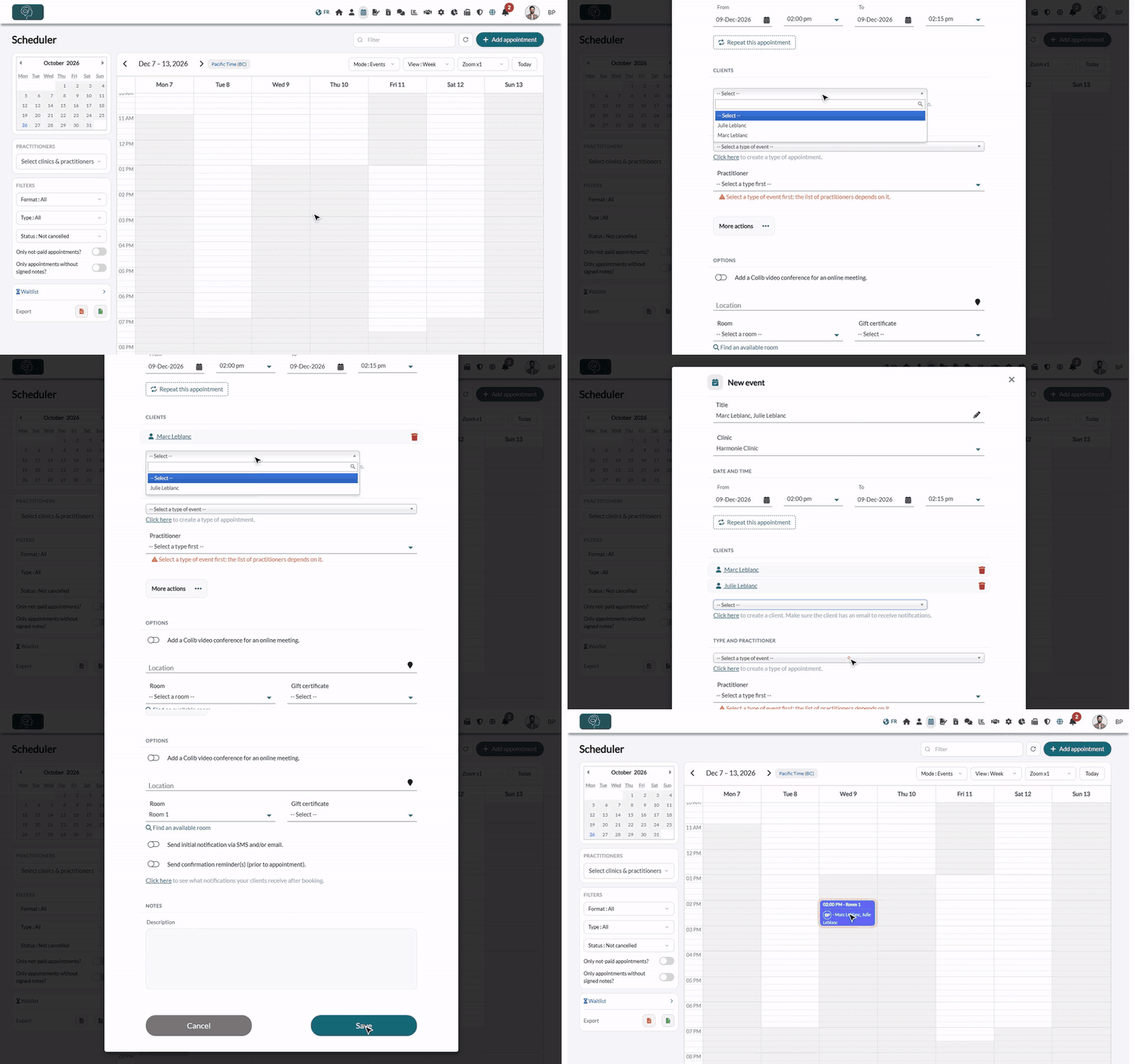
- Go to the scheduler (www.colib.io/scheduler) and click a time slot, or Add appointment (see How to create an appointment).
- In the Clients section, open the list and pick the first client (type a few letters to search). The client is added right away.
- Open the list again and pick the second client, then the next ones. A client already added is no longer offered.
- Choose the appointment type, the practitioner and the options as usual, then click Save.
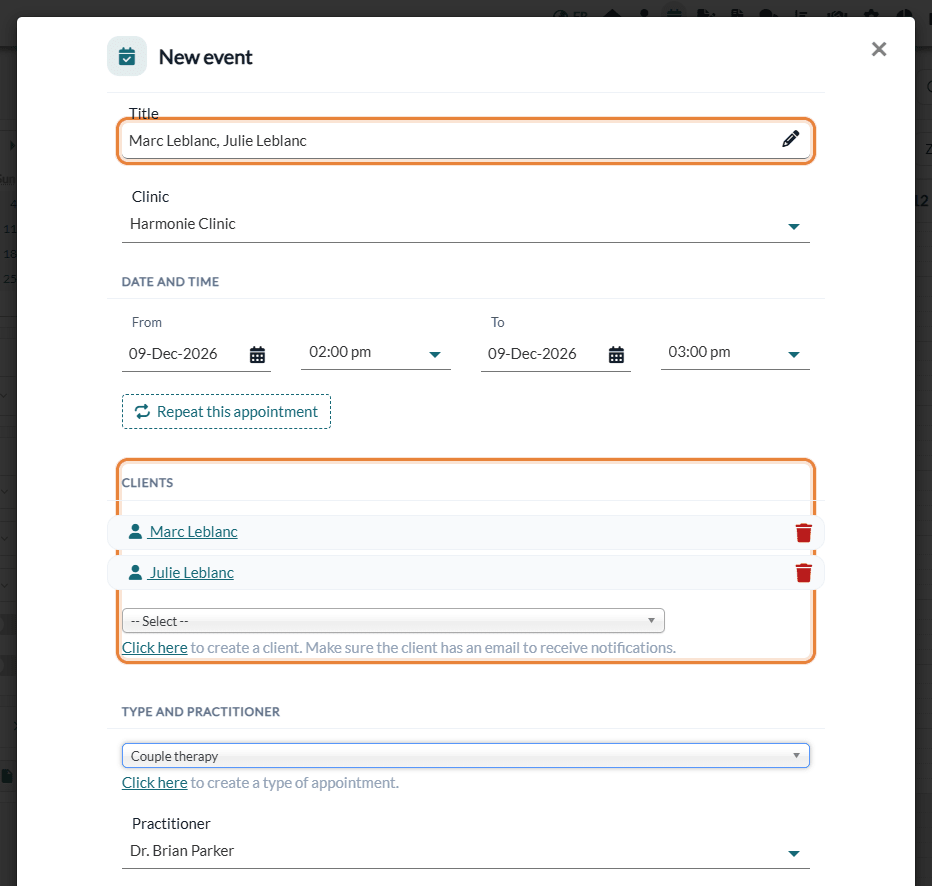
The Title takes the names of all the clients, separated by commas (for example Marc Leblanc, Julie Leblanc). You can change it. A new client? Under the list, click Click here to create the client: you come back to the scheduler afterwards.
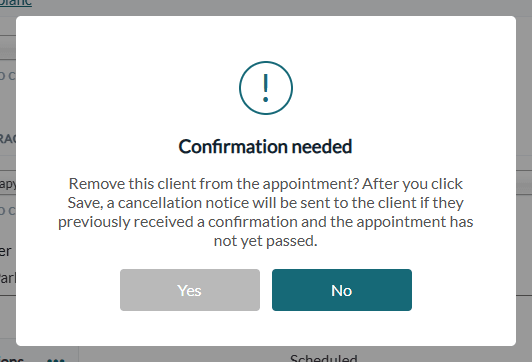
To remove a client, click the trash icon of their row. On an appointment already saved, Colib asks for a confirmation: after you click Save, the client receives a cancellation notice if the notifications of the appointment are on, they had received a confirmation and the appointment has not passed yet. The other clients keep their appointment.
2Confirmation and reminders: each client gets their own
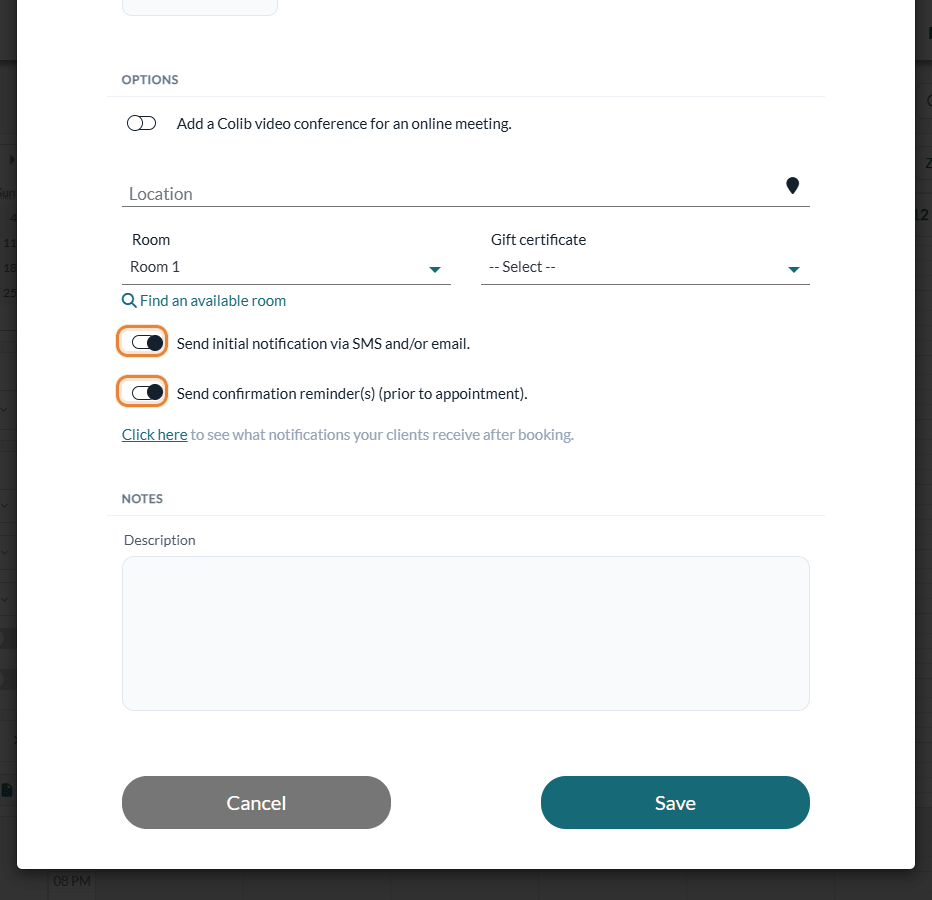
The two notification options at the bottom of the window apply to all the clients of the appointment: Send initial notification via SMS and/or email. and Send confirmation reminder(s) (prior to appointment). You cannot turn them on for one client and off for another.
| Message | With several clients |
|---|---|
| Confirmation | Each client receives their own, in their language, by email and/or SMS according to their preferences (with the copies and the responsible person of their record, if any). |
| Reminders and follow-up | Each client receives their own reminders and follow-up email, at the times set for the appointment type. |
| Confirm or cancel link | Each client has their own link. In the appointment window, the icon next to each name shows whether that client has confirmed. |
| Online meeting | If the appointment includes a Colib video conference, all the clients receive the same link and join the same meeting. |
| Forms | The forms attached to the appointment type are sent to each client; Colib checks for each client whether they already have them. |
When the list of clients changes (if Send initial notification via SMS and/or email. is on):
- Client added to an existing appointment — when you save, only the new client receives a confirmation; the others are not notified again. The new client also receives the reminders.
- Client removed — they receive a cancellation notice (see Step 1).
- A client cancels with their link — only this client is removed from the appointment; your team is notified by email and the others keep their appointment (the client who cancels does not receive a cancellation notice). If they were the only client, the whole appointment is cancelled and they receive the usual cancellation notice.
- You cancel the appointment — every client receives a cancellation notice, if the appointment has not passed yet.
- Resend — More actions > Send new confirmation notifications to clients sends the confirmation again to all the clients.
For the detail of the messages, see What notifications do clients receive after booking?.
3Notes: one note shared by the clients
To write the note of the session, open the appointment and click More actions > Create note. Colib opens the record of the first client listed, with the note already linked to the appointment.
For a standard appointment, Colib creates one single note, attached to the record of every client of the appointment. It is the same note, not a copy: a change made from one record shows in all the others. It is not shared with the clients: it stays visible only to your team, as long as you do not share it.
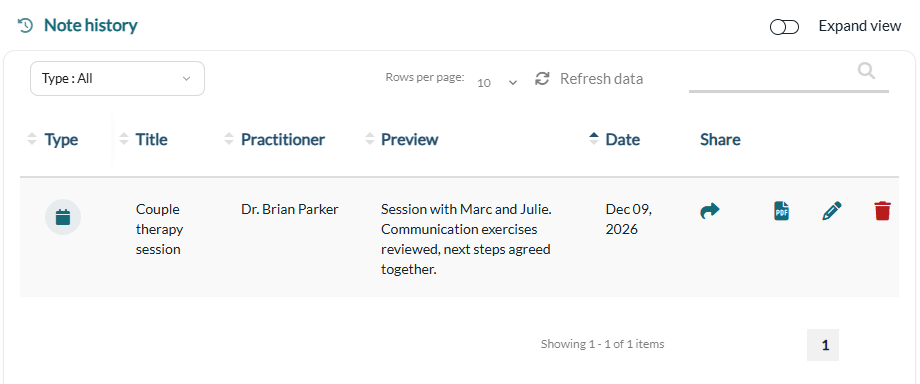
Confidentiality: everything written in this note is visible in the record of each client of the appointment. For information that concerns only one person, write a separate note in that client's record, without linking it to the appointment.
- A client added to the appointment after the note was written is not added to the note.
- For a group appointment, it works differently: see Step 5.
4Invoice and status
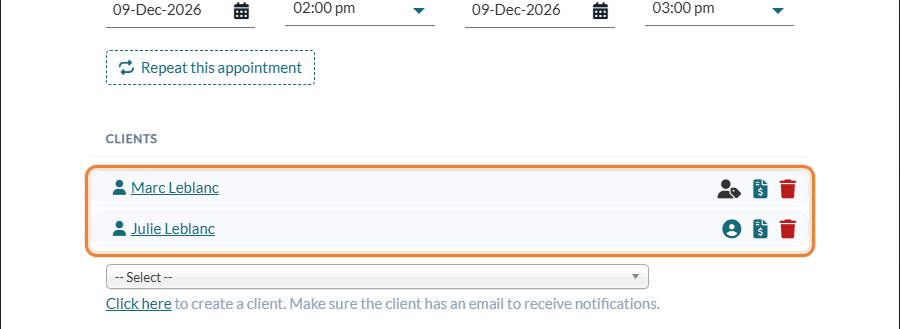
- One invoice for the appointment — for a standard appointment, one client pays for everyone: the default payer (the icon next to their name). The invoicing automation bills this client. You can also create the invoice for another client with the Create an invoice icon of their row. See How to choose the payer for an appointment with multiple clients.
- One status for everyone — the status (confirmed, completed, no-show, cancelled) belongs to the appointment: it applies to all the clients. There is no separate status per client.
5Group appointment or not: what changes
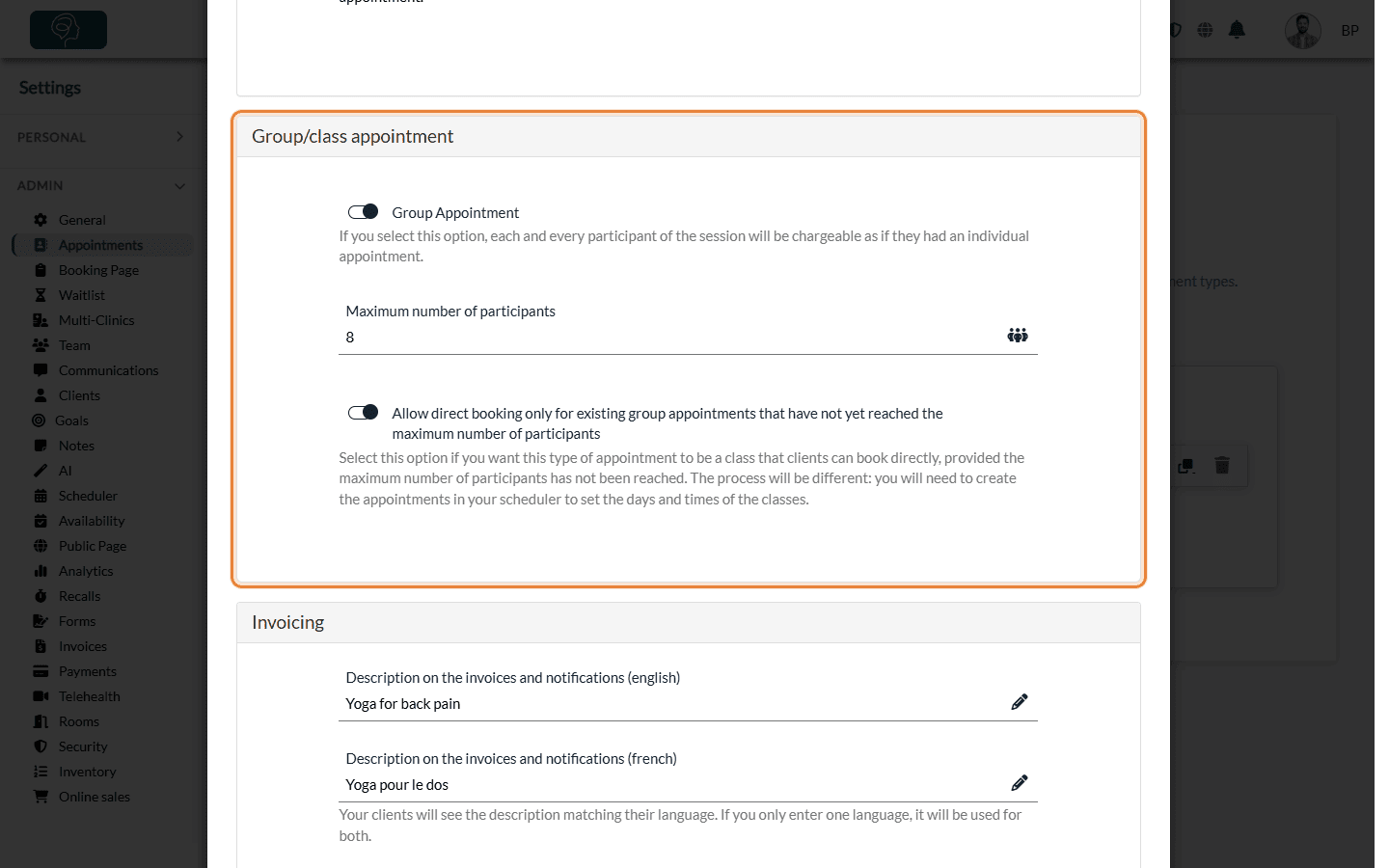
The Group Appointment option is set on the appointment type: Settings > Appointments (www.colib.io/settings?show=appointments), pencil icon of the type, Group/class appointment section. Turn it on for classes and group sessions where each participant pays for their own place; leave it off for a couple or a family seen together.
| Group Appointment off (couple, family) | Group Appointment on (class, group) | |
|---|---|---|
| Title | The names of the clients | The name of the appointment type |
| Number of clients | No limit | Maximum number of participants, with the Booked clients counter (for example 3/8). From the scheduler, you can still go over it. |
| Invoice | One invoice, to the default payer | One invoice per participant, as if each had an individual appointment (the automation creates one for each) |
| Notes | One note shared by all the clients | The note is attached only to the client it was created from: write one note per participant |
| Online booking | A client who books online gets their own appointment; your team adds the other clients | With Allow direct booking only for existing group appointments..., clients join the sessions you created until they are full |
| Confirmation and reminders | One message per client | One message per client |
To set up classes and group sessions, see How to set up group and class appointments.
Good to know
- Several clinics — all the clients of the appointment must belong to the clinic of the appointment; otherwise Colib refuses to save.
- Tasks — you can link several clients to a task, but they never receive notifications for it. The ** Busy ** and ** Other ** types do not accept clients.
- Each client's record — the appointment appears in the Appointments tab of every client of the appointment.
Related articles
- How to create an appointment
- How to choose the payer for an appointment with multiple clients
- How to set up group and class appointments
- What notifications do clients receive after booking?
Still have a question?
Write to us at support@colib.io, we will be happy to help.
Who is this article for?
Some sessions involve several people: couple therapy, a family meeting, a parent with a child, or a group session. In Colib, you can add several clients to the same appointment, directly from the scheduler. This article explains how to add them, what each client receives (confirmation, reminders), what happens to the notes and the invoice, and what changes when the appointment type is a group appointment.
Before you start: the clients must already exist in Colib (you can create one from the appointment window). To receive the confirmation and the reminders, each client needs an email address or a mobile phone number in their record.
1Add several clients to the appointment
- Go to the scheduler (www.colib.io/scheduler) and click a time slot, or Add appointment (see How to create an appointment).
- In the Clients section, open the list and pick the first client (type a few letters to search). The client is added right away.
- Open the list again and pick the second client, then the next ones. A client already added is no longer offered.
- Choose the appointment type, the practitioner and the options as usual, then click Save.
The Title takes the names of all the clients, separated by commas (for example Marc Leblanc, Julie Leblanc). You can change it. A new client? Under the list, click Click here to create the client: you come back to the scheduler afterwards.
To remove a client, click the trash icon of their row. On an appointment already saved, Colib asks for a confirmation: after you click Save, the client receives a cancellation notice if the notifications of the appointment are on, they had received a confirmation and the appointment has not passed yet. The other clients keep their appointment.
2Confirmation and reminders: each client gets their own
The two notification options at the bottom of the window apply to all the clients of the appointment: Send initial notification via SMS and/or email. and Send confirmation reminder(s) (prior to appointment). You cannot turn them on for one client and off for another.
| Message | With several clients |
|---|---|
| Confirmation | Each client receives their own, in their language, by email and/or SMS according to their preferences (with the copies and the responsible person of their record, if any). |
| Reminders and follow-up | Each client receives their own reminders and follow-up email, at the times set for the appointment type. |
| Confirm or cancel link | Each client has their own link. In the appointment window, the icon next to each name shows whether that client has confirmed. |
| Online meeting | If the appointment includes a Colib video conference, all the clients receive the same link and join the same meeting. |
| Forms | The forms attached to the appointment type are sent to each client; Colib checks for each client whether they already have them. |
When the list of clients changes (if Send initial notification via SMS and/or email. is on):
- Client added to an existing appointment — when you save, only the new client receives a confirmation; the others are not notified again. The new client also receives the reminders.
- Client removed — they receive a cancellation notice (see Step 1).
- A client cancels with their link — only this client is removed from the appointment; your team is notified by email and the others keep their appointment (the client who cancels does not receive a cancellation notice). If they were the only client, the whole appointment is cancelled and they receive the usual cancellation notice.
- You cancel the appointment — every client receives a cancellation notice, if the appointment has not passed yet.
- Resend — More actions > Send new confirmation notifications to clients sends the confirmation again to all the clients.
For the detail of the messages, see What notifications do clients receive after booking?.
3Notes: one note shared by the clients
To write the note of the session, open the appointment and click More actions > Create note. Colib opens the record of the first client listed, with the note already linked to the appointment.
For a standard appointment, Colib creates one single note, attached to the record of every client of the appointment. It is the same note, not a copy: a change made from one record shows in all the others. It is not shared with the clients: it stays visible only to your team, as long as you do not share it.
Confidentiality: everything written in this note is visible in the record of each client of the appointment. For information that concerns only one person, write a separate note in that client's record, without linking it to the appointment.
- A client added to the appointment after the note was written is not added to the note.
- For a group appointment, it works differently: see Step 5.
4Invoice and status
- One invoice for the appointment — for a standard appointment, one client pays for everyone: the default payer (the icon next to their name). The invoicing automation bills this client. You can also create the invoice for another client with the Create an invoice icon of their row. See How to choose the payer for an appointment with multiple clients.
- One status for everyone — the status (confirmed, completed, no-show, cancelled) belongs to the appointment: it applies to all the clients. There is no separate status per client.
5Group appointment or not: what changes
The Group Appointment option is set on the appointment type: Settings > Appointments (www.colib.io/settings?show=appointments), pencil icon of the type, Group/class appointment section. Turn it on for classes and group sessions where each participant pays for their own place; leave it off for a couple or a family seen together.
| Group Appointment off (couple, family) | Group Appointment on (class, group) | |
|---|---|---|
| Title | The names of the clients | The name of the appointment type |
| Number of clients | No limit | Maximum number of participants, with the Booked clients counter (for example 3/8). From the scheduler, you can still go over it. |
| Invoice | One invoice, to the default payer | One invoice per participant, as if each had an individual appointment (the automation creates one for each) |
| Notes | One note shared by all the clients | The note is attached only to the client it was created from: write one note per participant |
| Online booking | A client who books online gets their own appointment; your team adds the other clients | With Allow direct booking only for existing group appointments..., clients join the sessions you created until they are full |
| Confirmation and reminders | One message per client | One message per client |
To set up classes and group sessions, see How to set up group and class appointments.
Good to know
- Several clinics — all the clients of the appointment must belong to the clinic of the appointment; otherwise Colib refuses to save.
- Tasks — you can link several clients to a task, but they never receive notifications for it. The ** Busy ** and ** Other ** types do not accept clients.
- Each client's record — the appointment appears in the Appointments tab of every client of the appointment.
Related articles
- How to create an appointment
- How to choose the payer for an appointment with multiple clients
- How to set up group and class appointments
- What notifications do clients receive after booking?
Still have a question?
Write to us at support@colib.io, we will be happy to help.
Was this article helpful?
That’s Great!
Thank you for your feedback
Sorry! We couldn't be helpful
Thank you for your feedback
Feedback sent
We appreciate your effort and will try to fix the article