Who is this article for?
Once you have recorded appointments, tasks or billable time for a client, you can turn them into an invoice, addressed either to a third-party payer or directly to the client.
This article explains how to select the items, choose who is billed, review the invoice and send it to the payer.
Before you start: to bill a payer, the client needs a funding policy with that payer (see Third-Party Billing: how to attach a funding policy to a client). You also need the right to edit financial information.
1Select the items to invoice
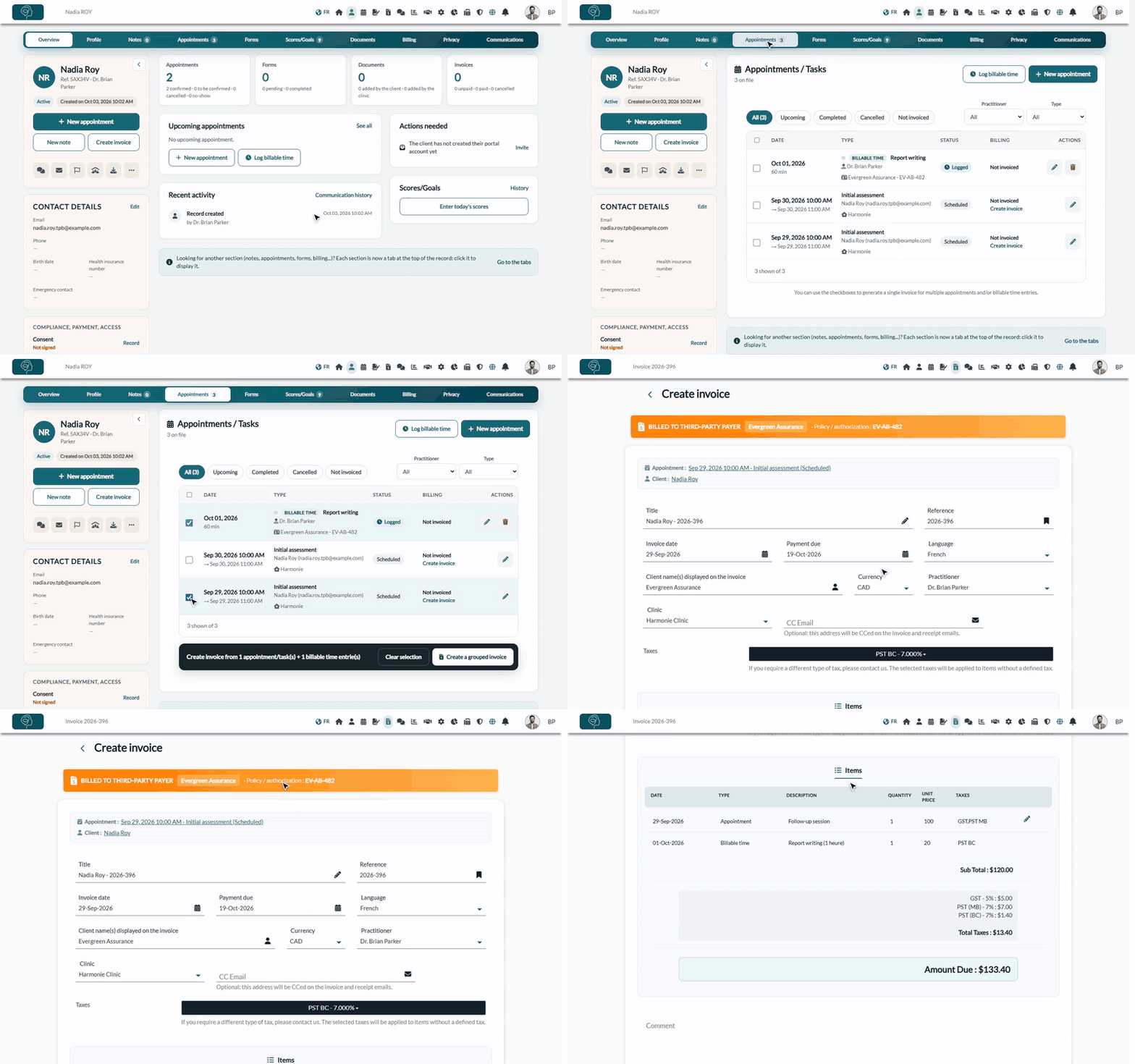
- Open the client's record from your client list (www.colib.io/clients) and click the Appointments tab.
- Tick the boxes next to the items you want to invoice: appointments, tasks and/or billable time entries. The Not invoiced filter helps you find them.
- A bar appears at the bottom of the list, for example Create invoice from 1 appointment/task(s) + 1 billable time entrie(s). Click Create a grouped invoice.
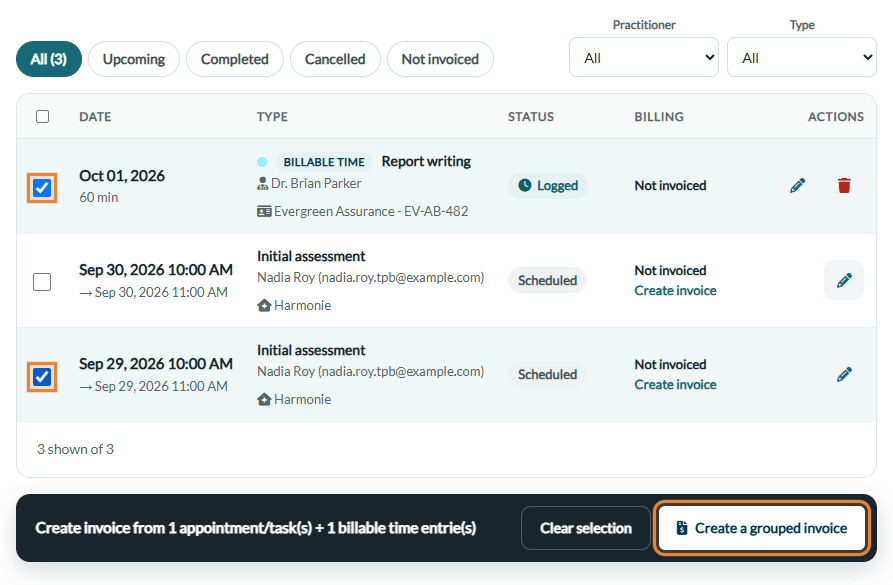
Important: you can also create an invoice for a single appointment with the Create invoice link of its row, but that invoice is NOT linked to a third-party payer: it is addressed to the client. To bill a payer, use the boxes and Create a grouped invoice, even for one appointment.
2Choose who is billed
- If you selected billable time entries, the invoice is addressed to the payer of these entries: no question is asked. All the selected entries must belong to the same payer; otherwise Colib shows a message and asks you to select entries that share the same payer.
- If you selected only appointments or tasks and the client has at least one open funding policy, a Bill to window opens. Choose one of the client's policies (with its period, and the hours and amount already used), or Bill the client directly for a standard invoice addressed to the client. Then click Continue.
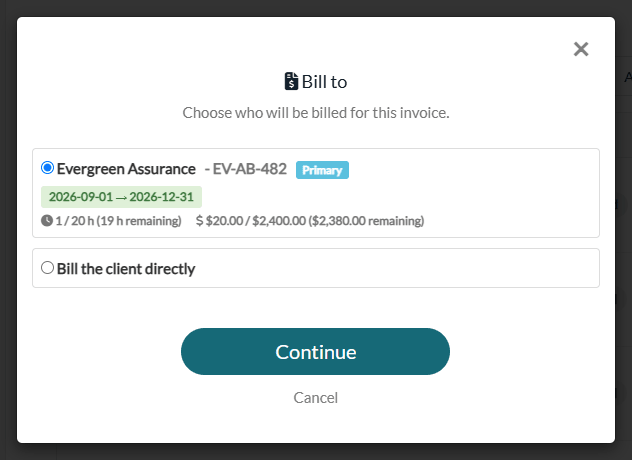
By default, Colib selects the primary policy that is still valid and ends first, so the funding that expires first is used first. A policy whose end date has passed is shown in red with the word Expired.
3Third-party payer: funding check
When you bill a payer, Colib checks the selected appointments against the remaining funding of the policy. If they would exceed the authorized hours and/or the funded amount, a confirmation appears ("Creating this invoice will exceed... Do you want to proceed anyway?"). Click Proceed anyway to create the invoice all the same.
4Review, adjust and save the invoice
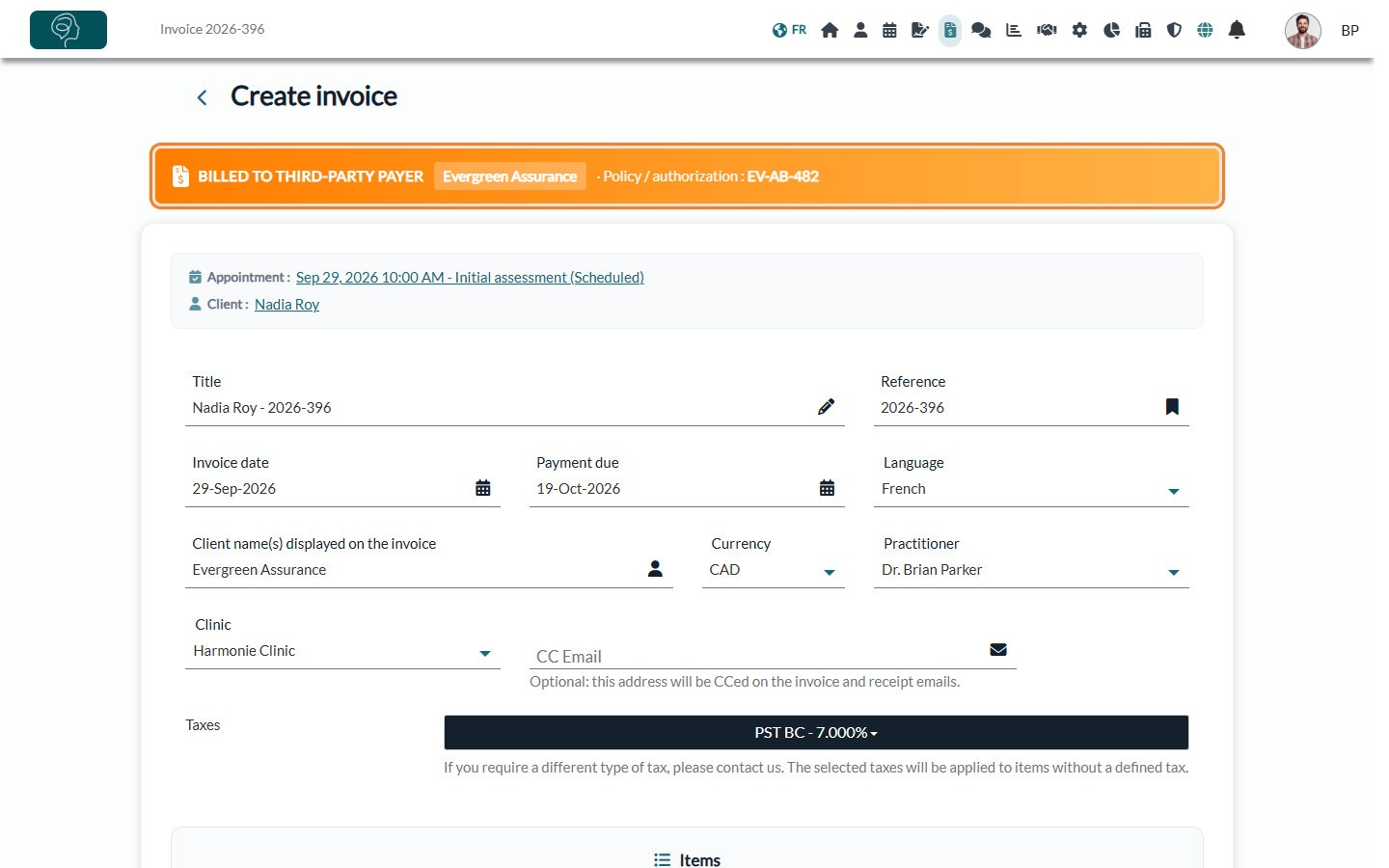
The invoice opens as a draft. On an invoice billed to a payer:
- a Billed to third-party payer banner shows the payer and the policy / authorization number;
- the invoice is addressed to the payer: its name appears in Client name(s) displayed on the invoice, and the PDF shows the payer's name, billing address, phone, billing email and reference, the policy number and the name of the client concerned;
- for appointment lines, the description and the quantity stay read-only: you can only change the date and the price of each appointment line;
- billable time lines cannot be changed, and you cannot add or delete lines; the client discount is not applied.
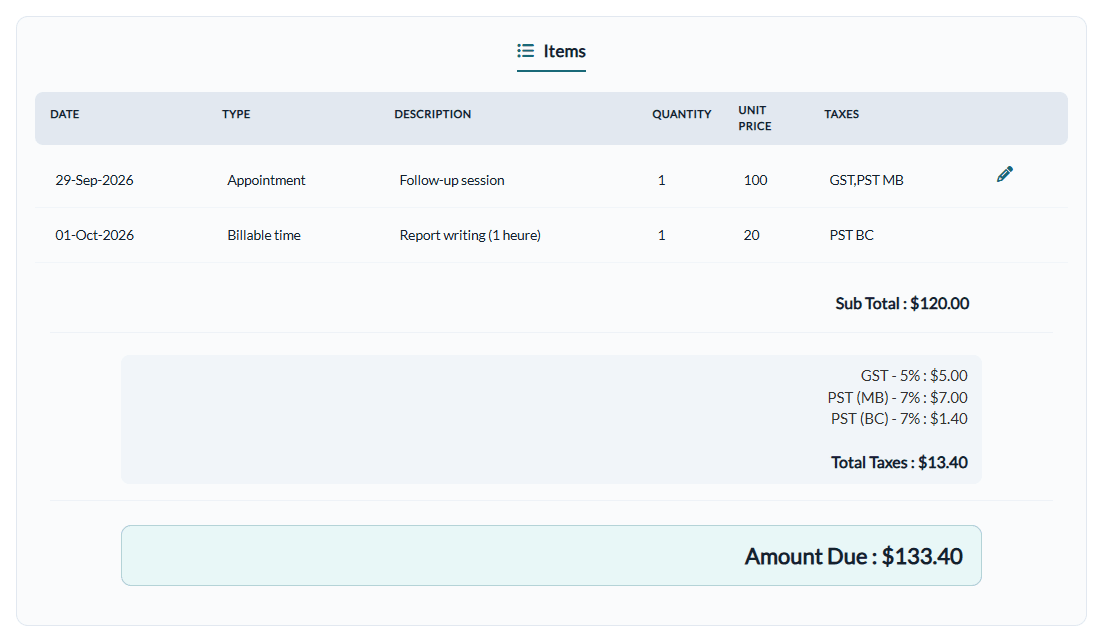
Click Save at the bottom of the page. The usage of the policy is then recalculated so the remaining balance stays accurate, and the billable time entries switch to Invoiced (locked).
How an invoice counts on the policy: a billable time entry counts for its duration and its amount (duration × hourly rate). An appointment counts for its duration and the price of its invoice line. Draft, cancelled, written-off and refunded invoices, as well as cancelled appointments, are not counted.
5Send the invoice
Once the invoice is saved, click Send. Colib reminds you that the invoice is billed to a third-party payer and asks for a confirmation. The invoice is sent to the payer's billing email (the address set on the payer), not to the client's email. The email addressed to the payer contains no online card payment link. Receipts of this invoice are also sent to the payer.
Tip: keep the billing email and billing address of your payers up to date in Settings > Direct Billing > Payers (www.colib.io/settings?show=directbilling): they determine where and how third-party invoices are delivered. A payer without a billing email cannot receive invoices by email. See Third-Party Billing: how to create payers.
Get paid by the payer
Colib sends the invoice, but the payer pays you directly, by its own means (for example a direct deposit or a cheque) and on its own timelines: the money does not go through Colib or Stripe. Ask each payer how and when it pays its providers.
- When the payment arrives, open the invoice from the Invoicing page (www.colib.io/invoices).
- Change its status to Paid and choose the payment method Third party, or to Partially paid with the amount received. See How to change the status of an invoice.
- To follow what the payers still owe you, open the Receivables list of the Invoicing page: outstanding amount per invoice, days outstanding, aging (0-30 days or 31+ days overdue), average days to payment and Excel export.
Good to know
- One recipient per invoice — an invoice is addressed either to one payer or to the client. Splitting the cost of an invoice between the client and one or several payers, or rules such as "the payer pays up to 90% of the appointment" or "up to $1,000", are not available at this time.
- Cancelled invoice — if you cancel or write off an invoice billed to a payer, its billable time entries can be invoiced again and the usage of the policy is updated.
- Follow your receivables — the Invoicing page (www.colib.io/invoices) offers a Third-party payers list (funding policies and their usage) and a Receivables list for invoices billed to payers.
- Funding alerts — saving an invoice billed to a payer checks the funding alerts of the policy (see Third-Party Billing: how do funding alerts work?).
Still have a question?
Write to us at support@colib.io, we will be happy to help.
Was this article helpful?
That’s Great!
Thank you for your feedback
Sorry! We couldn't be helpful
Thank you for your feedback
Feedback sent
We appreciate your effort and will try to fix the article