Who is this article for?
A funding policy links a client to a payer and defines what that payer covers: how many hours and/or what amount is authorized, over which period, and how the funding is considered used up. A client can have several policies, for example a primary payer and a secondary payer.
This article explains how to add a funding policy to a client, what each field means, and how to follow, edit, close or delete a policy.
Before you start: Third-Party Billing must be enabled and the payer must already exist. See Third-Party Billing: how to enable and configure the feature and Third-Party Billing: how to create payers. You also need the right to edit client information.
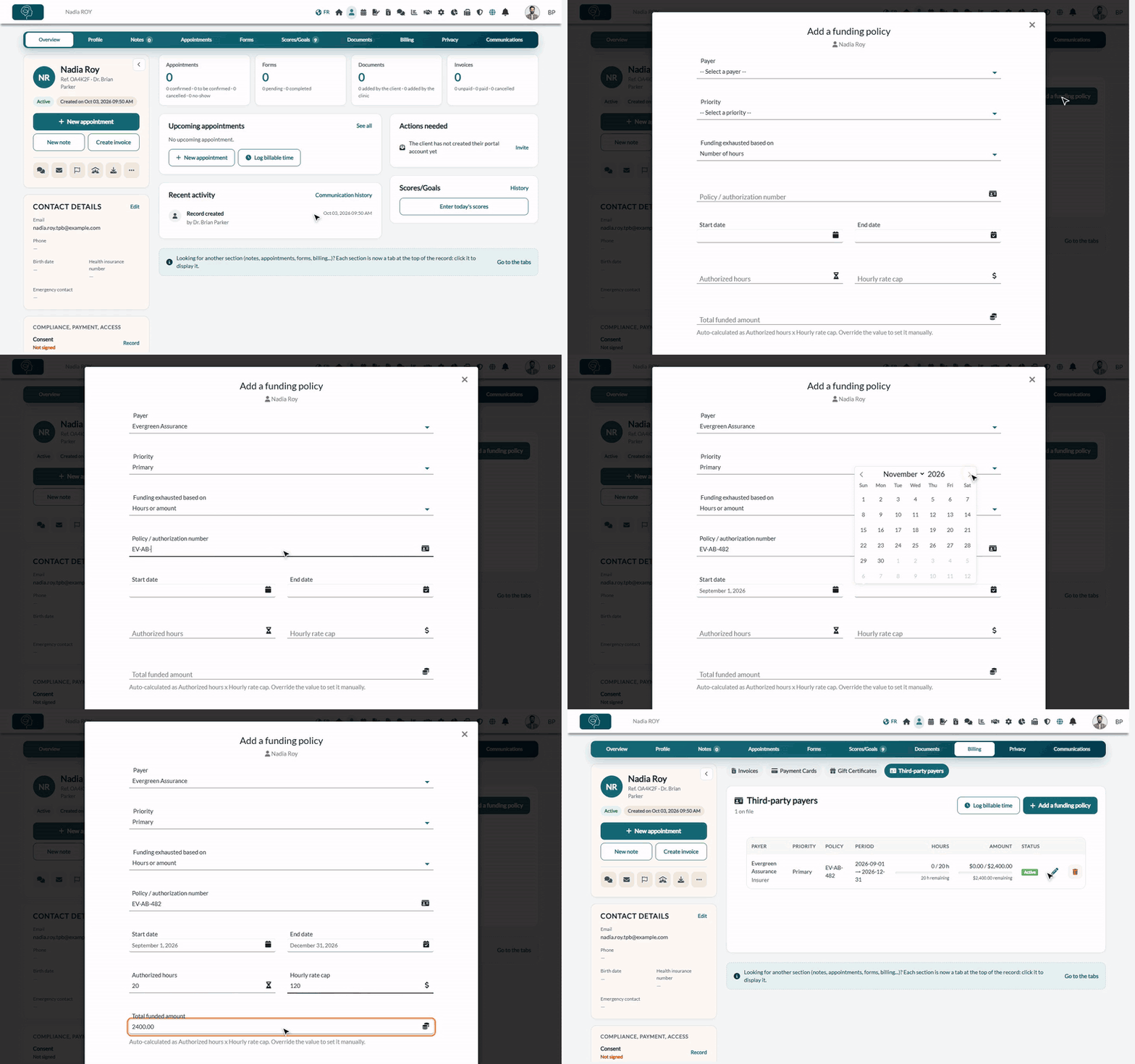
1Open the client's Third-party payers section
- Open the client's record from your client list (www.colib.io/clients).
- Click the Billing tab, then the Third-party payers sub-tab. It lists the client's funding policies with their usage and status.
- Click Add a funding policy.
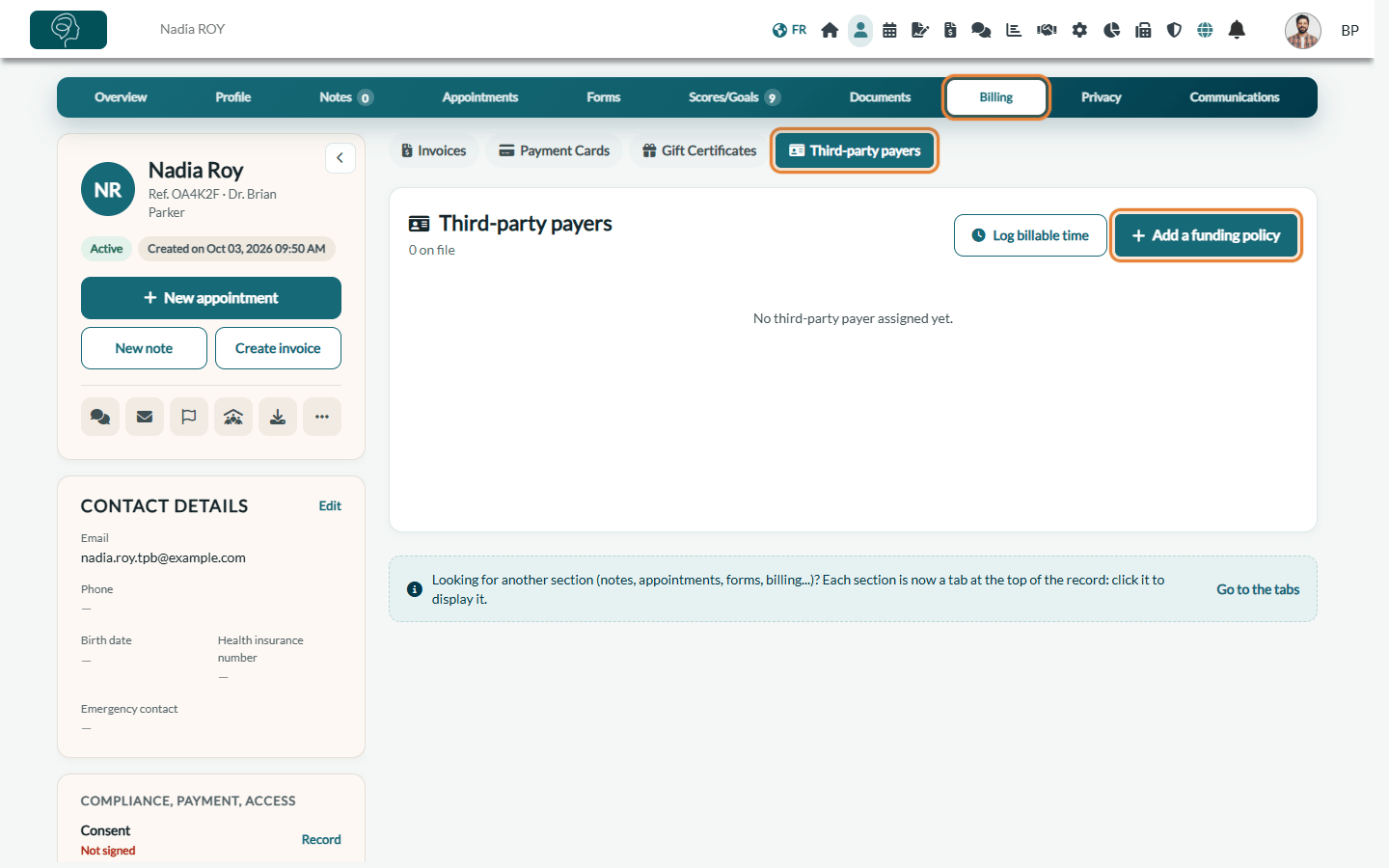
2Fill in the policy
| Field | What to enter |
|---|---|
| Payer (required) | One of your payers. Archived payers are not offered, except the one already attached to the policy you are editing. |
| Priority (required) | Primary, Secondary or Tertiary. Use it when a client is covered by more than one payer. |
| Funding exhausted based on (required) | How Colib decides the funding is used up: Number of hours (tracks the authorized hours), Amount (tracks a funded dollar amount), Hours or amount (tracks both; the first one used up exhausts the policy) or None (no consumption limit, only the dates apply). |
| Policy / authorization number (required) | The payer's policy or authorization reference. It appears on the invoices addressed to the payer. |
| Start date and End date (required) | The coverage period, chosen in the calendar. The end date must be on or after the start date. |
| Authorized hours | The number of hours the payer covers. |
| Hourly rate cap | The maximum hourly rate the payer accepts. It always applies, whatever the Funding exhausted based on choice: when an appointment costs more, Colib offers to bill the difference to the client on a second invoice (please see the article titled "Third-Party Billing: how to split an invoice between a third-party payer and the client"). |
| Total funded amount | Calculated automatically as authorized hours × hourly rate cap. You can type another value; Reset to auto value then brings back the calculation. |
| Notes (optional) | Internal notes about the coverage. |
Which fields are required depends on "Funding exhausted based on": Number of hours requires the authorized hours; Amount requires the total funded amount; Hours or amount requires at least one of the two; None requires neither.
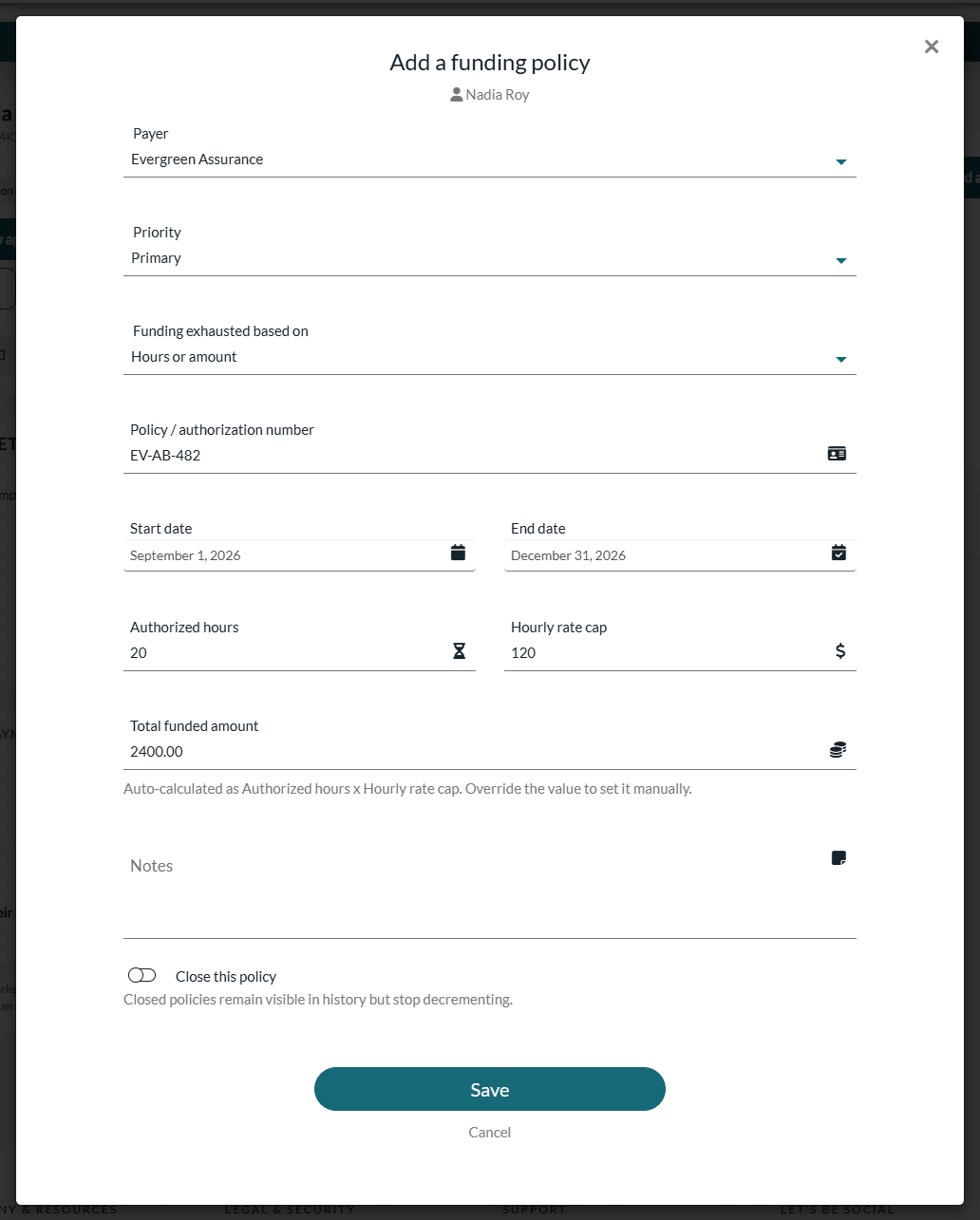
3Close the policy (optional)
The Close this policy toggle, at the bottom of the window, stops the policy from being consumed. A closed policy stays visible in the history, but it no longer counts hours or amounts, can no longer be chosen for new billable time, and no longer generates alerts. Use it when a coverage is finished but you want to keep the record.
4Save and follow the usage
Click Save. The policy appears in the client's list, with:
- the payer, its type, the priority, the policy number and the period;
- Hours used / authorized and Amount used / funded, each with a progress bar (green, then amber from 80%, red at 100%) and the remaining balance;
- a Status: Active or Closed.
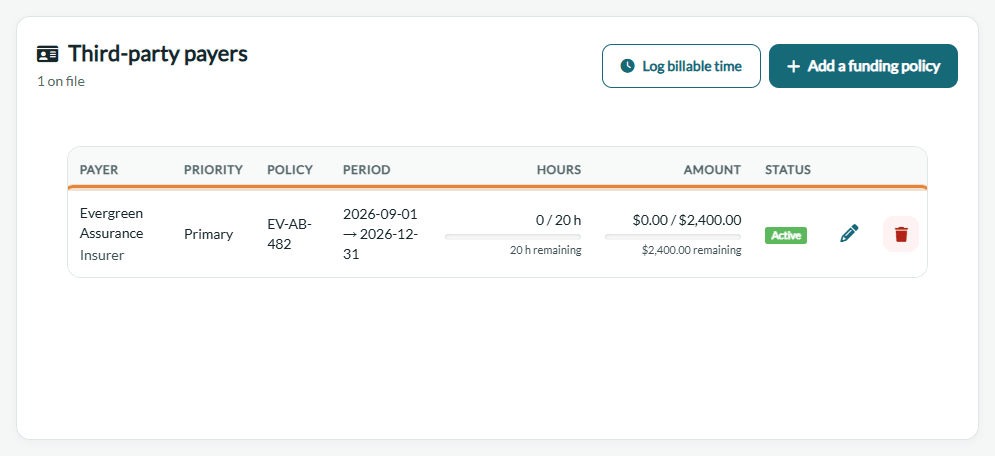
The hours and amount used are updated automatically each time you log billable time or create an invoice addressed to the payer. The detailed statuses Active, Expiring soon (end date within 30 days), Expired and Exhausted are shown in the Third-party payers list of the Invoicing page (www.colib.io/invoices), where a closed policy appears as Exhausted.
Edit or delete a policy
- Edit (pencil) — you can edit a policy at any time. If you change the authorized hours, the total funded amount or the exhaustion basis of an open policy, the funding alerts are checked again (see Third-Party Billing: how do funding alerts work?).
- Delete (trash) — a policy can only be deleted if no billable time entry and no invoice was ever linked to it. Otherwise, Colib refuses the deletion: close the policy instead. This protects your billing history.
Where do the figures of the policy come from?
From the payer's authorization: the approval letter, email or provider portal page that confirms what is covered for your client. Colib cannot know these figures, so copy them as they appear:
- Policy / authorization number — the reference of the approval (claim, file or authorization number).
- Start date and End date — the period during which services are covered.
- Authorized hours — the number of hours (or sessions converted into hours) approved.
- Hourly rate cap — the maximum hourly rate the payer reimburses.
- Total funded amount — calculated as authorized hours × hourly rate cap; if the approval states a different total, type it in.
If the approval gives only a dollar amount, choose Amount in Funding exhausted based on and enter the total funded amount; if it gives only hours, choose Number of hours. The amount of each billable time entry uses your own billable hourly rate (set in Third-Party Billing: how to enable and configure the feature): keep it within the hourly rate cap the payer accepts.
Good to know
- Policies declared at booking — if your booking page asks for insurance information, the insurer and policy number entered by the client create a policy in the client's list, with no dates and no limit (None). Edit it to complete the priority, the dates and the authorized hours or amount. An insurer added by the client shows the Added via booking badge: check its details in Settings > Direct Billing.
- Funding summary — when the client has at least one policy, the Download PDF button of the section downloads a summary of the client's funding.
- Several payers — when you create an invoice for appointments, Colib selects by default the primary policy that is still valid and ends first. See Third-Party Billing: how to create an invoice from billable time, tasks or appointments.
Still have a question?
Write to us at support@colib.io, we will be happy to help.
Was this article helpful?
That’s Great!
Thank you for your feedback
Sorry! We couldn't be helpful
Thank you for your feedback
Feedback sent
We appreciate your effort and will try to fix the article