Who is this article for?
Third-Party Billing lets you bill services to a third party (an insurer, an employer, a government program, etc.) instead of the client, or in addition to the client. You track what each payer has authorized for a client, log the time you spend on the file, and create invoices addressed to the payer.
Before you can create payers, attach funding policies to clients or log billable time, the feature must be enabled and configured for your practice. This article explains every setting of the Third Party Billing panel.
Before you start: this is a practice-level setting, so you need administrator access to the practice settings. Viewing the third-party billing lists of the Invoicing page and creating invoices also requires access to financial information. Third-Party Billing is included in every plan except the Practitioner plan: on that plan, the Direct Billing tab shows a message inviting you to change plans.
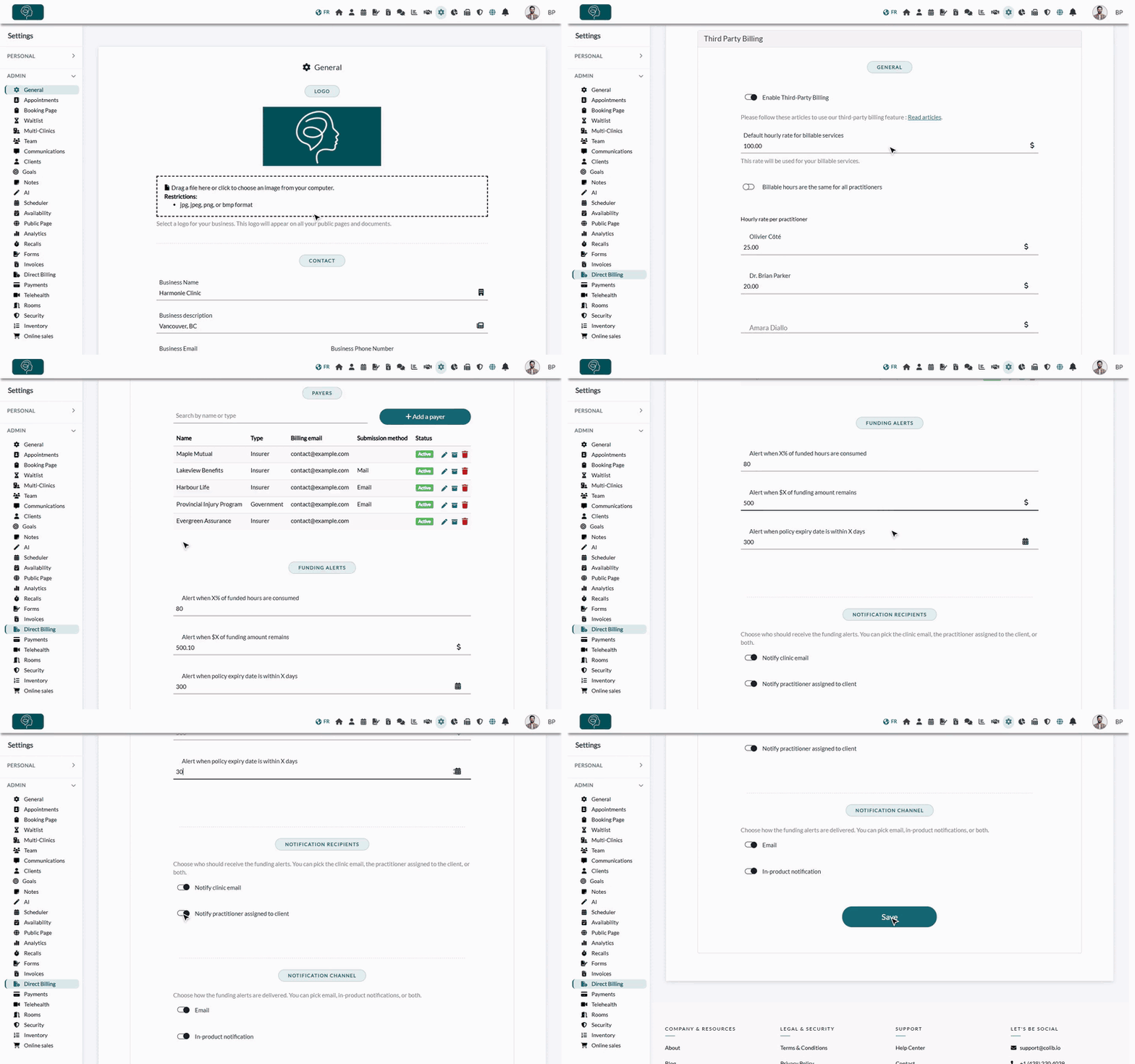
1Open the Third-Party Billing settings
- Go to www.colib.io/settings?show=directbilling. You can also click the Settings icon (gear) in the top bar, then Direct Billing in the Admin menu on the left.
- Scroll to the Third Party Billing panel. Click its title if it is collapsed.
2Turn the feature on and set your default hourly rate
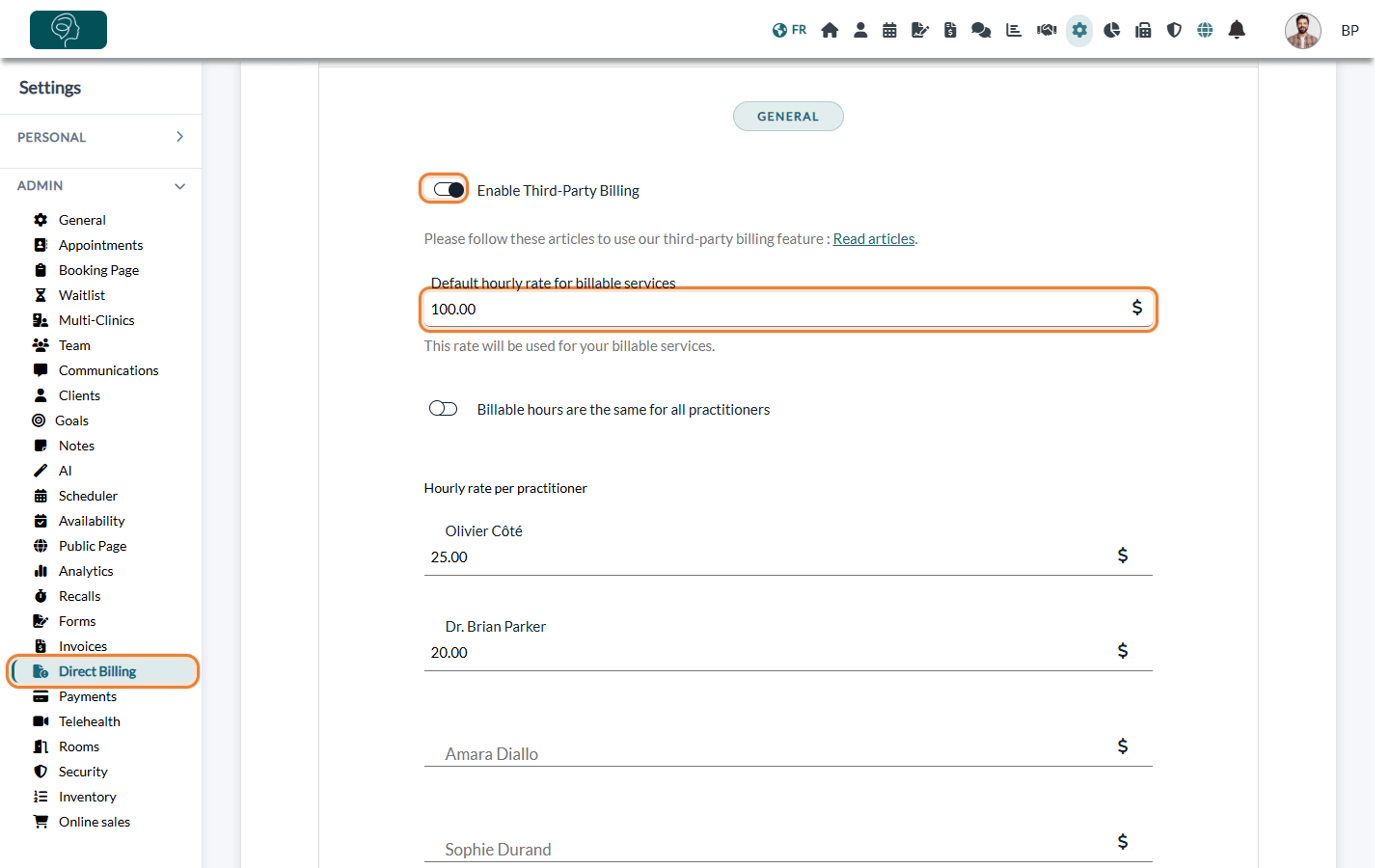
- In the General section, switch the Enable Third-Party Billing toggle on. The other options of the panel only appear once the feature is enabled.
- In Default hourly rate for billable services, enter the rate (in $) used to value your billable time. This rate applies whenever a more specific rate is not defined for a practitioner. It is required: you cannot save the settings with the feature enabled and no default rate.
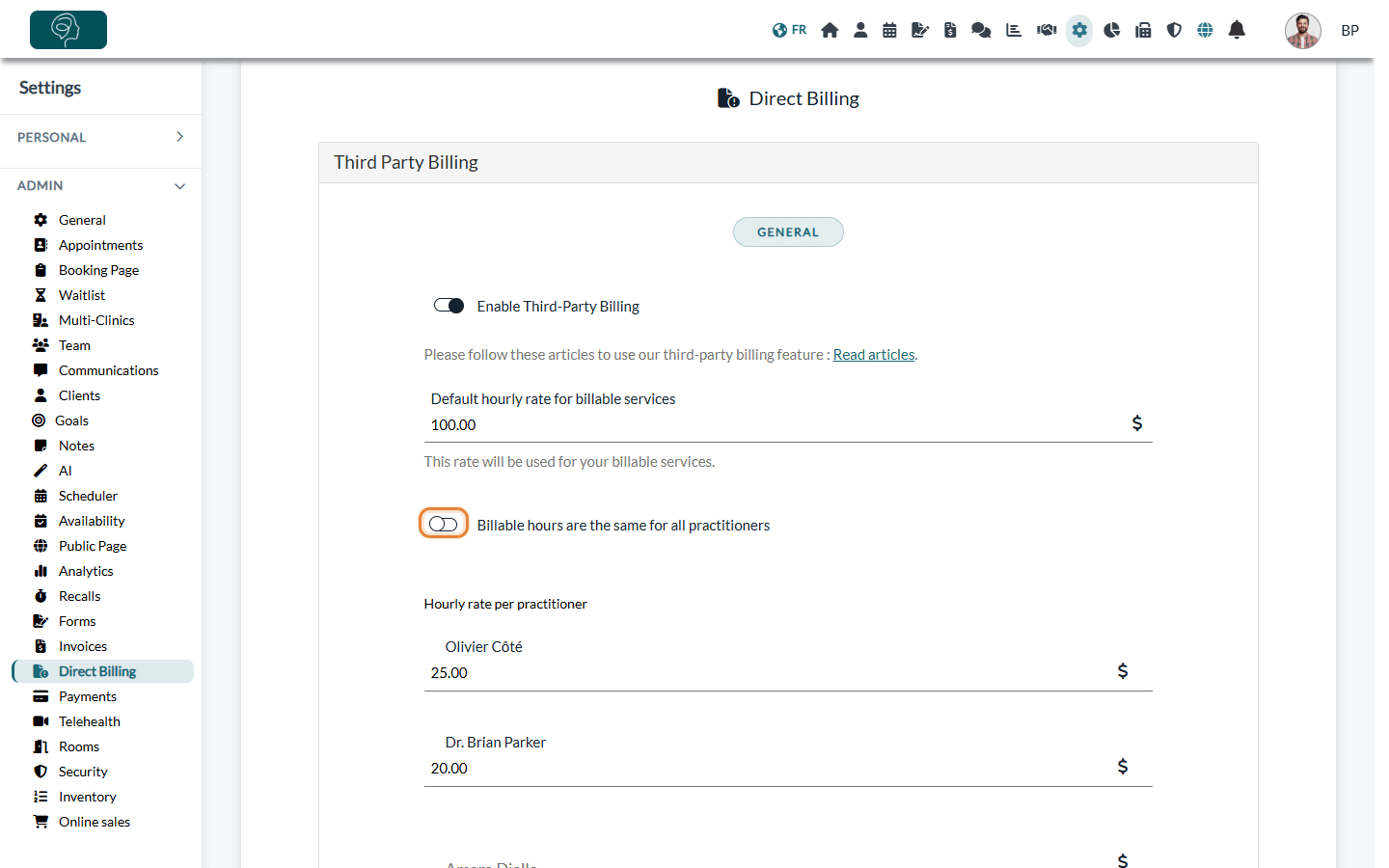
3Choose how hourly rates work
Use the Billable hours are the same for all practitioners toggle:
- On — every practitioner is billed at the default hourly rate.
- Off — an Hourly rate per practitioner list appears. Enter a specific rate for each practitioner who needs one. A practitioner with their own rate uses it; a practitioner left blank uses the default hourly rate.
Good to know: the rate is recorded with each billable time entry when you save it. Changing a rate later does not change the entries already recorded. If you edit an entry and choose another practitioner, the rate of that practitioner is applied.
Important: if you switch the toggle back on and save, the individual practitioner rates are erased. You will have to enter them again if you switch back to per-practitioner rates.
4Add your payers
In the Payers section, you can search existing payers by name or type and click Add a payer to create new ones (insurers, employers, government programs, etc.). Creating payers is explained step by step in Third-Party Billing: how to create payers.
5Configure the funding alerts
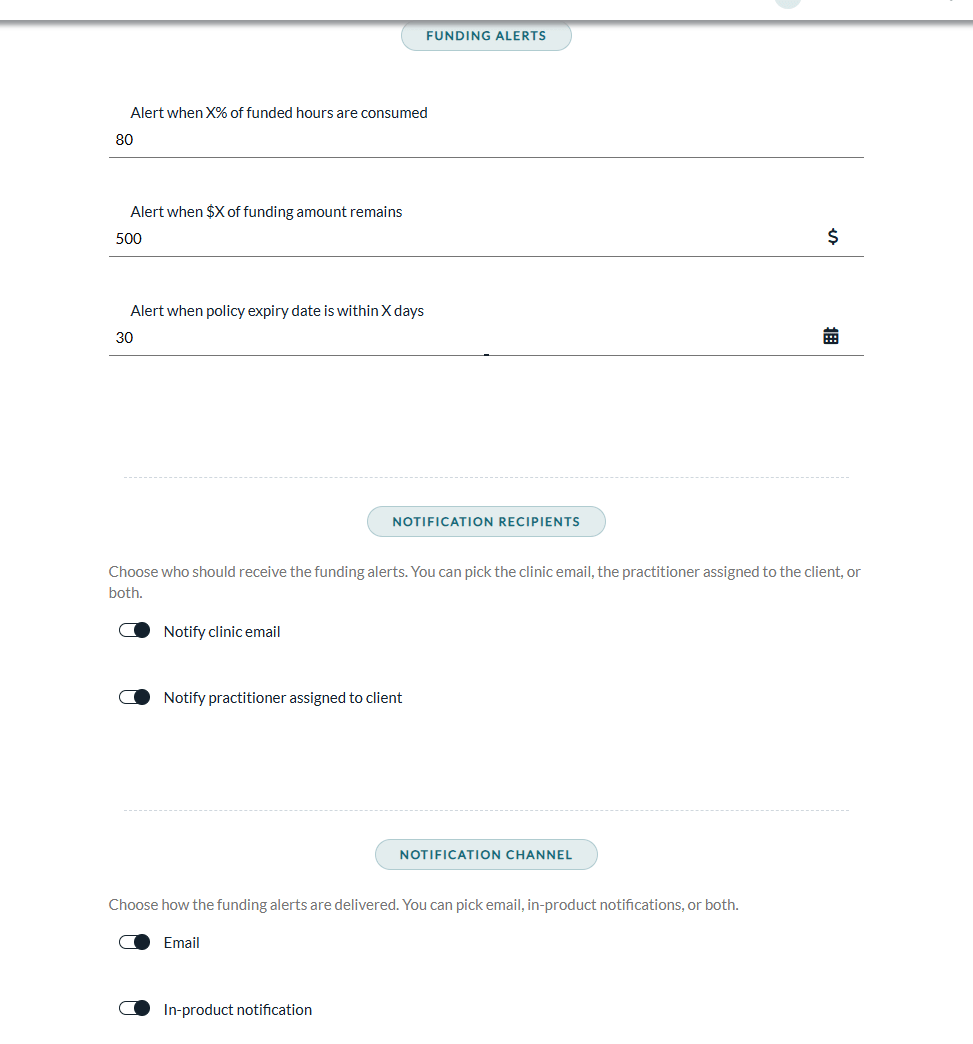
The Funding Alerts section controls when Colib warns you that a client's funding policy is running low or about to expire. Set the thresholds that fit your practice:
| Setting | What it does |
|---|---|
| Alert when X% of funded hours are consumed | For example, 80 means you are warned once 80% of the authorized hours have been used. Default: 80. The value must be between 1 and 100. |
| Alert when $X of funding amount remains | For example, 500 means you are warned once the remaining funded amount drops to $500 or below. Default: 500. |
| Alert when policy expiry date is within X days | For example, 30 means you are warned 30 days before the end date of a policy. Default: 30. |
Setting the amount or the number of days to 0 turns off that alert (the percentage cannot be turned off: it must stay between 1 and 100). How alerts are evaluated and sent is explained in Third-Party Billing: how do funding alerts work?
6Choose who receives the alerts and how
In Notification recipients, turn on one or both options:
- Notify clinic email — the alert is sent to your practice's contact email.
- Notify practitioner assigned to client — the alert is sent to the practitioner assigned to the client concerned.
In Notification channel, turn on one or both options:
- Email — alerts are sent by email.
- In-product notification — alerts appear in the Colib notifications (bell icon of the top bar).
Safety net: when alerts are sent by email and no email could reach a practitioner (option turned off, or the client has no assigned practitioner), Colib also sends the alert to your practice's contact email, so an alert is never lost.
7Save
Click Save at the bottom of the panel. A confirmation message appears once your settings are stored. Payers are saved separately, as soon as you save each payer.
You are ready
With the feature enabled, you can now:
- Create payers (insurers, employers, etc.).
- Attach a funding policy to a client.
- Log billable time outside appointments.
- Create an invoice addressed to a payer from billable time, tasks or appointments.
How it works, from authorization to payment
- The payer approves the services. The insurer, employer or program sends you (or your client) an authorization: an approval letter, an email or a page of its provider portal. It states what is covered: number of hours and/or dollar amount, maximum hourly rate, coverage period and authorization number.
- You create the payer once in Colib, with its billing email (Third-Party Billing: how to create payers).
- You enter the authorization as a funding policy in the client's record, by copying the figures of the approval (Third-Party Billing: how to attach a funding policy to a client).
- You record your work (appointments and billable time). Colib keeps track of what is used and what is left.
- You create the invoice addressed to the payer and send it from Colib to the payer's billing email (Third-Party Billing: how to create an invoice from billable time, tasks or appointments).
- The payer pays you directly, through its own payment process. When you receive the money, you mark the invoice as paid in Colib.
Frequently asked questions
How and when do I get paid? Does it go through Colib and Stripe?
No. Colib prepares the invoice, sends it to the payer and keeps track of it, but the money does not go through Colib or Stripe: the payer pays you directly, with its own payment method (for example a direct deposit or a cheque) and its own timelines. Ask each payer how and when it pays its providers. The email sent to the payer contains no online card payment link, and no Colib payment processing fees apply to these invoices.
When the payment arrives, open the invoice and change its status to Paid, with the payment method Third party (or Partially paid with the amount received): see How to change the status of an invoice. To follow what the payers still owe you, open the Receivables list of the Invoicing page (www.colib.io/invoices): outstanding amount per invoice, days outstanding, aging (0-30 days or 31+ days overdue), average days to payment and Excel export.
How do I know how much has been used and how much is left?
- For one client: in the client's record, Billing tab > Third-party payers. Each policy shows the hours used out of the authorized hours, the amount used out of the funded amount, the remaining balance and a progress bar. The Download PDF button gives you a summary you can keep or share.
- For all your clients: the Third-party payers list of the Invoicing page shows every policy with its usage and its status (Active, Expiring soon, Expired, Exhausted).
- Without checking: funding alerts warn you when a policy is almost used up or about to expire (step 5 above).
What counts as used: the billable time you log and the invoices you save for this payer (drafts, cancelled, written-off and refunded invoices are not counted). Usage is counted as soon as the work is logged or invoiced, whether or not the payer has paid yet: the Receivables list tells you what has not been paid.
Where do I find the billing email of an insurer?
Ask the payer for it: it usually appears on the authorization or approval letter, in the payer's provider portal, or from the case manager or adjuster handling your client's file. Do not rely on an address found in a web search: an invoice contains your client's personal information, and an invoice sent to the wrong address may not be paid. Colib does not provide a directory of payers.
What should I enter as the reference number of the payer?
The Payer ID / reference number field of the payer is the number that identifies you with this payer: the provider, vendor or account number it gave you. It appears as the reference on the invoices addressed to this payer. If the payer did not give you a number and identifies providers by their professional registration, enter your registration number (for example, your RCC number). When in doubt, ask the payer which number it expects on your invoices. Your own licence or registration number can also appear on all your invoices: see How to customize invoices for each practitioner in my clinic.
Where do I enter the client's policy, the authorized hourly rate and the cap?
In the client's record: Billing tab > Third-party payers > Add a funding policy. The figures come from the payer's authorization: Colib cannot know them, you copy them from the approval letter. Authorized hours is the number of hours approved, Hourly rate cap is the maximum hourly rate the payer reimburses, and Total funded amount is calculated from them (or entered as written on the approval). All the steps are in Third-Party Billing: how to attach a funding policy to a client.
Good to know
- Where the feature appears — once it is enabled, the client record shows a Third-party payers sub-tab in its Billing tab, the Log billable time button appears in the client record, and the Invoicing page (www.colib.io/invoices) gets a Third-party payers list and a Receivables list.
- Insurance information on the booking page — in Settings > Booking Page (www.colib.io/settings?show=bookingpage), the Ask clients for their insurance information during the booking process option adds an Insurance Provider section to the first step of your booking page, where clients declare their insurer and policy number. Third-Party Billing must be enabled first.
- Turning the feature off — switch Enable Third-Party Billing off and save: the third-party payer sections and buttons disappear from the client records. Your payers, policies and invoices are not deleted.
Still have a question?
Write to us at support@colib.io, we will be happy to help.
Was this article helpful?
That’s Great!
Thank you for your feedback
Sorry! We couldn't be helpful
Thank you for your feedback
Feedback sent
We appreciate your effort and will try to fix the article