Who is this article for?
Colib can automatically alert your practitioners when an active appointment still has no active invoice attached a number of days after it took place. You choose the number of days. This helps make sure no appointment is forgotten at billing time.
When the option is on, the practitioner assigned to the appointment receives an internal Colib notification (the bell icon in the top bar), not an email. The notification takes them straight to the appointment that needs an invoice.
Before you start: this option is in Settings > Invoices (www.colib.io/settings?show=invoices), in the Admin part of the settings. You need access to the practice settings to turn it on. It applies to the whole practice: every practitioner receives the notifications for their own appointments.
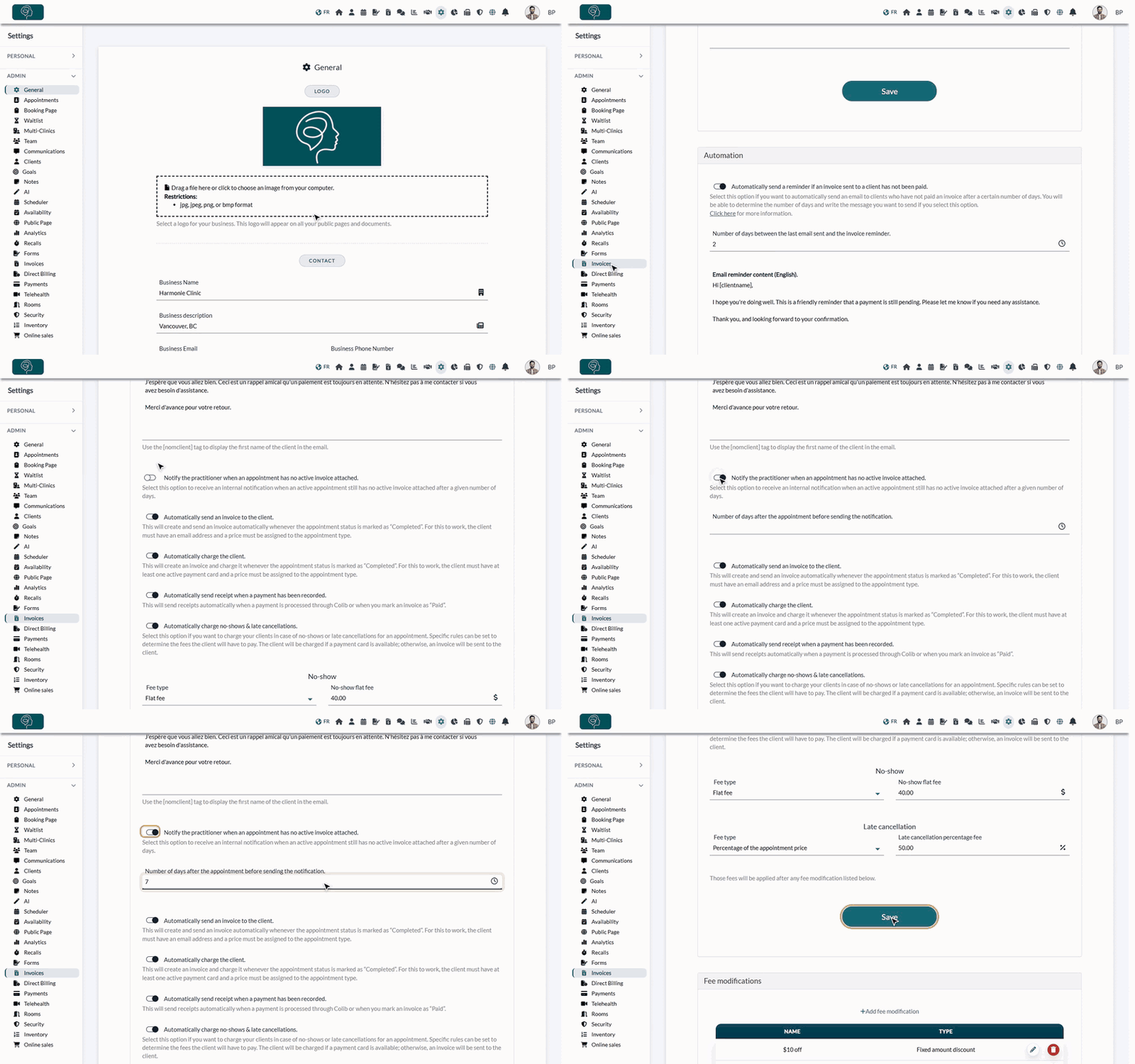
1Open the invoice settings
- Sign in to www.colib.io.
- Go to www.colib.io/settings?show=invoices. You can also click the Settings icon (gear) in the top bar, then Invoices in the Admin menu on the left.
- Open the Automation section.
2Turn on the notification and choose the delay
- Turn on Notify the practitioner when an appointment has no active invoice attached.
- In Number of days after the appointment before sending the notification., enter the delay you want, between 1 and 50 days. For example, enter 7 to be notified one week after the appointment if no invoice is attached.
- Click Save at the bottom of the Automation section. A message confirms that your changes are saved.
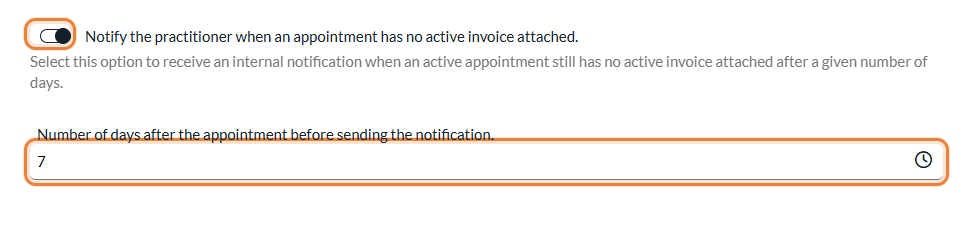
That's it: from now on, the assigned practitioner is notified automatically for any active appointment left without an active invoice after the delay you set.
Important: the number of days is required. If you leave it empty, the option is not kept when you save. A number outside 1 to 50 shows the message The number of days must be between 1 and 50.
What happens once the option is enabled
Every day, Colib automatically reviews your appointments in the background. You don't need to do anything. A notification is sent for each appointment that meets all of these conditions:
- it is an active appointment (not cancelled or deleted). No-shows and late cancellations are included, since you may bill them;
- it has no active invoice attached. A draft, cancelled or written off invoice does not count: an appointment with only a draft invoice is still flagged;
- it took place exactly the number of days you configured (for example, 7 days after the appointment).
The notification:
- is sent to the practitioner linked to the appointment, so each practitioner only sees the appointments they need to bill themselves;
- appears in that user's Colib notification center (the bell icon, or www.colib.io/notifications), under the title Appointment without an invoice;
- reads, for example: No active invoice is attached to the appointment "Initial consultation" (Completed) scheduled on March 12, 2026. It shows the appointment title, its status and its date;
- has a View appointment button: it opens the appointment directly in the Scheduler, so the practitioner can create the missing invoice right away (see How to create and send an invoice or a receipt).
Good to know: each appointment is checked once, on the day the delay is reached. If an active invoice is attached to the appointment before that day, no notification is sent. If the invoice is created after the notification, the notification simply stays in the notification center, where you can delete it.
See your appointments without an invoice at any time
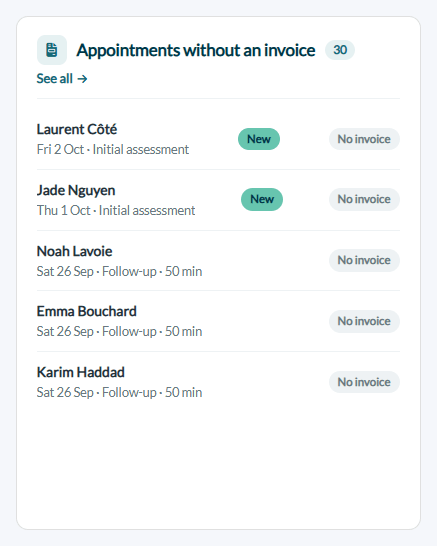
Even without this option, the Colib home page (www.colib.io/establishmentadmin/home, the house icon in the top bar) has an Appointments without an invoice card. It lists your past appointments that still have no active invoice, with a No invoice badge. Click an appointment to open it in the Scheduler.
Tips
- Choose a delay that matches your billing rhythm — a short delay (for example 2 to 3 days) for close follow-up, a longer one (for example 10 to 15 days) if you bill less often.
- The delay only applies from now on — appointments that are already older than the delay when you turn the option on are not notified. Use the Appointments without an invoice card of the home page to catch up on them.
- Combine it with automatic invoicing — this option works hand in hand with the other options of the same Automation section, such as Automatically send an invoice to the client. or Automatically charge the client., which create an invoice when an appointment is marked as Completed. If you enable automatic invoicing, fewer appointments will ever reach the "no invoice" state.
- Several appointments on one invoice — an appointment attached to a grouped invoice is not flagged (see How to create one invoice for several appointments).
- Unpaid invoices — to follow up on invoices that are created but not paid, see How to automate invoice payment reminders.
Still have a question?
Write to us at support@colib.io, we will be happy to help.
Was this article helpful?
That’s Great!
Thank you for your feedback
Sorry! We couldn't be helpful
Thank you for your feedback
Feedback sent
We appreciate your effort and will try to fix the article