Who is this article for?
Some clients prefer a single invoice for several sessions, for example at the end of the month or for their insurance claim. In Colib, you can group several appointments of the same client on one invoice in a few clicks.
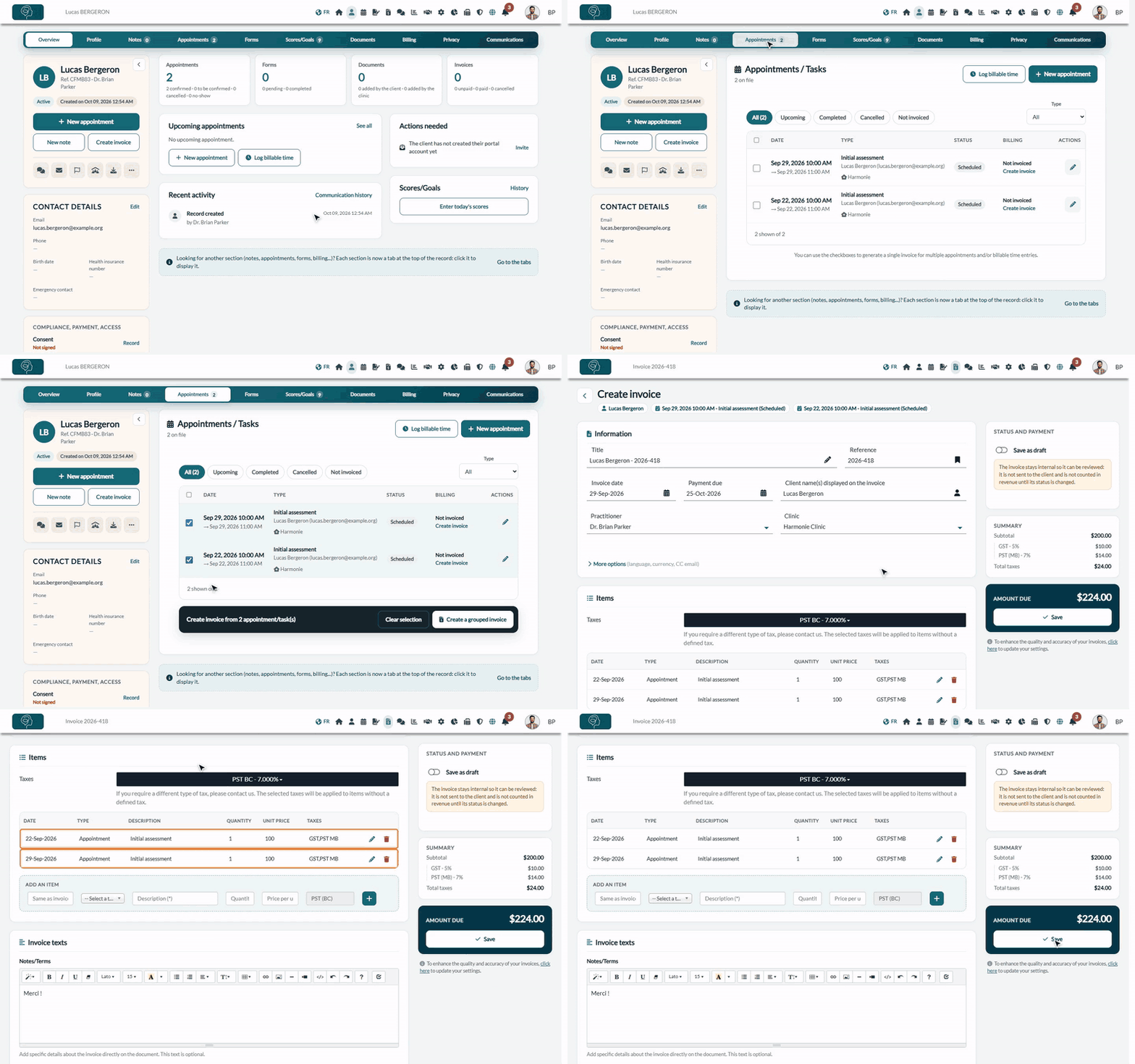
1Select the appointments in the client record
- Open the client record from your client list (www.colib.io/clients).
- Click the Appointments tab.
- Tick the box in front of each appointment to include. The box at the top of the table selects all the appointments displayed.
- A bar appears under the table with the number of selected appointments (for example, Create invoice from 2 appointment/task(s)).
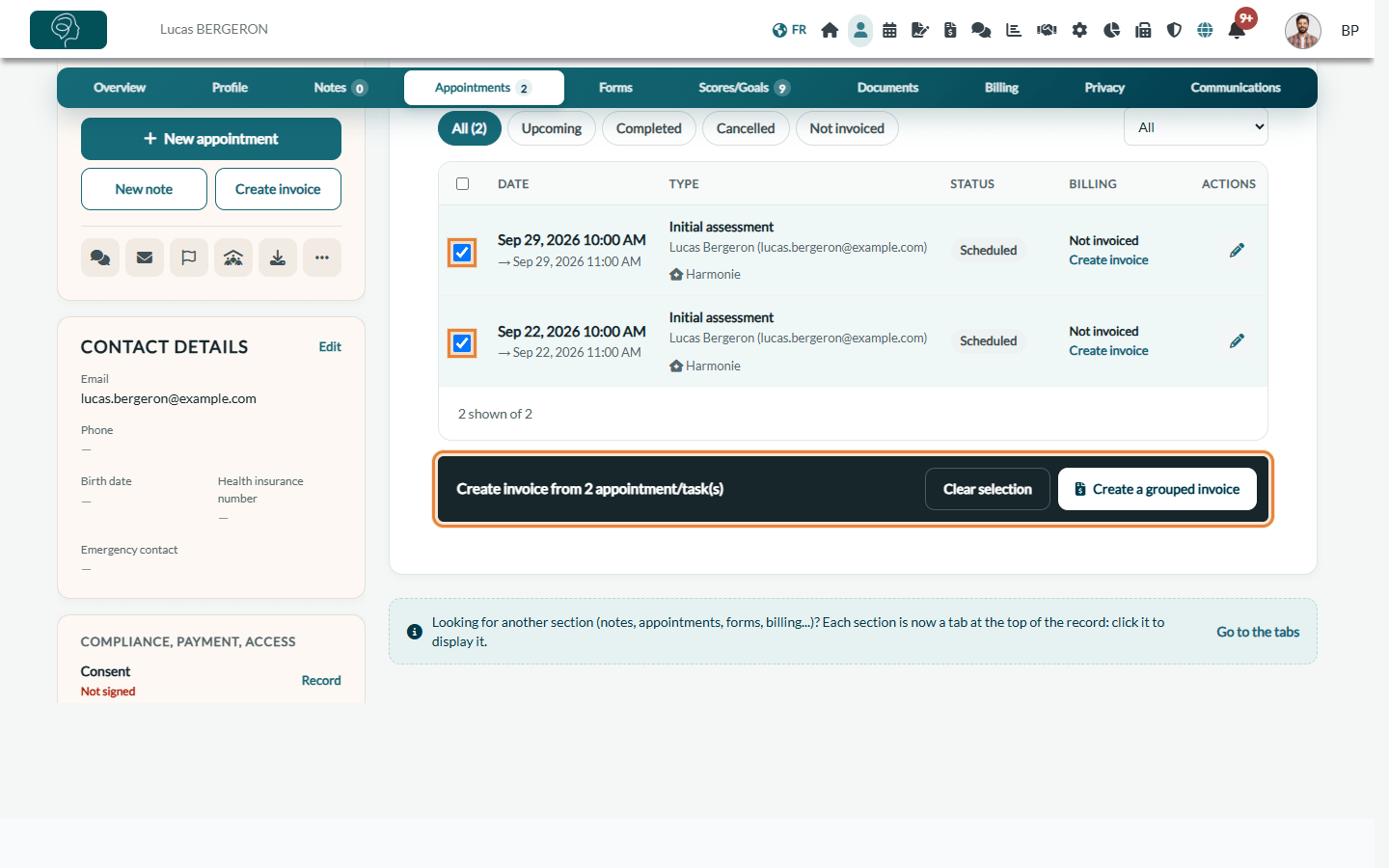
Tip: the Not invoiced filter above the table only shows the appointments that have no invoice yet. The Billing column shows whether an appointment is already invoiced.
2Create the grouped invoice
- Click Create a grouped invoice. (Clear selection unticks everything.)
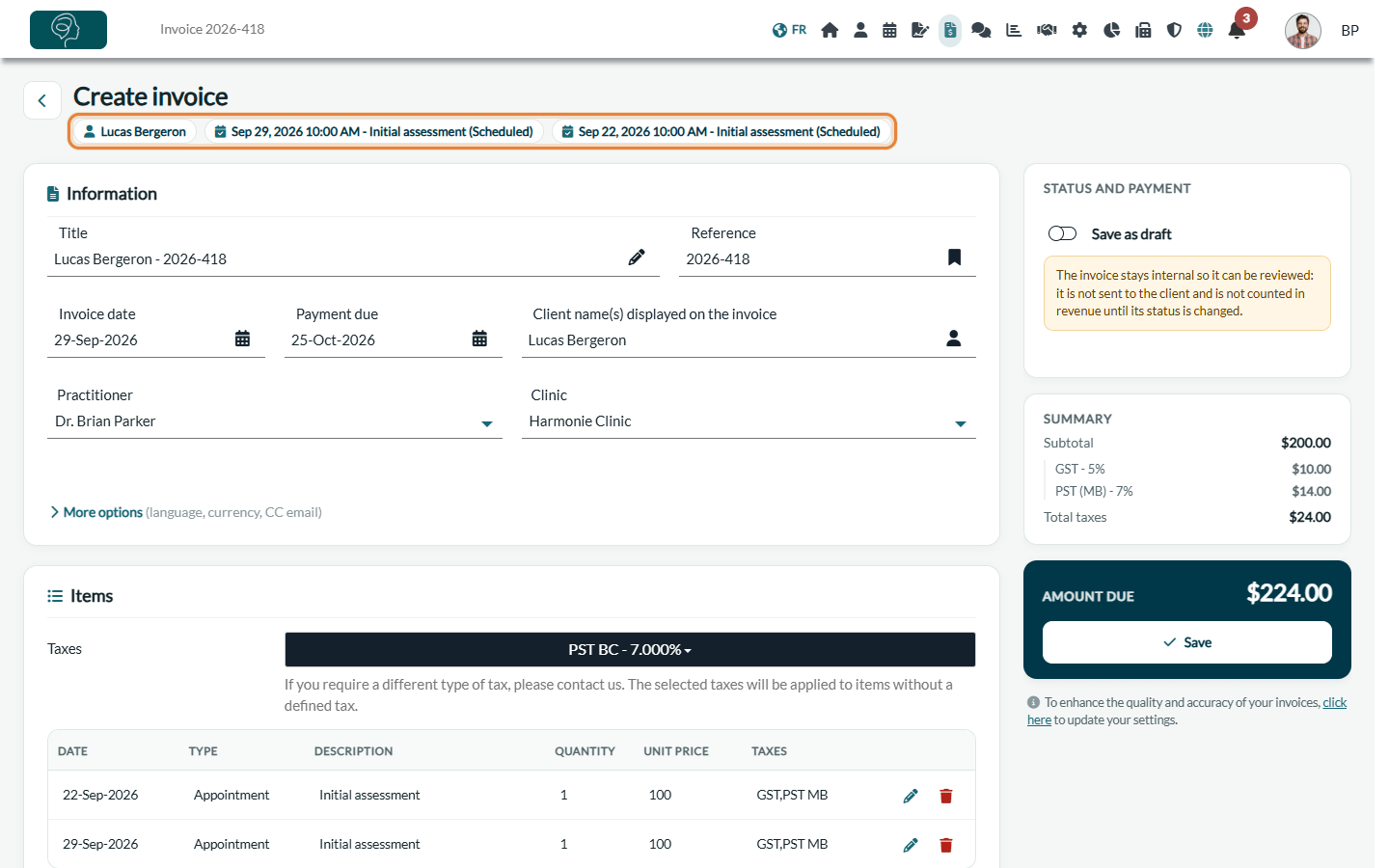
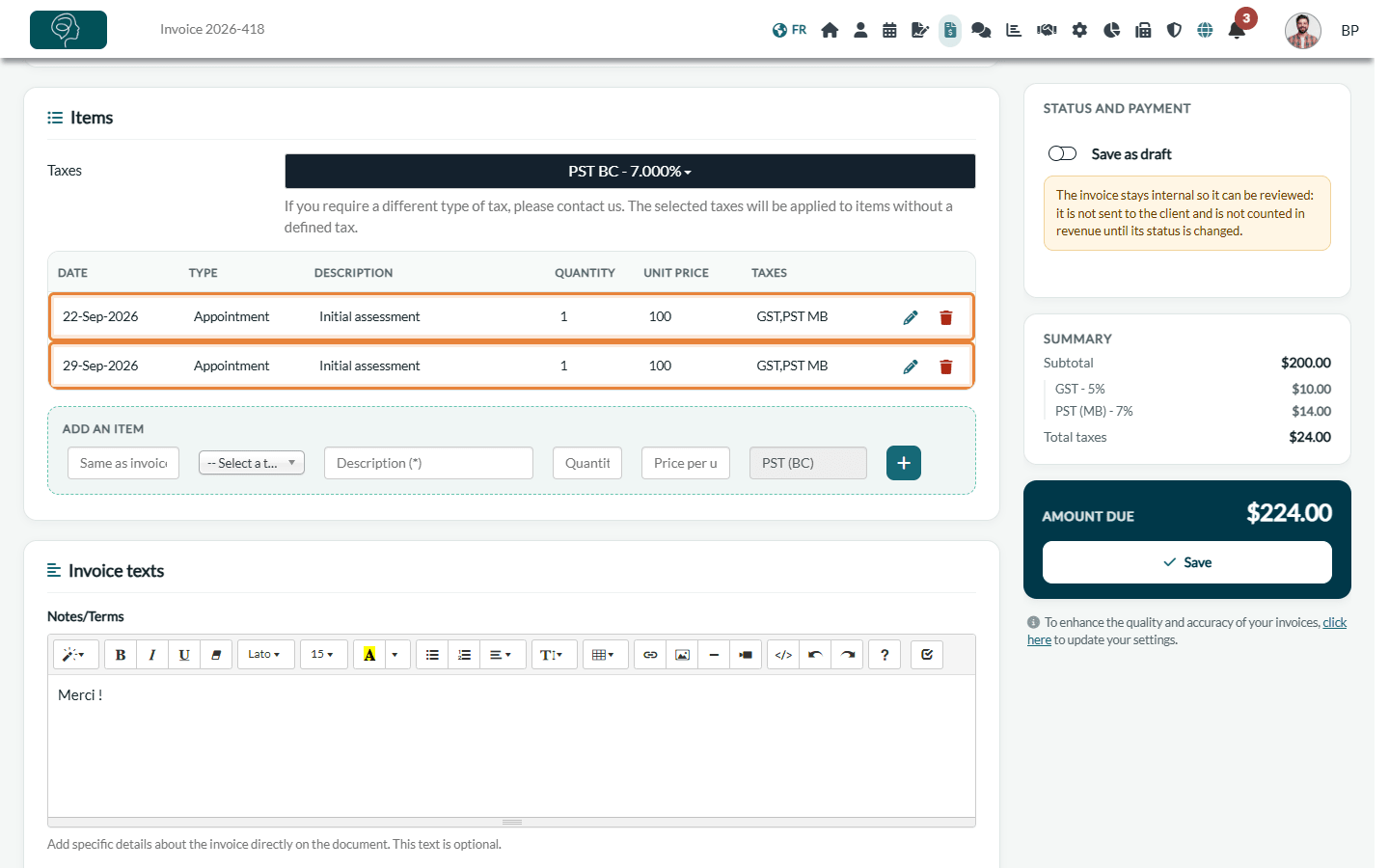
- The invoice opens with one line per appointment, at the price of each appointment type. The linked appointments are shown at the top of the invoice, under the title: the first two are displayed, and a + button with the number of the others shows them all.
- Check the information, add other lines if needed (Add an item in the Items card), then click Save in the panel on the right, under Amount due (on a narrower screen, in the bar at the bottom of the screen).
You then send the invoice and the receipt as usual: see How to create and send an invoice or a receipt.
Good to know
- Invoice date: it is set to the date of the most recent selected appointment. You can change it before saving.
- Practitioner: when all the selected appointments are with the same practitioner, this practitioner is set on the invoice.
- Tasks: tasks linked to the client can be selected and invoiced in the same way.
- Third-party payers: if the client has an active third-party payer, a Bill to window asks you who the invoice is for (the payer or the client).
- Same client only: a grouped invoice is created from one client record. For a group appointment with several clients, see How to choose the payer for an appointment with multiple clients.
- Avoid double billing: an appointment that already has an invoice shows an Invoice link in the Billing column. Do not select it again.
Still have a question?
Write to us at support@colib.io, we will be happy to help.
Was this article helpful?
That’s Great!
Thank you for your feedback
Sorry! We couldn't be helpful
Thank you for your feedback
Feedback sent
We appreciate your effort and will try to fix the article