Who is this article for?
Your appointment types (initial assessment, follow-up visit, video session...) set the duration, price, reminders and booking options of each service you offer. This article shows where to find them and how to create, edit, duplicate, delete and reorder them.
Before you start: appointment types are managed in Settings > Appointments (www.colib.io/settings?show=appointments). Only the administrators of the practice can see this page and change it.
1View your appointment types
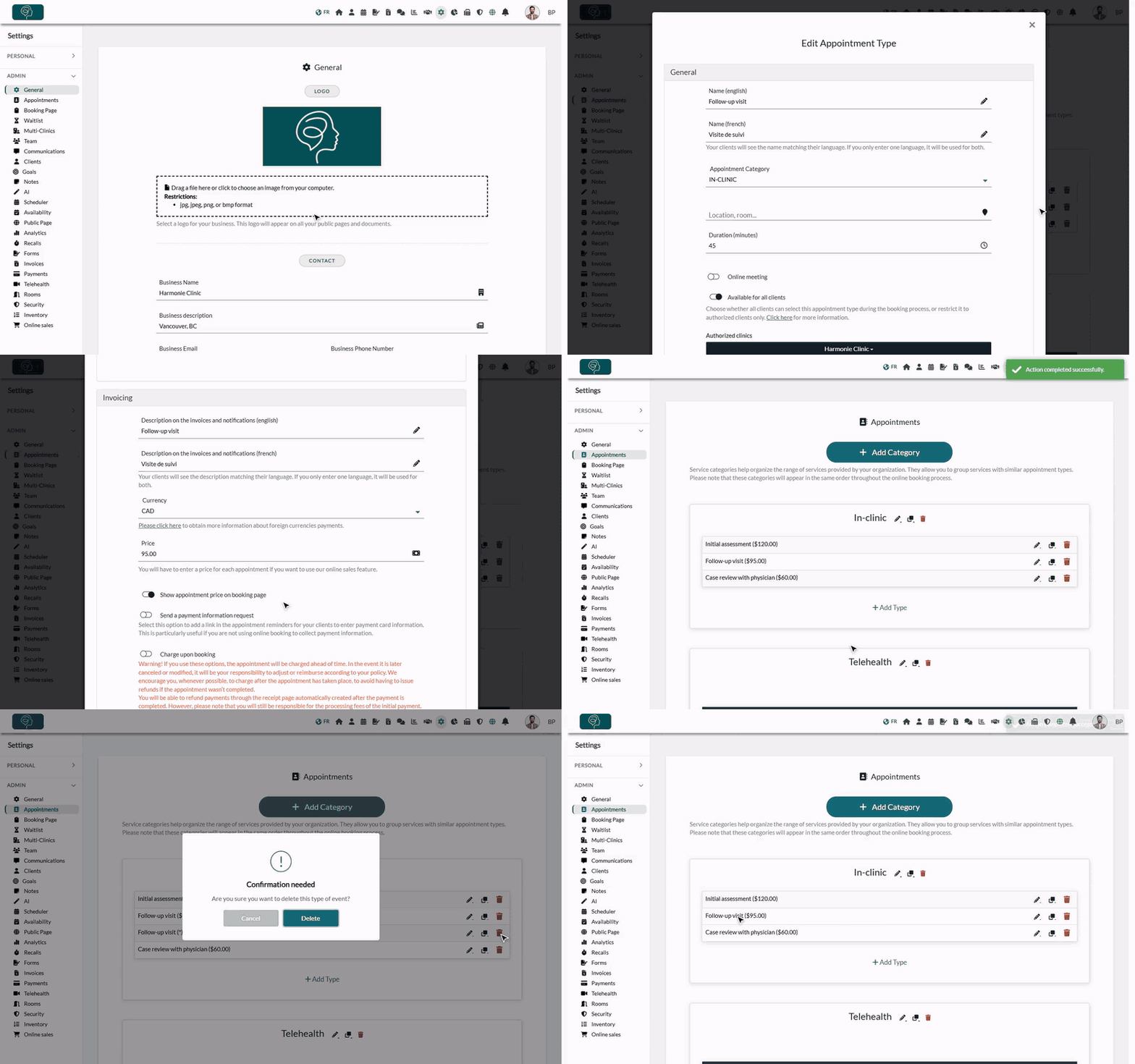
- Go to www.colib.io/settings?show=appointments. You can also click the Settings icon (gear) in the top bar, then Appointments in the Admin menu on the left.
- Your appointment types are listed by category (and sub-category), with their price in parentheses.
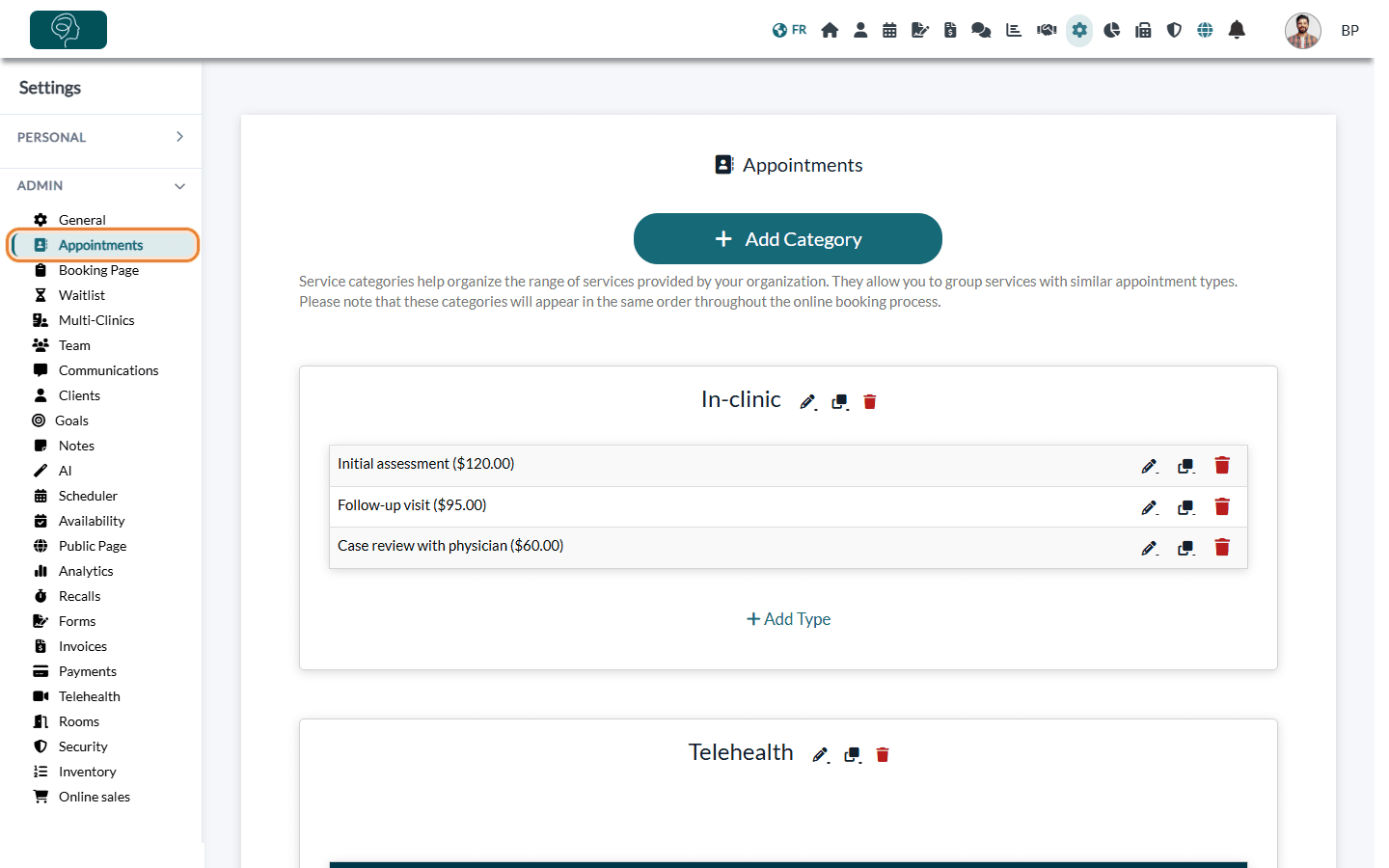
Each row has three icons:
| Icon | What it does |
|---|---|
| Pencil (Edit) | Opens the settings of the appointment type. |
| Two squares (Duplicate) | Creates a copy of the type, with all its settings. |
| Trash (Delete) | Removes the type from your list, after a confirmation. |
2Edit an appointment type
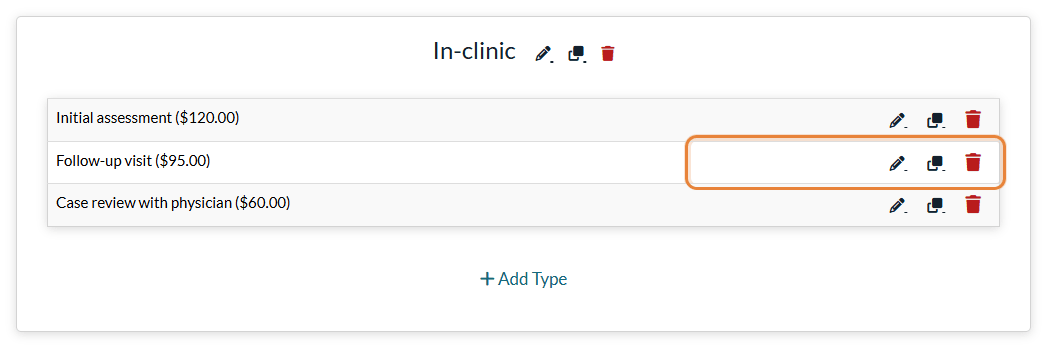
- Click the pencil icon on the row of the type.
- The Edit Appointment Type window opens. Its settings are grouped in sections (General, Direct booking, Group/class appointment, Invoicing, Notifications, Forms automation...).
- Change what you need, for example the Duration (minutes) in General or the Price in Invoicing.
- Scroll to the bottom of the window and click Save.
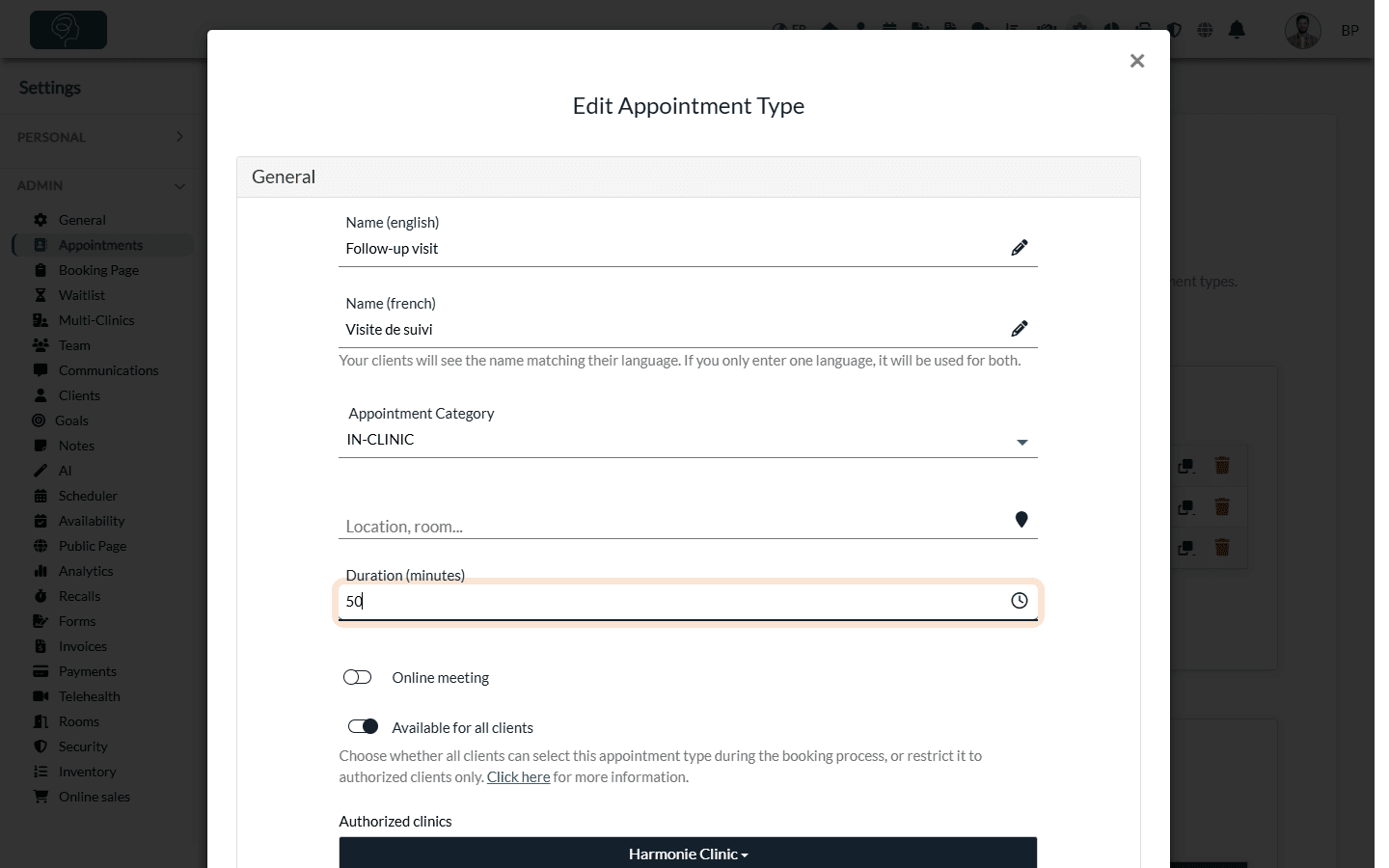
To learn what each section does, read What appointment types are and why they matter.
Create a new type: click Add Type under the category where it belongs. The same window opens, empty: enter at least a name (in English, in French or both) and the duration, then click Save. If online sales are enabled for your practice, a price is required too.
3Duplicate an appointment type
- Click the duplicate icon (two squares) on the row of the type.
- A copy appears in the same category, with (*) added to its name. It has the same settings as the original.
- Click its pencil icon to rename it and adjust what differs (for example, a longer duration).
4Delete an appointment type
- Click the trash icon on the row of the type.
- Confirm with Delete. The type disappears from your list.
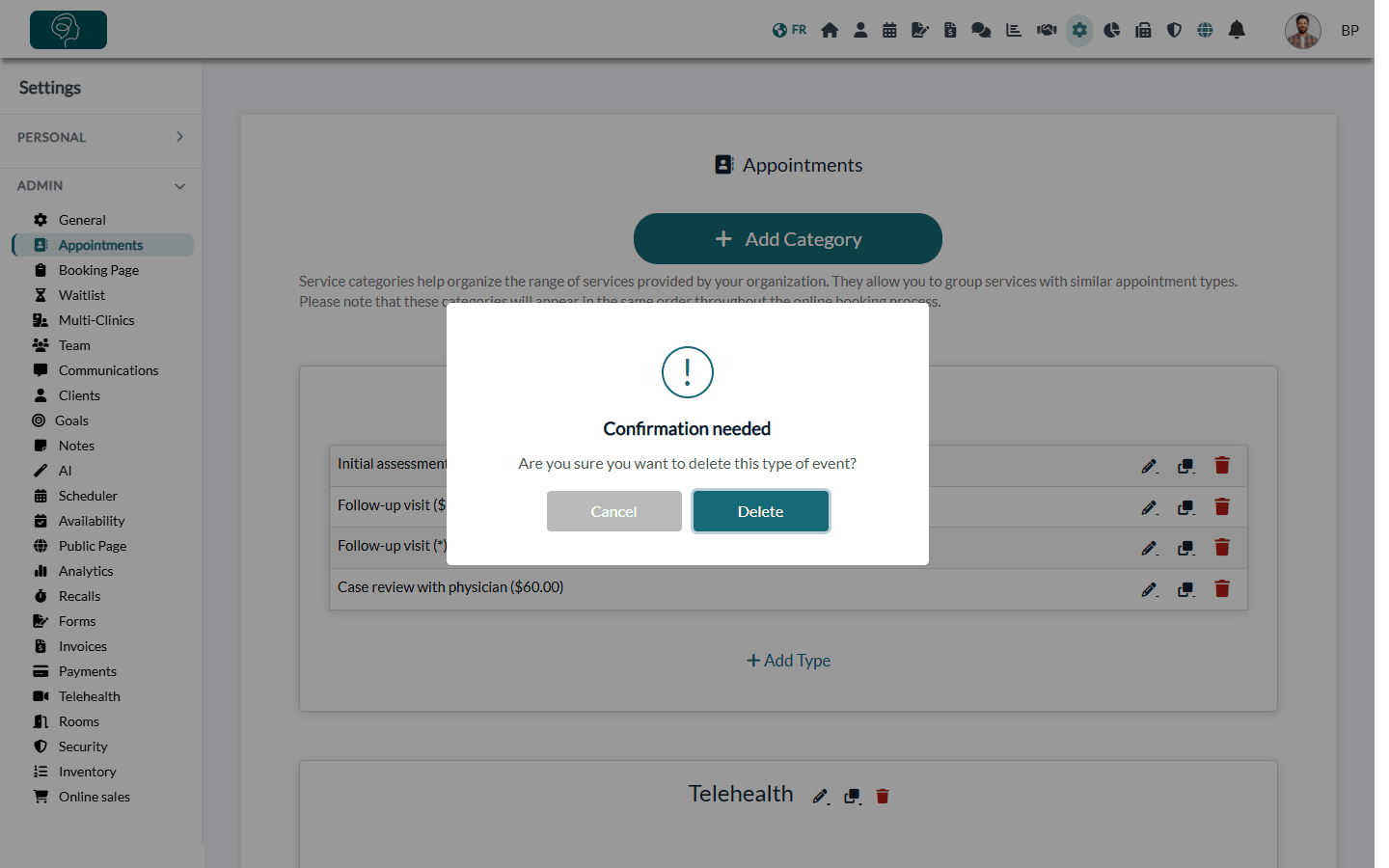
Your history is kept: if the type was already used (appointments, online bookings or gift certificates), Colib deactivates it instead of erasing it. Existing appointments keep their type; you just cannot choose it anymore for new appointments, and it no longer appears on your booking page.
Good to know
- Change the order — drag and drop the types inside a category, the sub-categories inside a category, and the categories themselves. Your booking page shows them in the same order.
- Categories have the same icons — next to the name of a category, the pencil, duplicate and trash icons edit, copy (with its sub-categories and types) or delete it. Deleting a category also deletes its sub-categories and appointment types. See How to organize appointment types with categories and sub-categories.
- Several clinics — if your account has several clinics and your user is attached to some of them, you only see the appointment types of your clinic(s) and the types that are not tied to a clinic.
- Notifications already scheduled — a change to the reminders or follow-up email applies to the notifications scheduled after your change. To update the upcoming appointments of this type too, click Refresh scheduled notifications in the Notifications section.
Still have a question?
Write to us at support@colib.io, we will be happy to help.
Was this article helpful?
That’s Great!
Thank you for your feedback
Sorry! We couldn't be helpful
Thank you for your feedback
Feedback sent
We appreciate your effort and will try to fix the article