Who is this article for?
In a practice with several practitioners, not everyone offers every service: only one person does the initial assessments, another runs the group sessions, a third only sees children... This article explains how to choose which practitioners can offer each appointment type, so that your clients can only book a service with a practitioner who provides it.
Before you start: you need access to the practice settings (Administrator role). The setting can be changed from the appointment type or from the team member: both screens change the same setting.
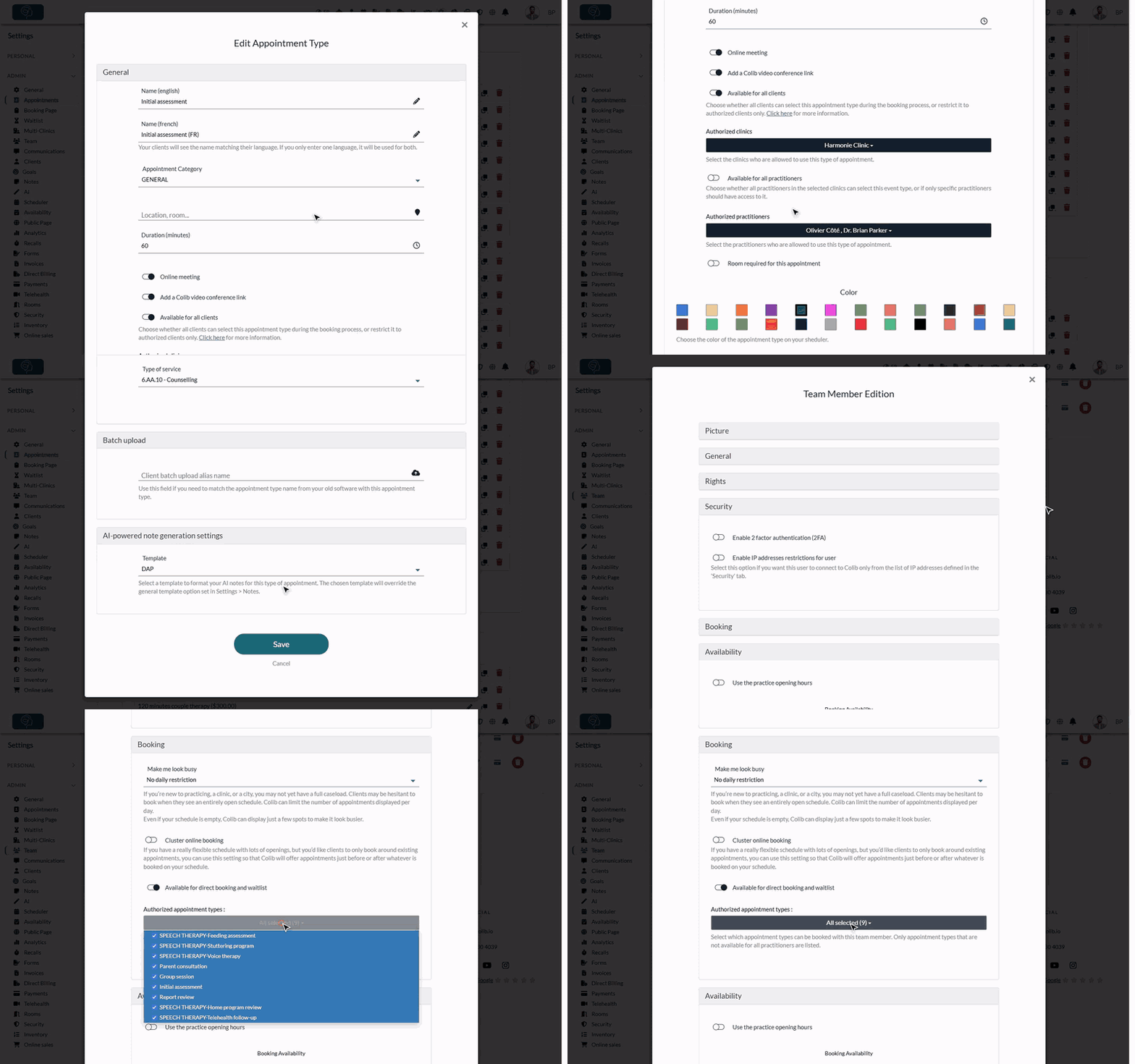
1From the appointment type
Use this method to choose, for one service, the practitioners who offer it.
- Go to Settings > Appointments (www.colib.io/settings?show=appointments) and click the pencil icon of the appointment type.
- Turn off Available for all practitioners. The Authorized practitioners list appears.
- Open the Authorized practitioners list and check each practitioner who offers this appointment type.
- Click Save at the bottom of the window.
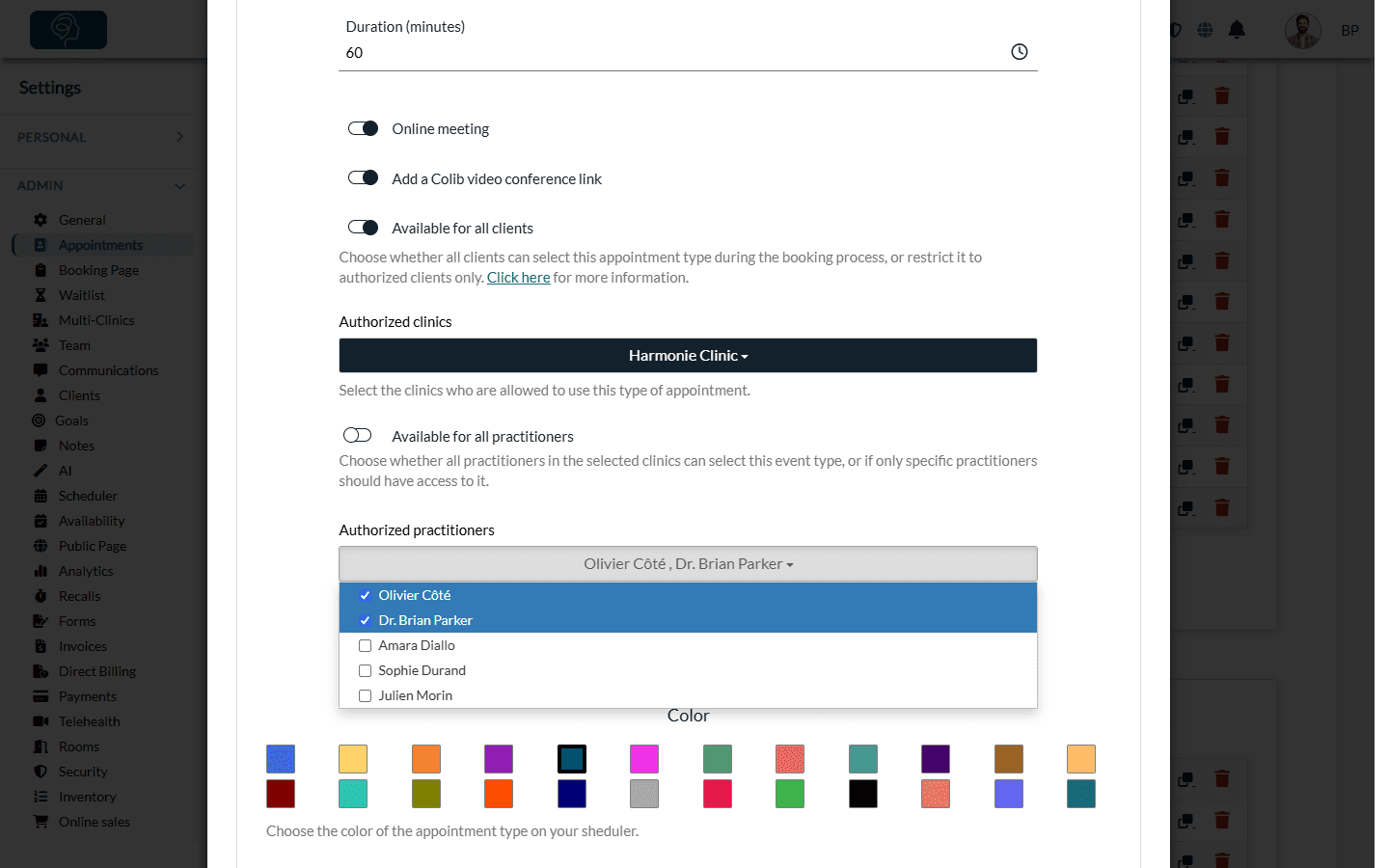
When Available for all practitioners is on (the default), every practitioner can offer the appointment type, including those you add to your team later.
2From the team member
Use this method to review, for one practitioner, all the services they offer.
- Go to Settings > Team (www.colib.io/settings?show=team) and click the pencil icon (Edit team member) on the practitioner's row.
- Open the Booking section.
- In Authorized appointment types, check the appointment types this practitioner offers and uncheck the others.
- Click Save at the bottom of the window.
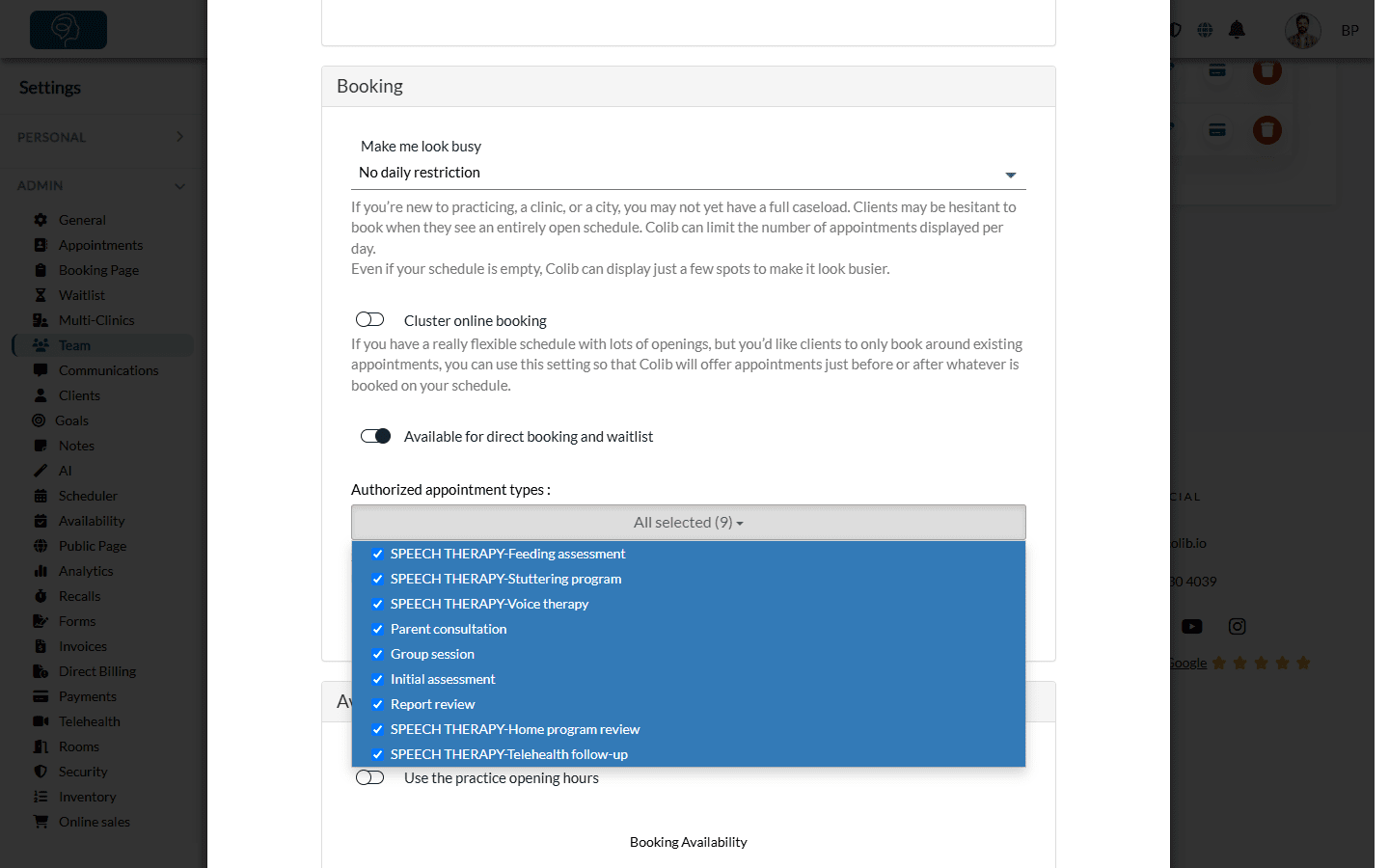
This list only shows the appointment types that are not available for all practitioners. If a type is missing, first turn off Available for all practitioners in that appointment type (step 1).
What changes for your clients and your team
- Booking page — when a client chooses an appointment type, only the authorized practitioners are offered, with their availability. On the direct link of a practitioner, only the types they offer are listed: see How to create a direct link to a specific practitioner schedule.
- Scheduler — in the appointment window, the Practitioner list only shows the practitioners authorized for the selected appointment type. Choose the type first: the list stays empty until a type is selected.
Important: if you turn off Available for all practitioners without checking any practitioner, nobody can be booked for this appointment type, online or in the scheduler.
Good to know
- Online booking of the practitioner — a practitioner appears on your booking page only if Available for direct booking and waitlist is turned on in the Booking section of their profile in the team.
- Several clinics — if your practice has several clinics, the appointment type also has Authorized clinics. With Available for all practitioners turned on, all the practitioners of the selected clinics can offer it.
- Restrict by client instead — to reserve an appointment type for some clients only (for example, follow-ups for existing clients), see How to restrict certain appointment types to specific clients.
- Removing a practitioner — when a member is removed from the team, their authorized appointment types are removed too.
- Manage your appointment types — see How can I view my appointment types and manage/edit them as needed?.
Still have a question?
Write to us at support@colib.io, we will be happy to help.
Was this article helpful?
That’s Great!
Thank you for your feedback
Sorry! We couldn't be helpful
Thank you for your feedback
Feedback sent
We appreciate your effort and will try to fix the article