Who is this article for?
On your online booking page, clients can start by choosing the practitioner, or by choosing the type of appointment. Colib lets you pick the order that suits your practice, decide whether clients may choose their practitioner, and automatically send returning clients to the practitioner already assigned to them.
This article is for practice owners and administrators, especially in clinics with several practitioners.
Before you start: these options are in Settings > Booking Page (www.colib.io/settings?show=bookingpage), in the Booking flow part of the Direct Booking section. They apply when the Client booking type is Online booking by client: see How do I set up the booking process in Colib?
1Choose the order of the booking steps
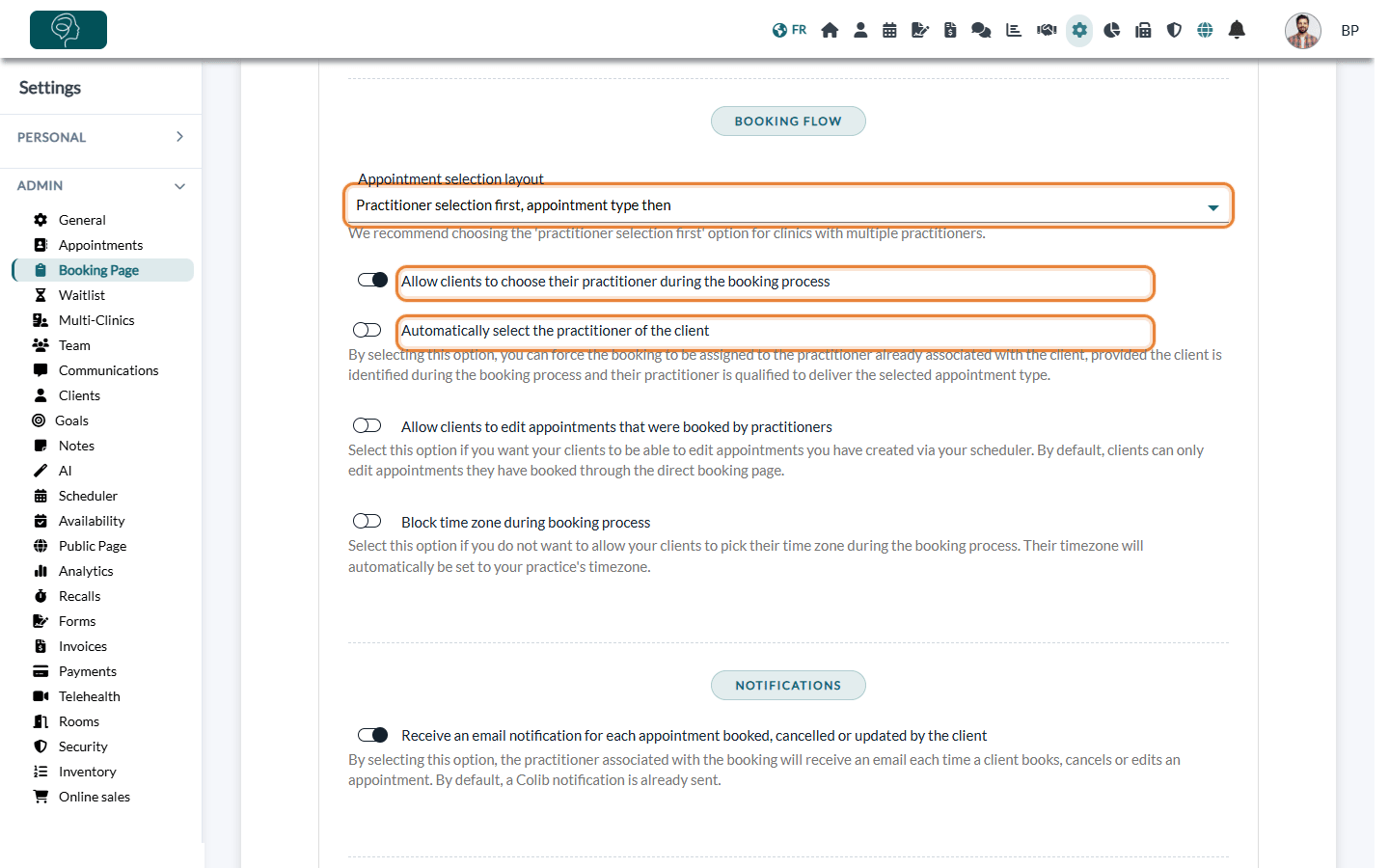
- Go to Settings > Booking Page (www.colib.io/settings?show=bookingpage) and scroll down to Booking flow.
- In Appointment selection layout, choose:
- Practitioner selection first, appointment type then — recommended on the screen itself for clinics with several practitioners;
- Appointment type selection first, practitioner then — suited to a solo practice, or when clients choose a service rather than a person.
- Set the two options below if needed (see steps 2 and 3).
- Click Save at the bottom of the page.
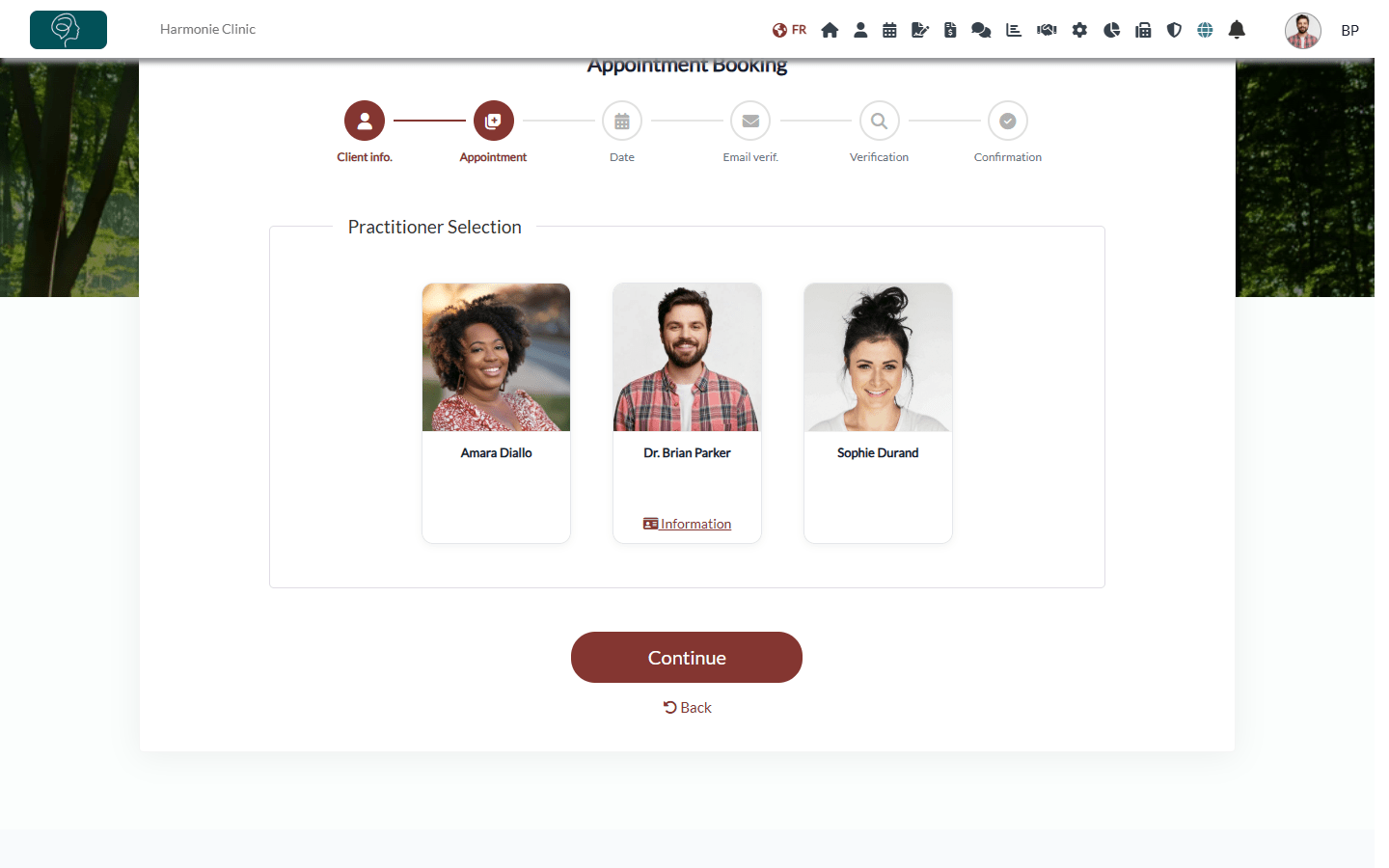
What your clients see after the first step (their contact information):
| Layout | On the booking page |
|---|---|
| Practitioner first | A Practitioner Selection step shows a card for each practitioner, with their photo and, if you entered one, an Information link to their description. Once a practitioner is chosen, only the appointment types they offer are listed. The cards are shown in a random order, so that no practitioner is always first. |
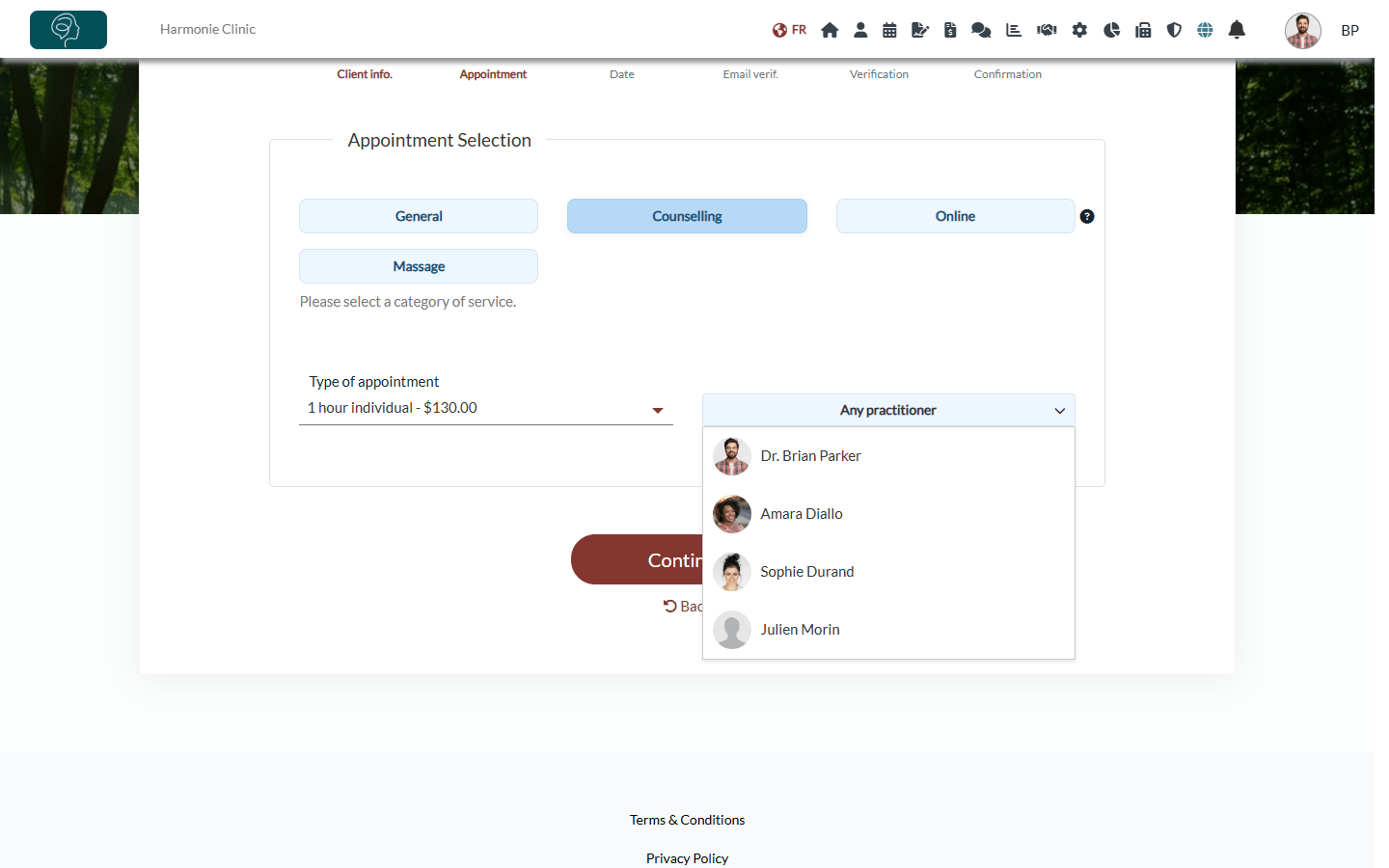
| Appointment type first | The client chooses a category and a Type of appointment. If clients may choose their practitioner, a list next to it offers Any practitioner (default) or the practitioners who offer this type. |
2Let clients choose their practitioner (or not)
The option Allow clients to choose their practitioner during the booking process is used with the appointment type first layout:
- On — clients can pick a practitioner in the list, or keep Any practitioner to see the time slots of all the practitioners who offer the type.
- Off — no practitioner list is shown: clients see the time slots of all the practitioners who offer the type, and the appointment goes to the practitioner of the time slot they pick.
With the practitioner first layout, clients always choose a practitioner first, whatever this option.
3Book returning clients with their own practitioner
Turn on Automatically select the practitioner of the client so that a client who already has a practitioner keeps booking with that person.
- How the client is recognized — the email address entered on the first step of the booking page matches an active client record of your practice.
- Which practitioner — the one set in the Practitioner field of the client record (Profile tab). Clients without a practitioner book as usual.
- Condition — the practitioner must take online bookings and be qualified to deliver the selected appointment type.
- Result — the client's practitioner is selected automatically, and the time slots offered are theirs.
Tip: this option is useful in clinics where the client must stay with the same practitioner for the follow-up of their care. Check that the Practitioner field of your client records is filled in.
Good to know
- Direct link to a practitioner — a practitioner's own booking link opens the booking page with that practitioner already selected, whatever the layout. See How to create a direct link to a specific practitioner schedule.
- Practitioner description — to fill the Information link of the practitioner cards, see How to add practitioner information on a direct booking page.
- Restrict types to some practitioners — a practitioner only appears for the appointment types they are allowed to offer: check the team member's Authorized appointment types in Settings > Team (www.colib.io/settings?show=team).
- The other options of this part — Allow clients to edit appointments that were booked by practitioners (see this article) and Block time zone during booking process, which always uses your practice's time zone.
Still have a question?
Write to us at support@colib.io, we will be happy to help.
Was this article helpful?
That’s Great!
Thank you for your feedback
Sorry! We couldn't be helpful
Thank you for your feedback
Feedback sent
We appreciate your effort and will try to fix the article