Who is this article for?
Your practitioners travel to their clients: home care, home visits, mobile services. You want clients to give the address of the appointment when they book online, and to see only the practitioners who work near that address.
This article explains how to ask for the appointment address on your booking page, how to limit the practitioners offered by distance, and where your team finds the address afterwards.
Before you start: these options are in Settings > Booking Page (www.colib.io/settings?show=bookingpage) and are only shown when the Client booking type is Online booking by client. You need access to the practice settings. See How do I set up the booking process in Colib?
1Ask clients for the appointment address
- Go to Settings > Booking Page (www.colib.io/settings?show=bookingpage).
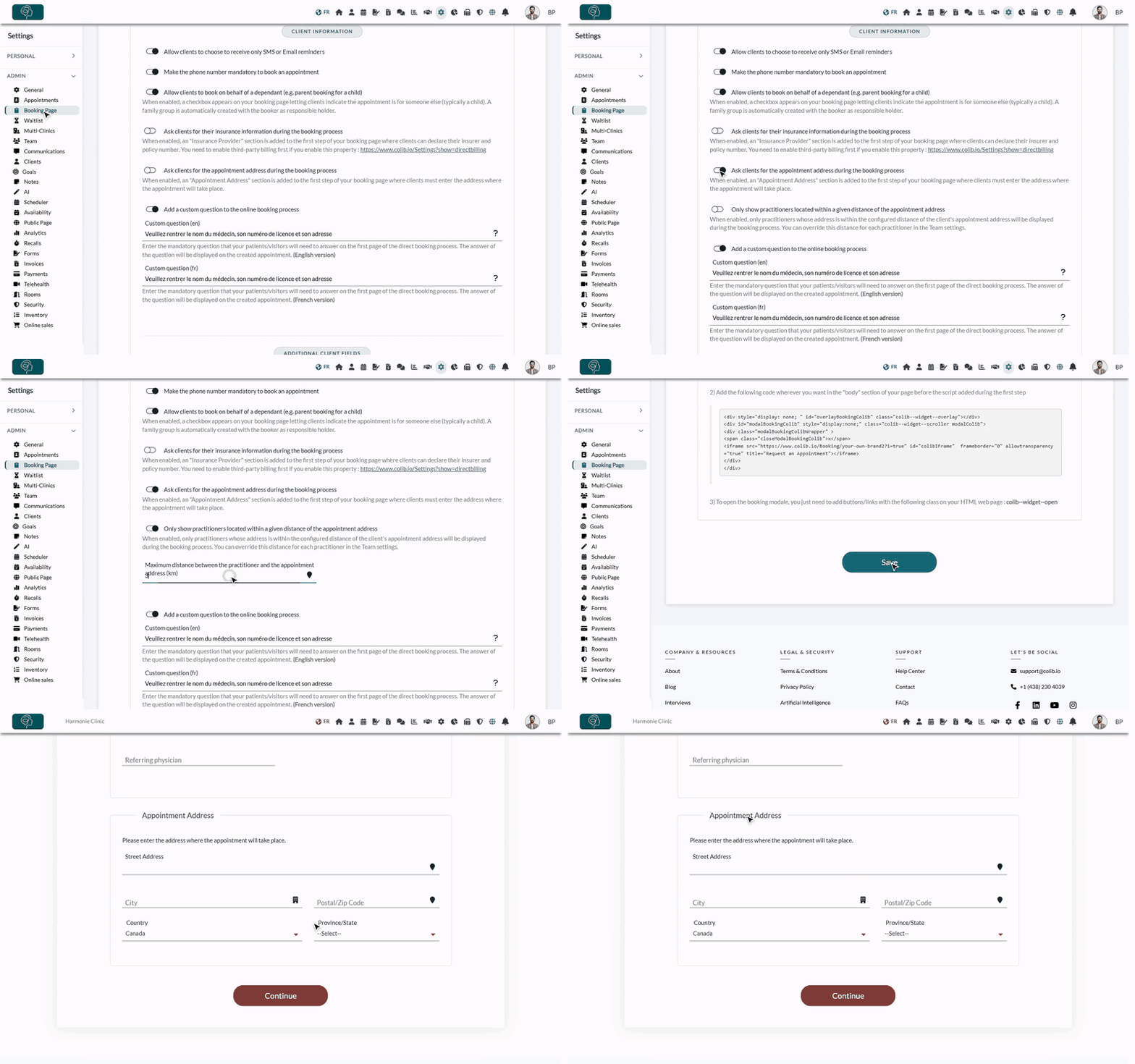
- In the Client information part of the Direct Booking section, turn on Ask clients for the appointment address during the booking process.
- To offer only the practitioners who are close to the client, also turn on Only show practitioners located within a given distance of the appointment address (this switch appears once the address is asked).
- Enter the Maximum distance between the practitioner and the appointment address (km) (for example, 25). This is the default distance for all your practitioners.
- Click Save at the bottom of the page.
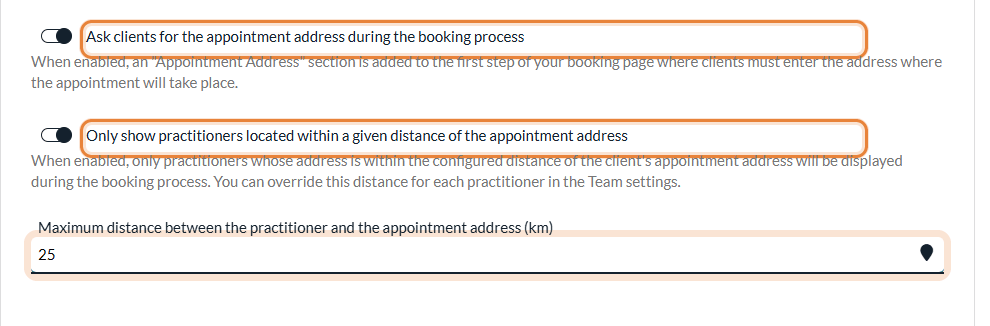
An Appointment Address section is now added to the first step of your booking page. The client must enter the address where the appointment will take place, and choose it among the suggestions shown while typing (otherwise the message Please select your address from the Google suggestions. appears and the client cannot continue). This lets Colib locate the address precisely.
2Enter the address of each practitioner
The distance is calculated from the address of each practitioner. If you use the distance option, every practitioner who takes online bookings needs an address.
- Go to Settings > Team (www.colib.io/settings?show=team) and click the pencil icon (Edit team member) on the practitioner's row.
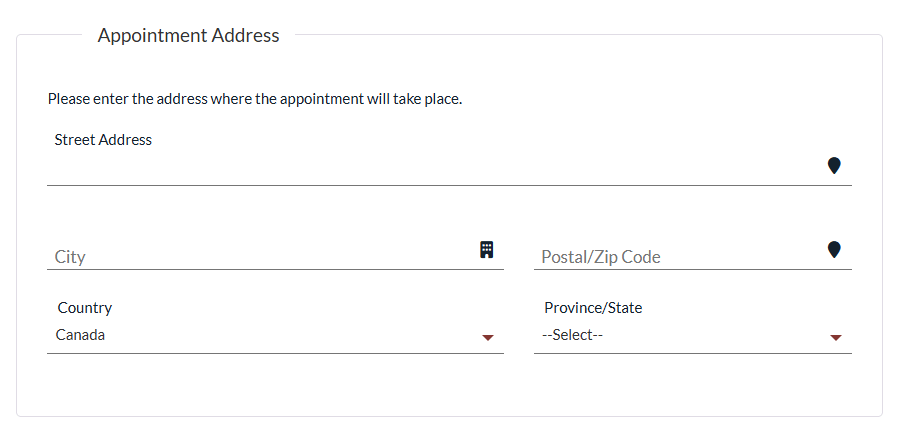
- Open the Address section and enter the practitioner's address (the place they start from, for example their office). Choose the address among the suggestions so that it can be located.
- Optionally, enter a different distance for this practitioner in Override the maximum distance for this practitioner (km), for example a practitioner who covers a wider area. Leave it empty to use the default distance of the booking page.
- Click Save at the bottom of the window.
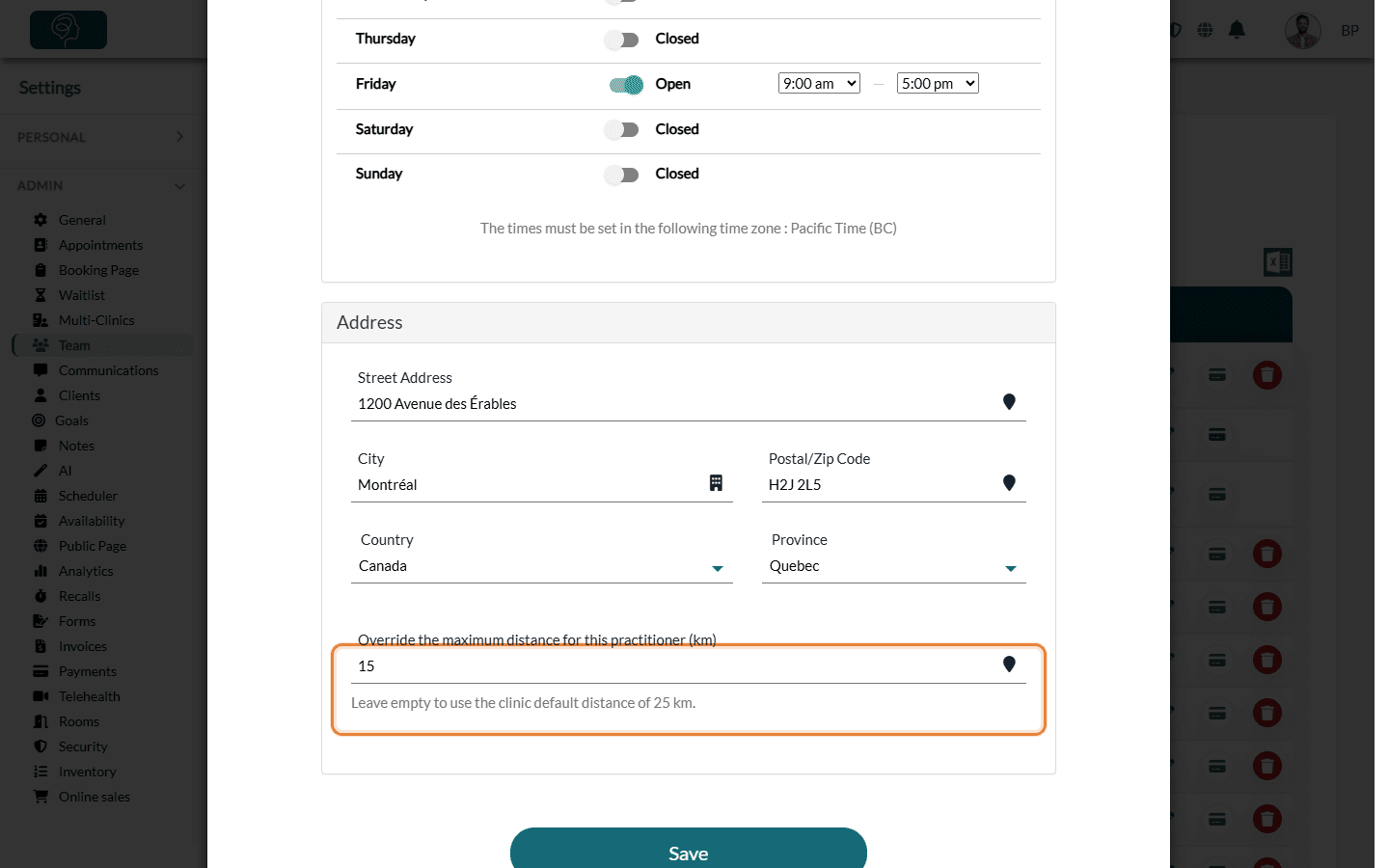
Important: when the distance option is on, a practitioner without an address is never offered on the booking page. If a practitioner disappears from your booking page after you turn the option on, check their address first.
3What your clients see, and where you find the address
- Practitioner selection — after the first step, the booking page only shows the practitioners whose address is within their distance of the appointment address, whatever the order of the booking steps (practitioner first or appointment type first). The time slots offered are also limited to these practitioners.
- Nobody close enough — if no practitioner is within the distance, the client sees: No practitioner is available within the configured distance of the appointment address. Please verify the appointment address or contact the clinic.
- In your scheduler — open the booked appointment: the address is shown under Location, as a link that opens it in Google Maps.
Good to know
- Straight-line distance — the distance is measured as the crow flies between the two addresses, not by road. Allow some margin if your practitioners drive.
- Asked for every online booking — once turned on, the Appointment Address section is shown for all appointment types of your booking page, including those that take place at your office or online.
- Distance without address — the distance option only works when the address is asked: if you turn off the address, the distance limit is turned off too.
- Booking flow — to choose whether clients pick the practitioner or the appointment type first, see the Booking flow part of How do I set up the booking process in Colib?
- Reminder before leaving — practitioners can get their own email or SMS reminder before each appointment: see How to get an email or SMS reminder before each appointment.
Still have a question?
Write to us at support@colib.io, we will be happy to help.
Was this article helpful?
That’s Great!
Thank you for your feedback
Sorry! We couldn't be helpful
Thank you for your feedback
Feedback sent
We appreciate your effort and will try to fix the article