Who is this article for?
Asking your clients to confirm their appointments helps you spot early the ones who may not show up. In Colib, clients confirm with one click from their reminder, and you see right away who has confirmed.
This article explains how to add the confirmation link to your reminders, what your clients see, how you are notified and where to check who has confirmed.
Before you start: the confirmation link is part of the reminders sent before the appointment. Reminders must therefore be set up for your appointment types. See What notifications do clients receive after booking? The settings below require access to the practice settings.
1Add the confirmation link to your reminders
- Go to Settings > Scheduler (www.colib.io/settings?show=scheduler).
- In the Client notifications section, turn on Add a confirmation link to the reminder notifications.
- The change is saved as soon as you click the switch.
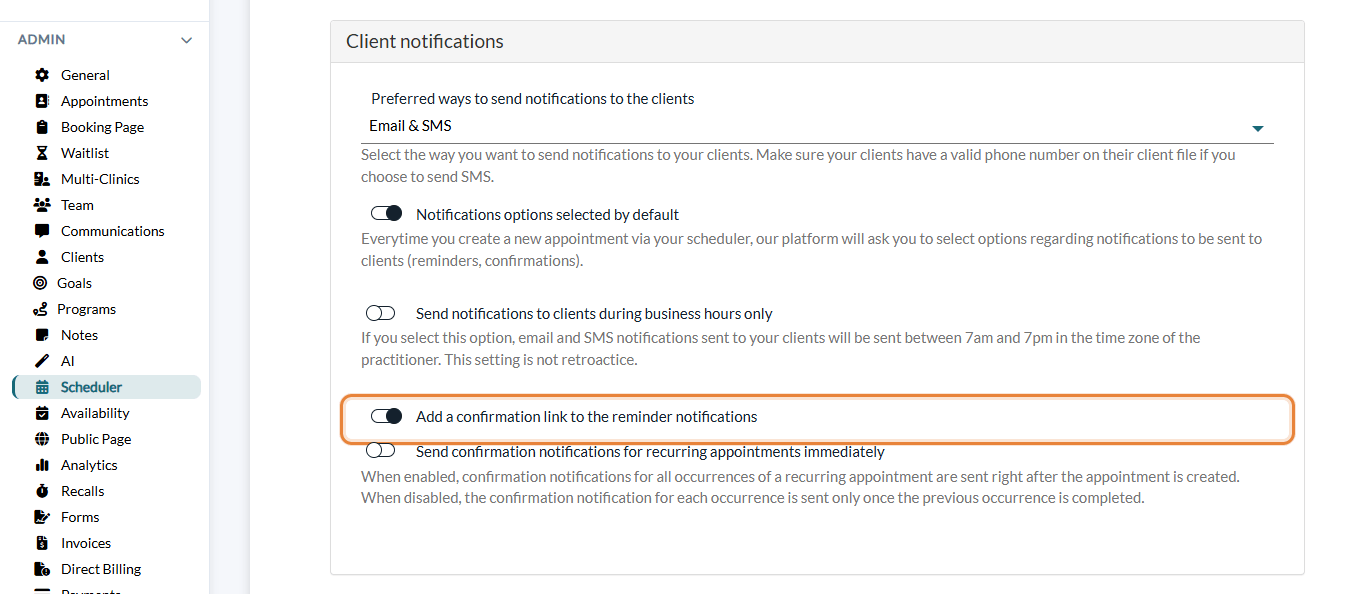
From then on, the reminders sent to your clients contain the confirmation link:
- By email — a Confirm Appointment button. It is no longer shown once the client has confirmed.
- By SMS — a link introduced by Please click on the following link to confirm the appointment.
The first email or SMS sent when the appointment is booked does not contain the link: it only comes with the reminders.
2What your clients see
When the client clicks the button or the link, a page opens in their browser and confirms that their appointment is confirmed, with its date and time in their time zone. They do not need to sign in. A link gives them access to their client portal.
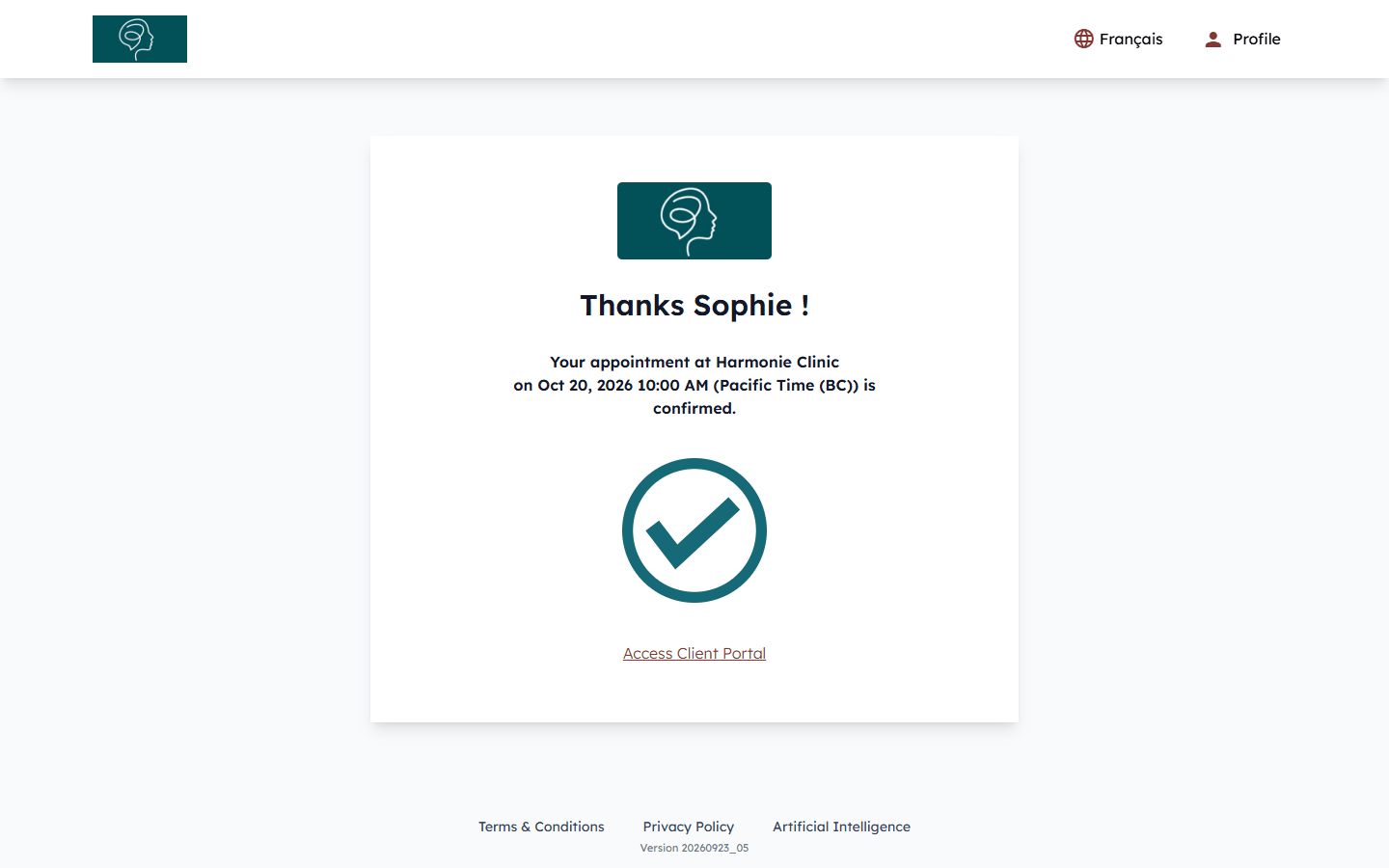
At that moment, Colib marks the client as confirmed for this appointment. If the appointment was Scheduled or Rescheduled, its status changes to Confirmed.
3Be notified when a client confirms
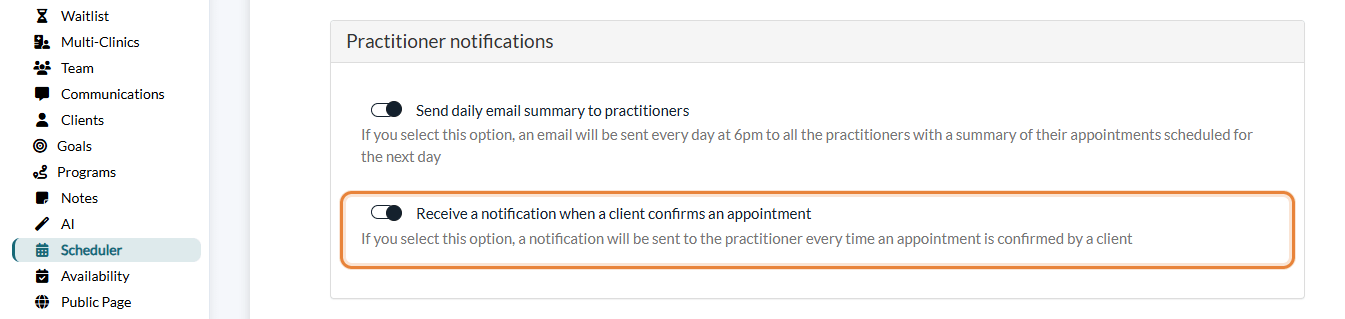
- Still in Settings > Scheduler, section Practitioner notifications, turn on Receive a notification when a client confirms an appointment.
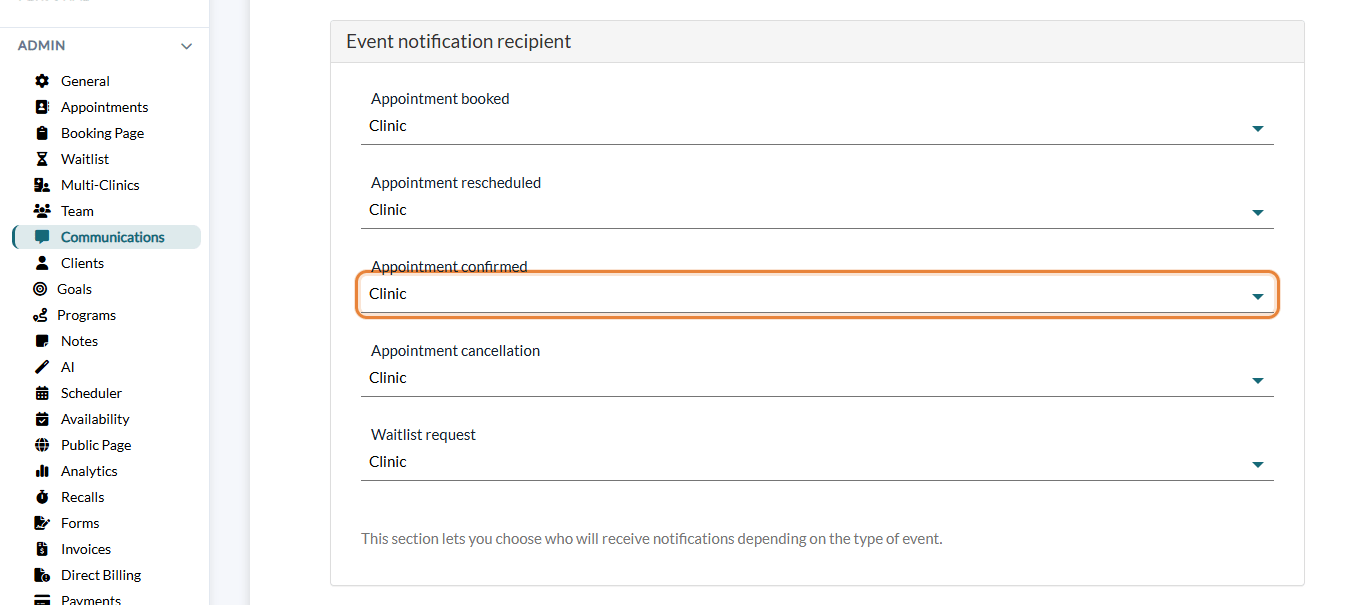
- Choose who receives these notifications: go to Settings > Communications (www.colib.io/settings?show=communications), section Event notification recipient, list Appointment confirmed.
- Click Save at the bottom of the page.
| Choice | Who is notified |
|---|---|
| Clinic | The account that created the practice in Colib. |
| Practitioner | The practitioner of the appointment. |
| Clinic and practitioner | Both (only once if it is the same person). |
| None | Nobody. |
The notification appears in your notification center (bell icon of the top bar, www.colib.io/notifications) with the title Appointment confirmed by client. It gives the client's name, the date and the type of the appointment, and a View appointment link opens it in your scheduler. You are notified only the first time a client confirms a given appointment.
4Check who has confirmed
- In your scheduler (www.colib.io/scheduler) — a confirmed appointment shows the confirmed icon (a calendar with a check mark) in its corner. See What do the icons on appointments represent?
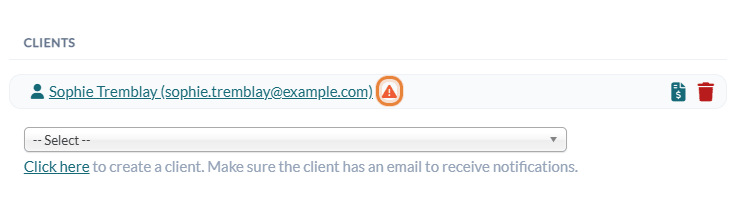
- In the appointment window — click the appointment: in the Clients list, a green check mark next to a client means The client has confirmed, an orange warning sign means The client has not confirmed. In a group appointment, each participant confirms separately.
- On your home page (www.colib.io/establishmentadmin/home) — upcoming appointments that are not confirmed yet show the Not confirmed label.
Good to know
- A client confirmed by phone? — open the appointment and choose Confirmed in its Status list. Nothing is sent to the client.
- A client did not receive the reminder? — check their email address and cell phone number in their record, then resend the notifications: see How can I manually resend a confirmation notification (email or SMS) for an appointment?
- Clicking the link twice — is not a problem: the page simply shows again that the appointment is confirmed, and you are not notified a second time.
- Clients who cannot come — they can cancel from the same reminder if you allow it (Settings > Scheduler > Cancellations). The recipients of cancellation notifications are chosen in the same Event notification recipient section: see How to configure event notification recipients in Colib?.
Still have a question?
Write to us at support@colib.io, we will be happy to help.
Was this article helpful?
That’s Great!
Thank you for your feedback
Sorry! We couldn't be helpful
Thank you for your feedback
Feedback sent
We appreciate your effort and will try to fix the article