Who is this article for?
A client is running late, or cannot come at all, and you only find out when the appointment time has passed? With the arrival confirmation, Colib sends your clients a text message a few minutes before their appointment. In one tap, they tell you whether they have arrived, are on their way, will be late, or cannot come. You are notified right away.
This article explains how to turn it on, what your clients receive, how you are notified, and where you see their answer.
Before you start: the arrival confirmation is set for each appointment type, by the people who have access to the practice settings. Each practitioner then chooses how they want to be notified.
1Turn on the arrival confirmation
You can turn it on for all your appointment types in one place, or type by type.
For all your appointment types
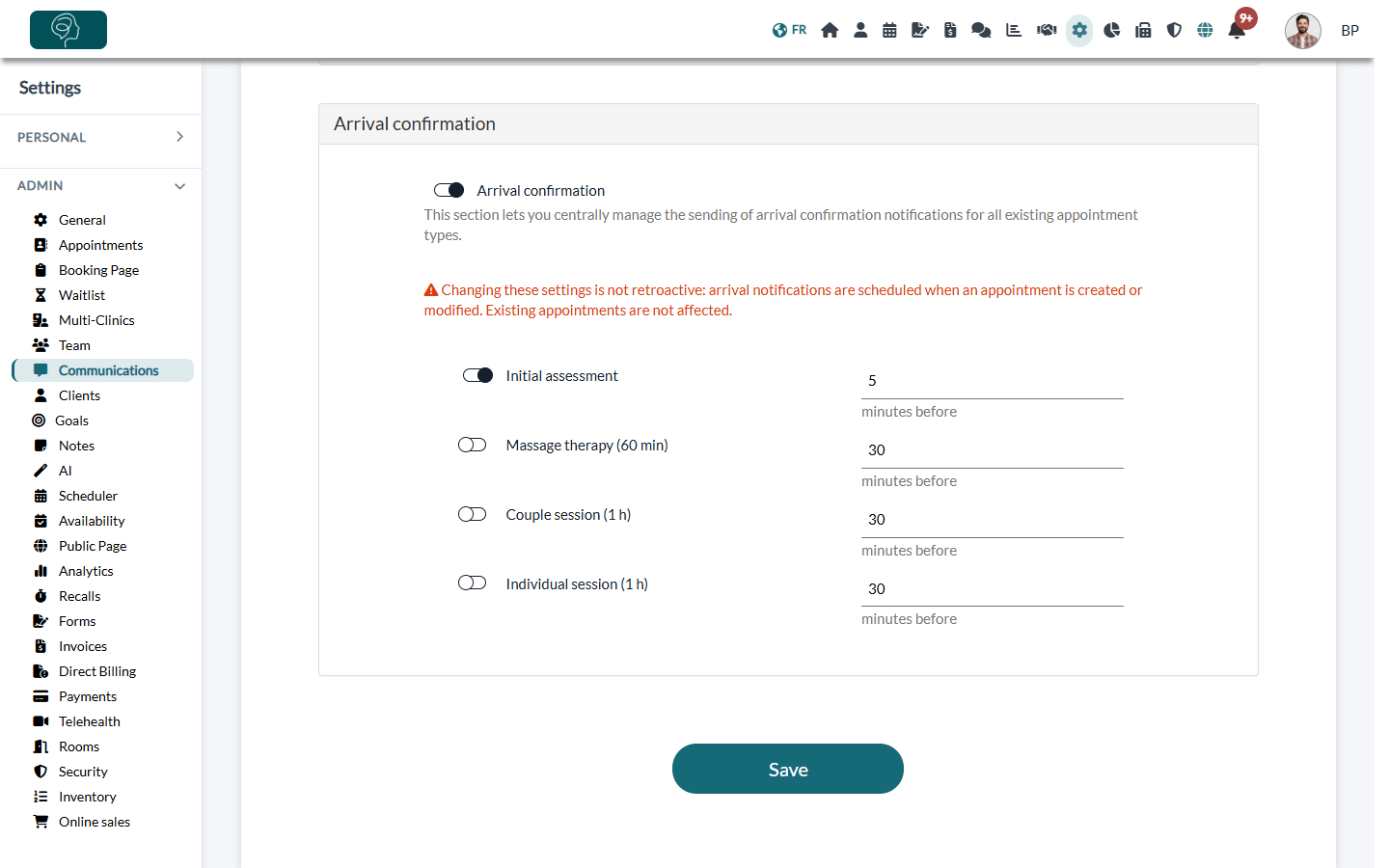
- Go to Settings > Communications (www.colib.io/settings?show=communications) and open the Arrival confirmation section.
- Turn on the Arrival confirmation switch: the list of your appointment types appears.
- Turn on each appointment type concerned and, next to it, enter how many minutes before the appointment the text message is sent (30 minutes by default).
- Click Save at the bottom of the page.
For one appointment type
- Go to Settings > Appointments (www.colib.io/settings?show=appointments) and click the pencil icon of the appointment type.
- In the Notifications section, under Arrival confirmation, turn on Ask the client to confirm their arrival.
- Enter the Number of minutes before the appointment to send the arrival confirmation request.
- Save the appointment type.
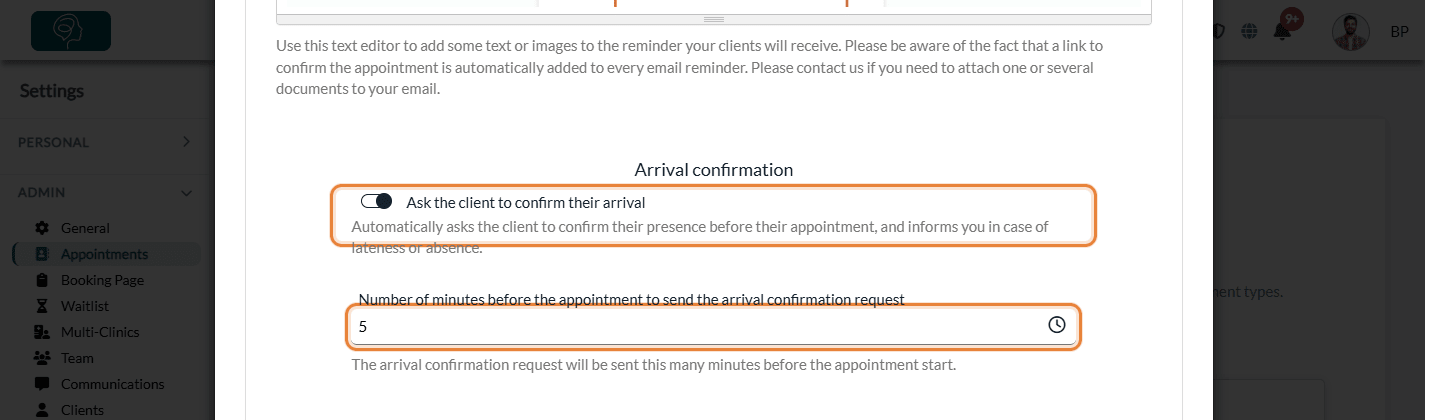
Both screens change the same setting: what you set in one appears in the other.
Important: the change is not retroactive. The text message is planned when an appointment is created or modified: appointments already in your schedule are not affected. To apply the new settings to the upcoming appointments of a type, open the type and click Refresh scheduled notifications (save your changes first).
2What your clients receive
At the time you chose, the client receives a text message in their language:
[Action required] Hello, this is name of your practice. Your appointment scheduled for today is coming up, please take a moment to let your professional know your arrival status : link See you soon!
The link opens a page where the client chooses one answer: arrived at the clinic / waiting room, on the way and on time, less than 15 minutes late, 15 minutes late or more, or cannot attend today (with a short reason, required). For an online appointment, a Connect to the meeting button replaces the first two answers: it opens the meeting but does not send an arrival status. Your clients do not need to sign in, and they can open the link again to change their answer. The page your clients see is described in the article titled "How do I let the clinic know I've arrived or I'm running late?" of the Client Portal section.
The text message is sent only if:
- the appointment type asks for the arrival confirmation;
- reminders are turned on for the appointment (Send confirmation reminder(s) (prior to appointment). in the appointment window);
- the client has a mobile phone number in their record (for a dependant, the responsible persons with a phone number receive it too);
- the appointment was created or moved more minutes in advance than the delay you chose, and it is not cancelled.
The arrival confirmation is always sent by text message, even to clients who chose to receive their reminders by email only.
3Choose how you are notified
Each practitioner chooses how they want to receive the answers of their clients.
- Go to Settings > Personal > Notifications (www.colib.io/settings?show=personalnotifications).
- In Arrival management, turn on one or more channels: Email, SMS (sent to the phone number of your profile) and Notification in Colib (the bell of the top bar).
- Click Save. At least one channel is required.
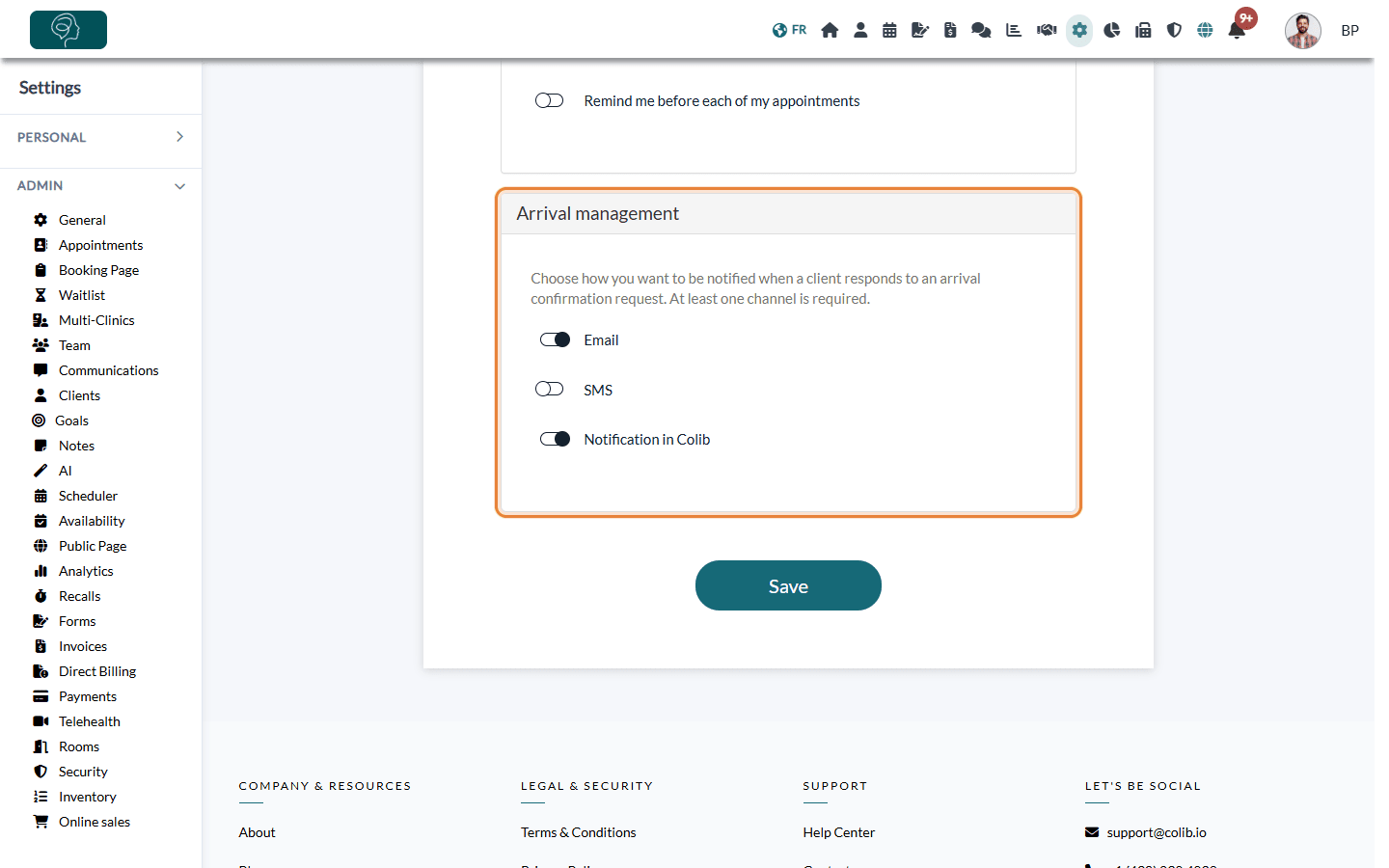
The Arrival management section only appears once the arrival confirmation is turned on for at least one appointment type of the practice. The notification gives the answer of the client and, for an absence, the reason they entered. When a client will be 15 minutes late or more, or cannot come, the owner of the practice account is also notified, in Colib and by email to the email address of the practice.
4See the answer of the client
- In the appointment window — the Presence status list shows the last answer (for example SMS - Late (less than 15 min) or SMS - Absent). For an absence, the reason is shown under Client absence notification. You can also change the presence status yourself, for example when the client arrives.
- In the client record — each answer is listed in the Communications tab, and an appointment with a late arrival of 15 minutes or more or an absence is flagged with a warning icon in the list of appointments.
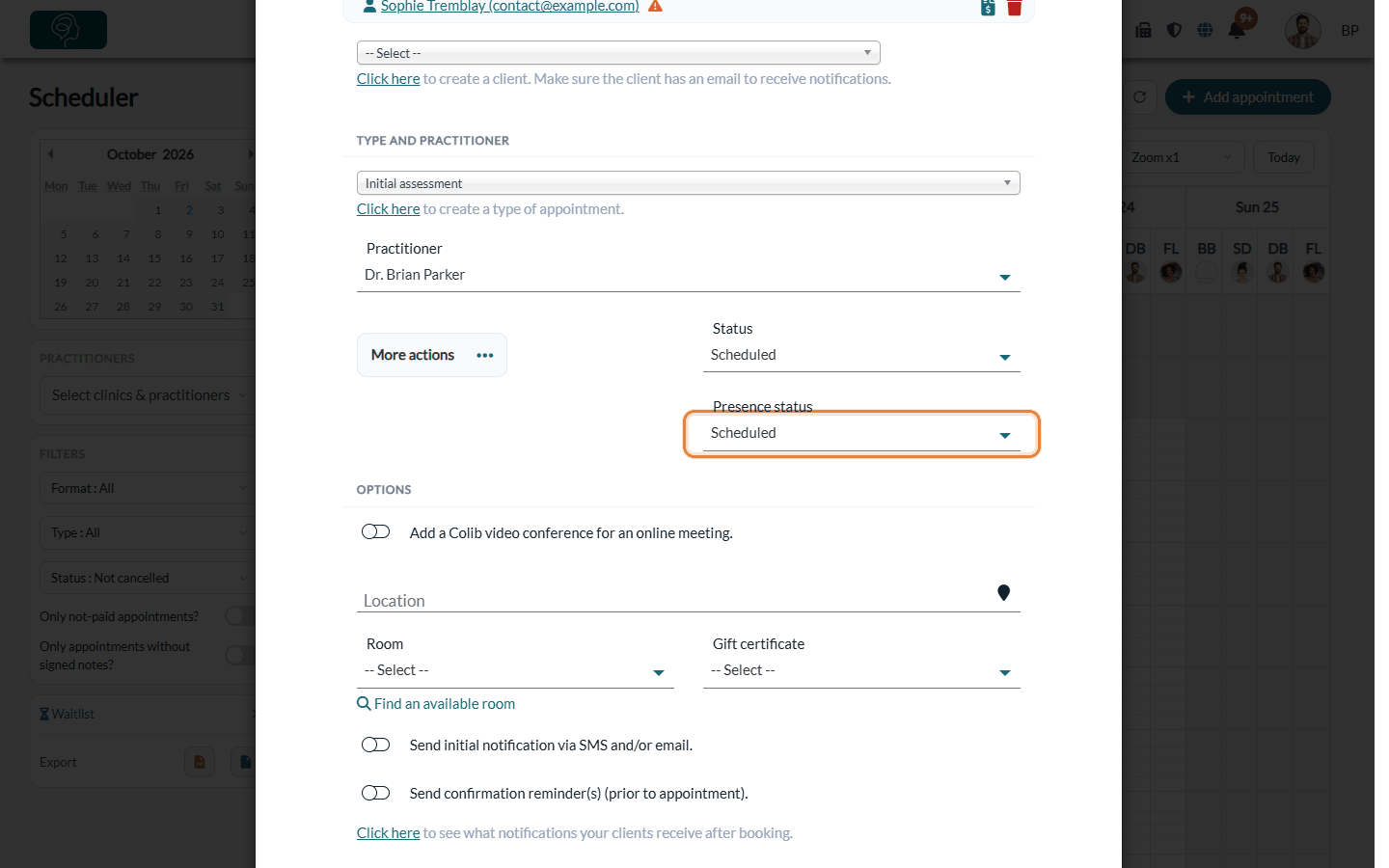
The presence status is separate from the status of the appointment (scheduled, confirmed, completed, no-show...).
Good to know
- Stop the arrival confirmation — turn off the appointment types concerned (in Settings > Communications or in each type), then click Save. Text messages already planned for these types are then no longer sent. Turning off only the main Arrival confirmation switch is not enough: turn off the types themselves.
- Other reminders — see how to get an email or SMS reminder before each appointment and how to customize the emails sent to your clients before and after an appointment.
- Planned notifications of an appointment — see how to view and delete scheduled notifications for an appointment.
- Messages sent to a client — see how to view client communications.
Still have a question?
Write to us at support@colib.io, we will be happy to help.
Was this article helpful?
That’s Great!
Thank you for your feedback
Sorry! We couldn't be helpful
Thank you for your feedback
Feedback sent
We appreciate your effort and will try to fix the article