Who is this article for?
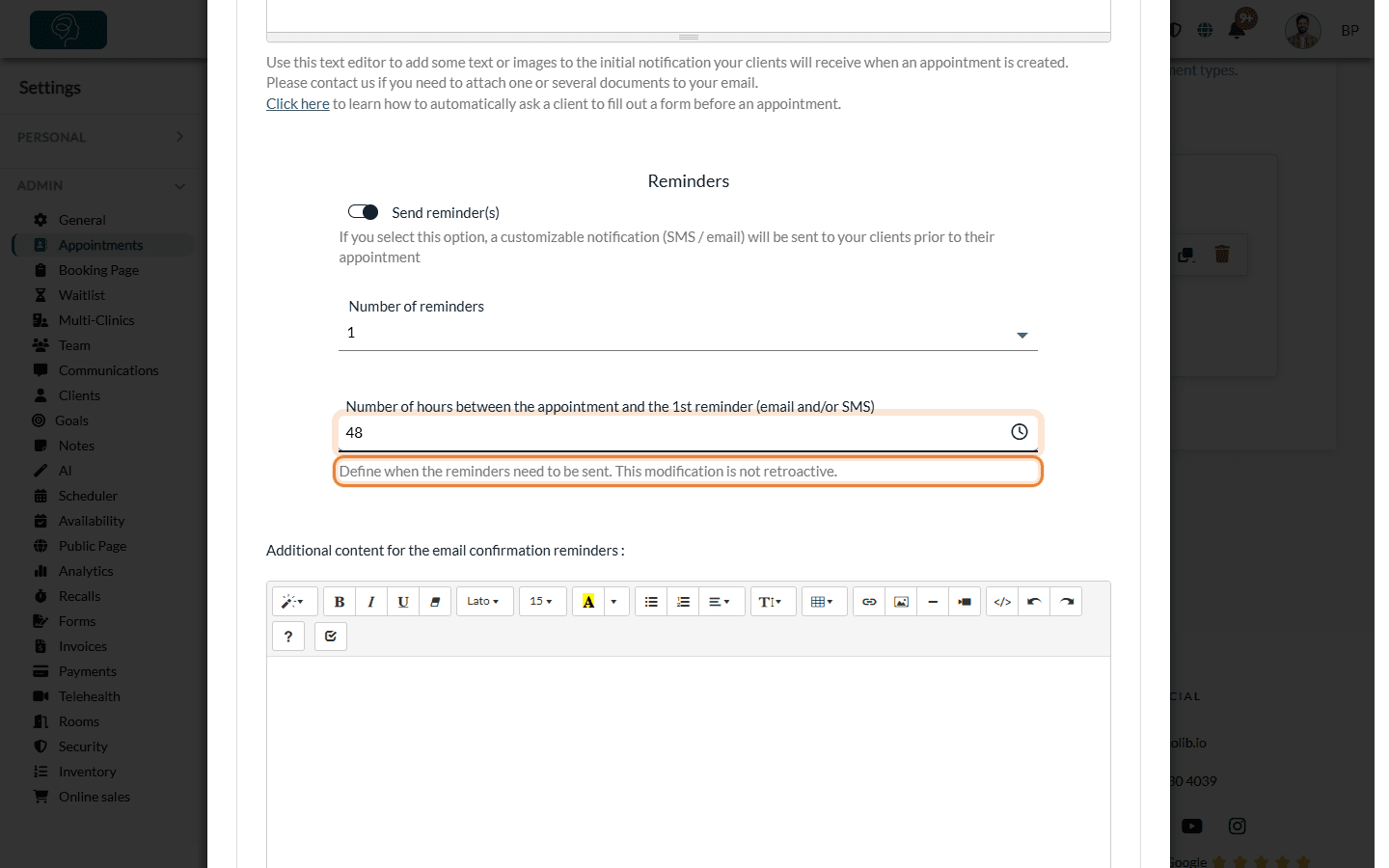
You changed the reminders of an appointment type (for example, 48 hours before instead of 24), but your clients who already have an appointment still receive their reminder at the old time? This is expected: the notifications of an appointment are planned when the appointment is booked, and a change to the appointment type is not retroactive.
This article explains which changes apply on their own, which ones do not, and how to apply your new settings to the appointments already booked in one click.
Before you start: reminders are set for each appointment type, in Settings > Appointments (www.colib.io/settings?show=appointments). Only the administrators of the practice can see this page.
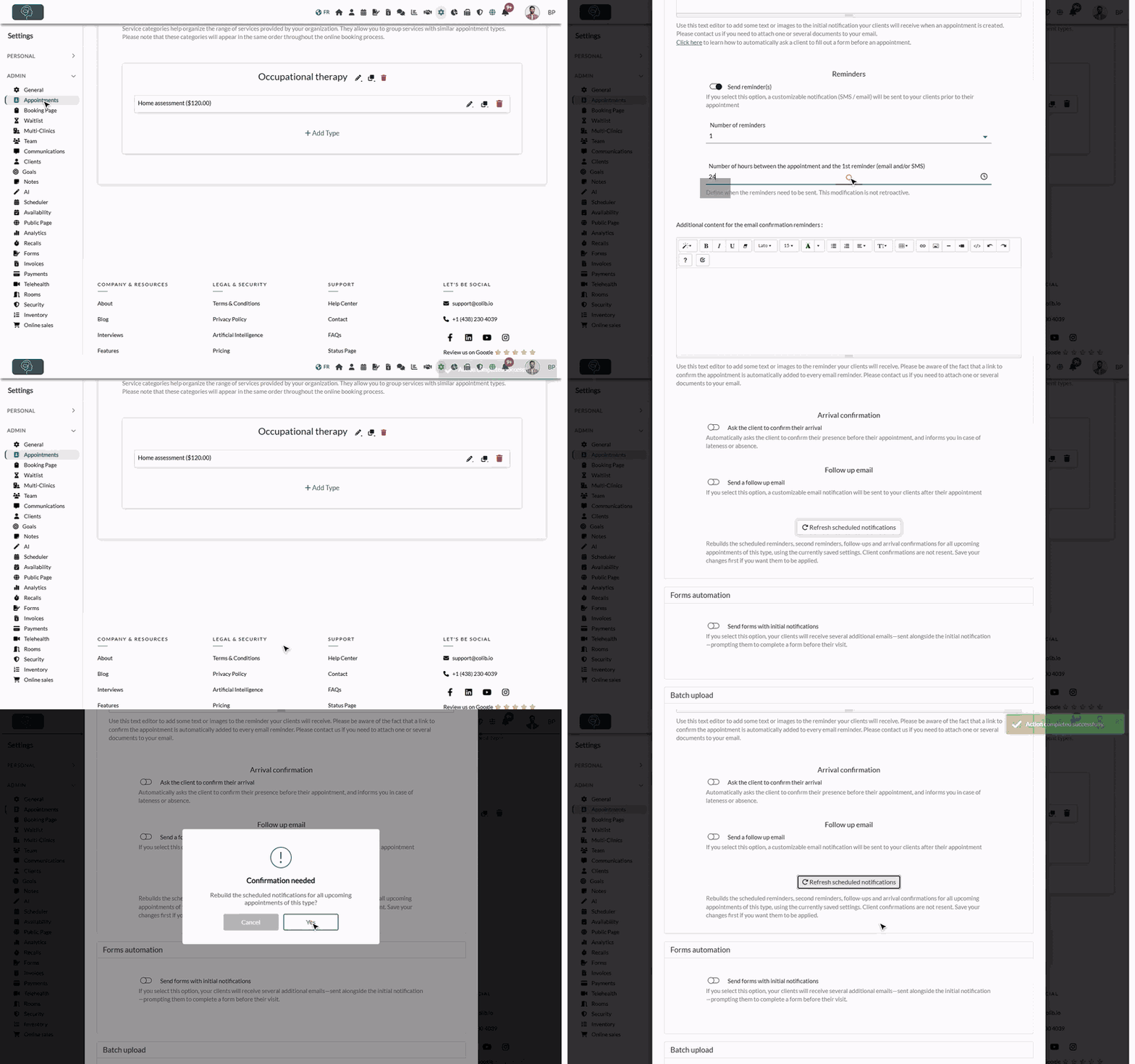
Why existing appointments keep the old settings
When an appointment is booked, Colib plans its notifications right away, using the settings of its appointment type at that moment: the reminders, the follow-up email and the arrival confirmation. The hints of the Notifications section remind you of it: This modification is not retroactive.
| You change... | Appointments already booked |
|---|---|
| The text added to the initial notification, the reminders or the follow-up email | Applied automatically: notifications not sent yet use the new text. |
| You turn off the reminders, the second reminder, the follow-up email or the arrival confirmation | Applied automatically: the notifications already planned are no longer sent. |
| The delay of a reminder, of the follow-up email or of the arrival confirmation | Not applied: they are still sent at the old time. |
| You turn on the reminders, add a second reminder, or turn on the follow-up email or the arrival confirmation | Not applied: nothing is added to them. |
Appointments booked after your change, and appointments whose date or time you change, always use the new settings.
1Change and save the settings of the appointment type
- Go to www.colib.io/settings?show=appointments. You can also click the Settings icon (gear) in the top bar, then Appointments in the Admin menu on the left.
- Click the pencil icon on the row of the appointment type, then open the Notifications section.
- Change what you need, for example the Number of hours between the appointment and the 1st reminder (email and/or SMS).
- Click Save at the bottom of the window.
2Apply them to the appointments already booked
- Click the pencil icon of the same appointment type again and open the Notifications section.
- At the bottom of the section, click Refresh scheduled notifications.
- Confirm with Yes. A message confirms that the request is taken into account.
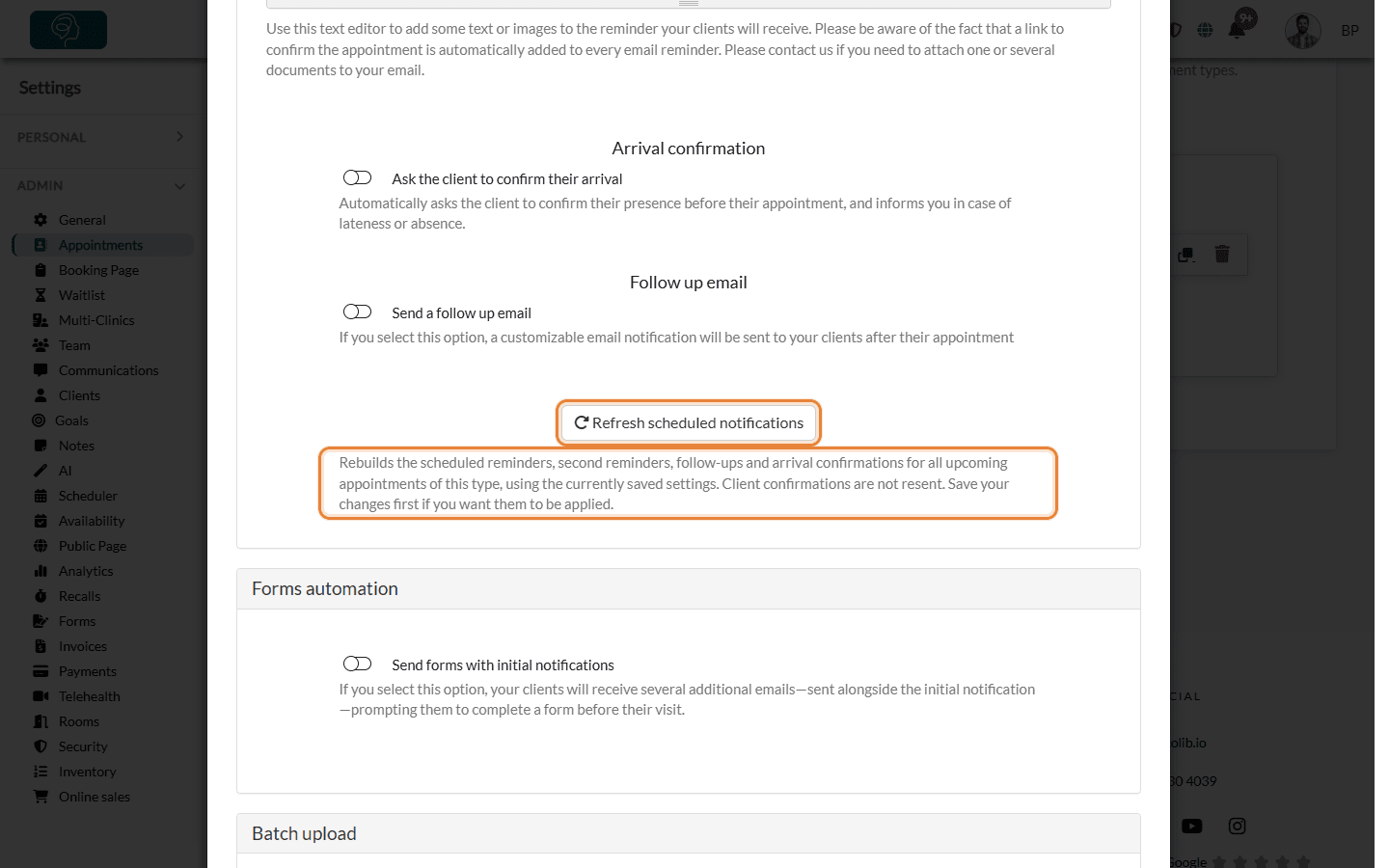
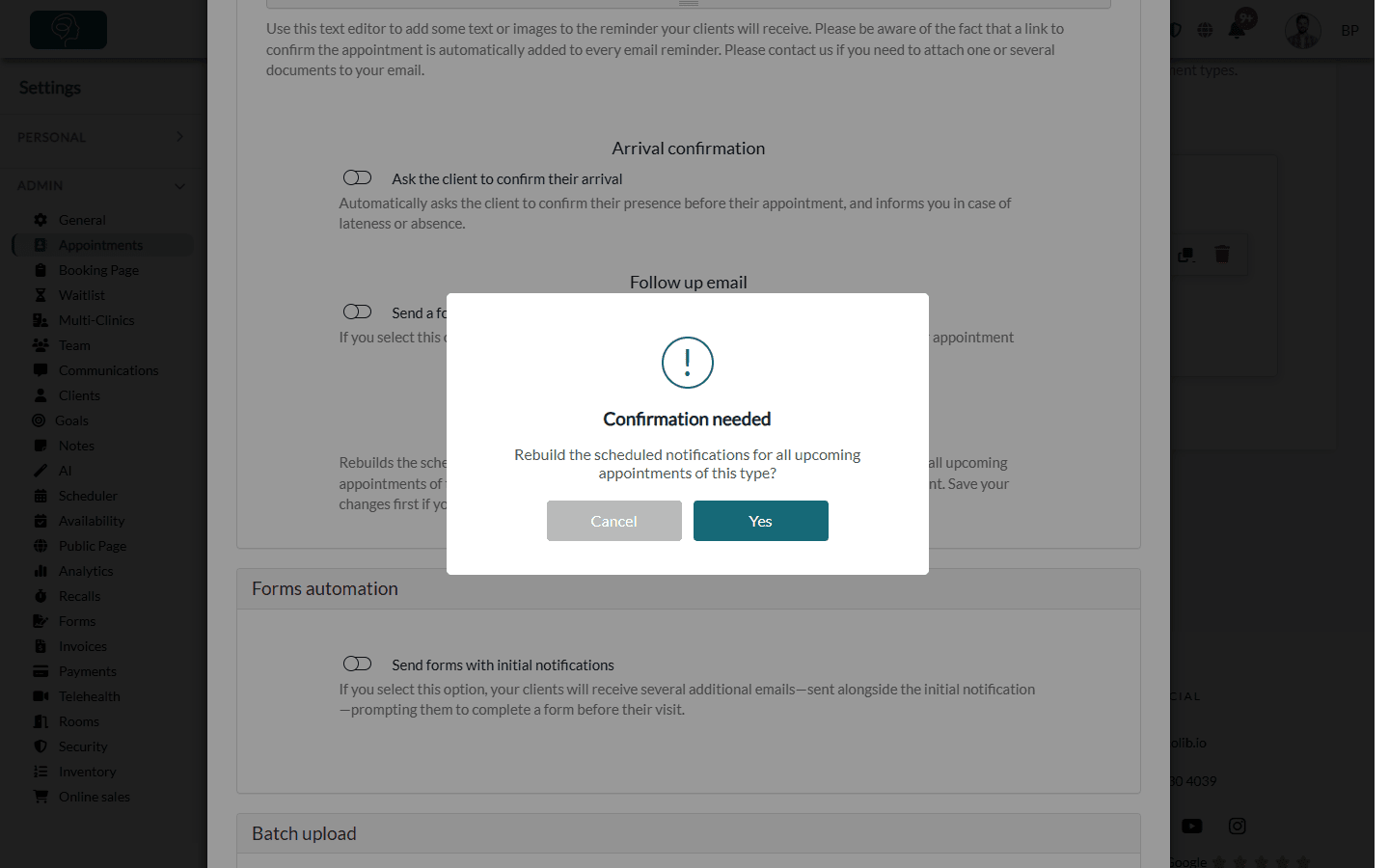
Colib then rebuilds the reminders, second reminders, follow-up emails and arrival confirmations of all the upcoming appointments of this type, with the settings currently saved. With many appointments, this can take a few moments.
Important: save your changes before clicking Refresh scheduled notifications: the button uses the saved settings, not what is typed in the window. The button only appears on an appointment type that already exists.
Good to know
- Confirmations are not resent — the refresh never sends the initial confirmation again to your clients. To send it again for one appointment, see how to manually resend a confirmation notification.
- Reminders already past — a reminder whose new time is already past is not sent. For example, with a new delay of 48 hours, an appointment booked for tomorrow does not get a reminder.
- Appointments without reminders — if Send confirmation reminder(s) (prior to appointment). was unchecked when the appointment was created, the refresh does not add reminders to it.
- Cancelled appointments — they are not affected.
- One appointment only — to see or delete the notifications planned for a single appointment, see how to view and delete scheduled notifications for an appointment.
- Business hours — the option Send notifications to clients during business hours only (Settings > Scheduler) is not retroactive either. A refresh also applies it to the reminders and follow-up emails of the upcoming appointments of the type.
- Customize your notifications — see how to customize the emails sent to your clients before and after an appointment and what notifications clients receive after booking.
Still have a question?
Write to us at support@colib.io, we will be happy to help.
Was this article helpful?
That’s Great!
Thank you for your feedback
Sorry! We couldn't be helpful
Thank you for your feedback
Feedback sent
We appreciate your effort and will try to fix the article