Who is this article for?
A client who books online at 11 p.m. receives their confirmation right away, and a reminder planned 24 hours before a 6:30 a.m. appointment arrives at 6:30 a.m. If you prefer not to wake your clients up with a text message, you can ask Colib to send client notifications during the day only, between 7 a.m. and 7 p.m.
This article explains how to turn on this option, which notifications it affects and what to watch out for.
Before you start: the option is in Settings > Scheduler (www.colib.io/settings?show=scheduler). It applies to the whole practice. You need access to the practice settings to change it.
1Turn on the option
- Go to www.colib.io/settings?show=scheduler. You can also click the Settings icon (gear) in the top bar, then Scheduler in the Admin menu on the left.
- Open the Client notifications section.
- Turn on Send notifications to clients during business hours only. The change is saved as soon as you switch it.
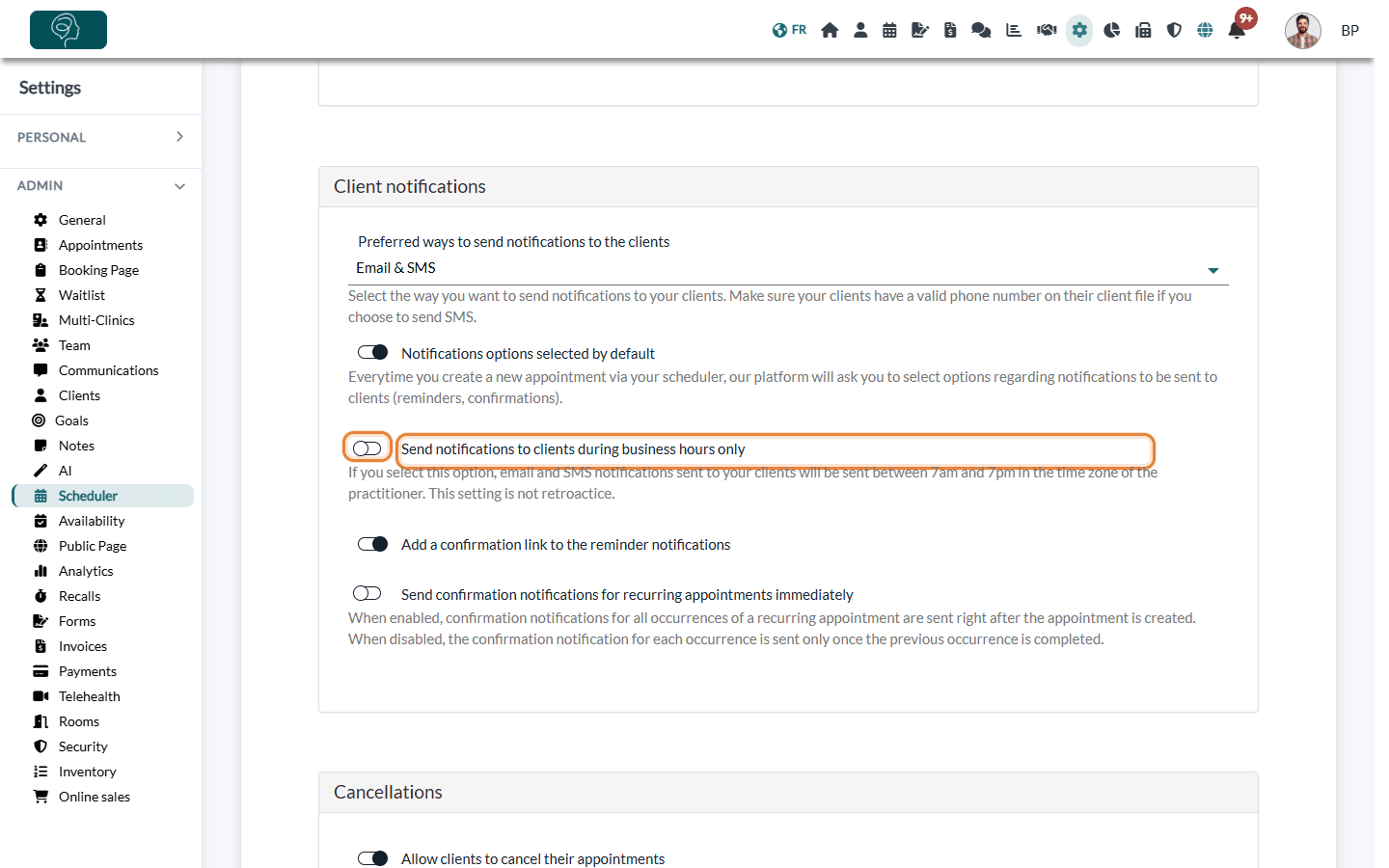
To stop it, turn the option off the same way.
2How notifications are sent then
Emails and text messages (SMS) sent to your clients about their appointments leave between 7 a.m. and 7 p.m., in the time zone of your practice:
- a notification planned before 7 a.m. is sent at 7 a.m. the same day (within a few minutes);
- a notification planned at 7 p.m. or later is sent the next morning, from 7 a.m.;
- a notification planned during the day is sent at the usual time.
| Affected by the option | Not affected |
|---|---|
|
|
Important: check the reminders of your evening appointments. A reminder that falls at 7 p.m. or later is moved to the next morning: if the appointment is that same evening, the reminder would arrive after it and is not sent. For example, with a reminder 1 hour before, a 9 p.m. appointment gets no reminder. Choose a delay that falls during the day (24 hours before works for any appointment between 7 a.m. and 7 p.m.).
3Apply it to the appointments already booked (optional)
The option is not retroactive: the notifications already planned keep their time. It applies to the notifications planned after your change, for example for new appointments or appointments you move.
To also apply it to the reminders and follow-up emails of the upcoming appointments:
- Go to Settings > Appointments (www.colib.io/settings?show=appointments).
- Click the pencil icon of an appointment type and open its Notifications section.
- Click Refresh scheduled notifications, then Yes.
- Repeat for each appointment type you use.
Good to know
- Email, SMS or both — the channel is chosen in the same section, with Preferred ways to send notifications to the clients. The business hours option only changes when notifications leave, not how.
- Your booking page is not affected — clients can still book at any time of the day; only their confirmation waits for the morning.
- See what is planned — to check when the notifications of an appointment will leave, see how to view and delete scheduled notifications for an appointment.
- What clients receive — see what notifications clients receive after booking.
Still have a question?
Write to us at support@colib.io, we will be happy to help.
Was this article helpful?
That’s Great!
Thank you for your feedback
Sorry! We couldn't be helpful
Thank you for your feedback
Feedback sent
We appreciate your effort and will try to fix the article