Who is this article for?
When you create an appointment, Colib plans the notifications that will be sent later: reminders, follow-up, arrival confirmation, and so on. Each appointment shows the list of these scheduled notifications, with their date and recipient.
This article explains how to check what will be sent for an appointment and how to cancel a notification you do not want to send.
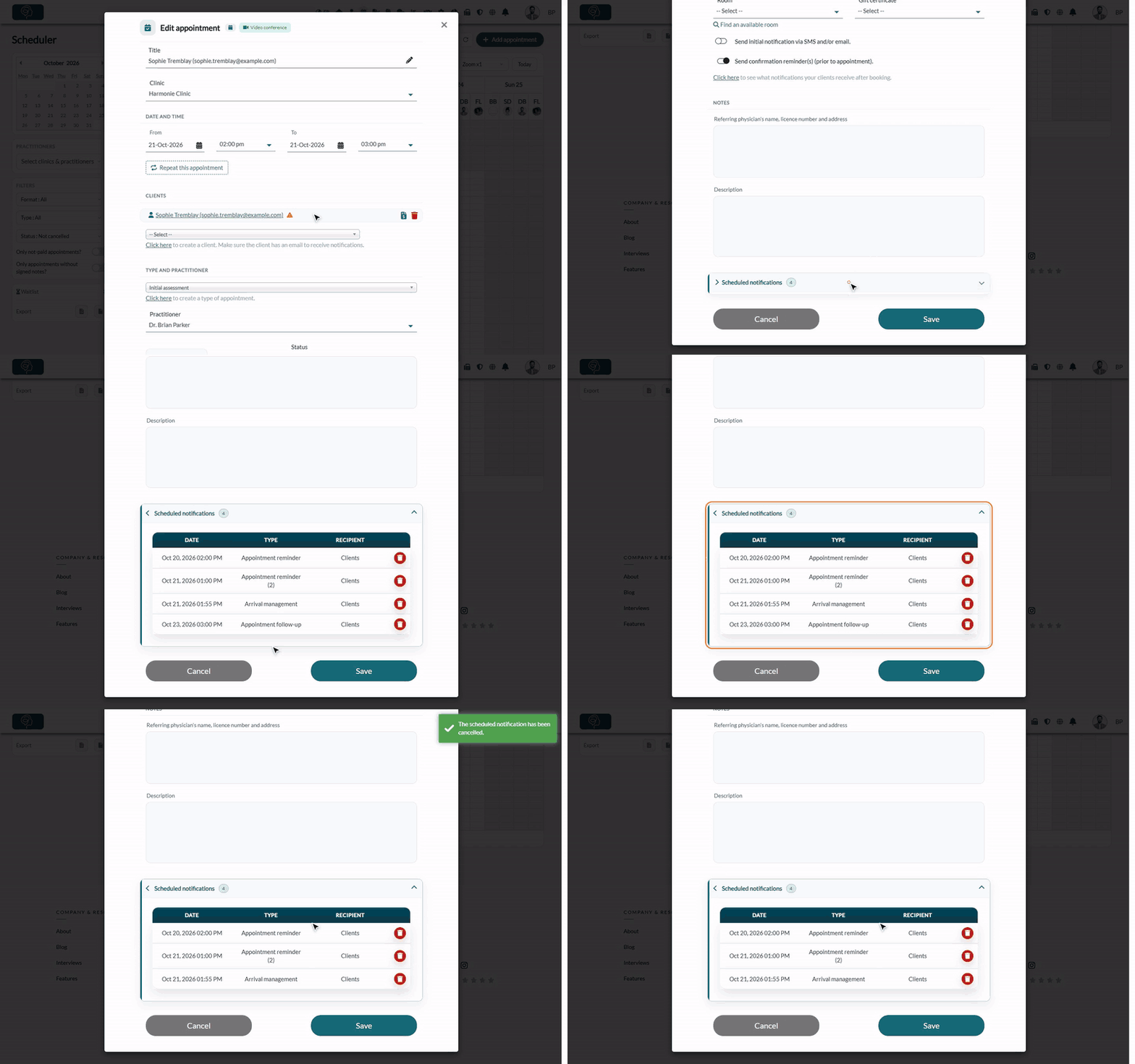
1Open the appointment
- Go to your scheduler: www.colib.io/scheduler.
- Click the appointment to open it. You can also open it from the Appointments tab of the client record.
2View the scheduled notifications
- Scroll down to the bottom of the appointment window.
- Click Scheduled notifications to open the section. The number next to the title is the number of planned notifications.
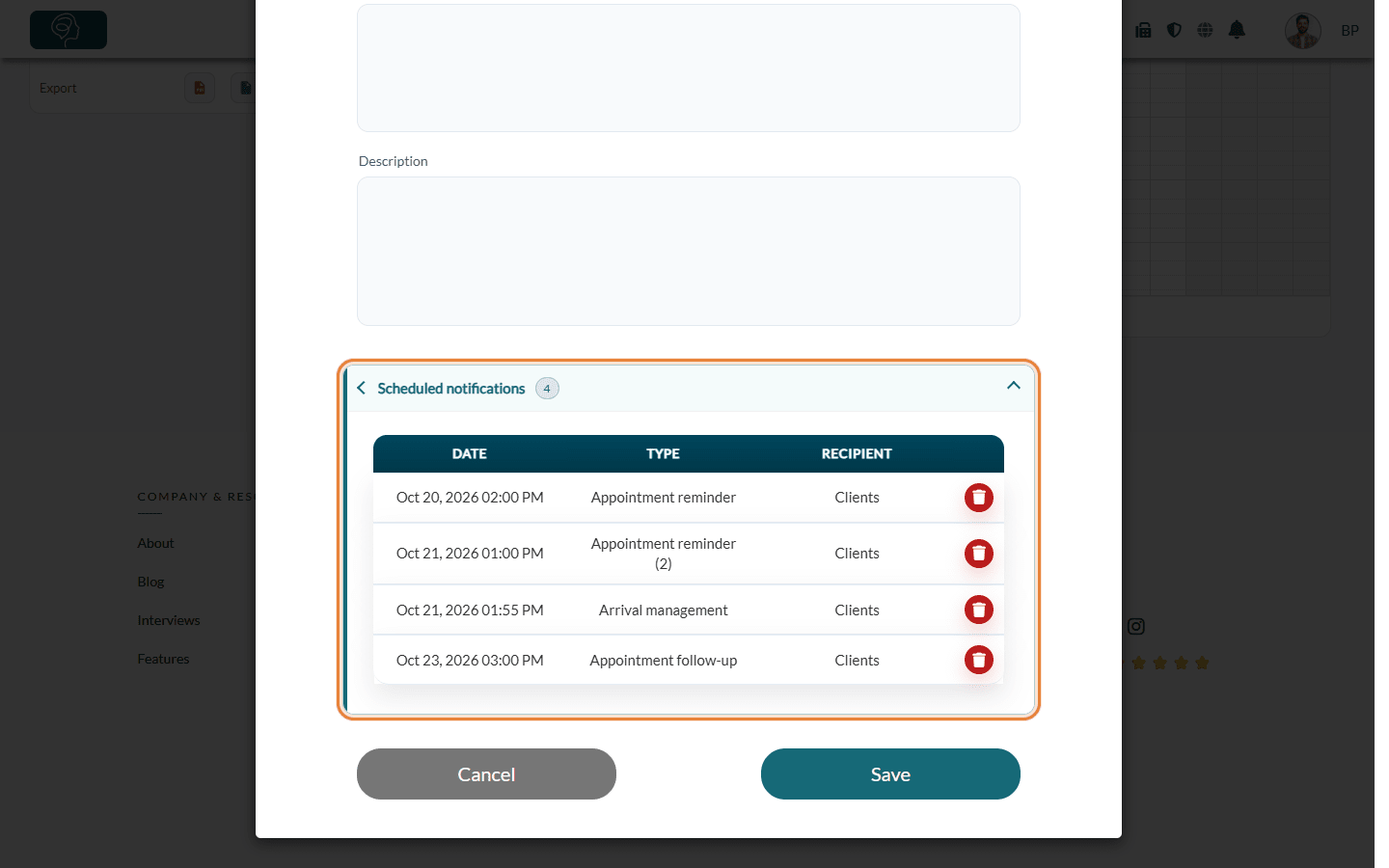
For each notification, the table shows:
| Column | What it means |
|---|---|
| Date | When the notification will be sent, in your time zone. |
| Type | The notification: Appointment confirmation, Appointment reminder, Appointment reminder (2), Arrival management (arrival confirmation request), Appointment follow-up, Practitioner appointment reminder… Only the notifications turned on for your practice and for this appointment are listed. |
| Recipient | Clients (the clients of the appointment) or Practitioner (a reminder sent to the practitioner). |
The section only appears when at least one notification (email and/or SMS) is still planned for the appointment. Notifications already sent are no longer listed: you find them in the Communications tab of the client record (see How to view client communications).
3Cancel a notification
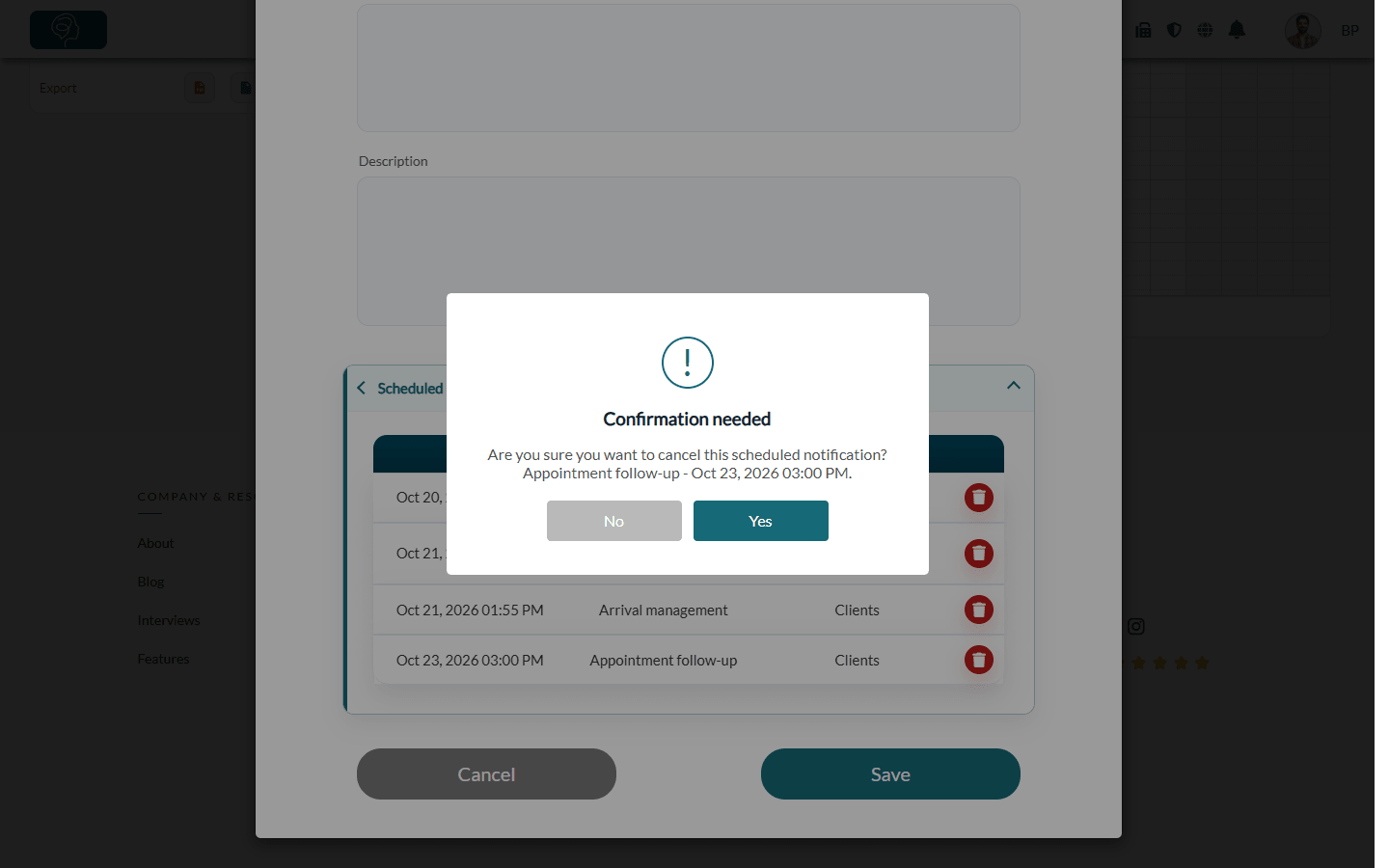
- Click the red trash icon at the end of the notification's row.
- Check the type and date shown in the confirmation window, then click Yes.
The message The scheduled notification has been cancelled. confirms the cancellation and the row disappears. You do not need to click Save: the cancellation applies right away, and only to this notification of this appointment.
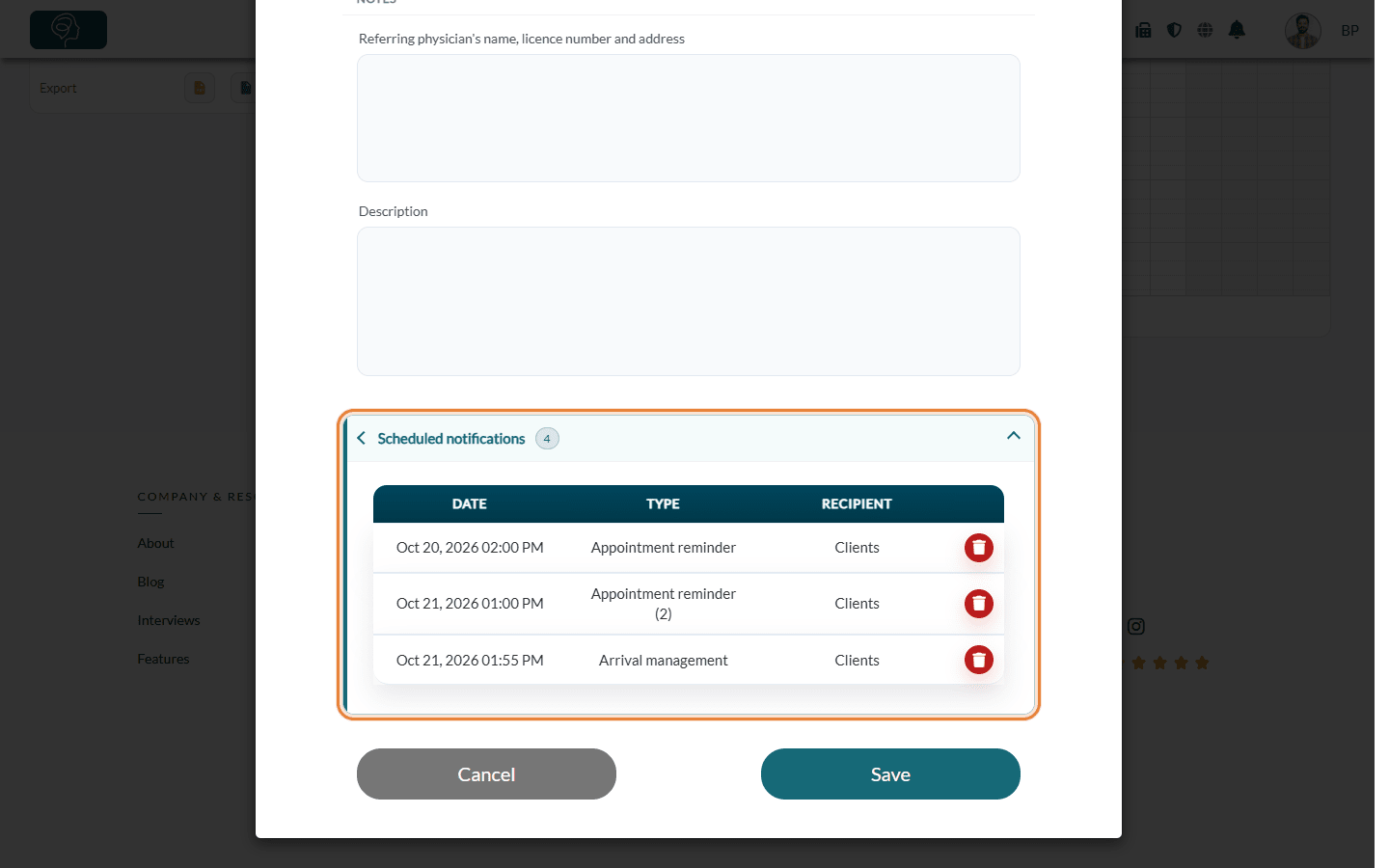
Important: a cancelled notification cannot be restored from this list. Also, if you later change the date or time of the appointment, its practitioner or its type, or turn the reminders off and on again, Colib plans the reminders, follow-up and arrival confirmation again, including the ones you had cancelled. Check the list again after such a change.
Good to know
- Stop all reminders of an appointment — instead of deleting them one by one, turn off Send confirmation reminder(s) (prior to appointment) in the appointment and click Save.
- Cancelled appointment — when an appointment is cancelled, its reminders, follow-up and arrival confirmation are cancelled automatically.
- Change the content of the notifications — the texts are set per appointment type (see How to customize the emails sent before and after an appointment). To add a note for one appointment only, see How to add a custom message to an appointment.
- Which notifications your clients receive — see What notifications do clients receive after booking?
- Access rights — the trash icon is only shown to users who are allowed to edit appointments.
Still have a question?
Write to us at support@colib.io, we will be happy to help.
Was this article helpful?
That’s Great!
Thank you for your feedback
Sorry! We couldn't be helpful
Thank you for your feedback
Feedback sent
We appreciate your effort and will try to fix the article