Who is this article for?
A client says they never received their reminder, their invoice or a form? Each client record keeps the communication history of that client: every email and SMS sent by Colib, the faxes linked to the client, and whether each one was delivered.
This article explains where to find this history, how to read it, and what to do when a message was not delivered.
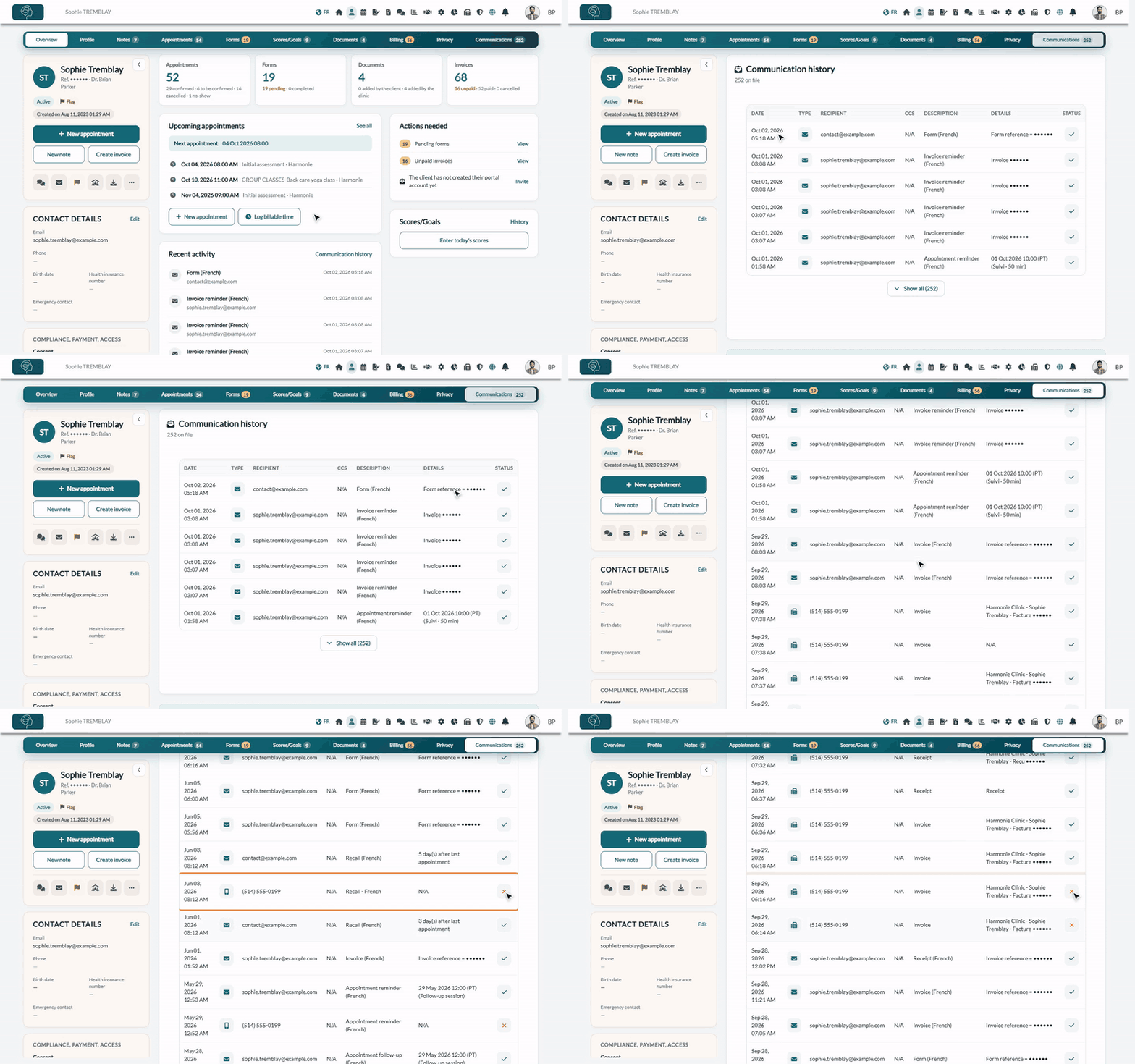
1Open the Communications tab of the client
- Go to your client list (www.colib.io/clients) and open the client's record.
- Click the Communications tab, at the end of the tab bar. The number on the tab is the number of communications on file. On a smaller screen, the tab is in the More menu.
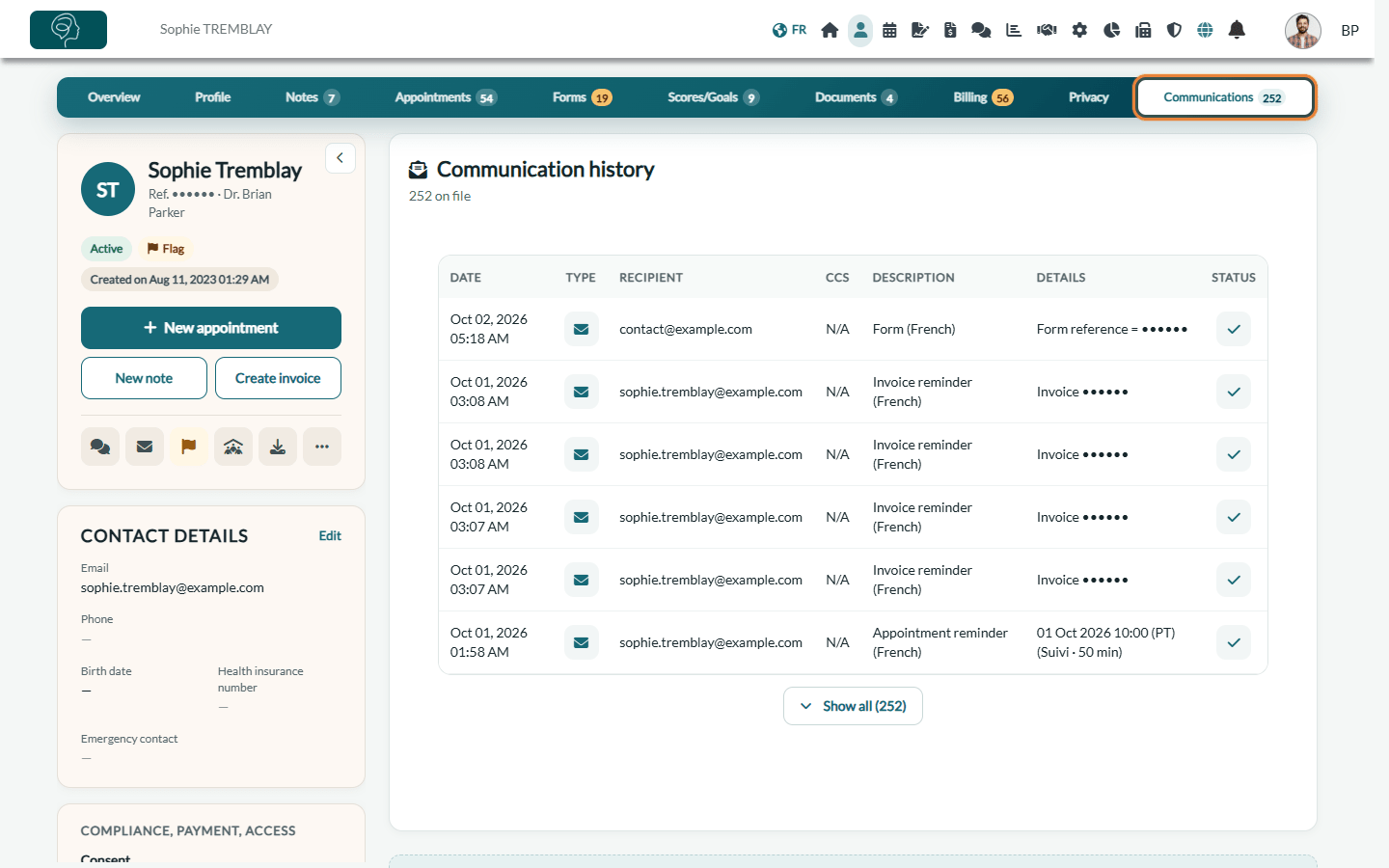
The most recent communications come first. Only the first rows are displayed: click Show all under the table to see the full history.
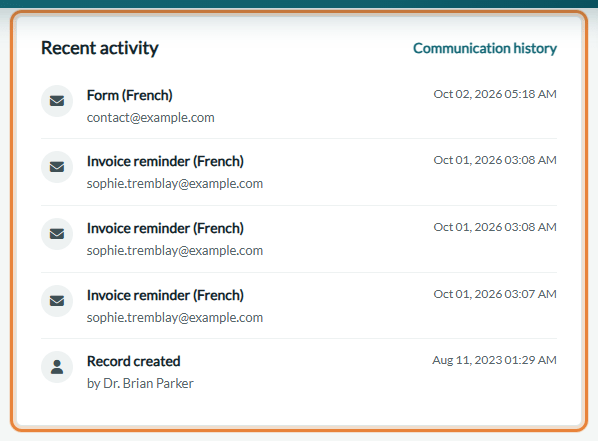
Shortcut: in the Overview tab of the record, the Recent activity card shows the last four communications. A message that was not delivered is shown with a warning icon. Click Communication history in the card to open the full list.
2Read the history
| Column | What it shows |
|---|---|
| Date | When the communication was sent, in your time zone. |
| Type | An icon: envelope for an email, phone for an SMS, fax machine for a fax sent or received. Hover over the icon to read its name. Arrival confirmations and communications imported from your previous software have their own icon. |
| Recipient | The email address or phone number the message was sent to (for a fax, the other party's fax number). It can differ from the client's own contact details, for example when notifications go to the owner of a client group. |
| CCs | The other addresses that received a copy of the email (additional emails of the client, members of a client group…). N/A when there is none. |
| Description | The kind of message (appointment confirmation, appointment reminder, invoice, receipt, form, recall…) and, for emails, the language it was sent in. |
| Details | Additional information when available: the appointment concerned, the invoice or form reference, the subject of a fax. |
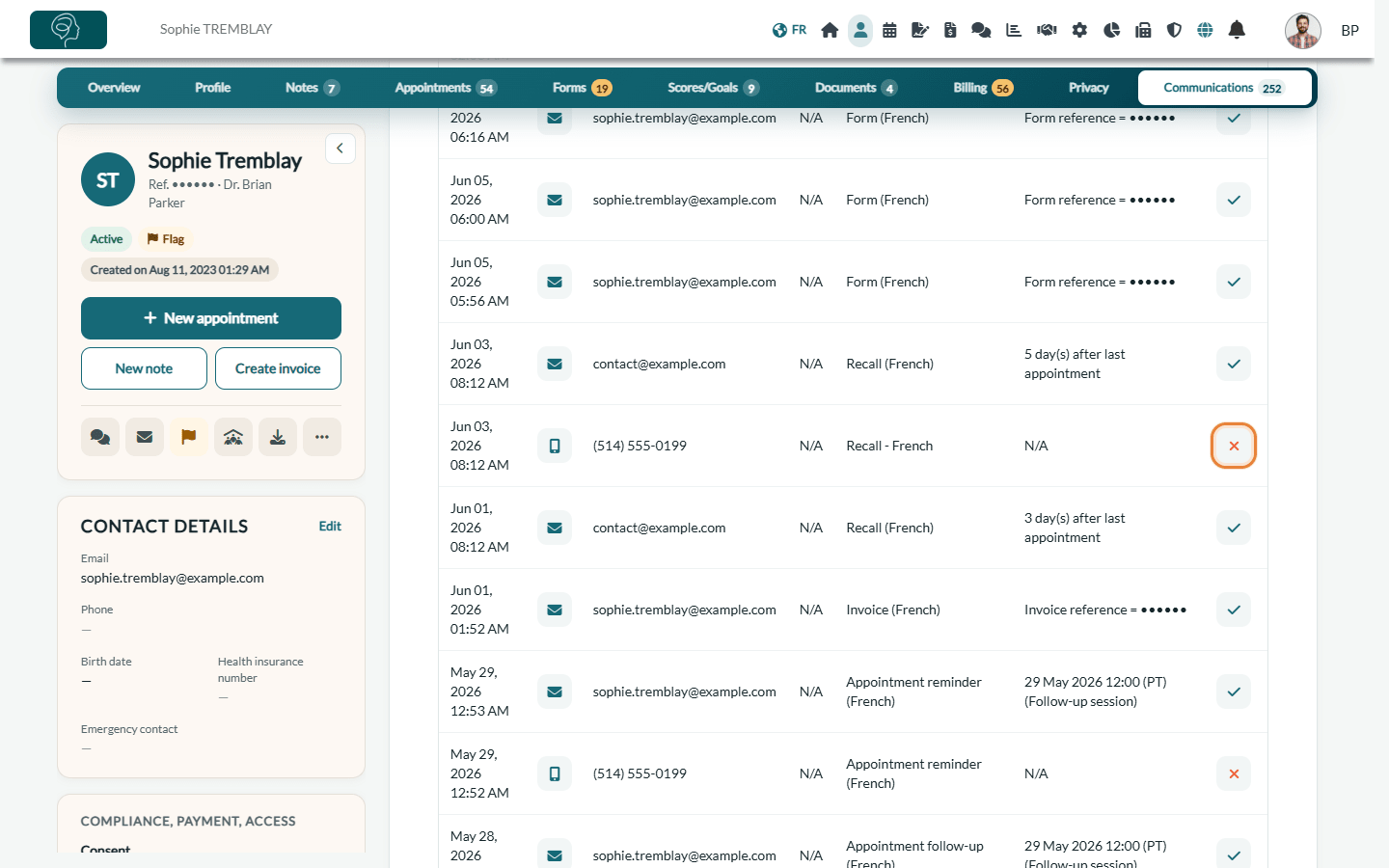
| Status | A check mark: the message was sent and no delivery problem was reported. An orange cross: the message could not be delivered. |
3Handle a message that was not delivered
- Hover over the orange cross to see the reason: Not sent. The email has bounced, Not sent. The text message has bounced or Not sent. The fax could not be delivered.
- Compare the Recipient with the client's contact details. Most of the time, the email address or the phone number is wrong, incomplete or no longer in use.
- Correct the client's contact details: click Edit in the Contact details card of the record (or use the Profile tab), then save. The next notifications use the new details.
- If needed, send the message again: for an appointment, open it and click More actions > Send new confirmation notifications to clients (see How to resend a confirmation notification).
Good to know
- Be notified of failures — you do not have to check each record: Colib also adds a notification to your Notification Center when an email or SMS cannot be delivered (see How to monitor failed SMS and email deliveries).
- A check mark is not a read receipt — it means the message left Colib and no delivery problem came back. It does not tell you whether the client opened it, and an email may still land in the client's spam folder.
- A failure can appear later — a delivery problem is reported a few moments after sending. Refresh the record to see the updated status.
- Faxes in progress — a fax still being transmitted shows Transmitted, awaiting delivery confirmation in the Details column; the status is updated when you open the record again.
- Notifications still to come — reminders and other messages not sent yet are listed in the appointment itself (see How to view and delete scheduled notifications for an appointment).
- Empty history — when nothing was sent to the client yet, the tab shows No email or text message sent yet.
Still have a question?
Write to us at support@colib.io, we will be happy to help.
Was this article helpful?
That’s Great!
Thank you for your feedback
Sorry! We couldn't be helpful
Thank you for your feedback
Feedback sent
We appreciate your effort and will try to fix the article