Who is this article for?
An appointment reminder that never reaches the client often means a missed appointment. When Colib cannot deliver an email or an SMS to one of your clients, it tells you, so you can fix the contact details before the next message.
There are two ways to spot these failures: the Notification Center, which alerts you, and the Communications tab of each client record, which keeps the full history.
1Check your Notification Center
- Click the bell icon in the top bar, or go to www.colib.io/notifications. When you have unread notifications, their number is shown on the bell.
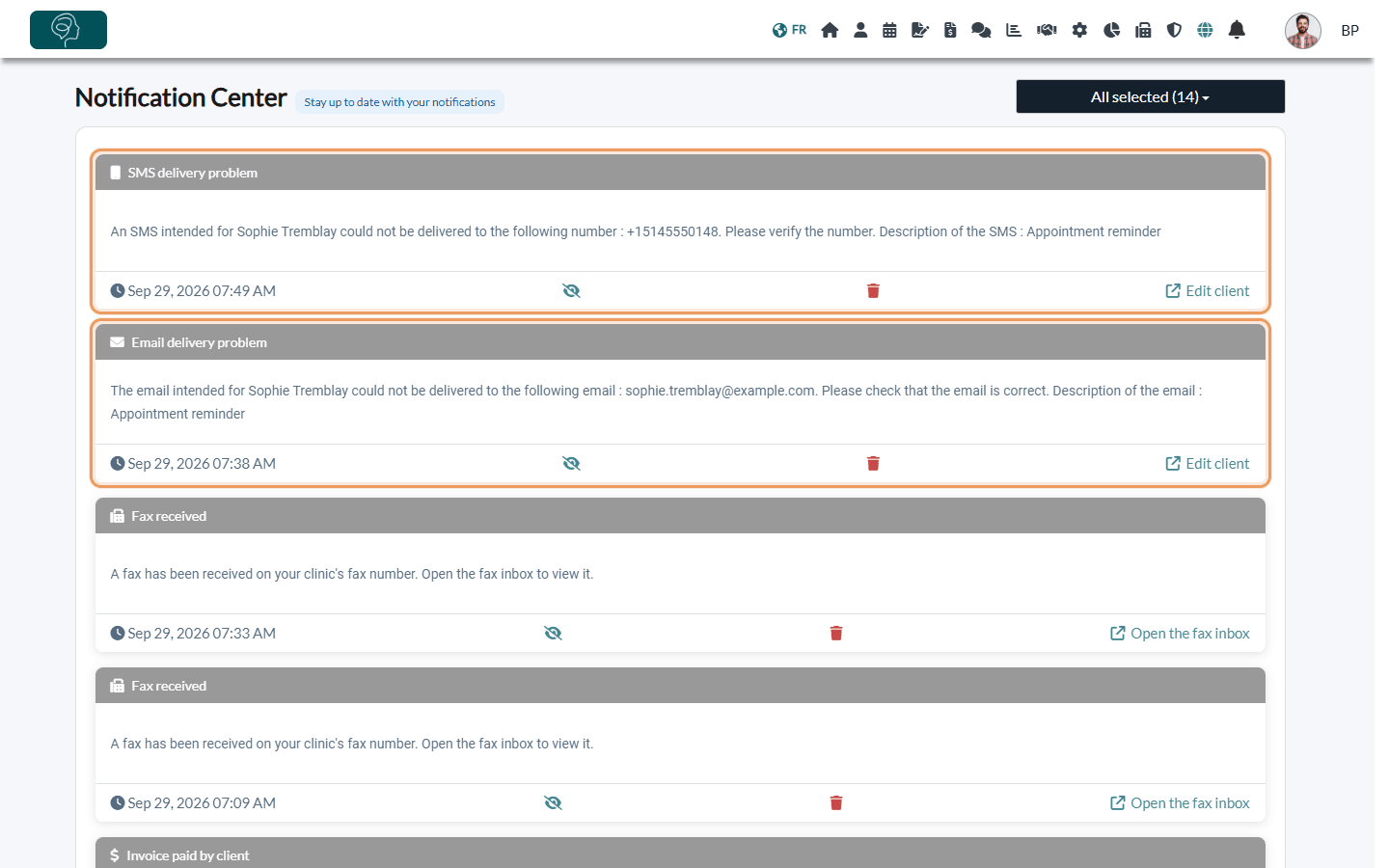
- Look for the SMS delivery problem and Email delivery problem notifications. To see only them, use the type filter at the top right of the page.
- Read the message: it gives the client's name, the phone number or email address that failed, and the kind of message that could not be delivered (for example, an appointment reminder).
2Correct the client's contact details
- In the notification, click Edit client: the client record opens.
- Check the email address or phone number. Most delivery problems come from an address with a typo or a phone number that is incomplete or no longer in service.
- Click Edit in the Contact details card (or use the Profile tab), correct the information and save. The next notifications go to the new details.
- If the message was important, send it again, for example with More actions > Send new confirmation notifications to clients in the appointment (see How to resend a confirmation notification).
3Review the history in the client record
In the client record, the Communications tab lists every email, SMS and fax sent to the client. A message that could not be delivered is marked with an orange cross in the Status column; hover over it to see the reason.
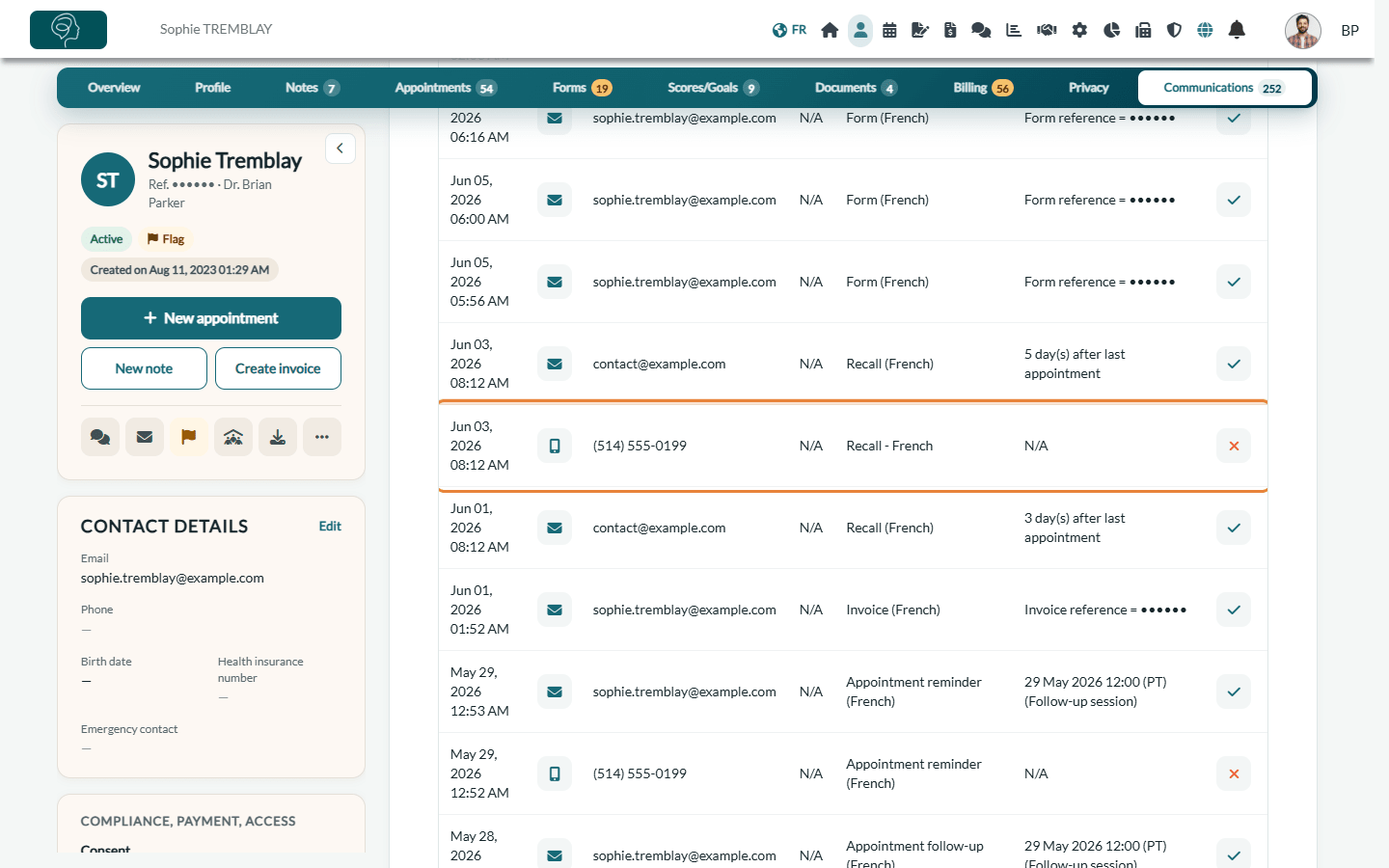
To learn how to read this history, see How to view client communications: emails and SMS delivery status.
Good to know
- Who is notified — the notification goes to the client's main practitioner. If the client has no main practitioner, it is shown to the team members who can see the data of other practitioners.
- Read and unread — notifications are marked as read when you open the Notification Center (the new ones show NEW). Use the eye icon (Set as not read) to keep one as a reminder, and the trash icon to delete it.
- Older notifications — the page shows the most recent notifications first; click Show all notifications at the bottom to see the others.
- Faxes — when a fax you sent cannot be delivered, you receive a Fax delivery problem notification, and the fax is marked with an orange cross in the client's history.
- No alert does not mean the message was read — Colib reports the messages that could not be delivered. It cannot tell whether a delivered email was opened or filtered as spam by the client's mailbox.
Still have a question?
Write to us at support@colib.io, we will be happy to help.
Was this article helpful?
That’s Great!
Thank you for your feedback
Sorry! We couldn't be helpful
Thank you for your feedback
Feedback sent
We appreciate your effort and will try to fix the article