Who is this article for?
A client tells you they do not receive the SMS (text message) reminders of their appointments? This article is for practitioners, administrators and front-desk team members. It lists, in order, the points to check: in most cases, the cause is a setting or the phone number.
Before you start: open the client's record from your client list (www.colib.io/clients). Steps 3 and 4 need access to the practice settings.
1Check the client's phone number
- In the client's record, click the Profile tab.
- Look at the Phone Number field, in the Contact details part.
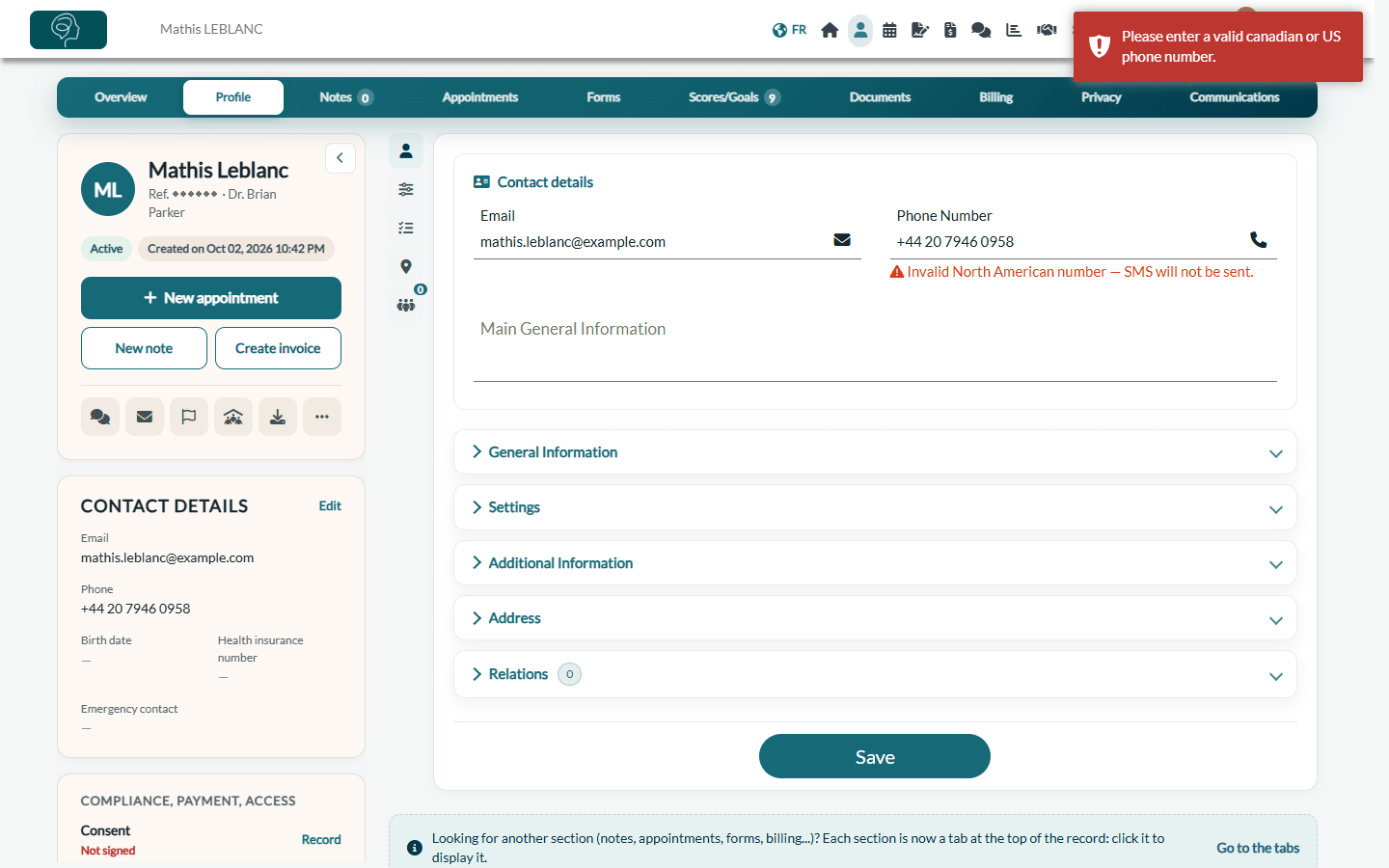
Colib only sends SMS to Canadian and US numbers (10 digits, with or without +1). When the number is not a valid North American number, the record shows Invalid North American number — SMS will not be sent. under the field: no SMS is sent to this client.
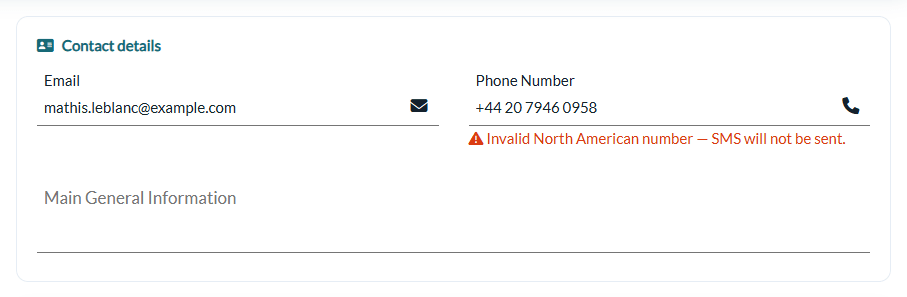
- Correct the number if it contains a typo or a missing digit, then click Save at the bottom of the tab.
- The number must be a mobile number: a landline cannot receive SMS.
- If the client only has a number outside Canada and the United States, they can receive their notifications by email: make sure their email address is correct.
- The field is empty? The client receives nothing by SMS. Add the number and save.
2Check the client's communication preference
- In the Profile tab of the record, open the Settings section.
- Look at Preferred communications: with Email only, the client receives no SMS. Choose Email & SMS or SMS only if the client wants SMS, then click Save.
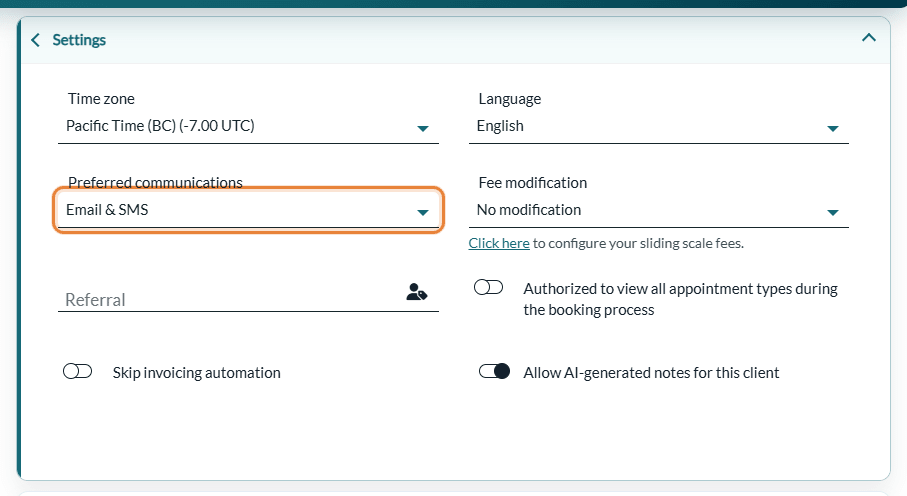
- A client who has a client portal account can choose this preference in the portal: their choice takes priority over the record.
- When booking online, a client can choose Email only for the appointment, or uncheck I agree to receive appointment reminders by text message.: no SMS is then sent for that appointment, and in the second case the record switches to Email only.
3Check the channel of your practice
- Go to Settings > Scheduler (www.colib.io/settings?show=scheduler) and open the Client notifications section.
- The Preferred ways to send notifications to the clients list must be Email & SMS or SMS. With Email, no appointment SMS is sent to any client.
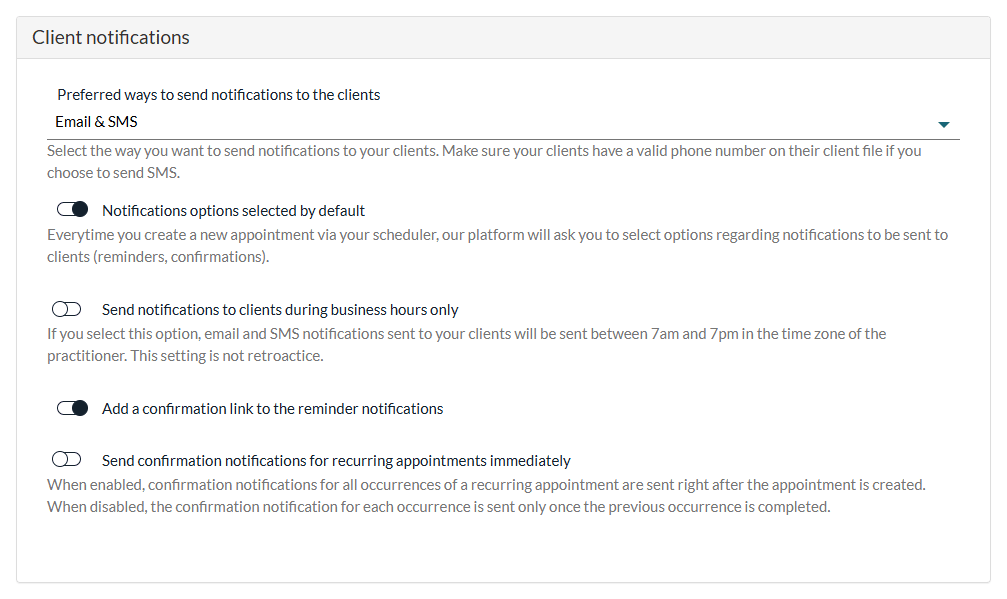
In the same section, when Send notifications to clients during business hours only is on, emails and SMS are sent between 7 a.m. and 7 p.m. in the time zone of your practice: an SMS scheduled during the night arrives in the morning.
4Prevent the problem: the US/Canadian phone number control
In Settings > Clients (www.colib.io/settings?show=clients), the Activate US/Canadian phone number control option, in the General section, prevents saving a phone number that is not Canadian or American. The change is saved as soon as you click the switch.
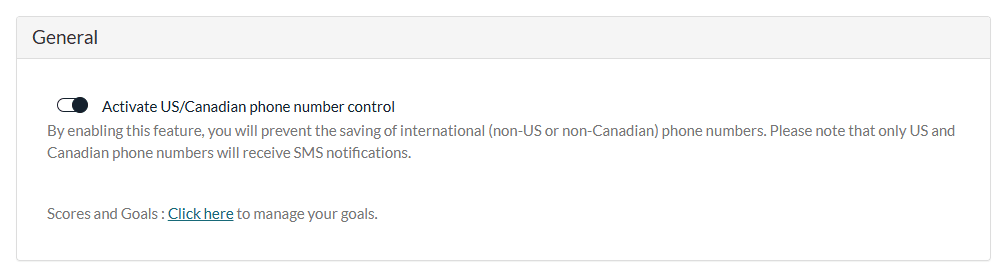
When it is on, saving a client record with an international number shows the message Please enter a valid canadian or US phone number. and the record is not saved until the number is corrected or removed. The same check applies to the phone number entered on your booking page.
5Check the appointment and what was sent
- Notifications of the appointment — open the appointment in the scheduler: if Send initial notification via SMS and/or email. or Send confirmation reminder(s) (prior to appointment). was turned off when it was created, the client receives no confirmation or no reminder for that appointment, by SMS or by email.
- Reminders of the appointment type — reminders are only sent if a reminder delay is set in the appointment type (see How to get an email or SMS reminder before each appointment? and What notifications do clients receive after booking?).
- Communication history — the Communications tab of the client's record lists every SMS and email sent, with its status (see How to view client communications: emails and SMS delivery status). If no SMS appears there, it was not sent: go back to steps 1 to 3.
- Number reported as invalid — when the SMS provider reports that a number is invalid, Colib sends you a notification (An SMS intended for ... could not be delivered to the following number). See How to monitor failed SMS and email deliveries for clients?
Once the problem is fixed, you can send the confirmation of an appointment again (see How can I manually resend a confirmation notification (email or SMS) for an appointment?).
Good to know
- Messages always sent by email — the follow-up message after an appointment, the forms, the invoices and receipts, the shared documents and the portal invitations are sent by email, never by SMS.
- Children and families — for a client attached to a responsible person (for example a child), the SMS goes to the phone number of the responsible person when there is one. See How to manage client group notifications?
- Clients cannot reply to SMS — Colib's SMS start with [No-reply]. Clients use the links they contain or contact you directly.
- Exception: the arrival confirmation — if your practice uses the arrival confirmation, its text message (which starts with [Action required]) is always sent by SMS, even when the client or the practice chose email only. It still needs a valid mobile number. Please see the article titled "How does the arrival confirmation sent before the appointment work?".
- The SMS was sent but the client did not get it — ask the client to check that their phone accepts SMS from short or unknown numbers and that no blocking or filtering app is hiding them.
Still have a question?
Write to us at support@colib.io, we will be happy to help.
Was this article helpful?
That’s Great!
Thank you for your feedback
Sorry! We couldn't be helpful
Thank you for your feedback
Feedback sent
We appreciate your effort and will try to fix the article