Who is this article for?
A client group links the records of the same family: a group owner (usually a parent), possibly other responsible holders, and the dependants (usually the children). By default, the group owner and the responsible holders receive all notifications (SMS and/or email) sent for any member of the group.
Every family is different. This article explains how to choose who receives appointment and billing notifications, and how to make sure both a child and a parent receive them.
Before you start: the client must already belong to a client group. To create a group and add its members, see How to communicate with child clients using client groups.
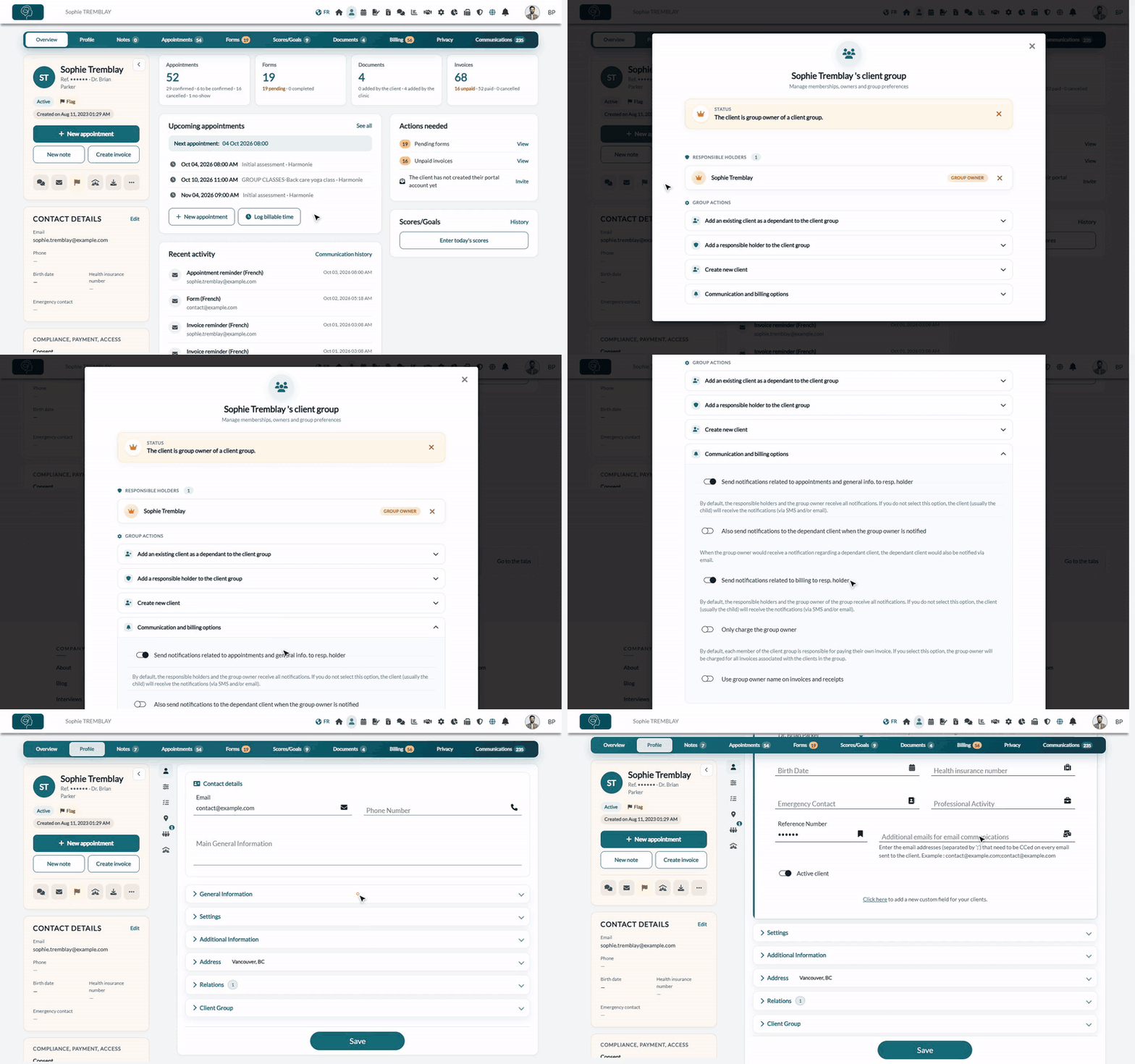
1Open the client group
- Open the record of any member of the group from your client list (www.colib.io/clients).
- In the card on the left, click the Client group icon (a house with people). You can also open the Profile tab, then the Client Group section, and click Manage group.
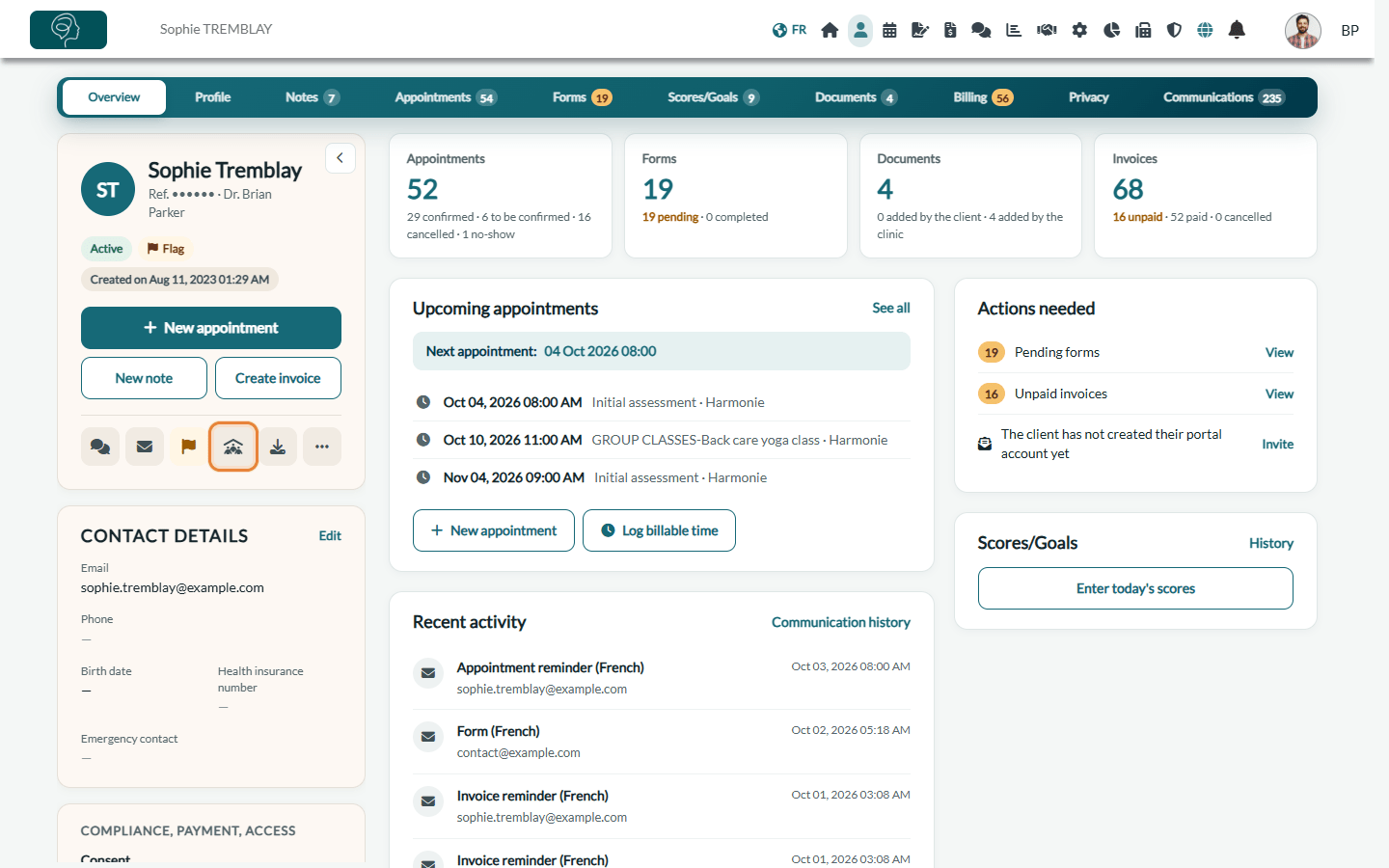
The window shows the group owner, the responsible holders and the dependants of the group.
2Choose who receives the notifications
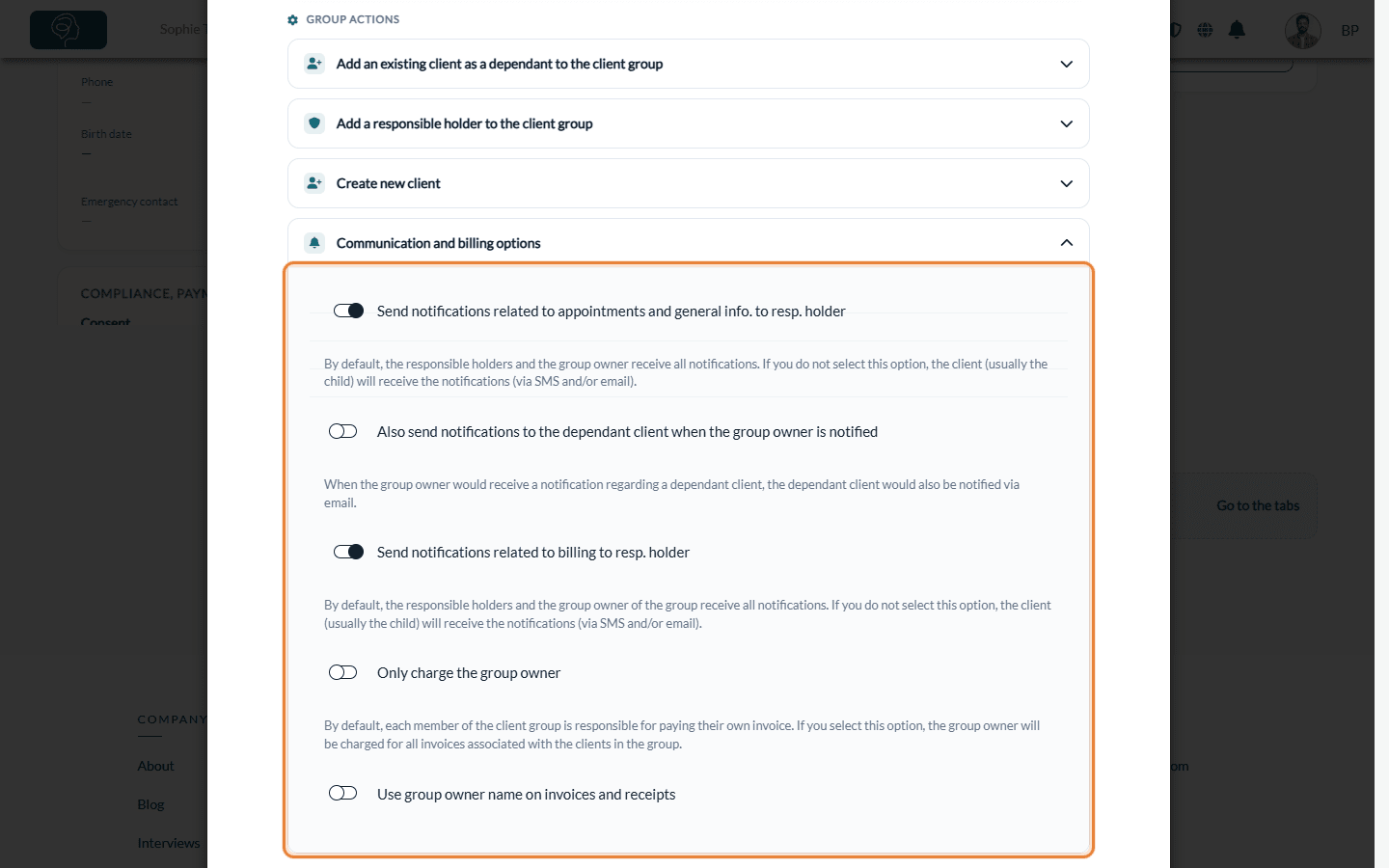
- Under Group actions, click Communication and billing options.
- Turn each option on or off (see the table below). Each change is saved immediately, for the whole group.
| Option | What it does |
|---|---|
| Send notifications related to appointments and general info. to resp. holder | On (default): notifications about a dependant's appointments, forms, shared notes and documents go to the group owner, with a copy to the responsible holders. Off: they go to the dependant's own email and phone number. |
| Also send notifications to the dependant client when the group owner is notified | When the group owner receives a notification about a dependant, the dependant also receives it by email (in copy). |
| Send notifications related to billing to resp. holder | On (default): invoices, receipts and payment reminders of a dependant go to the group owner, with a copy to the responsible holders. Off: they go to the dependant. |
| Only charge the group owner | Billing option: the group owner is charged for the invoices of all the clients of the group, instead of each member paying their own. |
| Use group owner name on invoices and receipts | Billing option: the invoices and receipts of the group show the group owner's name. |
Example: a teenager who manages their own appointments but whose parents pay. Turn off Send notifications related to appointments and general info. to resp. holder (the teenager receives the reminders) and keep Send notifications related to billing to resp. holder on (the parents receive the invoices).
Another example: the opposite also works. To have the appointment reminders go to the parents (group owner or responsible holders) while the child receives the invoices, keep Send notifications related to appointments and general info. to resp. holder on and turn off Send notifications related to billing to resp. holder.
3Send the emails to both the child and the parent (optional)
Two ways to have both the dependant and the parents receive the emails:
- Keep the notifications going to the responsible holders and turn on Also send notifications to the dependant client when the group owner is notified.
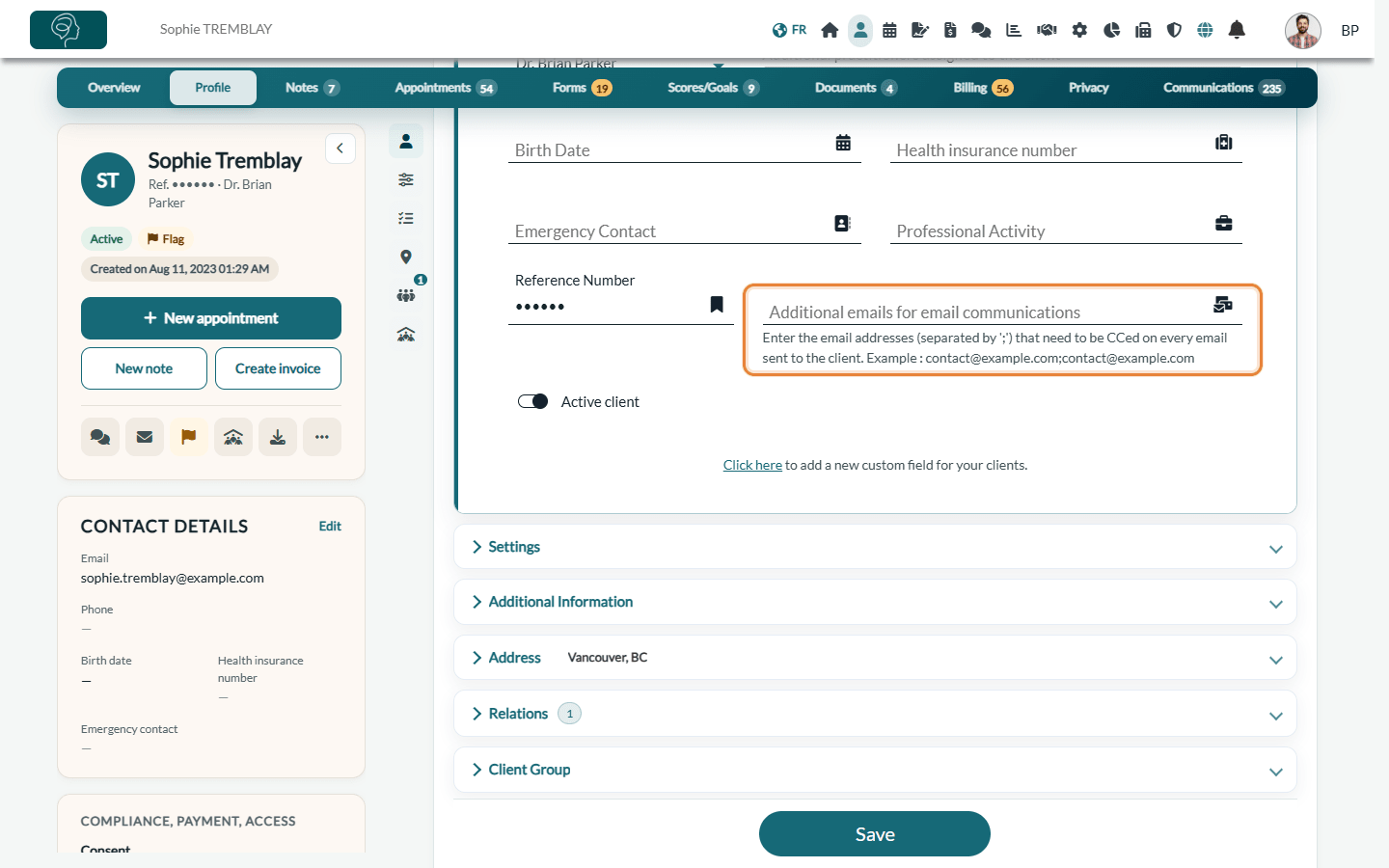
- Or add the addresses that must always receive a copy in the Additional emails for email communications field of a client: open the Profile tab of the record, fill in the field (addresses separated by ;) and click Save. Every email sent to this client is then also sent to these addresses.
Good to know
- SMS — when the notifications go to the responsible holders, the SMS is sent to the group owner's phone and to the phone of the other responsible holders. The dependant copy option only applies to emails.
- The group owner has no email — the email is then sent to the dependant's own address.
- Notifications about the group owner — these options only concern dependants: the group owner always receives their own notifications.
- Families — we recommend using client groups to manage the clients of the same family: the notifications and billing of the dependants are then managed in one place.
- Check what was sent — the Communications tab of the dependant's record shows each message with its recipient and the addresses in copy (see How to view client communications).
- Related articles — How to automatically add a guardian's name to a client invoice and How to allow clients to book appointments on behalf of a dependant.
Still have a question?
Write to us at support@colib.io, we will be happy to help.
Was this article helpful?
That’s Great!
Thank you for your feedback
Sorry! We couldn't be helpful
Thank you for your feedback
Feedback sent
We appreciate your effort and will try to fix the article