Who is this article for?
When you see children, the emails and text messages about their appointments and invoices should reach their parents. A client group (formerly called family group) links the record of a parent or guardian (the group owner) to the records of the children (the dependants). By default, the group owner then receives all the notifications sent for the dependants.
This article explains how to create a client group, add dependants and a second parent, and choose who receives the notifications and the invoices.
Before you start: the parent and each child need their own client record. A child does not need an email address or a phone number. To create a record, click Create Client in your client list (www.colib.io/clients), or create the child directly from the client group window (step 3).
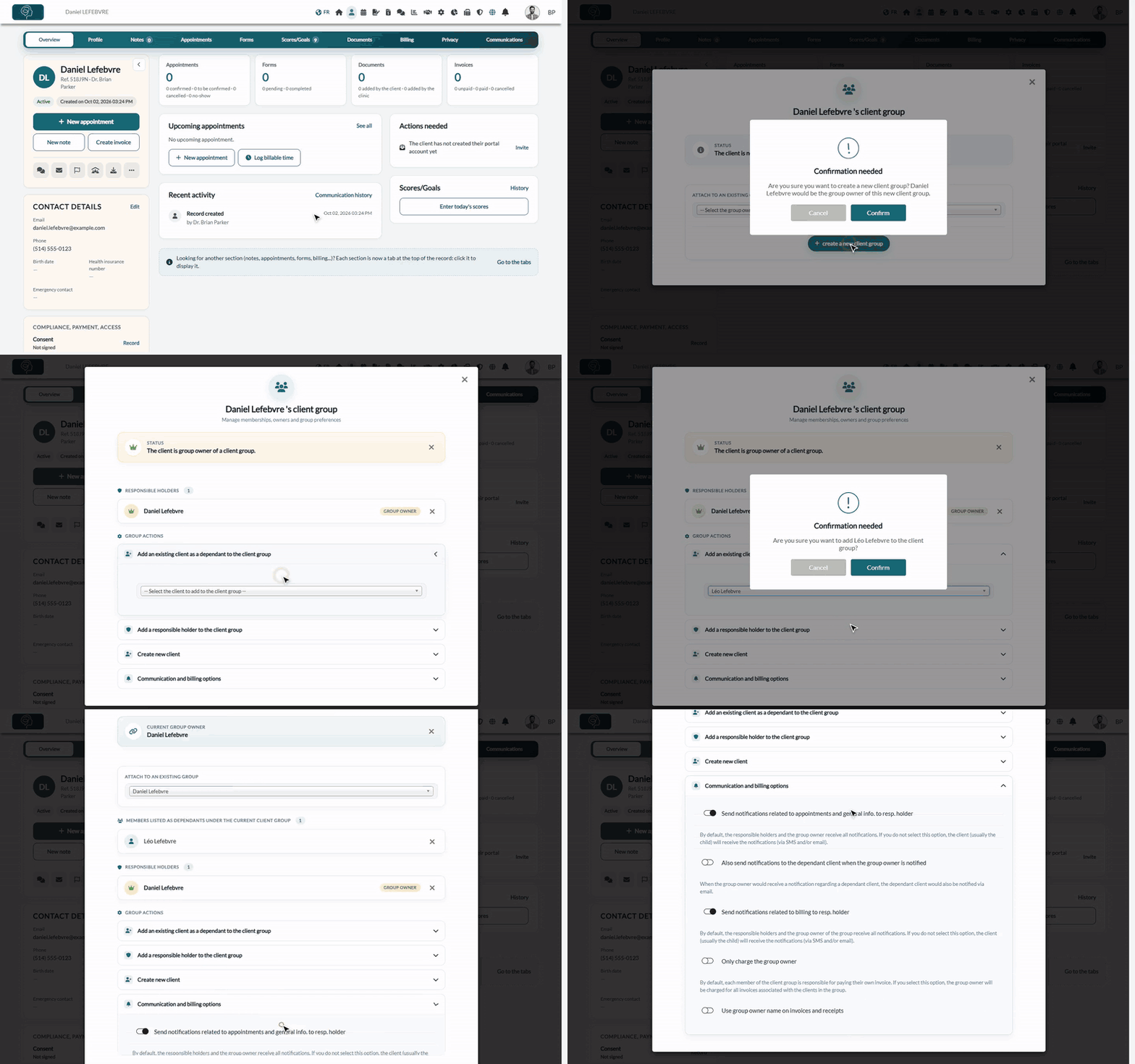
1Open the client group window of the parent
- Open the parent's record from your client list (www.colib.io/clients).
- Under the client's name, click the Client group icon (people under a roof).
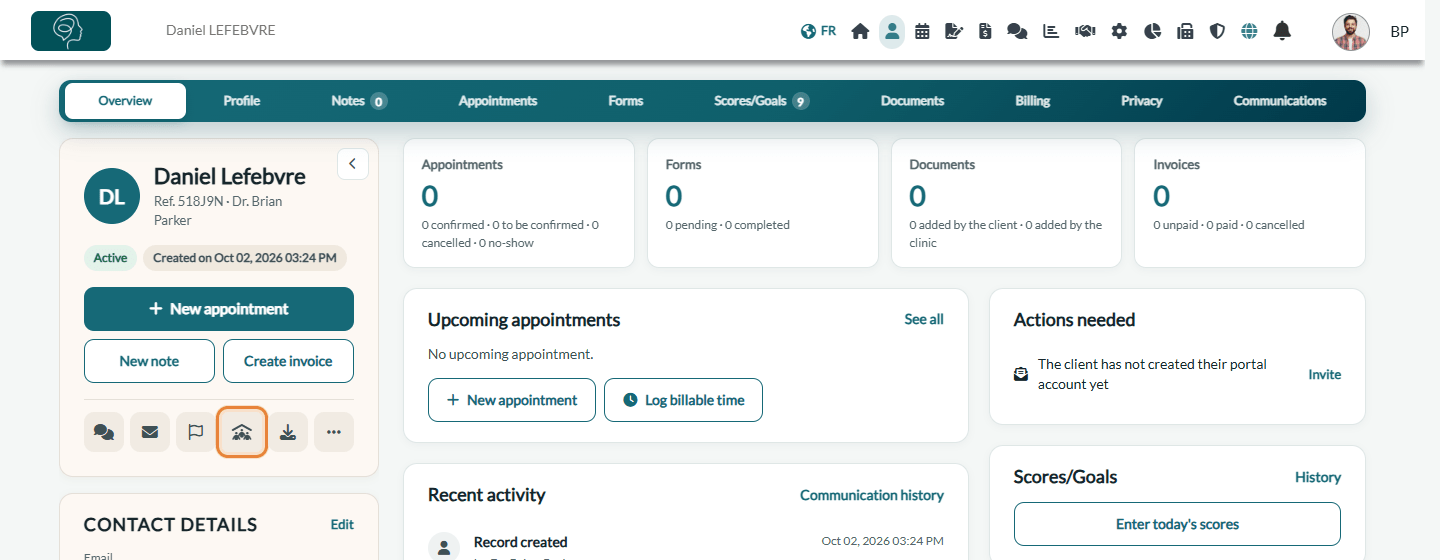
2Create the group
- Click create a new client group.
- Click Confirm. The parent becomes the group owner.
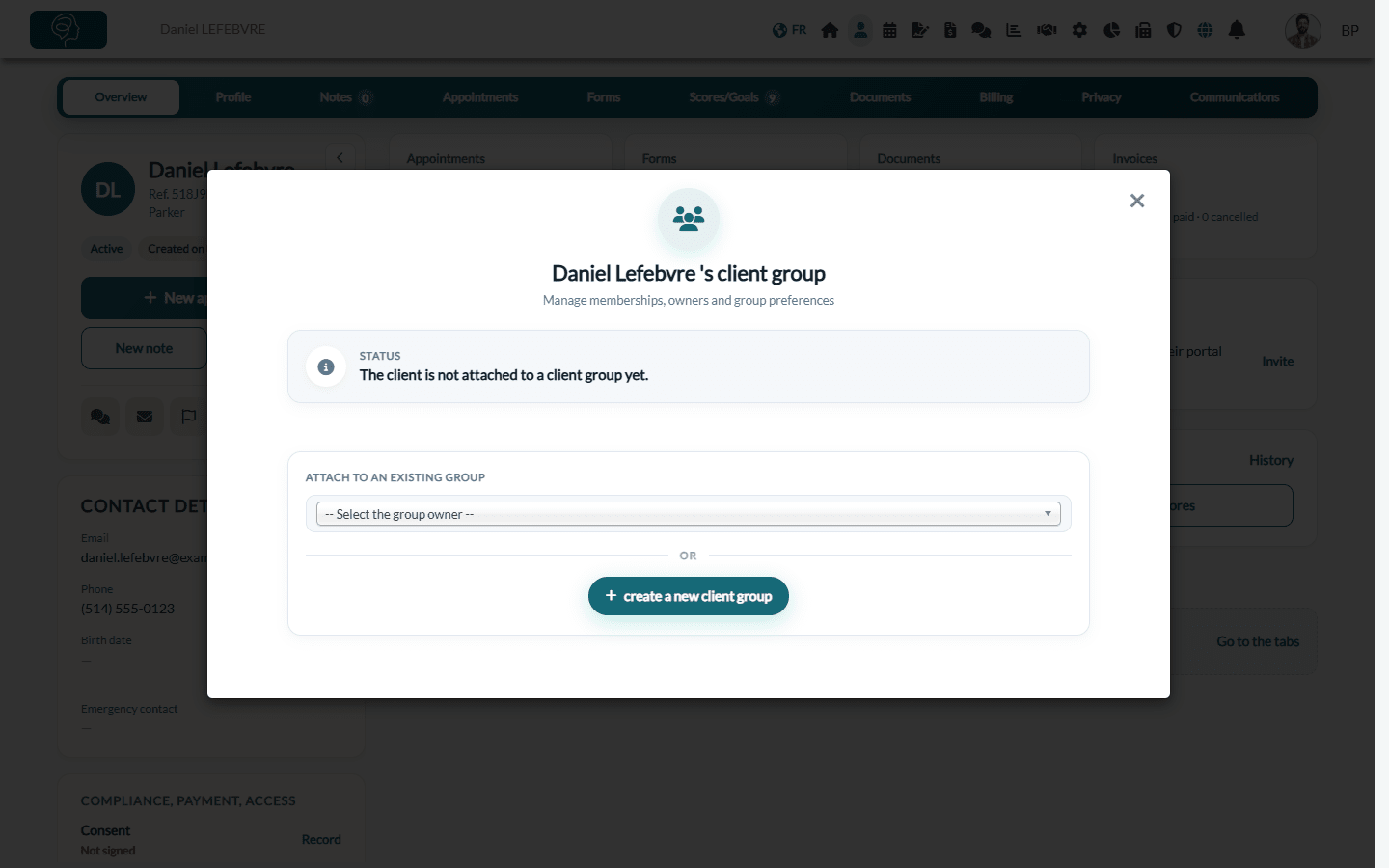
If the group already exists (for example, a sibling is already in it), use Attach to an existing group instead and choose the group owner in the list.
3Add the children
- Under Group actions, open Add an existing client as a dependant to the client group.
- Choose the child in the list, then click Confirm.
- Repeat for each child. If the child has no record yet, open Create new client in the same window to create it directly in the group.
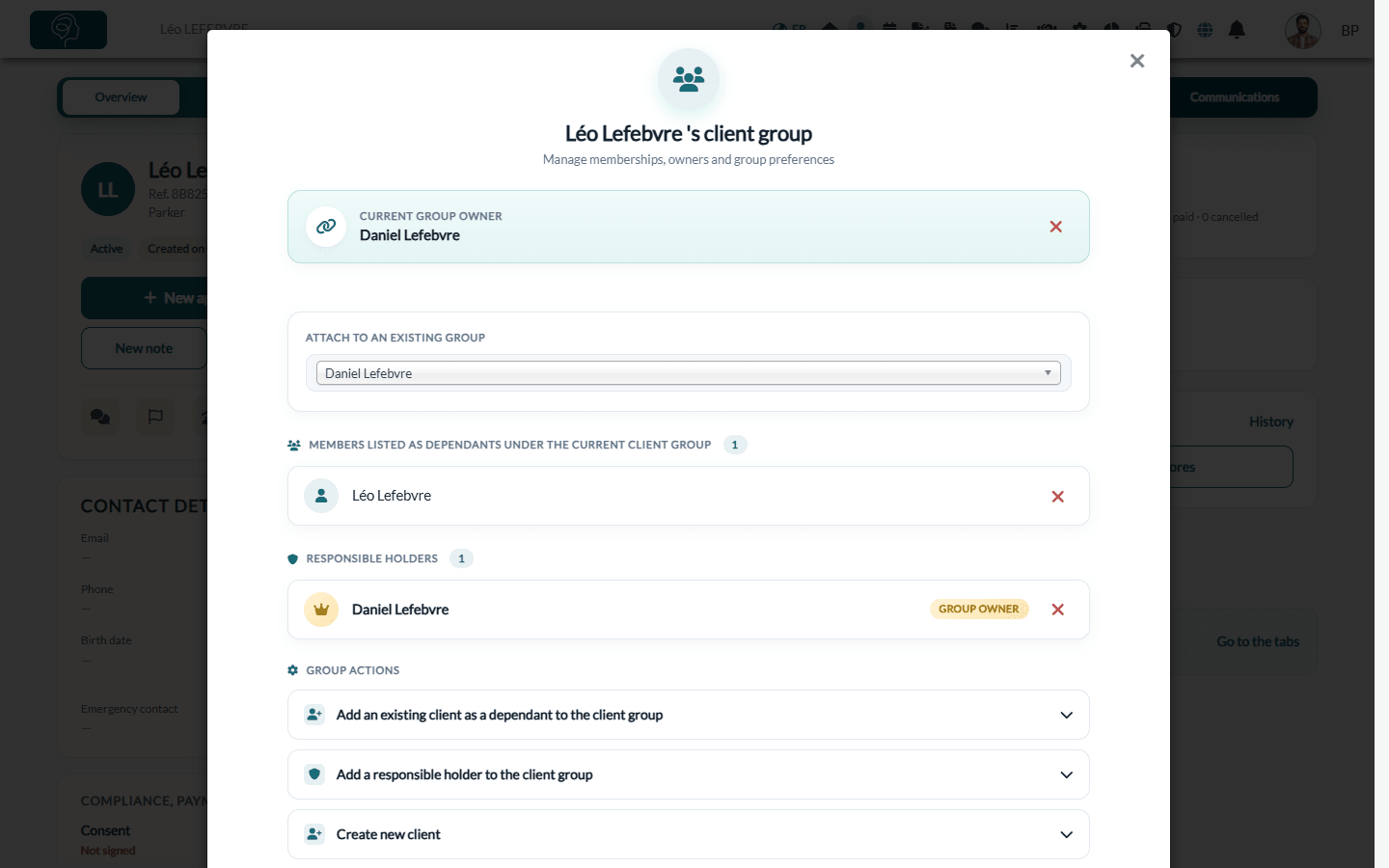
The window now lists the dependants and the responsible holders of the group.
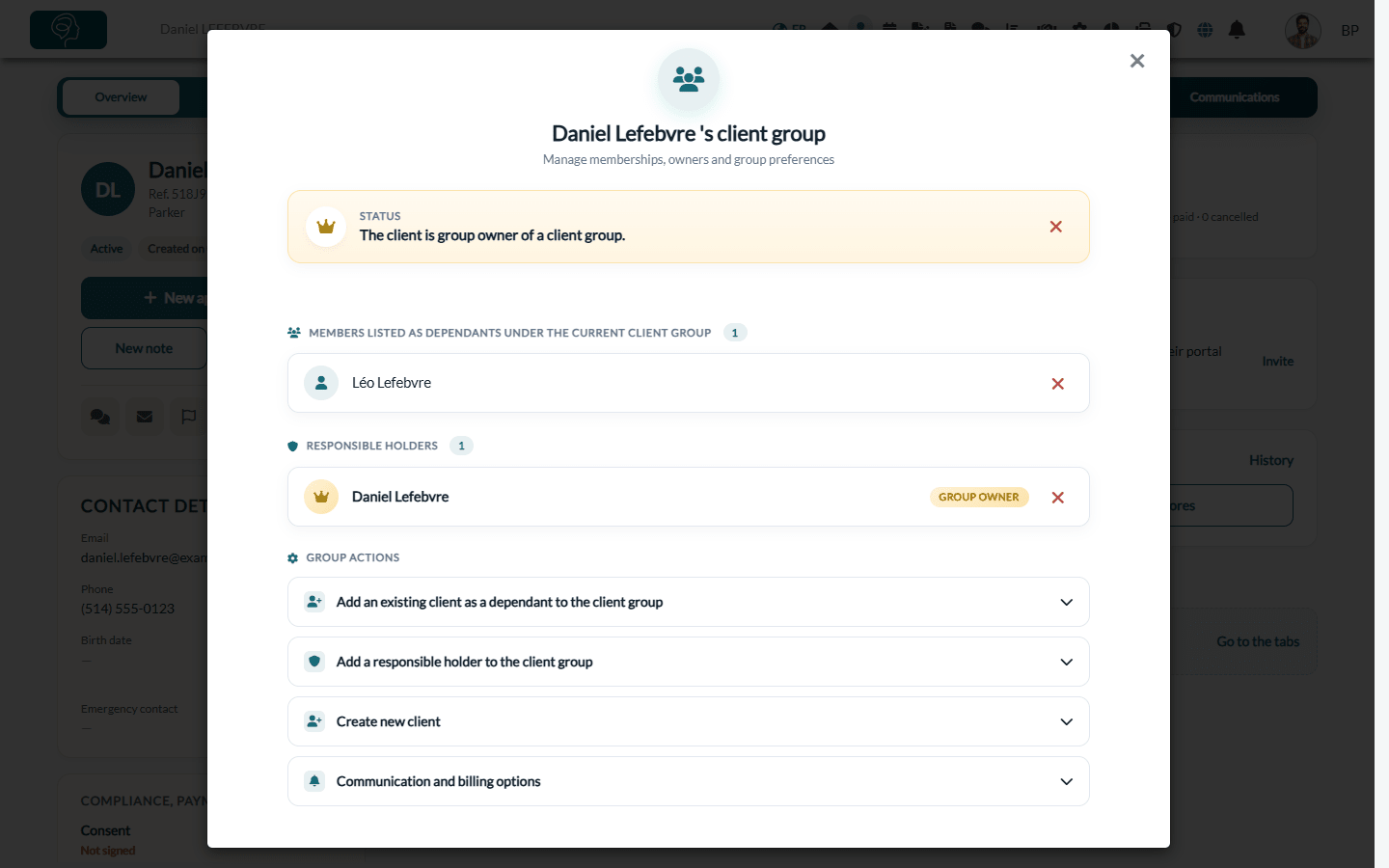
4Add a second parent (optional)
Open Add a responsible holder to the client group, choose the other parent's record and click Confirm. Responsible holders receive a copy of the emails and text messages sent to the group, like the group owner. The other parent needs their own client record.
5Choose who receives the notifications and the invoices
Open Communication and billing options. Each change is saved as soon as you click the switch.
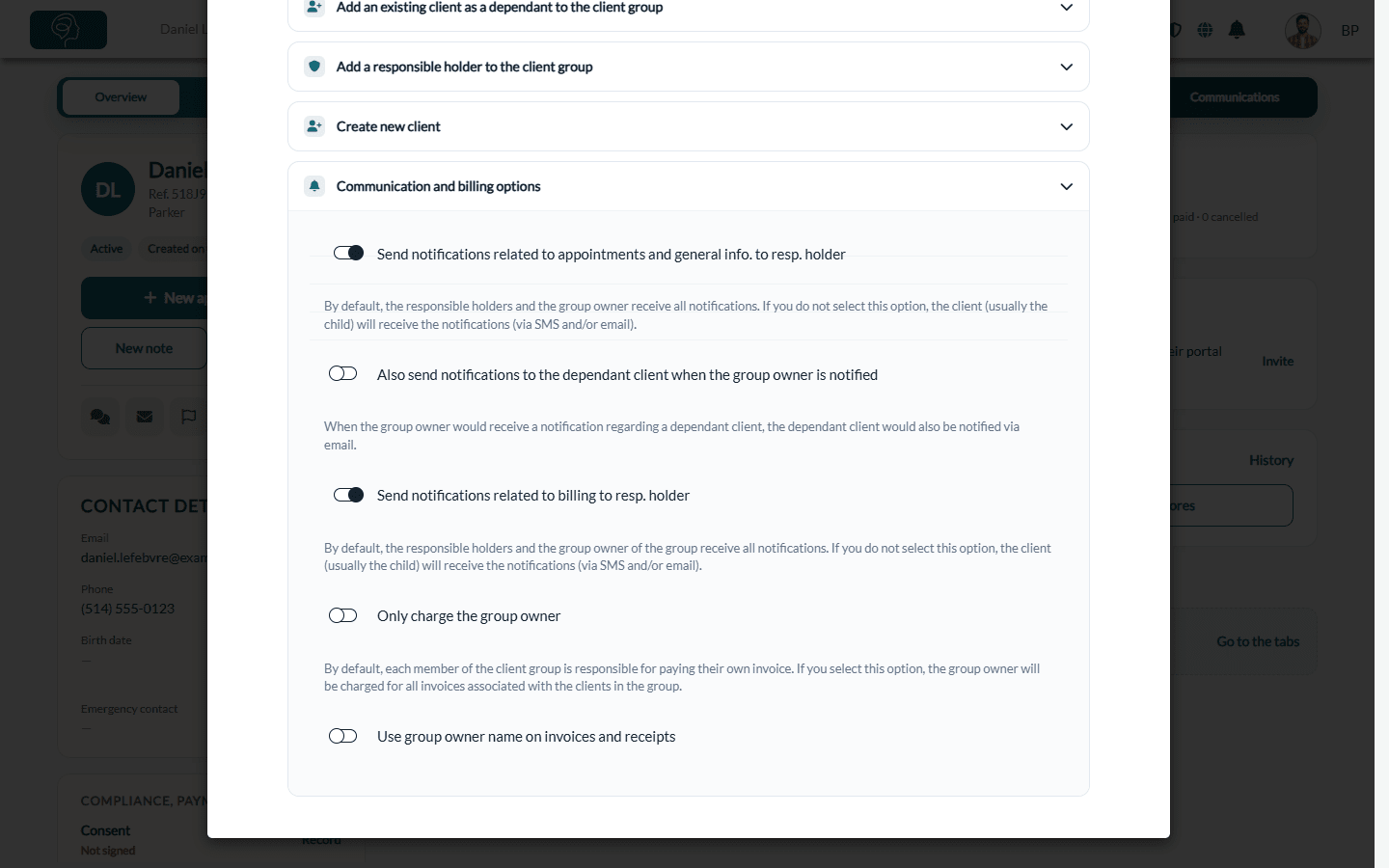
| Option | What it does | Default |
|---|---|---|
| Send notifications related to appointments and general info. to resp. holder | Appointment confirmations, reminders and other general messages for a dependant go to the group owner. Turn it off to send them to the child directly. | On |
| Also send notifications to the dependant client when the group owner is notified | The child also receives the email sent to the group owner (useful for teenagers). | Off |
| Send notifications related to billing to resp. holder | Invoices and receipts of a dependant are sent to the group owner. Turn it off to send them to the child. | On |
| Only charge the group owner | By default, each member pays their own invoices. With this option, the group owner is charged for all the invoices of the group's clients. | Off |
| Use group owner name on invoices and receipts | The invoices and receipts of the dependants show the name of the group owner. | Off |
6Check the child's record
The Client group icon is now colored in the records of the group owner and of the children. In a child's record, the window shows the Current group owner.
Second parent or guardian: what can they see?
Two options keep a second parent or guardian informed. Neither gives them the view of the children's records in the client portal: only the group owner has it.
| Option | What the second parent receives | Client portal |
|---|---|---|
| Responsible holder of the group (step 4) | A copy of the emails and text messages sent to the group, like the group owner. | They can create a portal account with their own email address, but they only see their own record, not the children's. |
| Additional emails for email communications, in the Profile tab of the child's record | A copy of every email sent for this client. Separate several addresses with a semicolon (;). | No access: this address only receives copies of the emails. |
Which parent should be the group owner? Choose the parent who should follow the children's appointments, invoices, documents, forms and shared notes in the client portal. The group has only one owner: to change it, remove the current owner (this deletes the group, the client records are kept), then create the group again from the other parent's record and add the children again.
Good to know
- Client portal — when the group owner logs in to the client portal, they also see the records of the dependants: appointments, invoices, documents, forms and the notes you shared with them. Only the group owner has this view: the other responsible holders do not see the dependants' records in the portal.
- Booking for a child online — in Settings > Booking Page (www.colib.io/settings?show=bookingpage), turn on Allow clients to book on behalf of a dependant (e.g. parent booking for a child). Your booking page then shows the box I'm booking this appointment for a dependant (e.g. my child): Colib creates the child's record and a client group with the parent as group owner.
- Remove a client from the group — click the red cross next to their name. Removing the group owner deletes the whole group (the client records are kept).
- Anyone can be grouped — client groups also work for a guardian, a caregiver or a spouse who manages the appointments of another adult.
- Merging records — see Can I merge two client accounts? to know what happens to a group when you merge two records.
Still have a question?
Write to us at support@colib.io, we will be happy to help.
Was this article helpful?
That’s Great!
Thank you for your feedback
Sorry! We couldn't be helpful
Thank you for your feedback
Feedback sent
We appreciate your effort and will try to fix the article