Who is this article for?
Yes, you can merge two client records. Duplicates happen: a client books online with another email address, a record is created twice by two team members, or a client is imported a second time. Merging moves everything from the duplicate into the record you keep, so the client's history is in one place.
This article explains how to merge two records, what is transferred and what you need to check before you confirm.
Before you start: decide which record you keep (the destination). You start the merge from the duplicate, the record that will disappear. You need the right to edit client information to merge records.
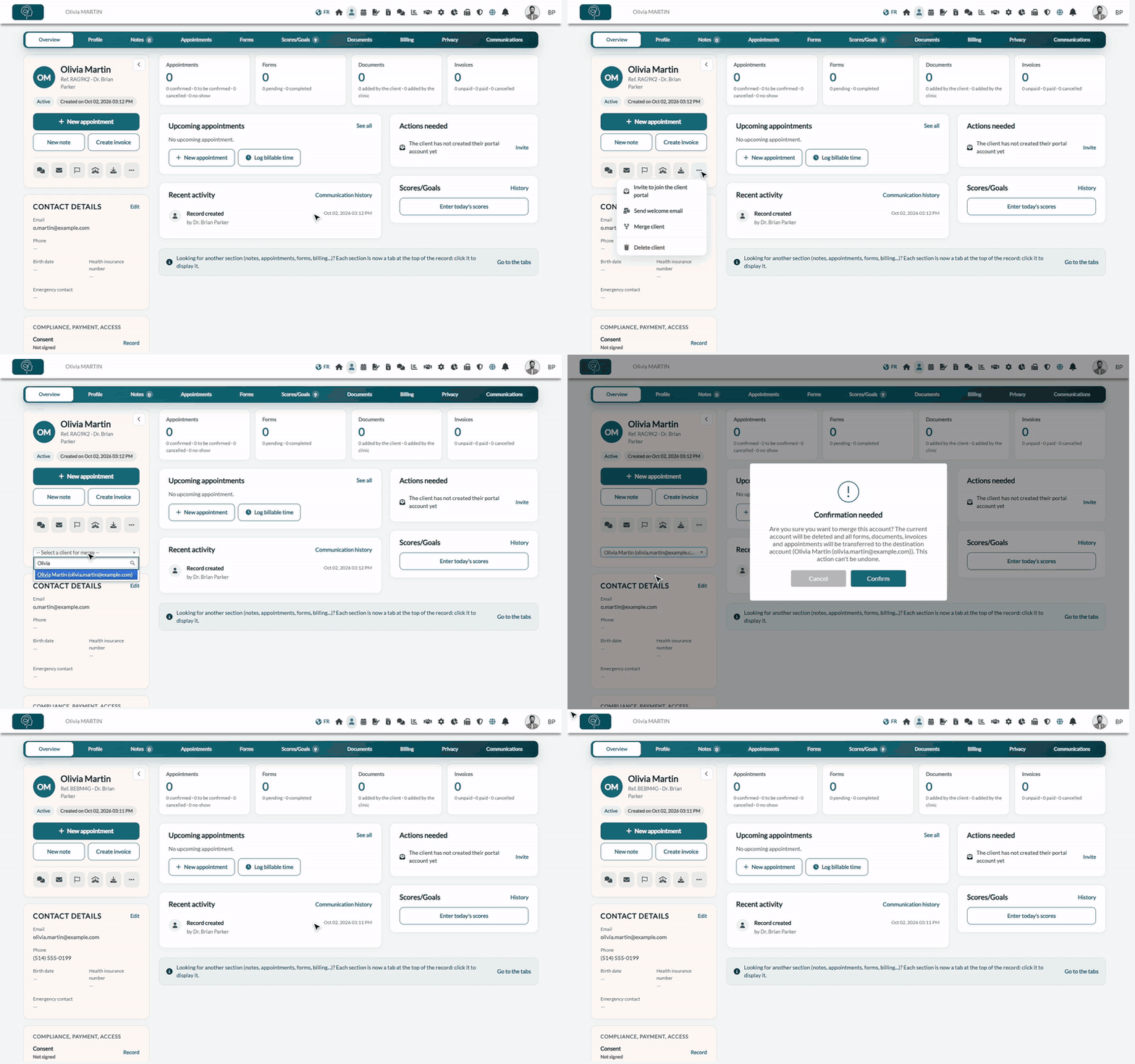
1Open the duplicate record
- Go to your client list (www.colib.io/clients) and open the record you want to remove.
- Under the client's name, click the More actions icon (three dots), then Merge client.
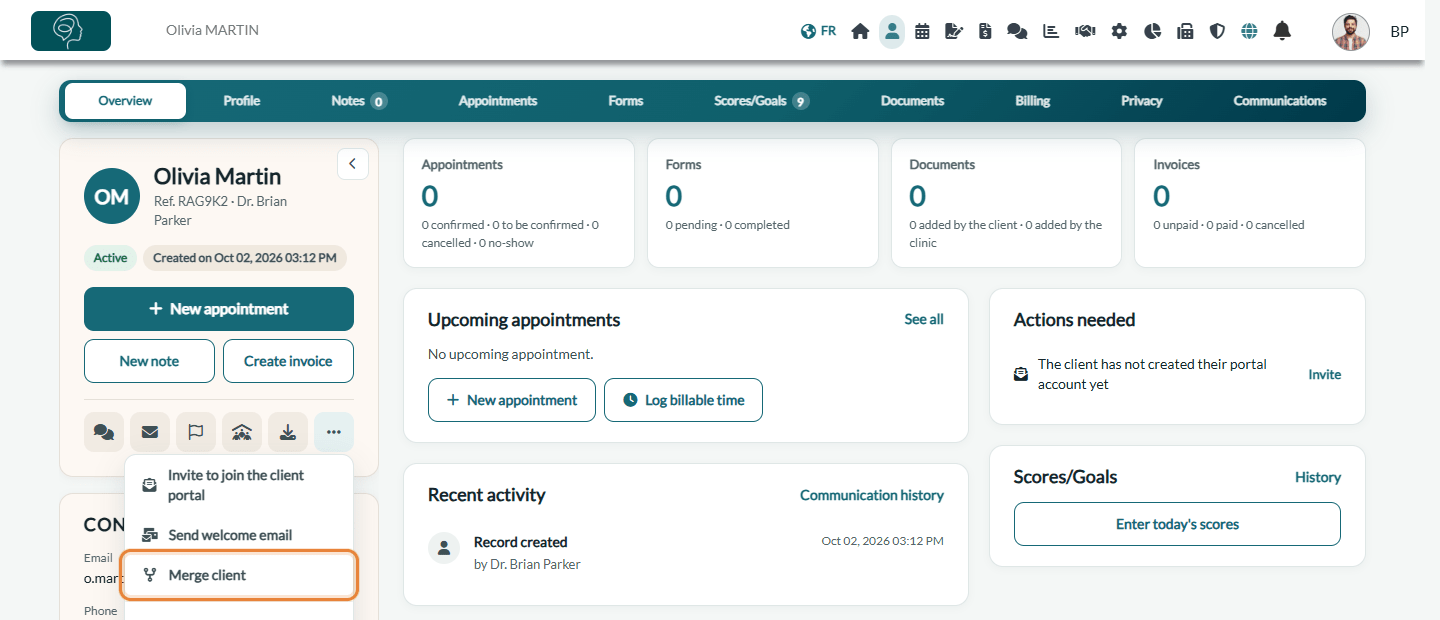
2Choose the record to keep
- A list appears under the icons. Click it and type a few letters of the name or the email address of the record you keep.
- Click that record in the list. Each record is shown with its email address, which helps you tell two homonyms apart.
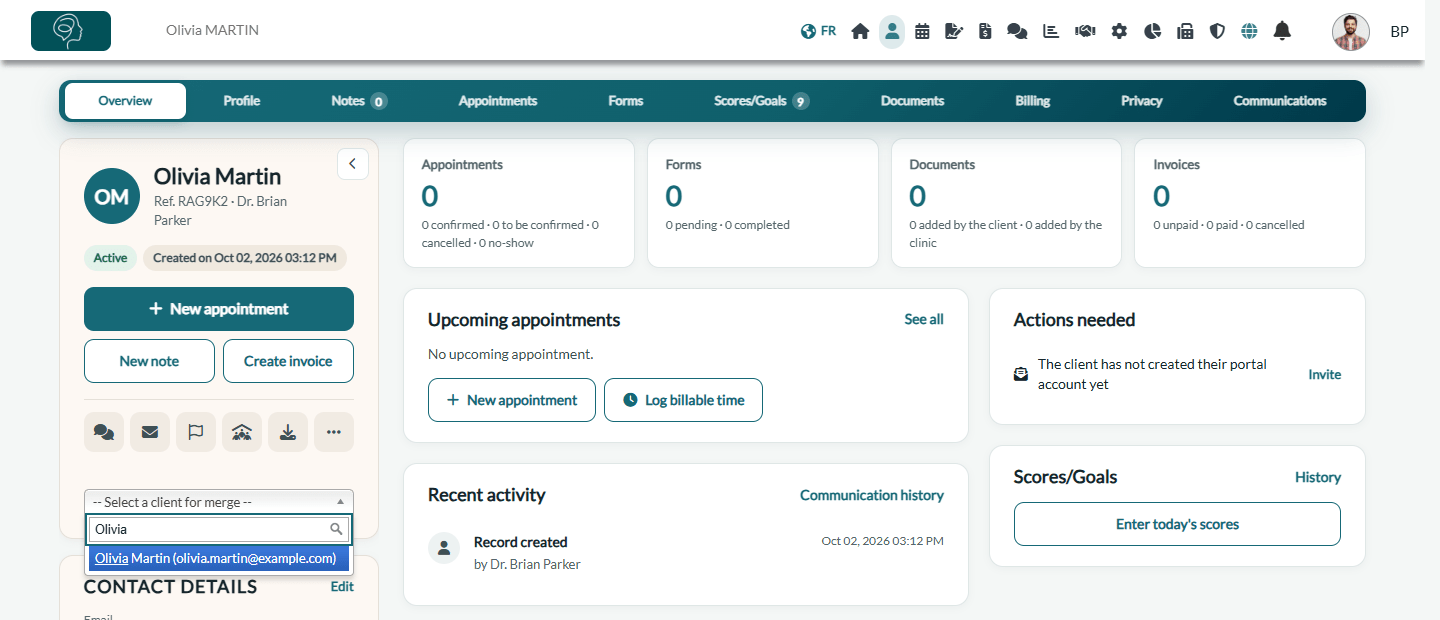
3Confirm the merge
- Read the confirmation message: it names the destination record.
- Click Confirm. Colib transfers the data, then opens the destination record.
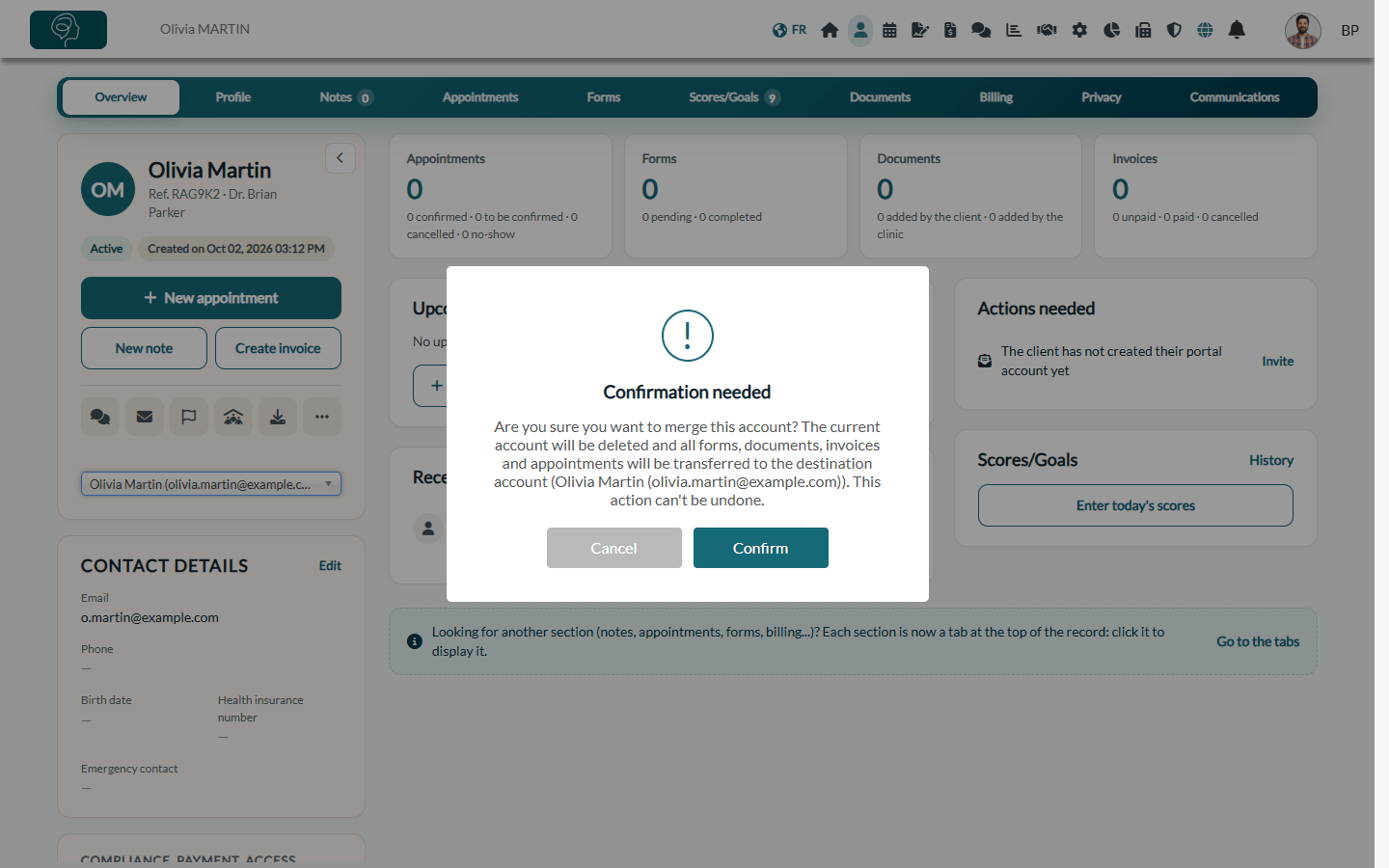
Important: a merge cannot be undone. The record you started from is deleted and can no longer be opened. Check that you chose the right destination before you click Confirm.
What is transferred
Everything linked to the merged record moves to the destination record:
- appointments, including cancelled ones, and their online meeting information;
- notes, note drafts and addenda;
- forms, scores and goals;
- documents and document folders;
- invoices, payments, payment cards and gift certificates;
- private messages and the communication history;
- consents, waitlist requests and recalls.
For the client's profile, the destination record keeps its own information. When one of its fields is empty (phone, email, birth date, address, emergency contact, additional fields, etc.), Colib fills it with the value of the merged record.
Good to know
- Check the profile afterwards — open the Profile tab of the destination record and correct the email address or phone number if the merged record had the more recent one.
- Client portal — the destination record keeps its portal account. If it does not have one, the portal account is linked again from the destination record's email address.
- Client groups — if the merged record was the Responsible holder of a client group, the destination record becomes the responsible holder of that group, unless it already belongs to another group. See How to communicate with child clients using client groups.
- Avoid duplicates — Colib recognizes an existing client by their email address when they book online or when you import a file. See Do I have to create all clients manually?.
- A client who is no longer followed is not a duplicate: archive the record instead. See How to archive a client.
Still have a question?
Write to us at support@colib.io, we will be happy to help.
Was this article helpful?
That’s Great!
Thank you for your feedback
Sorry! We couldn't be helpful
Thank you for your feedback
Feedback sent
We appreciate your effort and will try to fix the article