Who is this article for?
Some of your clients do not book for themselves: children, but also adults whose care is managed by a family member. With the dependant option, a parent or a responsible adult books on your booking page for someone else. Colib keeps a separate client record for the person who receives the care, and links it to the adult who booked.
This article explains how to turn the option on, what your clients fill in, and which records Colib creates.
When should you turn it on? Turn it on if you see:
- children (paediatrics, speech therapy, occupational therapy, etc.);
- older clients whose appointments are managed by a family member;
- any clientele where the person who books is regularly not the person who receives the care.
Leave it off if your practice only sees adults who book for themselves: it keeps your booking page simpler. When the option is off, the booking page works as usual: the person who fills in the form is the client, no checkbox or extra field is shown, and a single client record is created for that person.
Before you start: this option is part of online booking (client booking type Online booking by client). See how to set up the booking process.
1Turn on the option
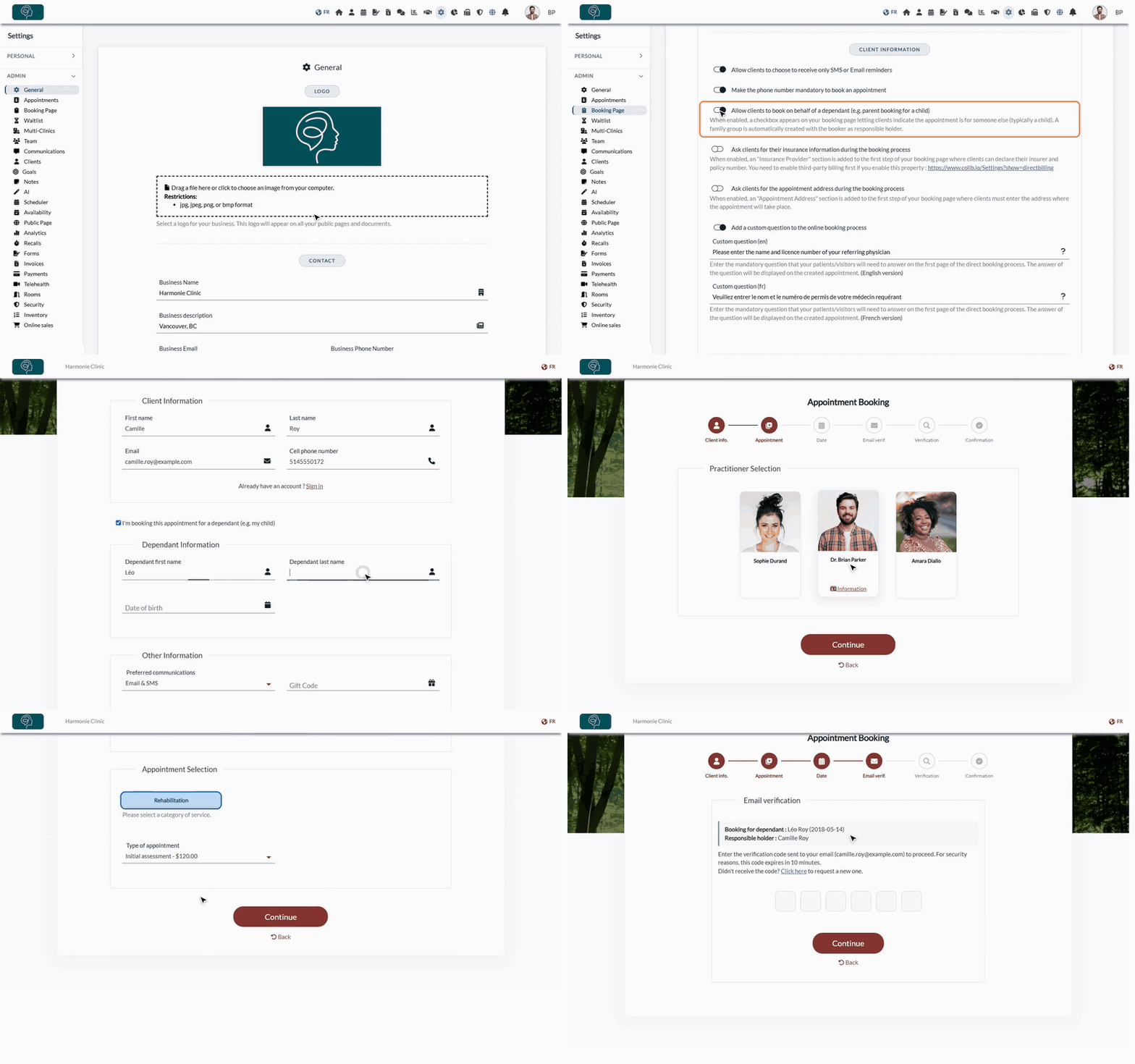
- Go to Settings > Booking Page (www.colib.io/settings?show=bookingpage).
- Open the Direct Booking section and scroll down to Client information.
- Turn on Allow clients to book on behalf of a dependant (e.g. parent booking for a child).
- Click Save at the bottom of the page.
2What your clients fill in
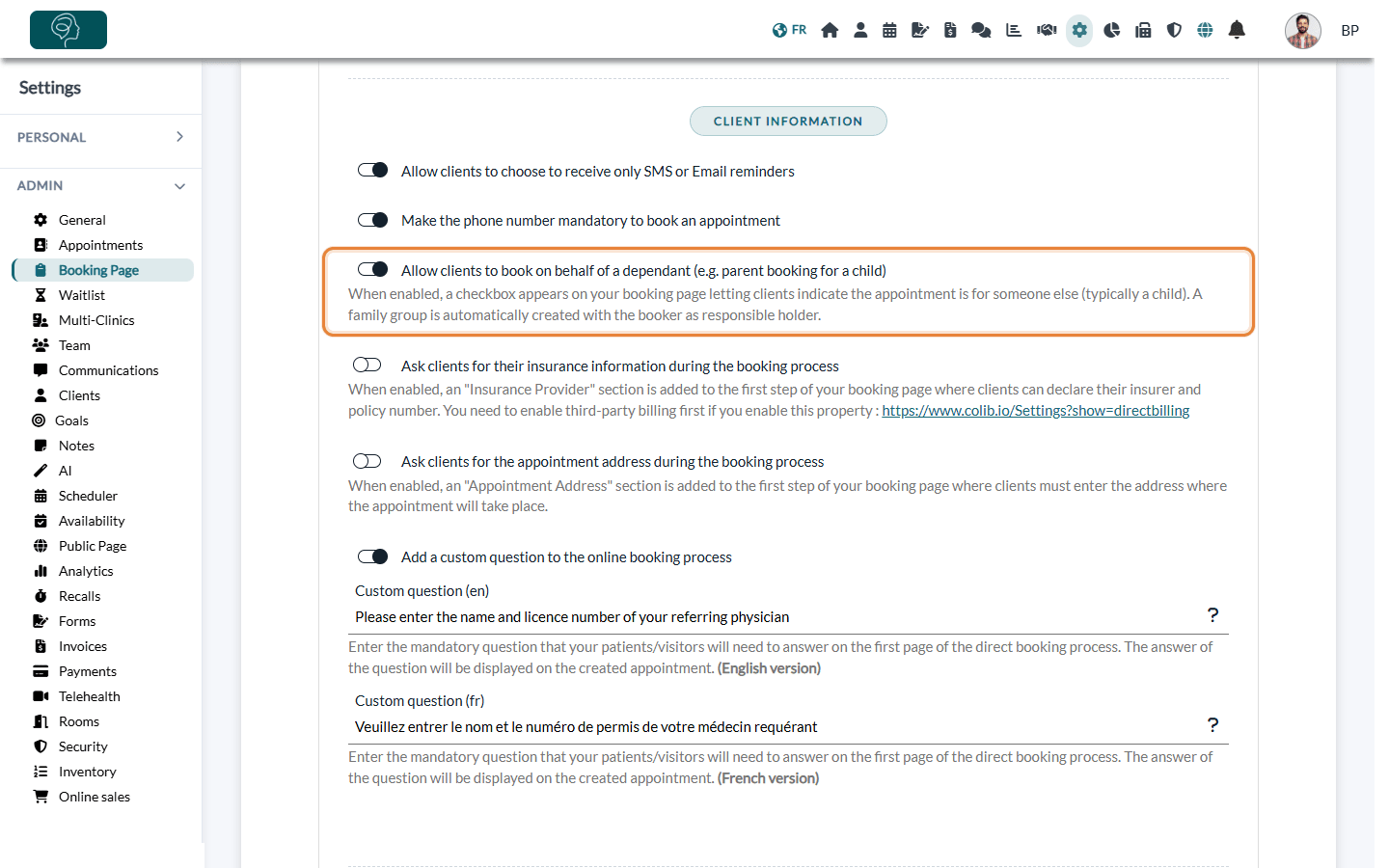
- On the first step of the booking page, the client enters their own first name, last name, email and phone, as usual: these are the details of the responsible adult.
- They tick I'm booking this appointment for a dependant (e.g. my child).
- A Dependant Information block appears. The client enters the Dependant first name, the Dependant last name and the Date of birth. All three are required, and the date of birth cannot be in the future.
- The client then chooses the appointment type, the date and time, and continues as usual.
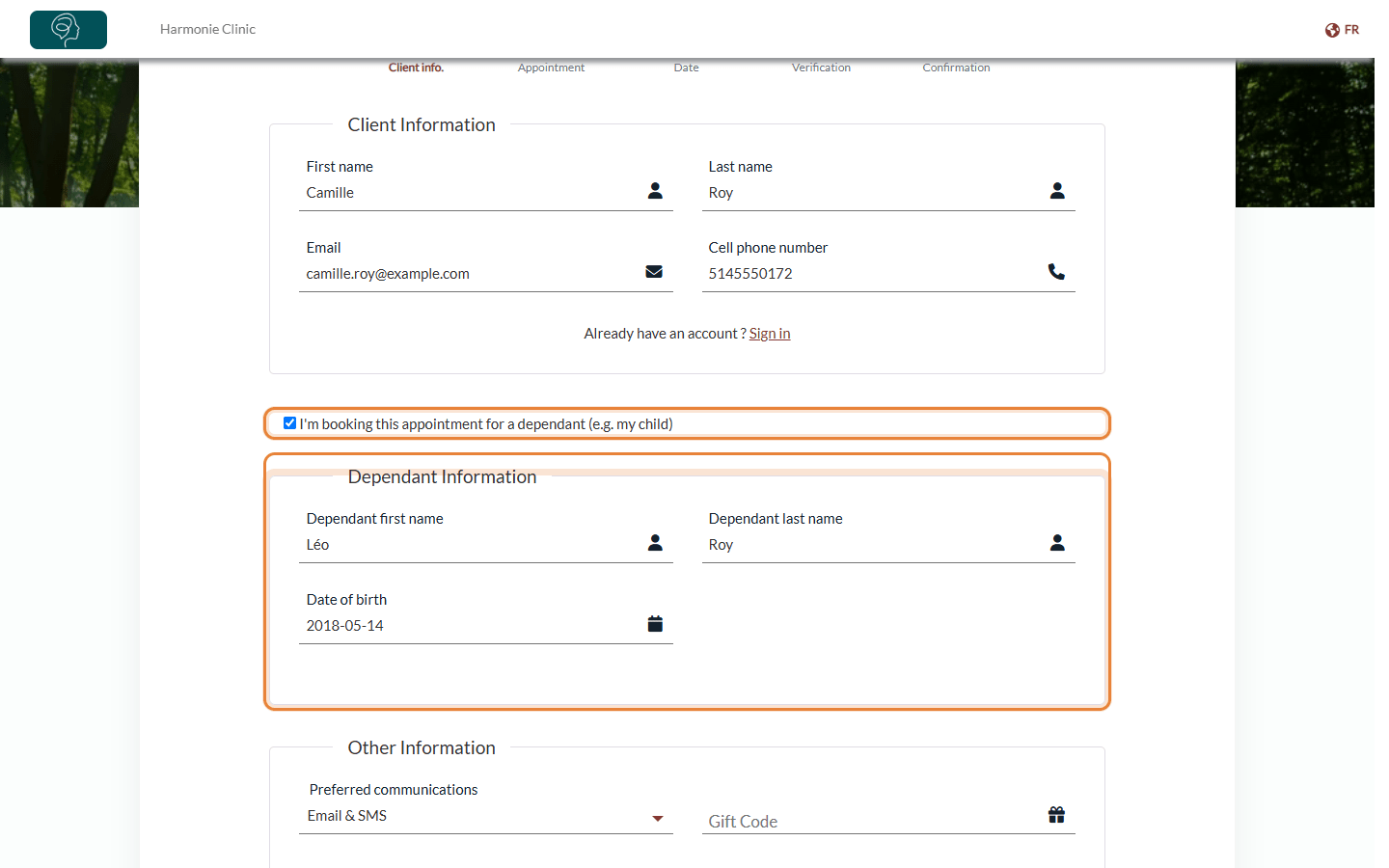
If you verify email addresses during booking, the verification step reminds the client who the appointment is for (Booking for dependant) and who is responsible for it (Responsible holder).
When the dependant is under 14, the client must also tick I confirm that I am the parent or legal guardian of this minor and that I consent on their behalf. on the last step before confirming.
On that last step, the summary of the booking shows the dependant's first name, last name and date of birth, so the client can check everything before confirming. The confirmation email is sent to the responsible adult's email address, and the final screen confirms the booking; the appointment itself is in the dependant's name.
3What Colib creates when the booking is confirmed
- The responsible adult — Colib finds the existing client with the same email address, or creates a new client.
- The dependant — Colib looks for an existing client with the same first and last name (and the same date of birth when both are known). If none is found, a new client is created with the adult's email, phone number and address.
- The appointment — it is linked to the dependant's record: it appears in the dependant's file, not in the adult's. Answers to your additional questions and any payment taken at booking also go to the dependant's record.
- The client group — when a new dependant record is created, Colib adds it to the client group of the adult. If the adult does not have a group yet, a group is created with the adult as Group owner.
- Your notification — the notification you receive for the new booking says that the adult has booked an appointment for the dependant.
In a group created this way, appointment notifications and billing notifications are sent to the responsible holder. You can change these choices in the client group window, from the group icon of the client's record. Groups created this way can be viewed and edited exactly like the groups you create yourself: click the group icon on the client's row in the client list (www.colib.io/clients) or in the client's record. See how to manage client group notifications and how to communicate with child clients using client groups.
Good to know
- Next bookings — when the same adult books again for the same dependant, the existing dependant record is reused: no duplicate is created. A second child gets their own record and joins the same group.
- Existing records — if you had already created the dependant's record yourself, it is reused when the name matches. When several clients have that name, the one whose email matches the adult's is preferred.
- No group in some cases — if the dependant already had a record, or if the adult is already a member (not the owner) of another group, Colib does not create or change any group. You can group the records yourself.
- Same name as the adult — if the dependant's first and last name are the same as the adult's, the booking is treated as a normal booking for the adult.
- Changing a booking — when a client changes or rebooks a dependant appointment from their email link, the form is pre-filled with the adult's and the dependant's details. If they change the dependant's name, a confirmation asks them to confirm the change of patient, because the appointment will be linked to another client record.
- Turning the option on — it does not change your existing client records or appointments: only new bookings are affected.
- Turning the option off — you can turn it off at any time: existing records, groups and appointments are kept. New bookings no longer show the checkbox, but clients can still change a dependant appointment already booked.
- Welcome email — if welcome emails are sent automatically to all your new clients, a new dependant record also receives one, at the responsible adult's email address.
- Invoices — you can show the guardian's name on the dependant's invoices: see how to add a guardian’s name to a client invoice.
Still have a question?
Write to us at support@colib.io, we will be happy to help.
Was this article helpful?
That’s Great!
Thank you for your feedback
Sorry! We couldn't be helpful
Thank you for your feedback
Feedback sent
We appreciate your effort and will try to fix the article