Who is this article for?
Some appointments involve several people: a couple or a family session, for example. With the other participants option, the person who books on your booking page can add everyone in the same reservation. Colib finds or creates a client file for each person and adds them all to the appointment.
This article explains how to turn the option on, what your clients see, and the rules and consequences that apply to participants, invoices, messages, changes and cancellations.
Before you start: this option is part of online booking. See how to set up the booking process. If someone only books on behalf of a child or a relative who attends alone, the option described in how to allow clients to book on behalf of a dependant is a better fit.
1Turn the option on for an appointment type
The option is set for each appointment type and is off by default. You can offer it for a family session and not for an individual appointment.
- Go to Settings > Appointments (www.colib.io/settings?show=appointments).
- Click the edit icon of the appointment type.
- Open the Direct booking section and make sure Available for client booking and waitlist is on: the option only appears in that case.
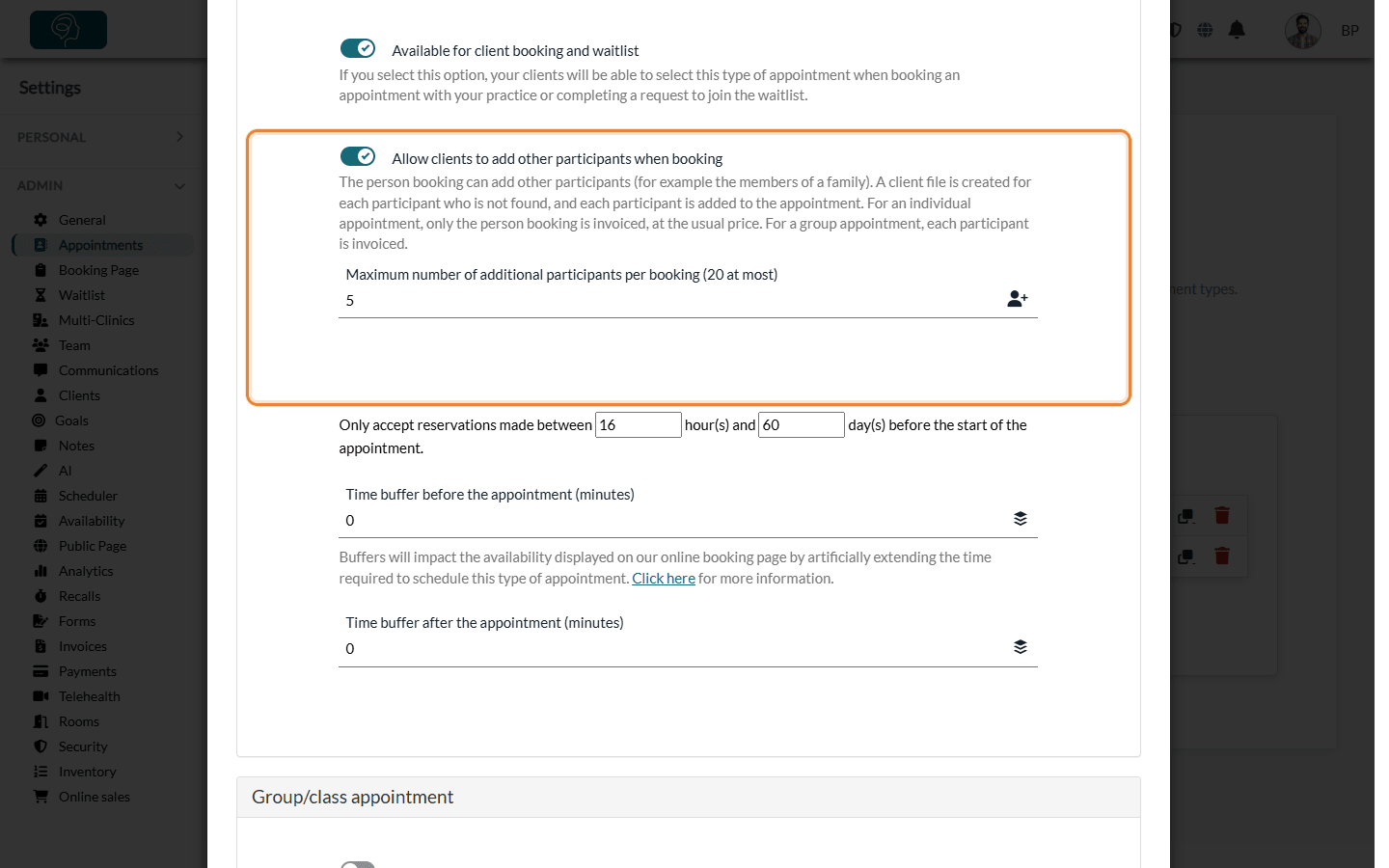
- Turn on Allow clients to add other participants when booking.
- If you wish, enter a Maximum number of additional participants per booking. A reservation can include at most 20 additional participants, even if the field is empty. The person booking is not counted: with a maximum of 5, a reservation can include 6 people.
- Save the appointment type.
2What your clients see when booking
The client books as usual: their own details, the appointment type, then the date and time. On the last screen before confirming (Verification), an Other participants section appears if the appointment type allows it.
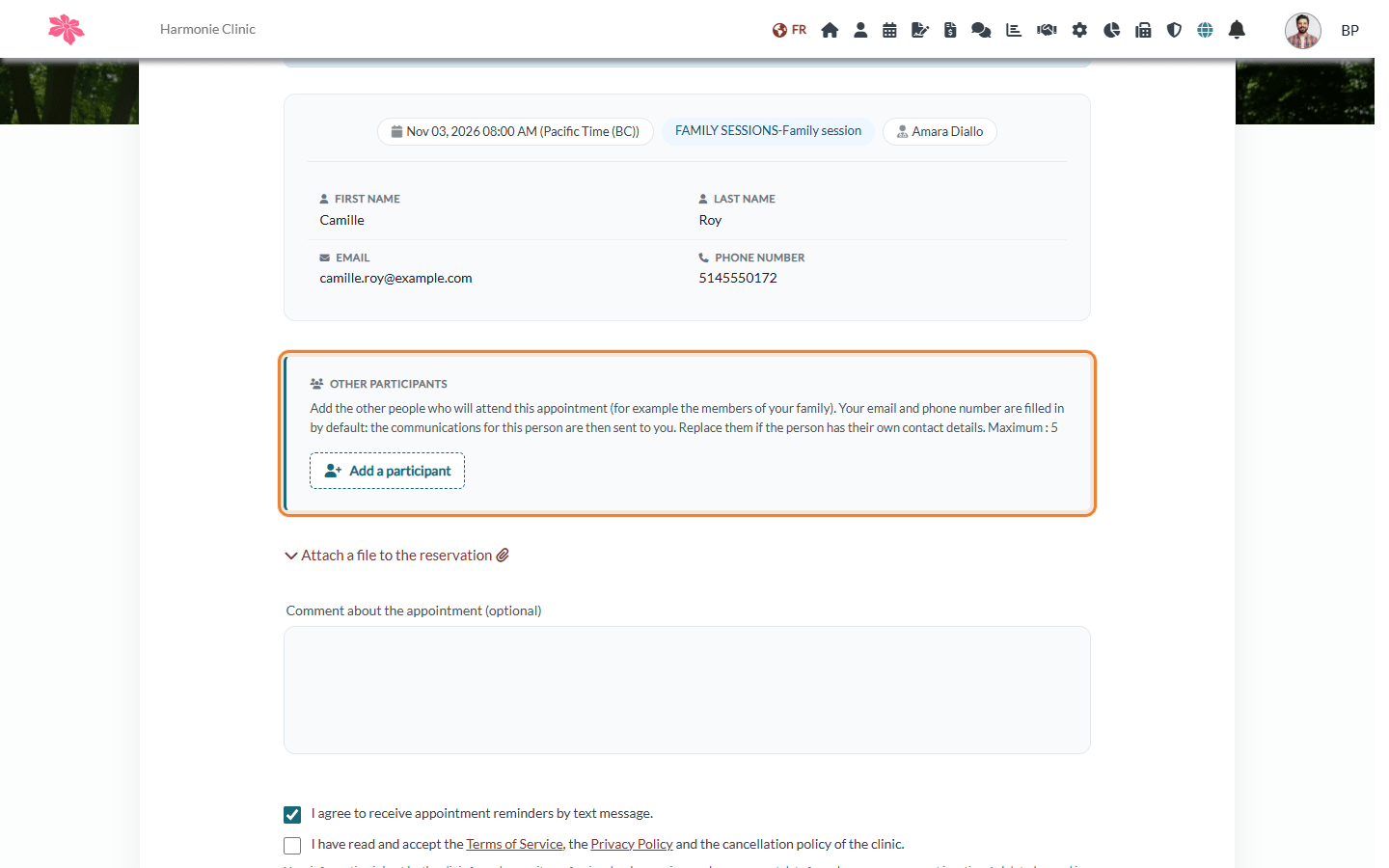
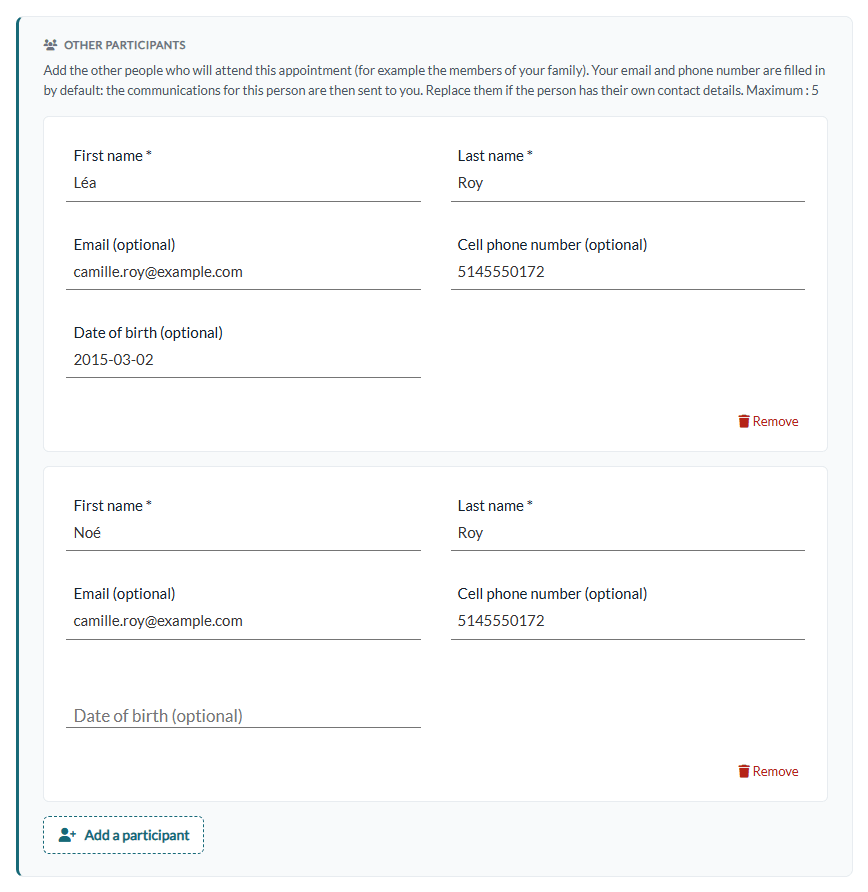
- The client clicks Add a participant, once per person.
- The client enters the person's First name and Last name, both required, and if they wish a Date of birth.
- The Email and Cell phone number fields are left blank.
- The client confirms the reservation. The final message lists the email addresses entered.
3What Colib does when the reservation is confirmed
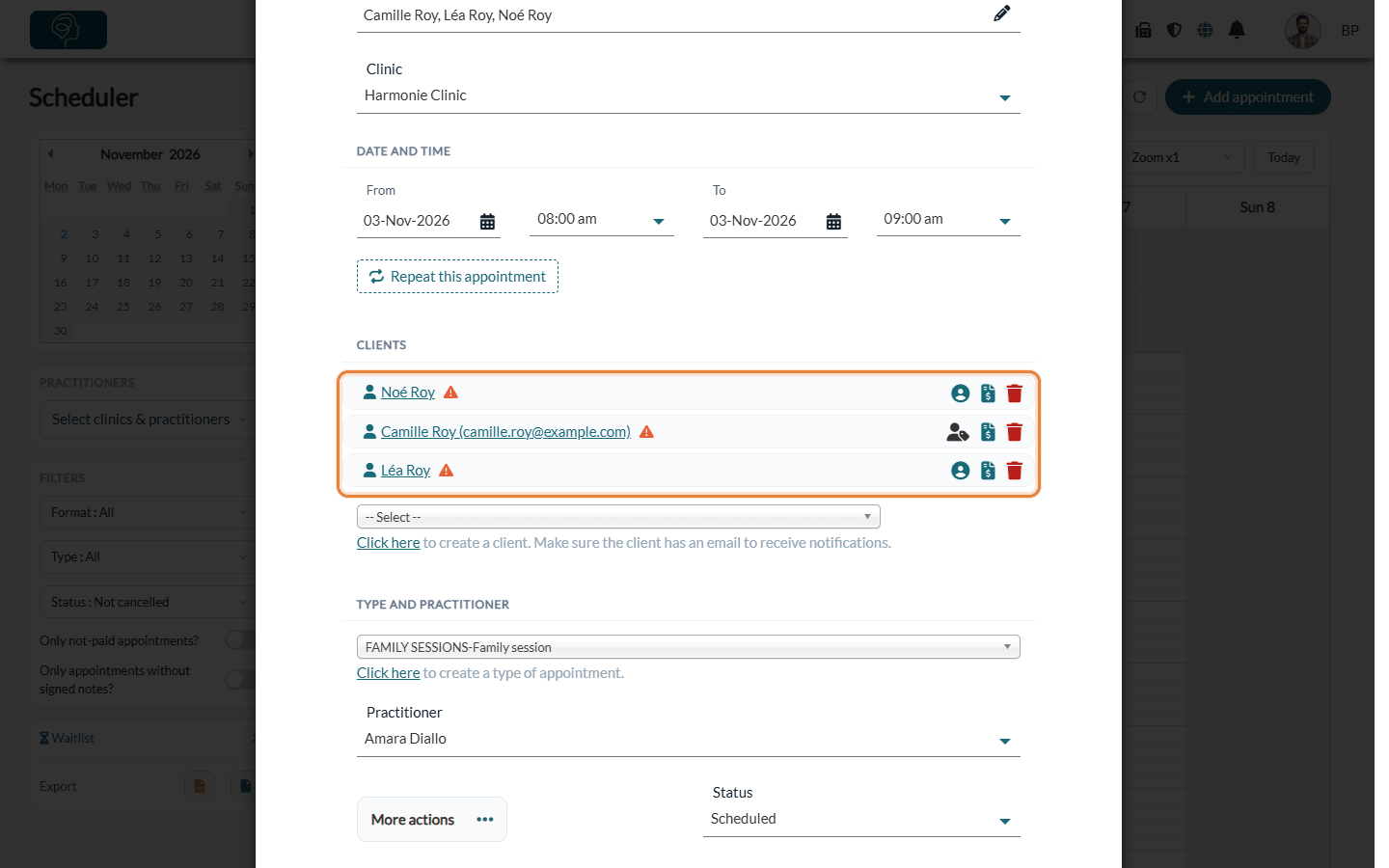
- Client files — each participant gets a client file, existing or new (see the rules below). You receive the usual notification for a new client.
- Appointment — everyone is added to the same appointment, which appears in each person's file. For an individual appointment, its title lists their names.
- Confirmations — each participant receives their own confirmation, with the forms of the appointment type if you send them with the confirmation. Answers are saved in that person's file.
How Colib finds or creates the client file
| The client entered | What Colib does |
|---|---|
| An email of the person's own | Uses the file with the same email, the same first name and the same last name. Otherwise, creates a new file. |
| No email of the person's own (the details of the person booking were kept) | If the email of the person booking is verified, looks in their family for a member with the same name, and the same date of birth when both are known. Otherwise, creates a new file. |
An email alone is never enough to link a participant to an existing file, because a family often shares one address. A reservation never replaces the contact details of an existing file: it only fills in a missing email or phone number. The booking screens only show again what was entered, never the content of the file. Someone already registered for this appointment is not added a second time.
Who receives the messages
| Details of the new participant | Result |
|---|---|
| The details of the person booking were kept | The file has no email or phone number. If the email of the person booking is verified (verification code or signed in to their account), it joins their client group and they receive the messages for this participant: a parent with two children therefore receives three confirmations, each with its own links. Otherwise, the file stays on its own and this participant receives no messages until you add their contact details. |
| An email or phone number of their own | The file keeps those details and is not added to a client group. The participant receives their own messages. |
Important: if the person booking already has a client group where messages are not sent to the group owner, a participant without details of their own receives no message. You can check this in the client group window. See how to manage client group notifications.
4Rules on places and invoices
| Individual appointment | Group appointment | |
|---|---|---|
| Places | Only the maximum per booking applies, if you set one. | The person booking and the participants must all fit within the Maximum number of participants of the type. If not, the client sees how many places are left and can remove people or choose another time. |
| Price and invoice | The price does not change with the number of participants. Only the person booking is invoiced. | Each participant is invoiced, as for any group appointment. |
| Payment at booking | If you charge when booking, the card of the person booking is charged for their own invoice. | |
To create group appointments, see how to set up group and class appointments. The option is not available for classes, meaning group appointments where Allow direct booking only for existing group appointments that have not yet reached the maximum number of participants is turned on: Colib turns it off and no longer shows it for that appointment type. If a type that used the option becomes a class, a client changing an existing reservation sees which people will be removed.
5When the reservation is changed
Only the person who booked receives the Edit Booking link. The other participants can only confirm their attendance or cancel their place: they cannot reach the change screens from their messages or the client portal. On the last screen, the participants already saved are listed. They can be removed, and new ones can be added.
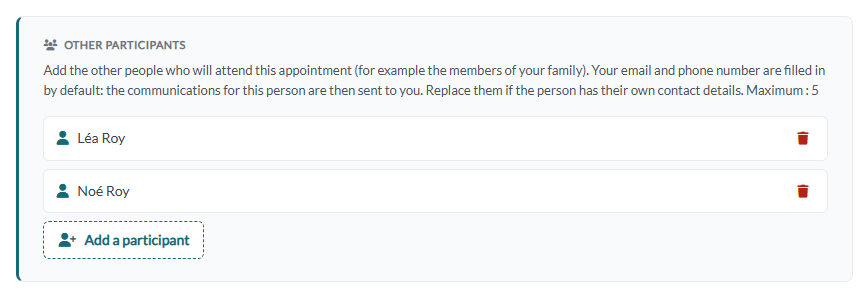
- Participant added — added to the appointment and receives a confirmation.
- Participant removed — taken off the appointment and receives a cancellation notice if the appointment has not passed. Their client file is kept.
- Other participants — they stay on the appointment and receive a notice of the change. Clients you added to the appointment yourself are not affected.
- Invoice already paid — if the invoice of the person booking has been paid, even partly, participants can no longer be changed online. The client is asked to contact you. You can still change them from the scheduler.
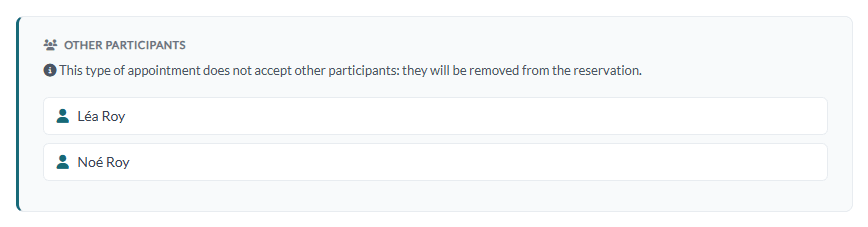
If the client switches to an appointment type that does not allow other participants, a warning lists the people who will be removed. They leave the appointment when the client confirms.
From the scheduler: if you remove someone from the appointment, they also leave the reservation and do not come back if the client later changes it. If you remove the person booking, a participant still on the appointment becomes the holder of the reservation, and only they can change it afterwards. The saved card and answers of the person removed are not carried over, and that person is not added back.
6When someone cancels
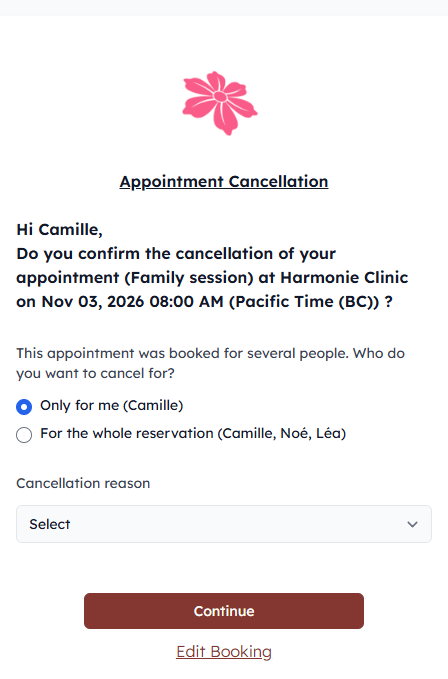
When other people from their reservation are on the appointment, the person who booked chooses who to cancel for on the cancellation page. A participant only cancels their own place, without this choice. Only for me is selected by default.
| Choice | What happens |
|---|---|
| Only for me | Only this person leaves the appointment and receives a cancellation notice. The others stay. If this is the person who booked, a participant still on the appointment becomes the holder of the reservation, with the change link, and the payer if they were. |
| For the whole reservation | Everyone in the reservation leaves the appointment. If nobody else is on it, the appointment is cancelled and each client receives a cancellation notice. If other clients remain (added by your clinic), the appointment continues for them, and each person removed receives a cancellation notice. |
Your notification and email follow your usual settings. When other clients remain, they state that the appointment is still taking place and that only this participation is cancelled. The notification also names the other people who were cancelled. Your cancellation deadline applies as usual. See how to cancel an appointment.
Good to know
- Maximum per booking — once it is reached, the client can no longer add a participant.
- Same person entered twice — a person entered twice with the same details is counted once. If the person booking enters their own name, they are ignored because they are already on the appointment.
- New files — a file with no email or phone number uses the address of the person booking when their email is verified. The others have no address until you add one. The automatic welcome email follows your usual setting.
- With the dependant option — the two options can be used together. The appointment is then in the name of the dependant, and the adult who books can be added as a participant.
- Turning the option on — existing reservations and files do not change. The section appears when someone books or changes a reservation for this type.
- Turning the option off — new reservations no longer show the section, and existing appointments keep their participants. If a client later changes one of these reservations, the warning appears and the participants are removed when the client confirms. To avoid this, leave the option on until those appointments have passed.
Still have a question?
Write to us at support@colib.io, we will be happy to help.
Was this article helpful?
That’s Great!
Thank you for your feedback
Sorry! We couldn't be helpful
Thank you for your feedback
Feedback sent
We appreciate your effort and will try to fix the article