Who is this article for?
Colib offers a wide selection of features ready to be used for your video sessions, directly in the web browser, with nothing to install for you or your clients. This article is for practitioners who want an overview of these features, and of the options they can turn on for their practice.
It is also the companion article of our Telehealth feature page (www.colib.io/telehealth-software): you will find below the Real-time captions, Screen sharing, Transcripts, Waiting rooms and Messaging that the page lists, how an online appointment works from booking to invoice, and how consent and confidentiality are handled.
Where are the options? The practice options are on your video settings page: Settings > Telehealth (www.colib.io/settings?show=video). The other features are available to everyone during the session.
During the session
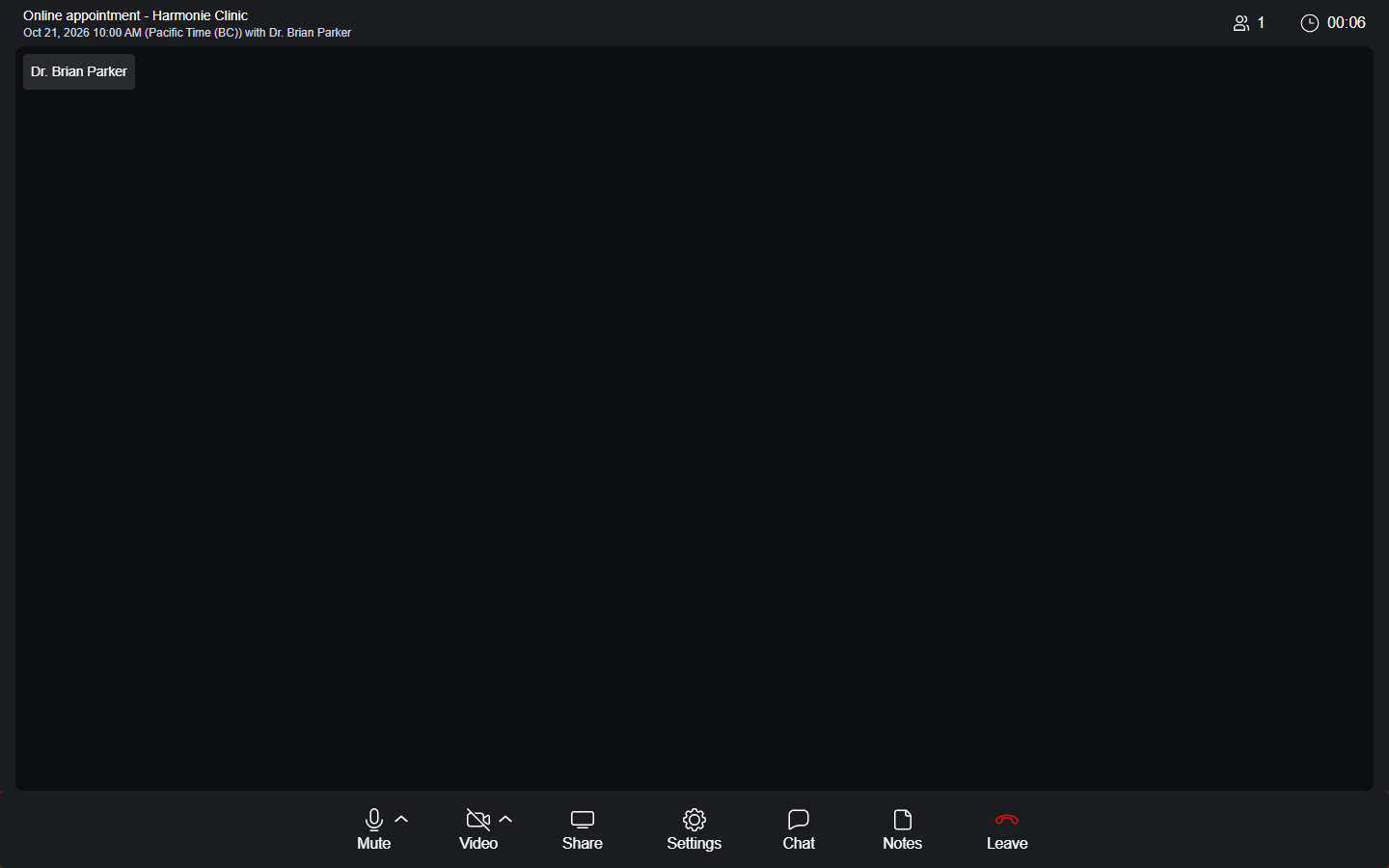
All the tools are in the bar at the bottom of the session screen. At the top of the screen, you see the appointment, the number of participants connected and, for practitioners, the length of the session so far.
| Feature | What it does |
|---|---|
| Mute and Video | Turn your microphone and your camera on or off. The small arrow next to each button lets you choose another microphone or camera. |
| Background blur | Blurs what is behind you. See How to blur my background during a video session |
| Background image | Replaces your background with an image: images provided by Colib, or your own images imported in the settings. See How to use a background image during a video session? |
| Share (Screen sharing) | Shows your entire screen, a window or a browser tab to the other participants. Available on a computer. Please see the article titled "How to share your screen during a video session". |
| Whiteboard | Opens a whiteboard shared with all the participants: everyone can draw and write on it, on an image if needed (see below). |
| Chat | Sends written messages to all the participants of the session, for example a link or the spelling of a word. This is the Messaging listed on the Telehealth page. |
| Notes (practitioners) | Write the session note next to the video, without leaving the session. See How can I take notes during the video session without leaving the browser? |
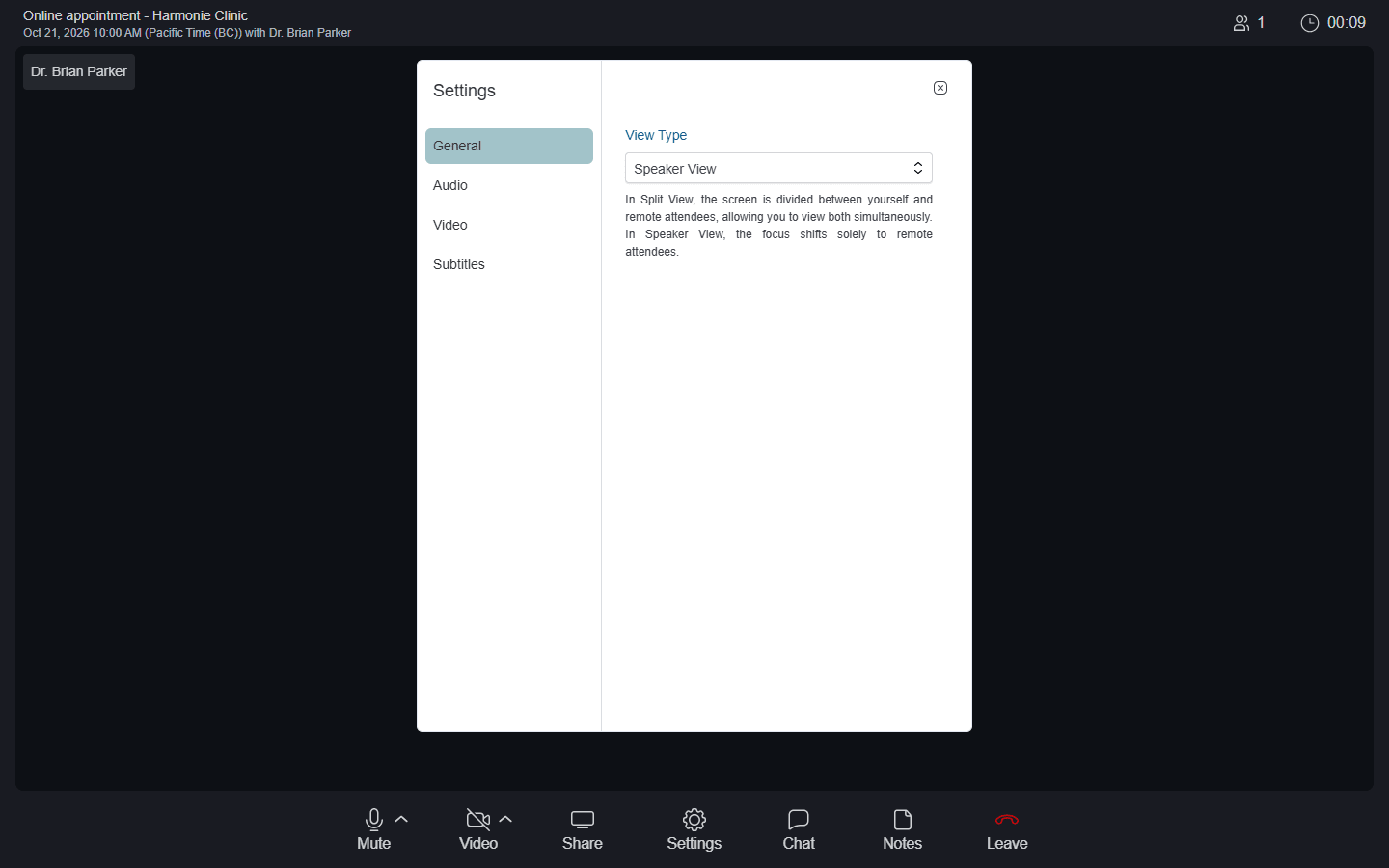
| Settings | Choose the view (Split View or Speaker View), your microphone, speaker and camera, and turn on the live subtitles (the Real-time captions of the Telehealth page). See How to use live subtitles during a video consultation? |
| Mute a participant (practitioners) | The microphone button at the top right of another participant's video mutes or unmutes that person. |
| Leave | Leaves the session. The others can stay connected. |
The shared whiteboard
The whiteboard lets you explain with a drawing during the session: a diagram, a body chart, an exercise, a few key words. Everyone in the session sees the same board and can draw on it.
- Click Whiteboard in the bar at the bottom of the screen, next to Share. The board opens for all the participants, like a screen share.
- Choose a colour (or Custom color), the Pen and the Thickness, then draw with the mouse, a finger or a stylus.
- To draw on an image, click Image and choose a file (for example an anatomical diagram). The image goes under the drawings.
- To keep the board, click Download: it is saved as an image on your device. You can then add it to the client record.
- To close the board for everyone, click the close button of the board (Close the whiteboard for everyone), or Whiteboard again.
| Tool | What it does |
|---|---|
| Pen and the colours | Draws in the chosen colour. |
| Eraser | Erases the drawings it touches. It does not erase the image. |
| Thickness | Changes the thickness of the line. |
| Undo | Removes your last line (not those of the other participants). |
| Clear | Erases the whole board, image included, for everyone, after confirmation (Clear for everyone?). |
| Image | Adds an image under the drawings. |
| Download | Saves the board (image and drawings) as a PNG image. |
Good to know: the board is not saved by Colib. It disappears at the end of the session: download it if you want to keep it. A participant who joins or reconnects during the session sees the board as it is. The Whiteboard button is shown on computers and tablets; on a phone, participants see the board opened by someone else and can draw on it.
Options for your practice
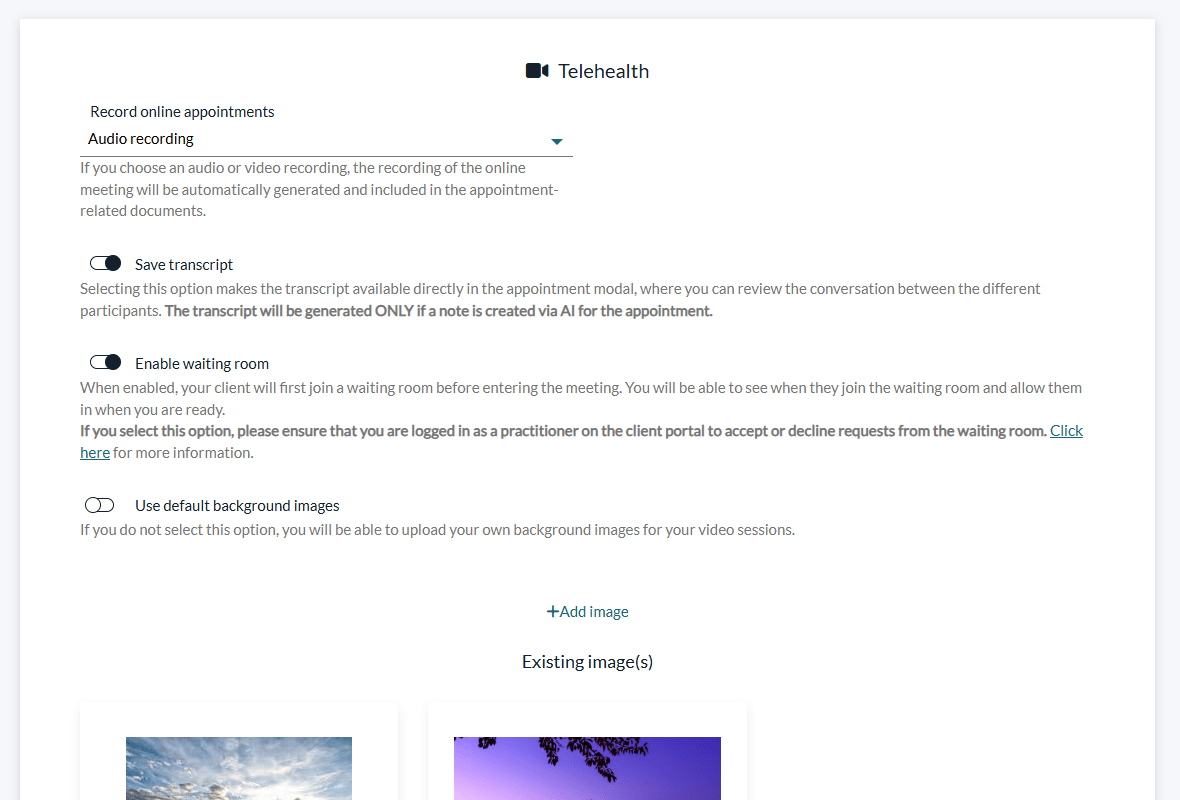
In Settings > Telehealth (www.colib.io/settings?show=video), you can turn on these options for all the sessions of your practice. Each change is saved automatically.
- Record online appointments — records the audio of the meeting and automatically stores the recording in the client's record. Only the audio is recorded: recording the video of the session is not available. See Is it possible to record online appointments?
- Save transcript — keeps the transcript of the conversation (the Transcripts of the Telehealth page) in the appointment window, when a note is created with artificial intelligence. See How to save and view session transcripts? and How does the artificial intelligence note generation work?
- Enable waiting room (optional) — your clients first wait in a waiting room, and the practitioner accepts or refuses their requests to join the session. See How does the waiting room work for online meetings?
- Use default background images — offers the images provided by Colib; turn it off to import your own images.
From booking to invoice: how an online appointment works
With Colib, an online appointment behaves exactly like an in-person one: the booking, the video session, your notes and the invoice all end up in the same client record. This is what the Telehealth page calls Everything in One Place and Designed for Therapy Sessions.
- The appointment is booked — your client books online, or you create the appointment in your scheduler (www.colib.io/scheduler).
- The video link is created for you — when the appointment type has Online meeting and Add a Colib video conference link turned on, every appointment of this type gets its own meeting link. See How to automatically add telehealth conference links to appointments?
- Your client receives the link — the link is included in the confirmation and reminder notifications sent by email and text message. Your client joins from the browser, with nothing to install.
- You join from the scheduler — open the appointment and click the Video conference badge, or Join meeting. Please see the article titled "How to join an online meeting".
- You document the session — take notes next to the video during the session (How can I take notes during the video session without leaving the browser?), or let artificial intelligence draft the note after the session (How does the artificial intelligence note generation work?). You review the note, then save or sign it in the client's record.
- You invoice the appointment — from the same appointment window, click More actions > Create invoice: the invoice is filled in with the client, the date and the price of the appointment. See How to create and send an invoice or a receipt.
Everything stays in the client's record: the appointment in the Appointments tab, the note in the Notes tab, the invoice in the Billing tab and, if you record your sessions, the audio recording in the Documents tab.
Consent and confidentiality
The Telehealth page groups these points under Consent and Confidentiality. Colib gives you the tools below; informing your clients and obtaining their consent according to the rules of your profession and of your province remains your responsibility.
- Telehealth consent form — the forms library includes a ready-made Telehealth Consent form that you add to your templates and adapt (Does Colib provide forms templates?). To send it automatically before the first online appointment, link it to your online appointment type in Forms automation and turn on Prevent sending if client has already submitted this form type: each new client receives it with the confirmation of their first online appointment, and only once. See How can I automatically ask a client to fill out a form before an appointment?
- Recording notice — when you record your online appointments, your clients are informed on the meeting page, before joining, that the audio of the session is recorded and saved as a private document in their record. This notice is not a consent: tell your clients that the session is recorded and obtain their consent when your rules require it. Only the audio is recorded, never the video. See Is it possible to record online appointments?
- Consent to AI note-taking — when the note of an online session is drafted with artificial intelligence, Colib helps you collect and track the client's consent, and each client can refuse or withdraw it. Please see the article titled "How client consent to AI note-taking is collected and what happens if it is withdrawn".
Which video platform does Colib use?
Online appointments use the video conferencing built into Colib. You and your clients join from the web browser, from the meeting link of the appointment: there is no software to install and no separate account to create. The video and audio of the sessions go through servers located in Canada.
If you prefer your own tool (Zoom, Google Meet, Microsoft Teams, etc.), you can put its link on an appointment type instead: see How to use an external video conferencing provider for my appointments. The waiting room, the recording, the transcripts, the notes during the session and the live subtitles are only available with Colib's video conferencing.
Session length and attendance
- During the session — the top of the session screen shows the number of participants connected and, for practitioners, the time elapsed since the start of the session.
- After the session — Colib does not produce a report of the session length or of the times each participant joined and left the meeting. If your rules require it, write the start and end times of the session in your note.
- Who is let in — with the waiting room turned on, a practitioner accepts or refuses each request to join. See How does the waiting room work for online meetings?
How your clients get the link
You do not have to send the link yourself. When the appointment type uses Colib's video conferencing, the meeting link is created automatically for each appointment and is included in the confirmation, the reminders and the change notices sent to your clients by email and text message, and in the client's appointments in the client portal. See How to automatically add telehealth conference links to appointments and What notifications do clients receive after booking?
Good to know
- A link for each appointment — see How to automatically add telehealth conference links to appointments?
- Several participants — see How many participants can the video sessions hold at one time?
- Automatic disconnection — if you stay alone in the session for 15 minutes, or if nothing happens for about an hour, the message Are you still there? appears. Click Stay in the meeting within 60 seconds to stay connected; otherwise you leave the session.
- Phone and tablet — the session also works in the browser of a phone or a tablet, with a simplified screen: screen sharing and notes are only available on a computer.
- Data in Canada — the video and audio of the sessions go through servers located in Canada.
- Telehealth feature page — for an overview of telehealth in Colib, see www.colib.io/telehealth-software.
Still have a question?
Write to us at support@colib.io, we will be happy to help.
Was this article helpful?
That’s Great!
Thank you for your feedback
Sorry! We couldn't be helpful
Thank you for your feedback
Feedback sent
We appreciate your effort and will try to fix the article