Who is this article for?
Colib video consultations can display what each participant says as real-time subtitles. This helps when the sound is poor, or for a participant who is hard of hearing. This article explains how to turn subtitles on, how to change their appearance, and what to expect.
Speech recognition runs entirely on your device: your voice is never sent to a server, and subtitles are only displayed: they are never recorded or saved.
Before you start: to turn your speech into subtitles, you need a recent version of Google Chrome on a computer (version 139 or later). It is currently the only browser able to guarantee speech recognition on your device; Microsoft Edge is not supported yet. To read the subtitles of the other participants, any browser or device works, including phones and tablets: a client who joins from an iPhone sees the subtitles of a practitioner who uses Chrome.
1Turn subtitles on
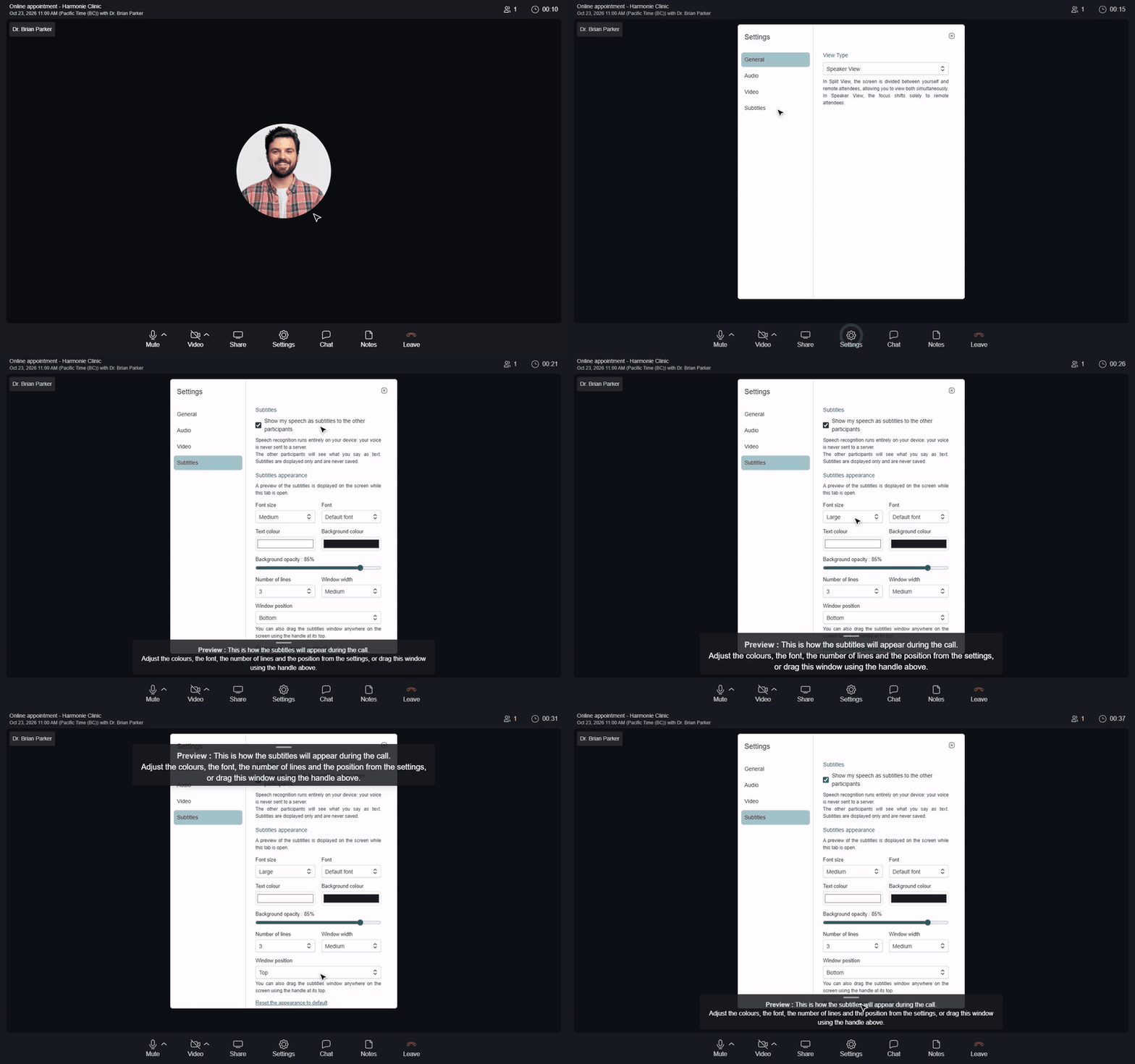
- During the video consultation, click the Settings icon (gear) in the control bar at the bottom of the screen.
- Click Subtitles.
- Check Show my speech as subtitles to the other participants.
- The first time, your browser may download the speech recognition files: Downloading the speech recognition files... is shown for a few moments. Subtitles start automatically once the download is complete.
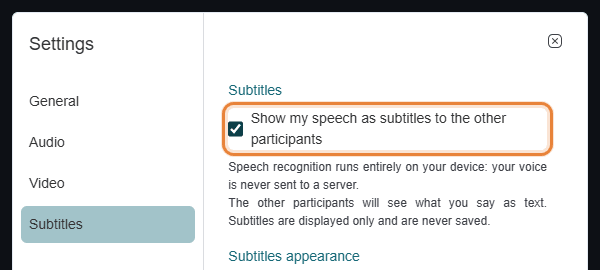
Your choice is remembered for your next consultations in the same browser on the same computer. To stop, uncheck the box at any time.
2How subtitles work
- Your own voice only — the option turns your speech into text, shown to the other participants and to yourself (so you can check that it works). You cannot subtitle another participant's voice: each person who wants their speech subtitled turns the option on, on their side, with Chrome.
- Where they appear — in a subtitles window just above the control bar (you can move it, see below). Each line starts with the name of the person speaking, and disappears a few seconds after they stop speaking.
- Language — each participant's speech is recognized in the language of their Colib interface (English or French). Both languages can be used in the same consultation.
- Microphone muted — nothing is transcribed or shown.
- No option to hide — there is no setting to hide the subtitles you receive. If you do not want them, ask the other participant to uncheck the option.
3Change the appearance of the subtitles
In the same Subtitles section, Subtitles appearance lets you adjust how subtitles look on your screen. While this section is open, a preview is shown so you can see the result right away.
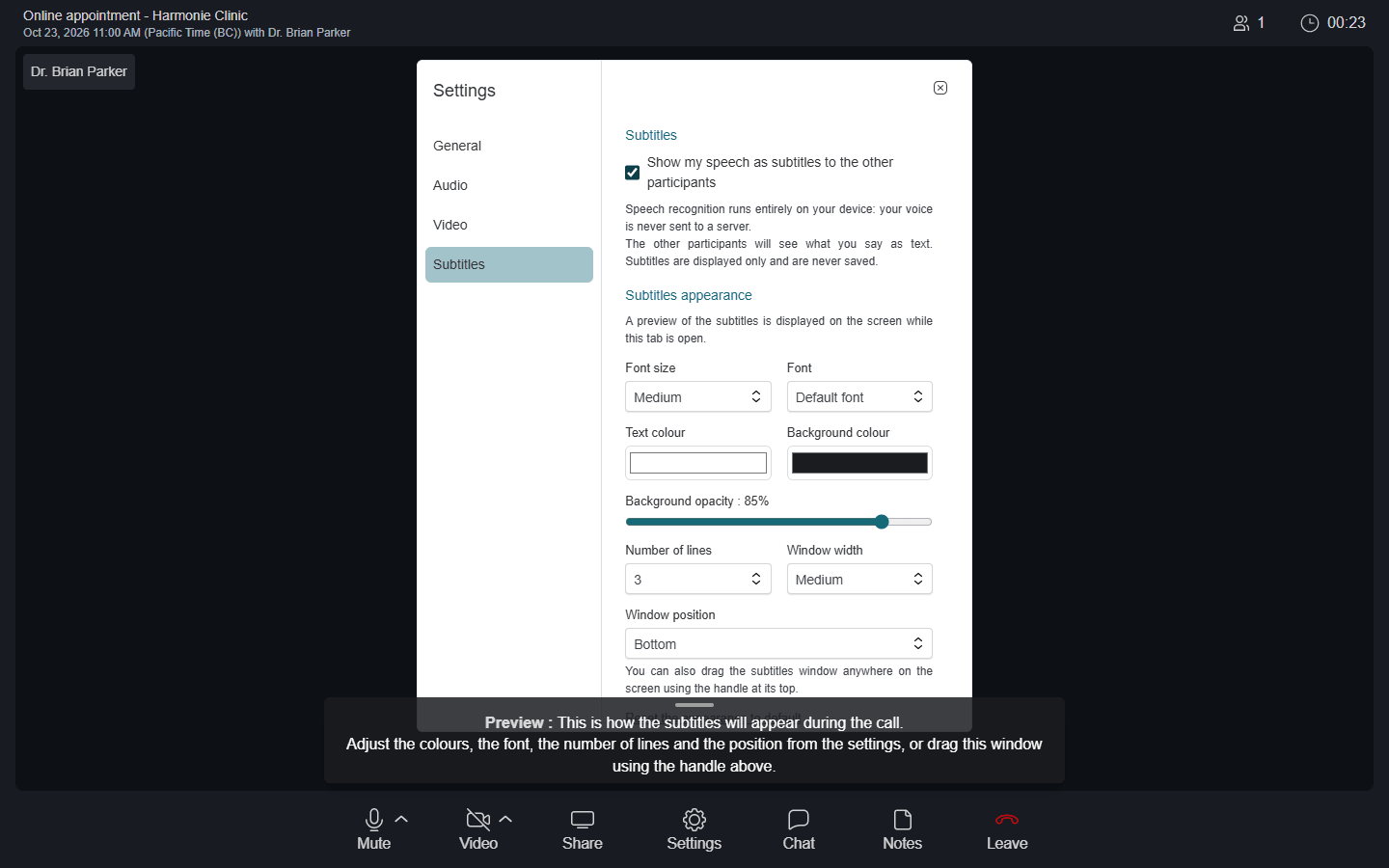
| Option | Choices |
|---|---|
| Font size | Small, Medium (default), Large, Extra large |
| Font | Default font, Arial, Verdana, Georgia, Times New Roman, Courier New |
| Text colour and Background colour | Any colour (white text on a dark background by default) |
| Background opacity | From 0 to 100% (85% by default) |
| Number of lines | 1 to 6 (3 by default) |
| Window width | Narrow, Medium (default), Wide |
| Window position | Bottom (default), Top, Custom (drag the window) |
You can also drag the subtitles window anywhere on the screen using the handle at its top: the position then switches to Custom. Reset the appearance to default brings back the original settings.
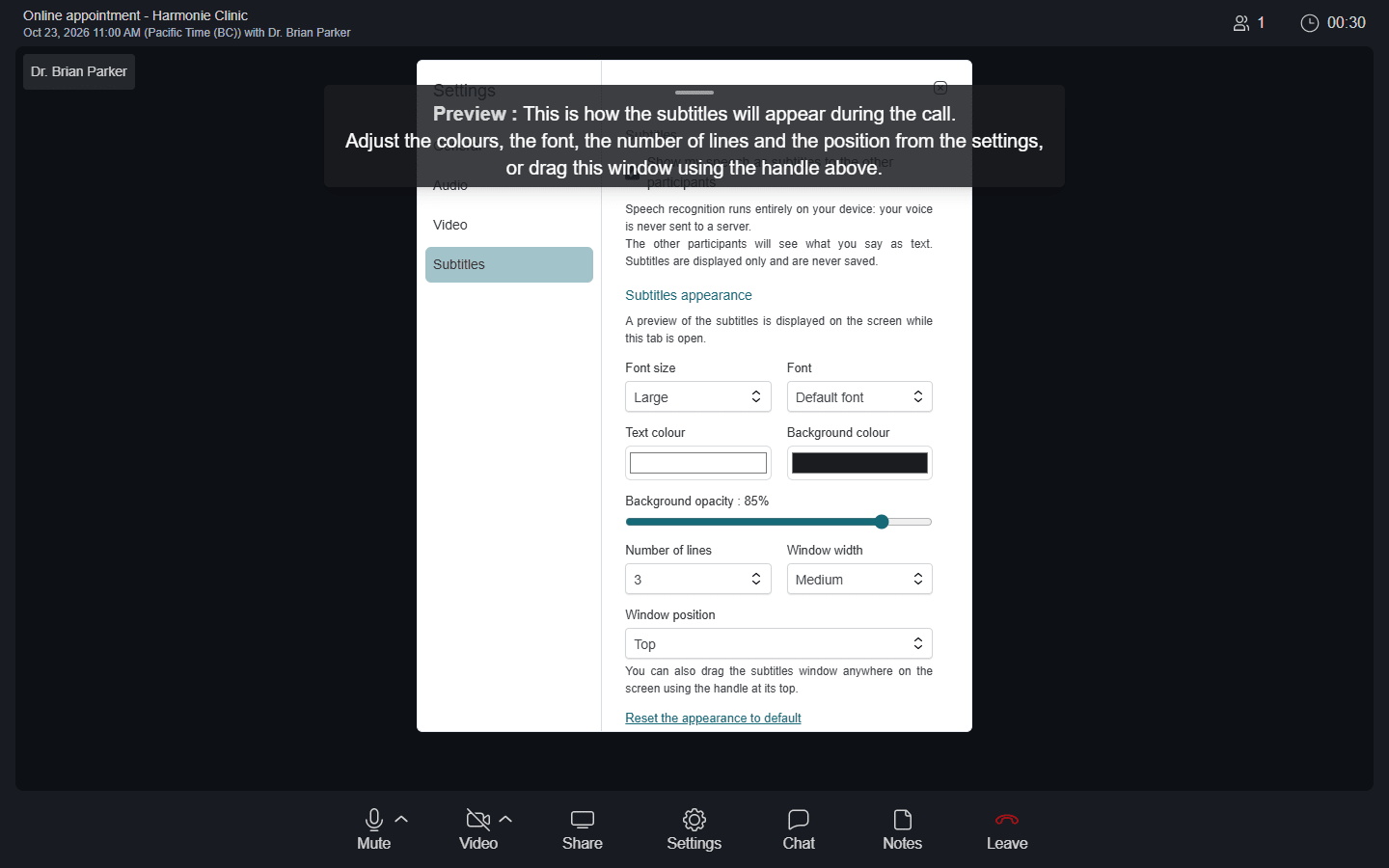
The appearance is personal: each participant sets it for their own screen, and it does not change what the others see. It is remembered in your browser, and it can be set on any browser, even one that cannot generate subtitles.
Good to know
- "Subtitles are not available on this browser" — the Subtitles section shows Subtitles are not available on this browser. They require a recent desktop version of Google Chrome. You are likely not using Google Chrome, or your version is out of date. Update Chrome (Menu > Help > About Google Chrome) and rejoin the consultation.
- Microphone access — if your browser is not allowed to use the microphone, the option turns itself off. Allow the microphone for the meeting page and check the box again.
- Accuracy — automatic speech recognition is never perfect: names, technical terms or fast speech may be transcribed imperfectly. Subtitles are an aid to understanding, not an official transcript.
- Not a transcript — subtitles are never saved. To keep the written dialogue of a session, see How to save and view session transcripts.
Still have a question?
Write to us at support@colib.io, we will be happy to help.
Was this article helpful?
That’s Great!
Thank you for your feedback
Sorry! We couldn't be helpful
Thank you for your feedback
Feedback sent
We appreciate your effort and will try to fix the article