Who is this article for?
If you hold online appointments, you do not need to create a meeting link by hand each time. Set up your appointment types once, and Colib adds a unique video conference link to every appointment of these types.
This article explains how to turn on the automatic link for an appointment type, where you and your clients find the link, and how to add a link to a single appointment.
Before you start: appointment types are managed in Settings > Appointments (www.colib.io/settings?show=appointments). You need access to the practice settings to change them.
1Open the appointment type
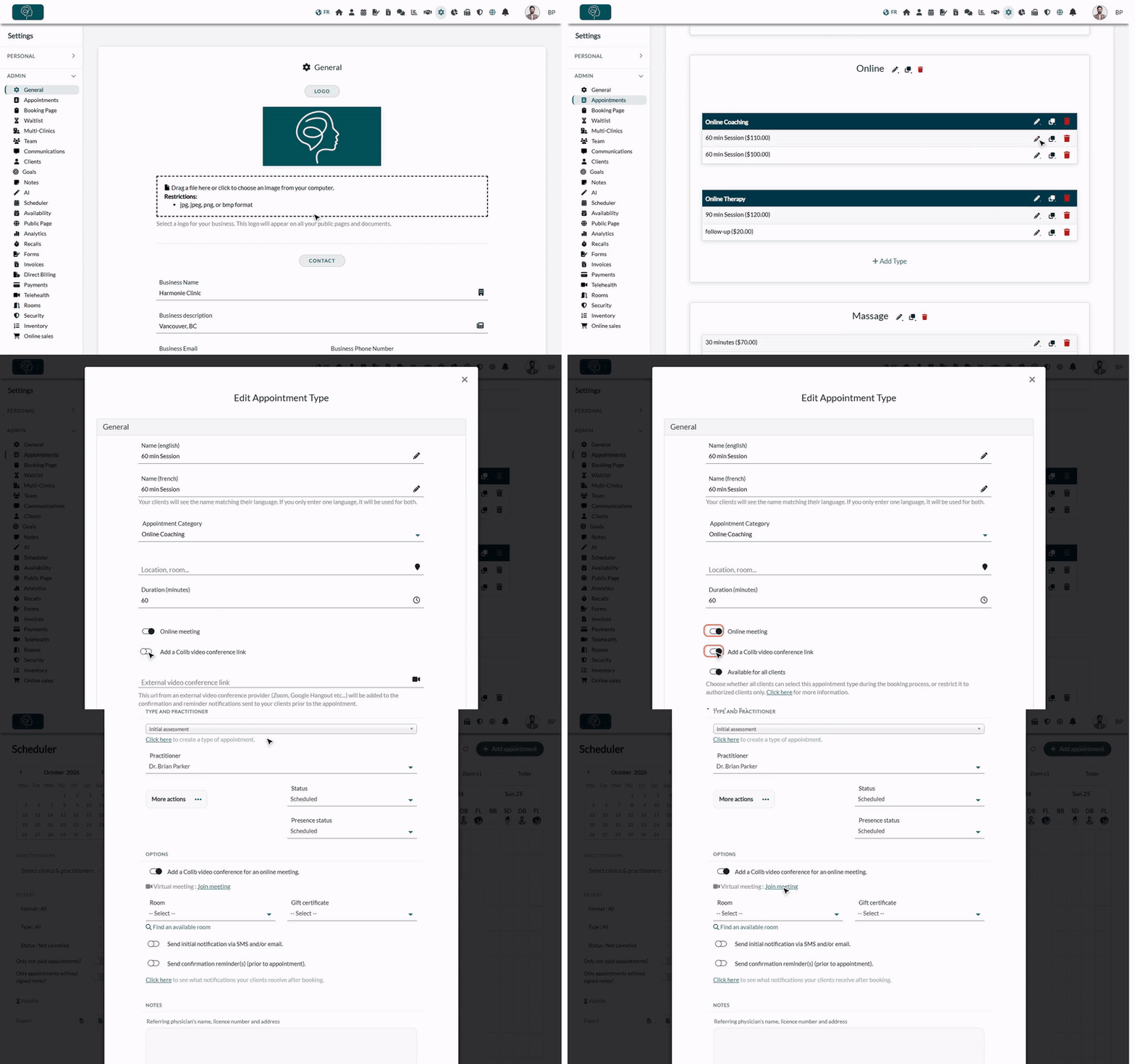
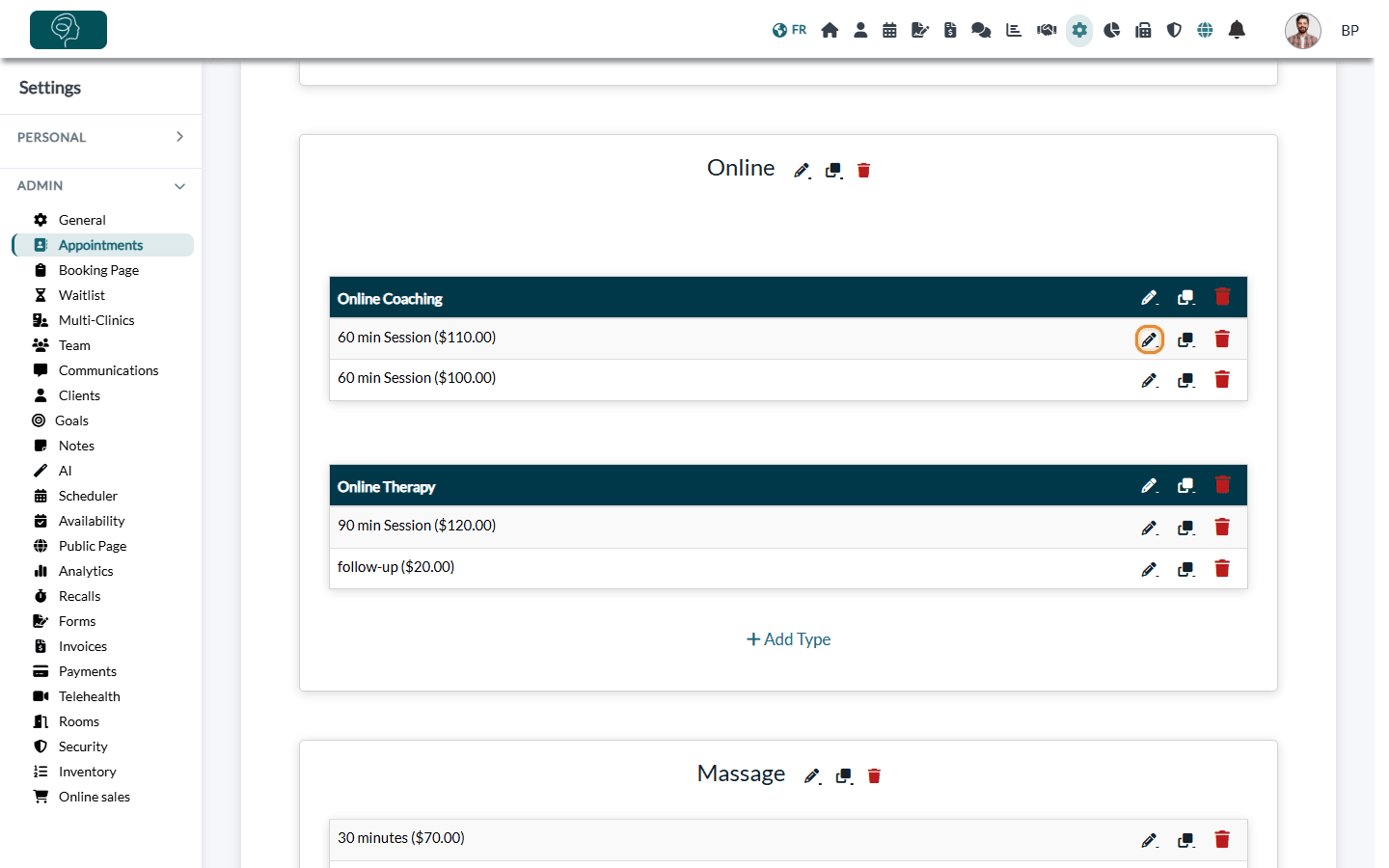
- Go to www.colib.io/settings?show=appointments. You can also click the Settings icon (gear) in the top bar, then Appointments in the menu on the left.
- Find the appointment type you use for online sessions and click the pencil icon on its row. To create a new type instead, click + Add Type under the category of your choice.
2Turn on the Colib video conference link
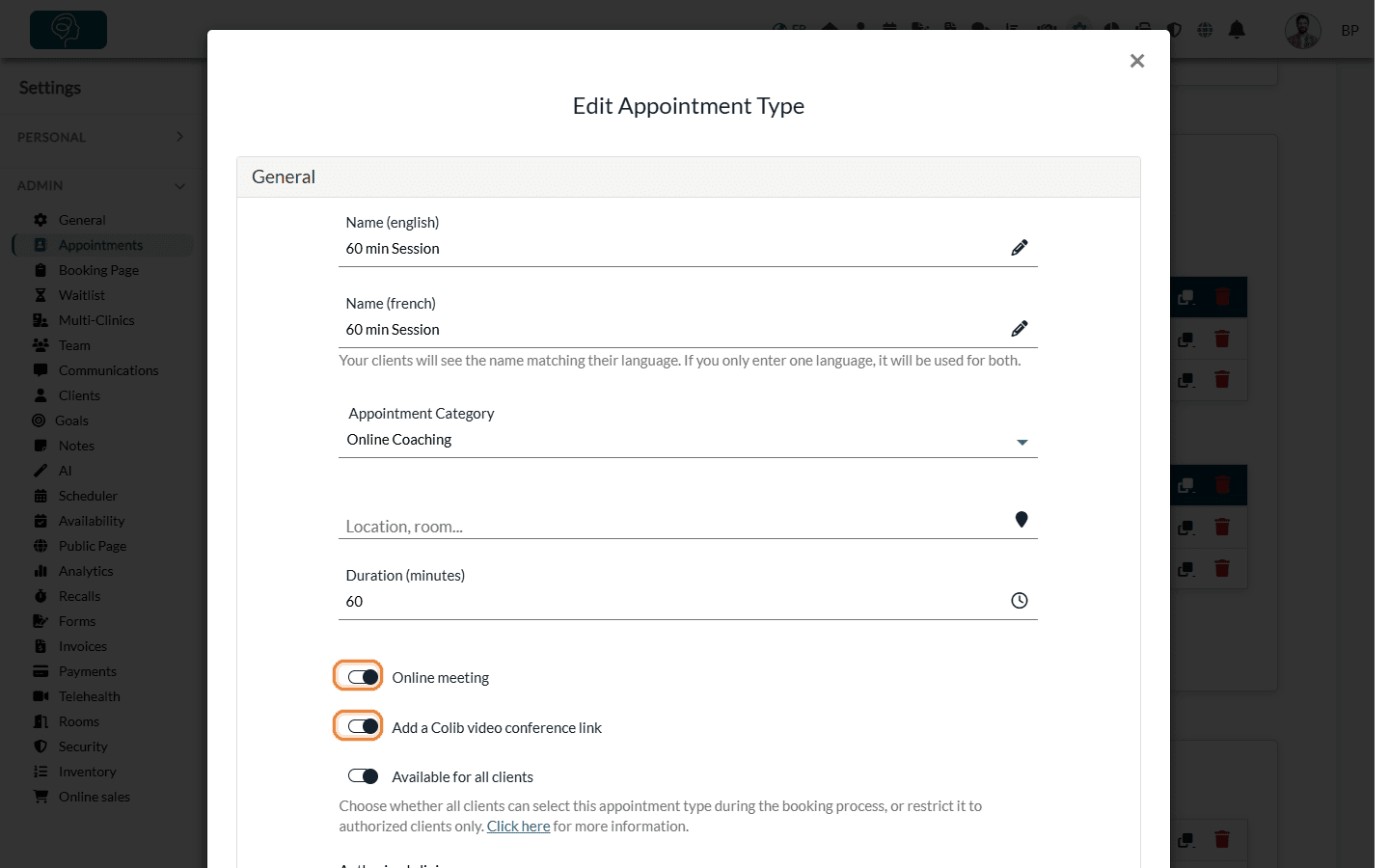
- In the Edit Appointment Type window, turn on Online meeting.
- The Add a Colib video conference link option appears below it: turn it on to use Colib's video conferencing.
- Click Save at the bottom of the window.
You use Zoom, Google Meet or another tool? Leave Add a Colib video conference link off: an External video conference link field appears instead. The link you enter there is added to the confirmation and reminder notifications of your clients. See How to use an external video conferencing provider for my appointments?
3Find the meeting link
From now on, every new appointment of this type gets its own unique meeting link: the appointments you add in the scheduler and the appointments your clients book online.
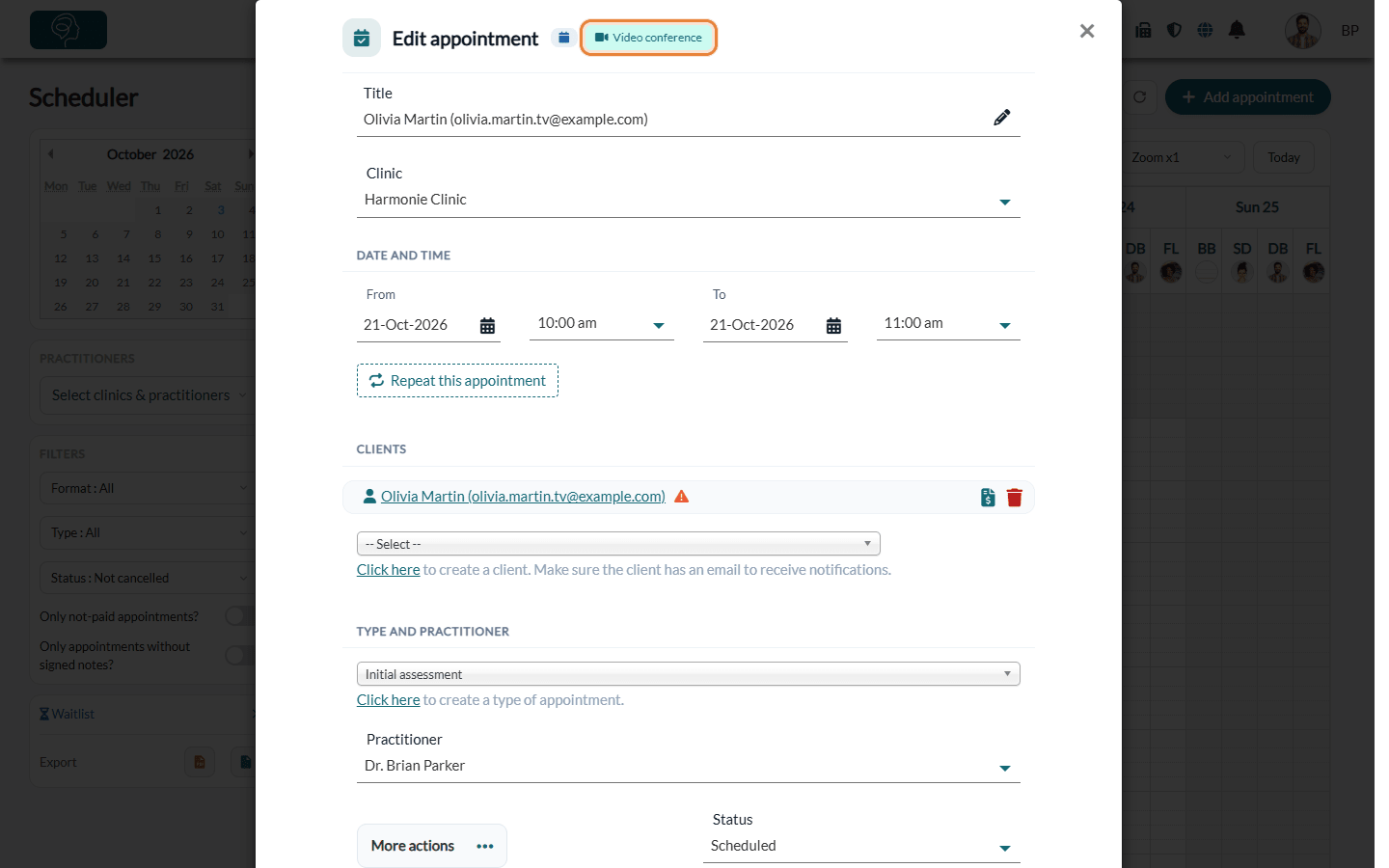
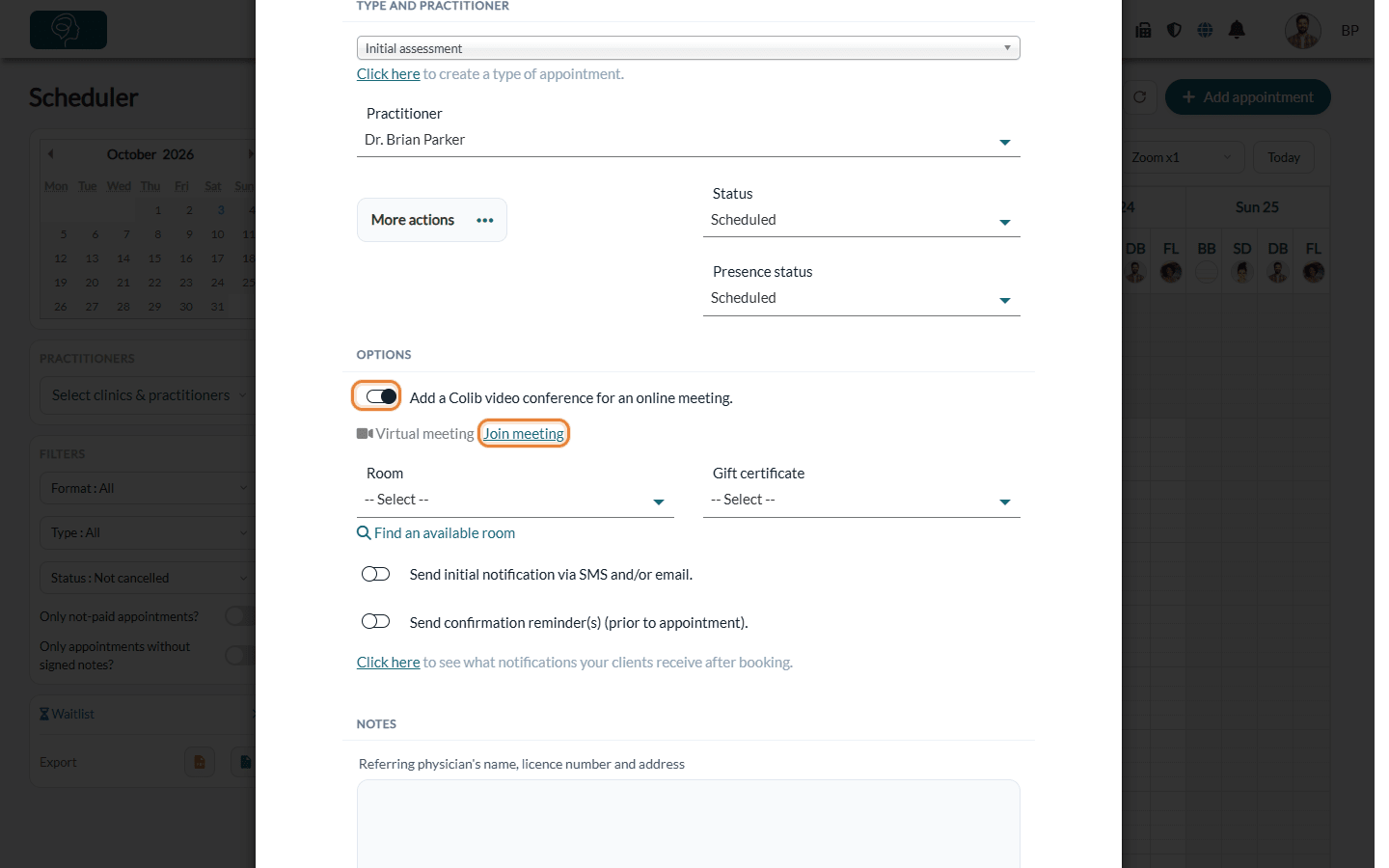
- For you — open the appointment in the scheduler (www.colib.io/scheduler). Click the Video conference badge at the top of the window to open the meeting, or click Join meeting next to Virtual meeting, in the Options section.
- For your clients — the meeting link is included in the confirmation and reminder notifications they receive by email and text message.
4Add a link to a single appointment (optional)
If an appointment type is not set up for telehealth, you can still add a Colib video conference to one appointment:
- Open the appointment in the scheduler, or create a new one.
- In the Options section, turn on Add a Colib video conference for an online meeting.
- Save the appointment. A unique meeting link is created for it, and Join meeting appears next to Virtual meeting.
Good to know
- Appointments already scheduled — changing an appointment type does not change the appointments already in your scheduler. To add a link to one of them, use step 4.
- Changing the type of an appointment — when you choose an appointment type in the appointment window, the Add a Colib video conference for an online meeting. option follows the setting of that type. You can still change it before saving.
- One link per appointment — each appointment has its own link. The link stops working about a day after the start of the appointment.
- Waiting room, recording and other features — see How does the waiting room work for online meetings?, Is it possible to record online appointments? and What features are integrated into the video conferences provided by Colib?
Still have a question?
Write to us at support@colib.io, we will be happy to help.
Was this article helpful?
That’s Great!
Thank you for your feedback
Sorry! We couldn't be helpful
Thank you for your feedback
Feedback sent
We appreciate your effort and will try to fix the article