Who is this article for?
This article is for practitioners who hold online appointments with Colib's video conferencing and want to keep a recording of their sessions. It explains how to turn on the recording, what your clients see, and where to find the recording after the session.
In short: yes, you can record your online appointments. Colib records the audio of the session (the sound, not the image) and saves it automatically as a private document in the client's record, linked to the appointment.
1Turn on the recording
- Go to Settings > Telehealth (www.colib.io/settings?show=video).
- In Record online appointments, choose Audio recording.
- The change is saved automatically: a confirmation message appears.
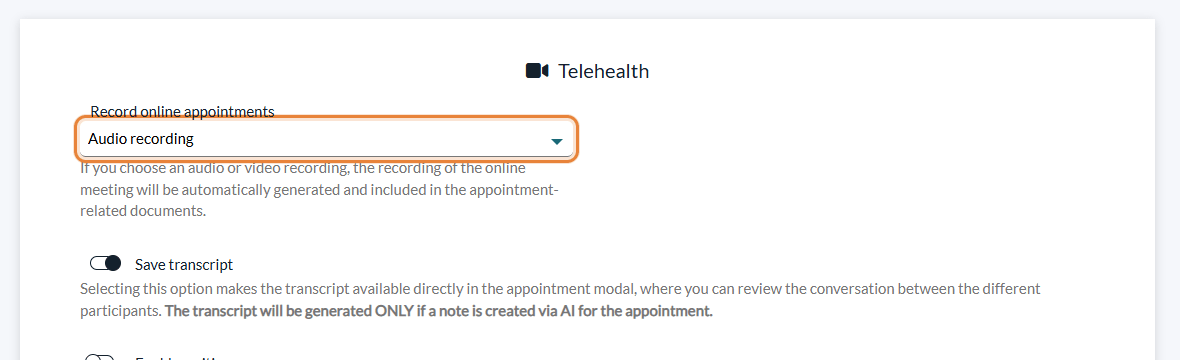
The setting applies to the whole practice: all the online appointments that have a Colib video conference link are recorded. To stop recording, choose No recording.
2What your clients see
Before joining, your clients are informed on the meeting page: Your practitioner has decided to record the audio of this session. The recording is saved as a private document in your record and can be viewed by your practitioner only.
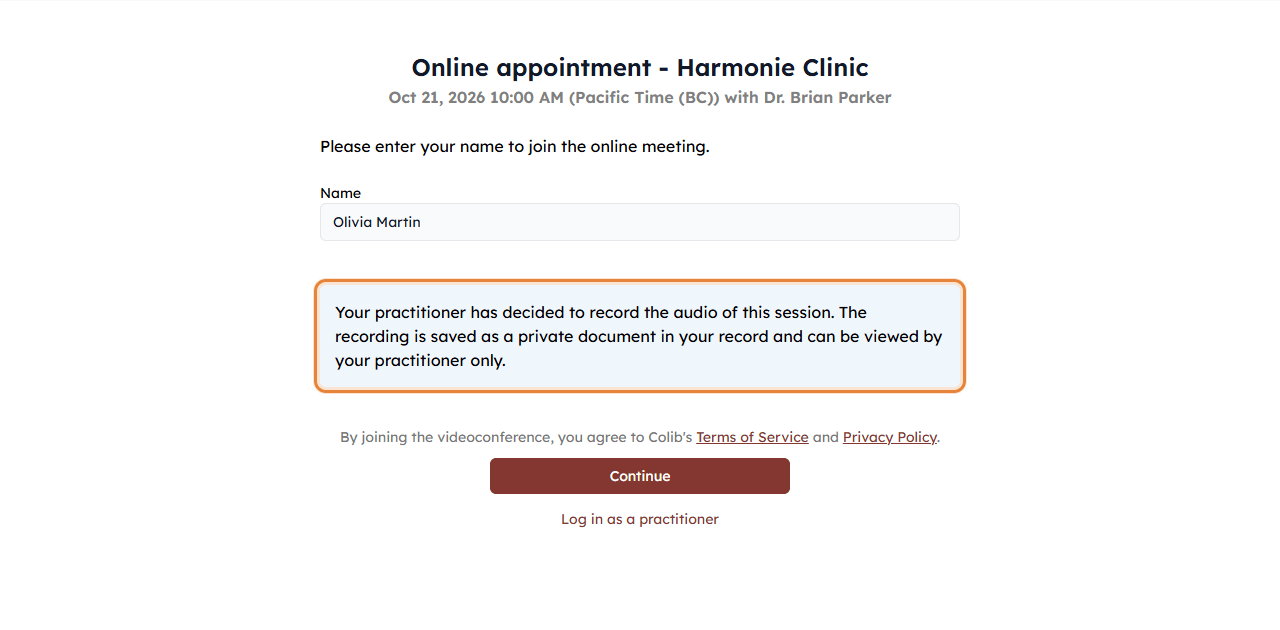
Important: this notice does not replace your professional obligations. Tell your clients that the session is recorded and obtain their consent when the rules of your profession or of your province require it.
3Find the recording after the session
- When it starts — the recording starts automatically as soon as at least two people are in the session.
- When it stops — it stops automatically 30 minutes after the planned length of the appointment (2 hours 30 minutes at most). Then the file is prepared and added to the record: it is usually available within the hour following the end of the session.
- Where it is — in the Documents tab of the client's record, and in the Documents section of the appointment window. The file name starts with the date of the appointment and ends with _recording.mp4; its description is the date followed by appointment recording. For an appointment with several clients, the recording is added to the record of each client.
- Notification — you receive the notification Appointment audio available in Colib. Click Continue to open the client's record.
Good to know
- Audio only — the image of the participants and the shared screens are not recorded. Recording the video of the session is not available.
- Very short sessions — if the session lasts less than about a minute, no recording is saved.
- Private document — the recording is saved as a private document in the record: it is not shared with your client.
- Zoom, Google Meet and other tools — Colib only records the sessions held with Colib's video conferencing. See How to automatically add telehealth conference links to appointments?
- Transcript and AI notes — the same settings page offers Save transcript. See How to save and view session transcripts? and How does the artificial intelligence note generation work?
Still have a question?
Write to us at support@colib.io, we will be happy to help.
Was this article helpful?
That’s Great!
Thank you for your feedback
Sorry! We couldn't be helpful
Thank you for your feedback
Feedback sent
We appreciate your effort and will try to fix the article