Who is this article for?
This article is for practitioners who hold online appointments with Colib's video conferencing, and for their clients. It explains where to find the meeting link, how to join the meeting on each side, and what to do if the link does not work.
Before you start: the appointment must have a Colib video conference link. It is added automatically for the appointment types set up for online meetings, or by hand in the appointment window. See How to automatically add telehealth conference links to appointments. If you use Zoom, Google Meet or another tool, see How to use an external video conferencing provider for my appointments.
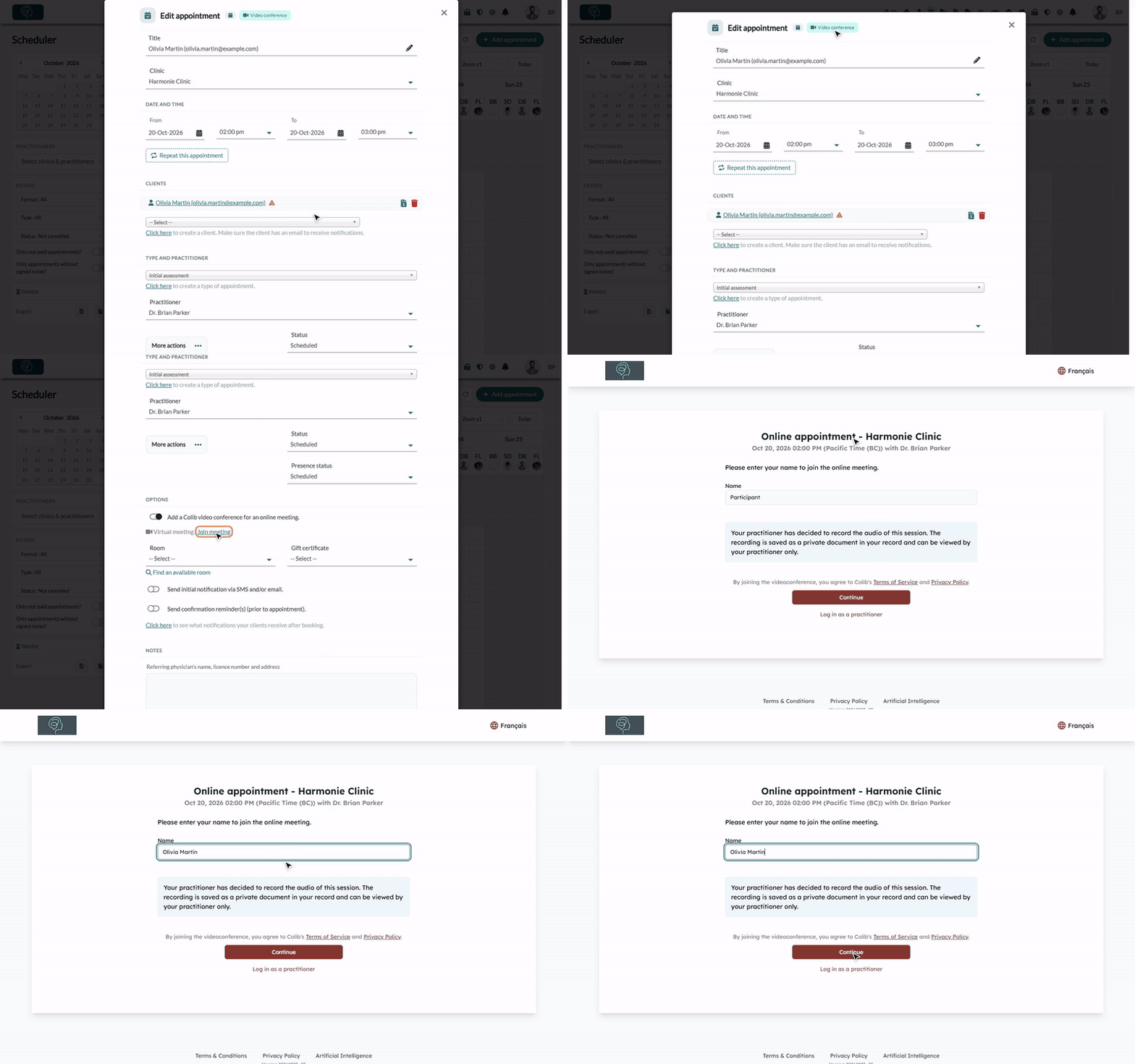
1Join the meeting as a practitioner
- Open the appointment in the scheduler (www.colib.io/scheduler). From the home page (www.colib.io/establishmentadmin/home), you can also click an appointment marked Online in Upcoming appointments and tasks.
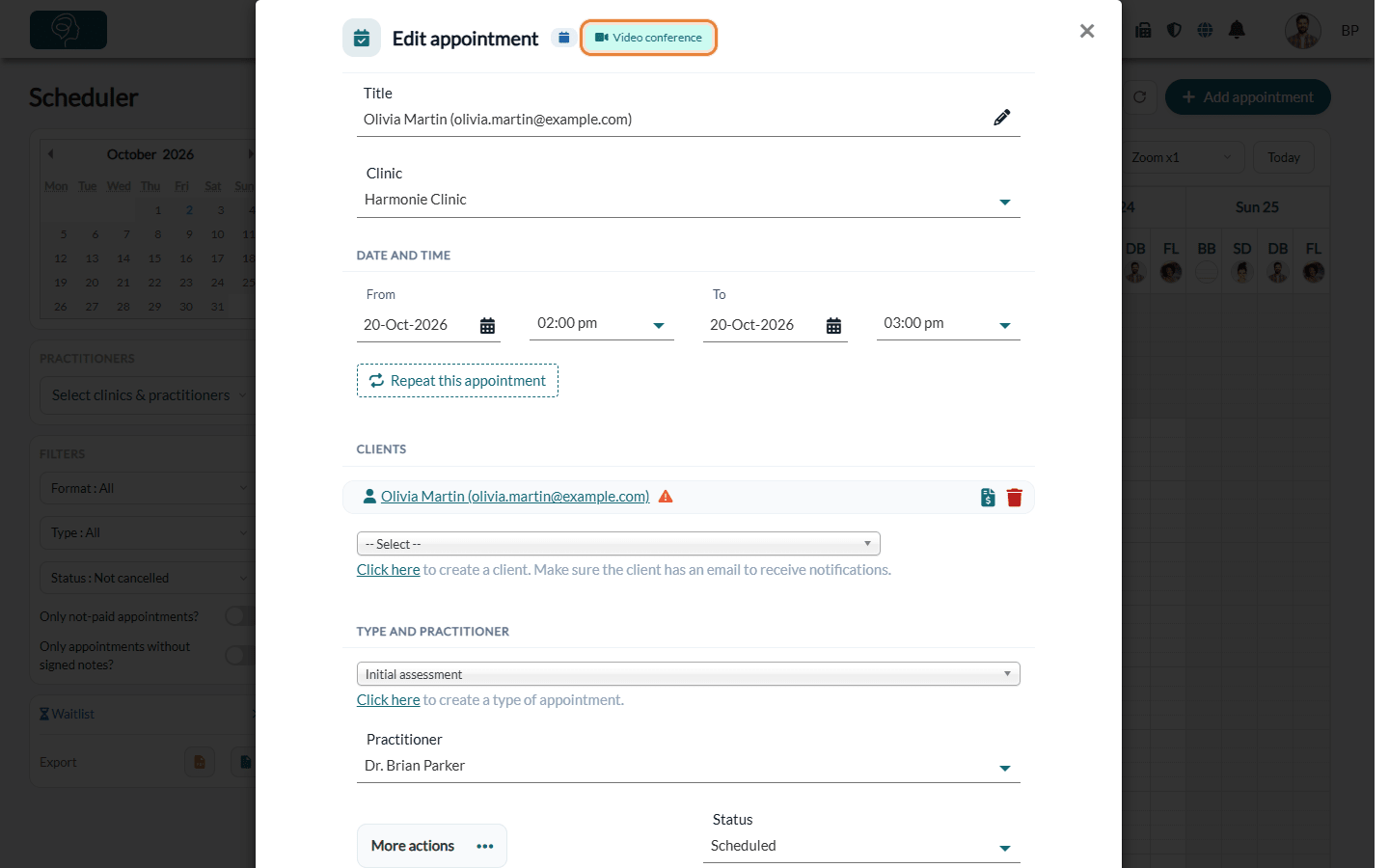
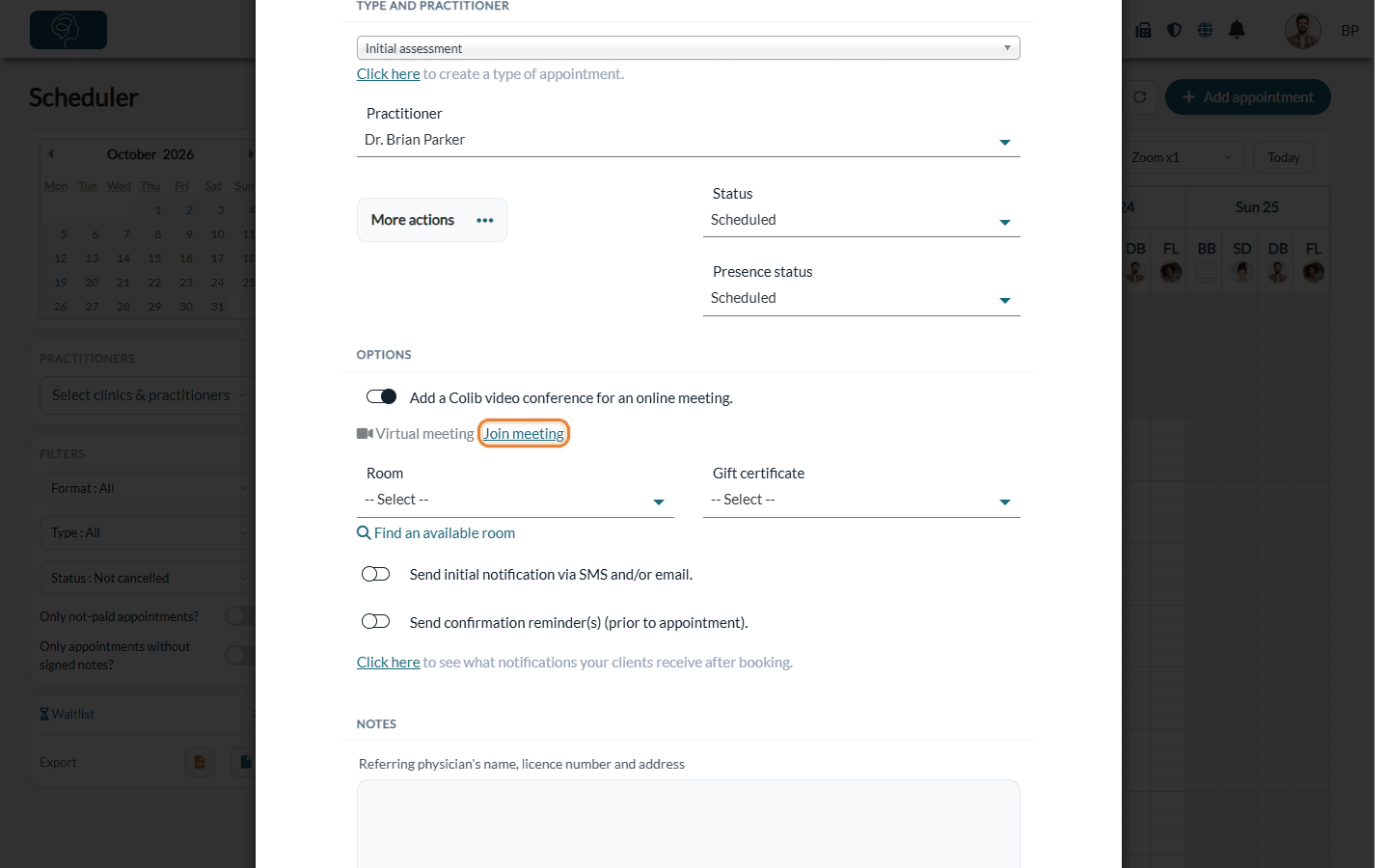
- In the appointment window, click the Video conference badge next to the title (Open the online meeting). You can also click Join meeting next to Virtual meeting, in the Options section.
- The meeting opens in a new browser tab.
Log in to the meeting as a practitioner: if the page shows Log in as a practitioner, click it and sign in with your Colib account. You then join directly, and if the waiting room is turned on, you are the one who lets your clients in. See How does the waiting room work for online meetings?
2Join the meeting as a client
Your client can join from any of these places:
- the link in the appointment confirmation and reminder emails and text messages;
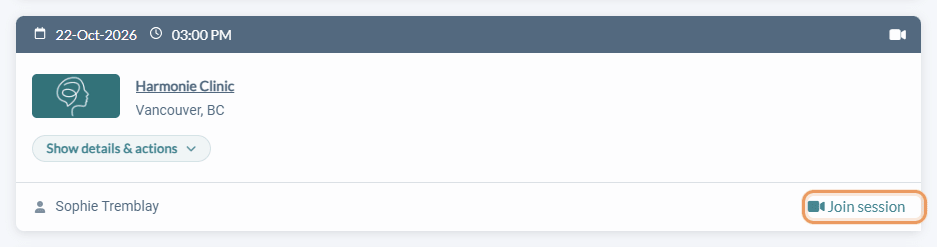
- the client portal: in Appointments, the Join session button of the appointment (also Join meeting in the appointment details);
- the arrival confirmation page, if your practice sends arrival confirmation messages (Settings > Communications > Arrival confirmation): the Connect to the meeting button.
3Enter a name and continue
The meeting page shows the practice, the date and time of the appointment and the practitioner.
- Enter the Name that will be shown to the other participants.
- Click Continue.
- When the browser asks for it, allow access to the camera and the microphone.
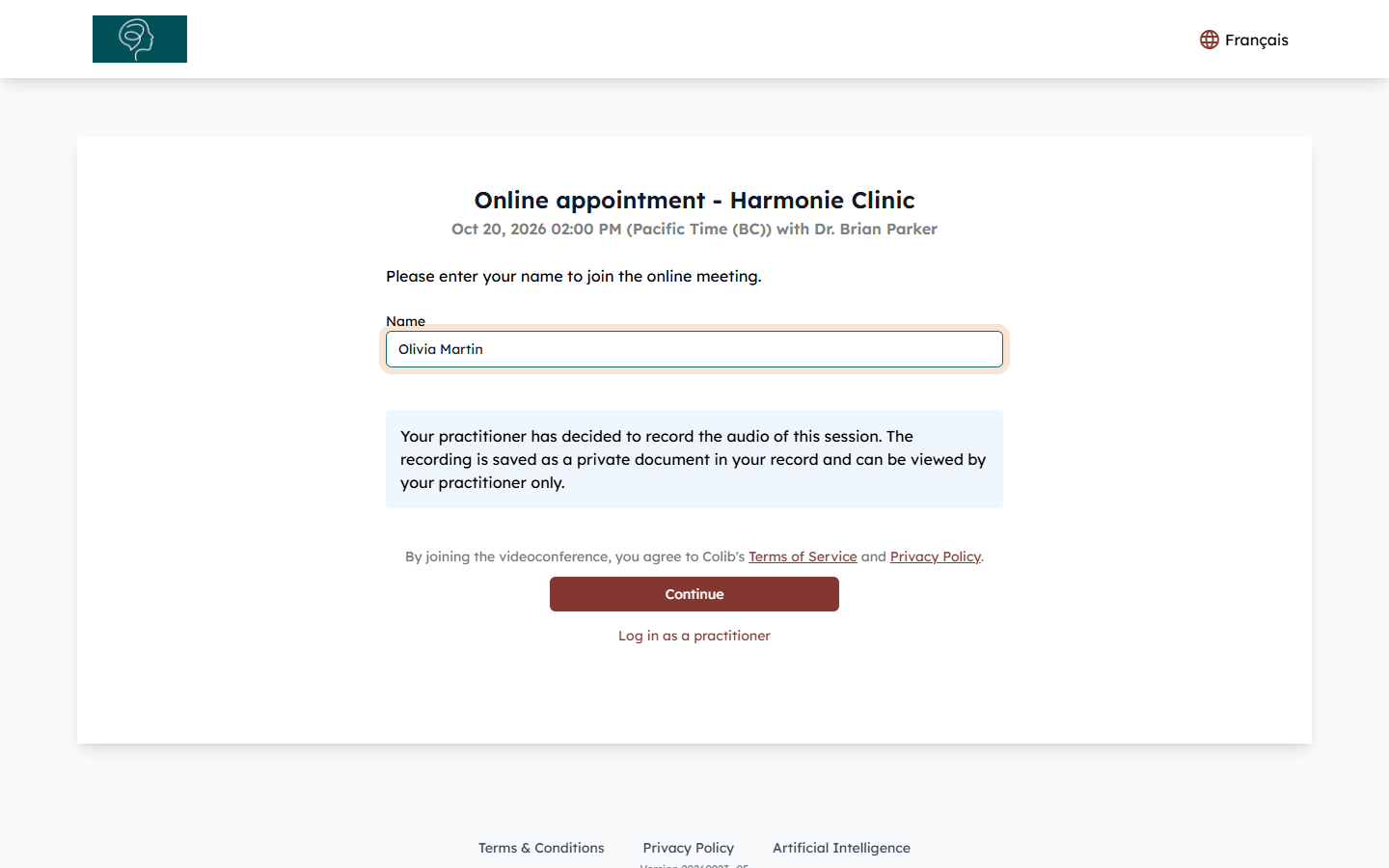
Depending on your settings, the page can also show:
- a waiting room -- the client sees Please enter your name to request access to the online meeting and waits until a practitioner lets them in;
- an audio recording notice -- when the practitioner records the session audio. See Is it possible to record online appointments?;
- a consent to the transcription -- when the practitioner uses artificial intelligence to draft the session note (practices in Quebec), the client must check I agree that this session is transcribed to help my practitioner write the clinical note. The Join the session button stays disabled until the box is checked. See How does the artificial intelligence note generation work?
If the link does not work
- The appointment is cancelled -- the page shows that the appointment related to the meeting has been cancelled.
- The appointment is over -- the link stops working about a day after the start of the appointment. Book a new appointment if needed.
- Safari -- if the video does not work well on Safari, the page suggests using Google Chrome or Firefox.
- No image or sound -- check that the browser is allowed to use the camera and the microphone, and that no other application is using them.
Good to know
- Features during the meeting -- screen sharing, background blur or background image, and more: see What features are integrated into the video conferences provided by Colib?
- Number of participants -- see How many participants can the video sessions hold at one time?
- Nothing to install -- the meeting runs in the web browser, on a computer, a tablet or a phone.
Still have a question?
Write to us at support@colib.io, we will be happy to help.
Was this article helpful?
That’s Great!
Thank you for your feedback
Sorry! We couldn't be helpful
Thank you for your feedback
Feedback sent
We appreciate your effort and will try to fix the article