Who is this article for?
With the waiting room, your clients do not enter your online meeting on their own: they ask to join, and a practitioner of your practice lets them in when ready. This article explains how to turn the waiting room on, what your clients see, and how to accept or refuse their requests.
Before you start: the waiting room works with Colib's video conferencing. It is turned on in Settings > Telehealth (www.colib.io/settings?show=video), which requires access to the practice settings.
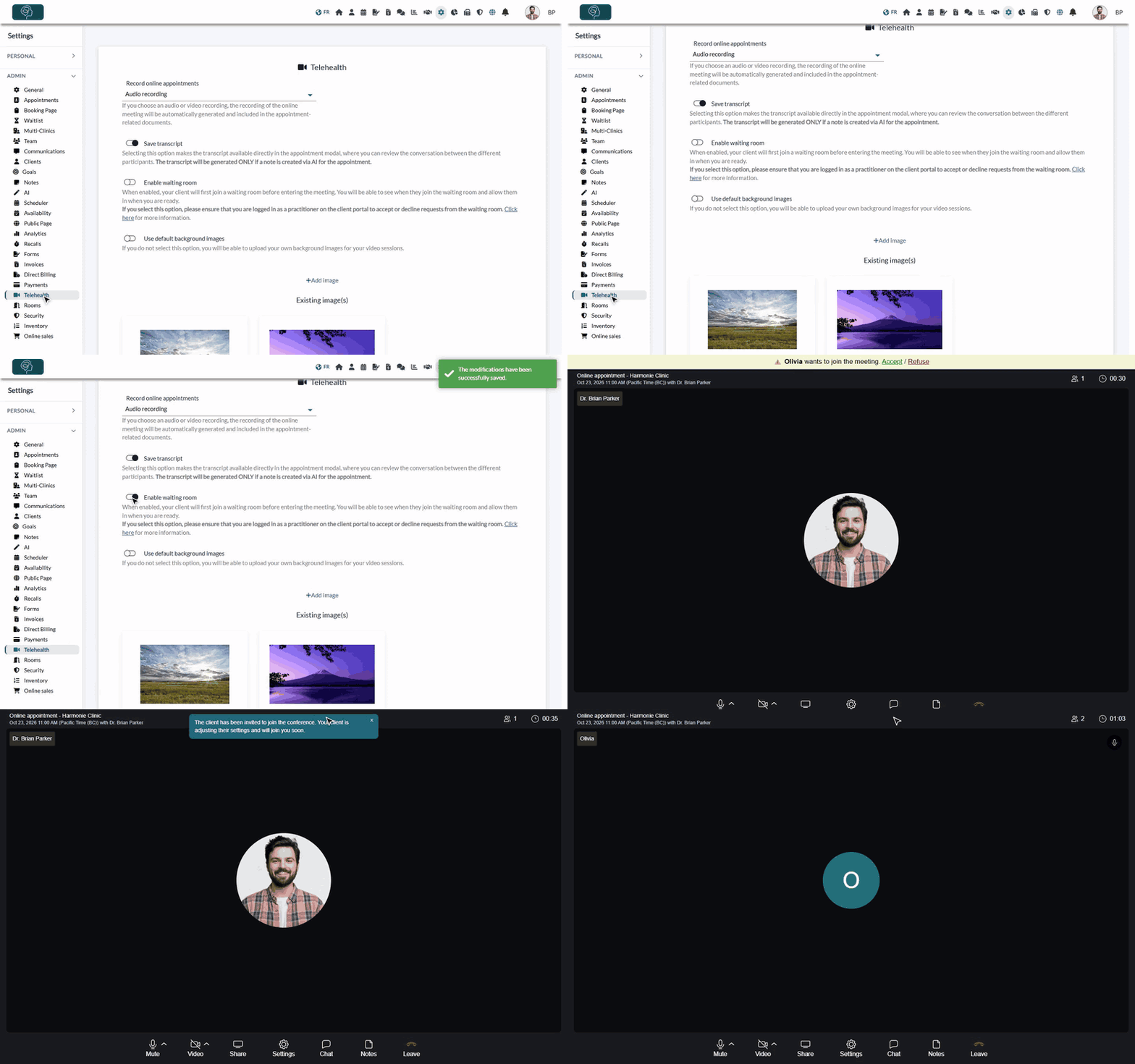
1Turn on the waiting room
- Go to www.colib.io/settings?show=video. You can also click the Settings icon (gear) in the top bar, then Telehealth in the Admin menu on the left.
- Turn on Enable waiting room. The change is saved right away.
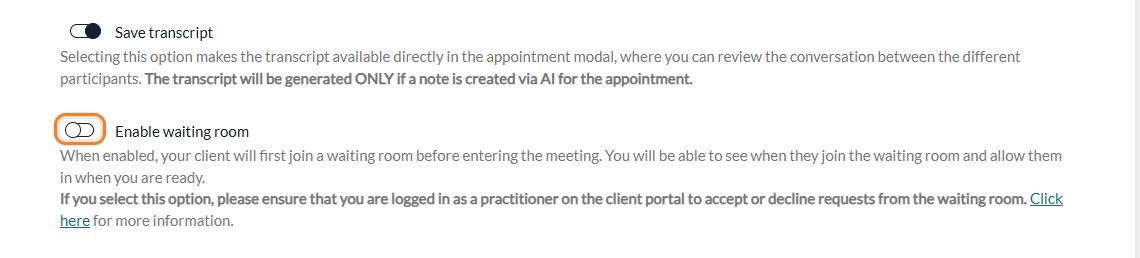
The setting applies to all the online meetings of your practice. As long as it is off, your clients enter the online meeting directly, without the permission of a practitioner.
2What your client sees
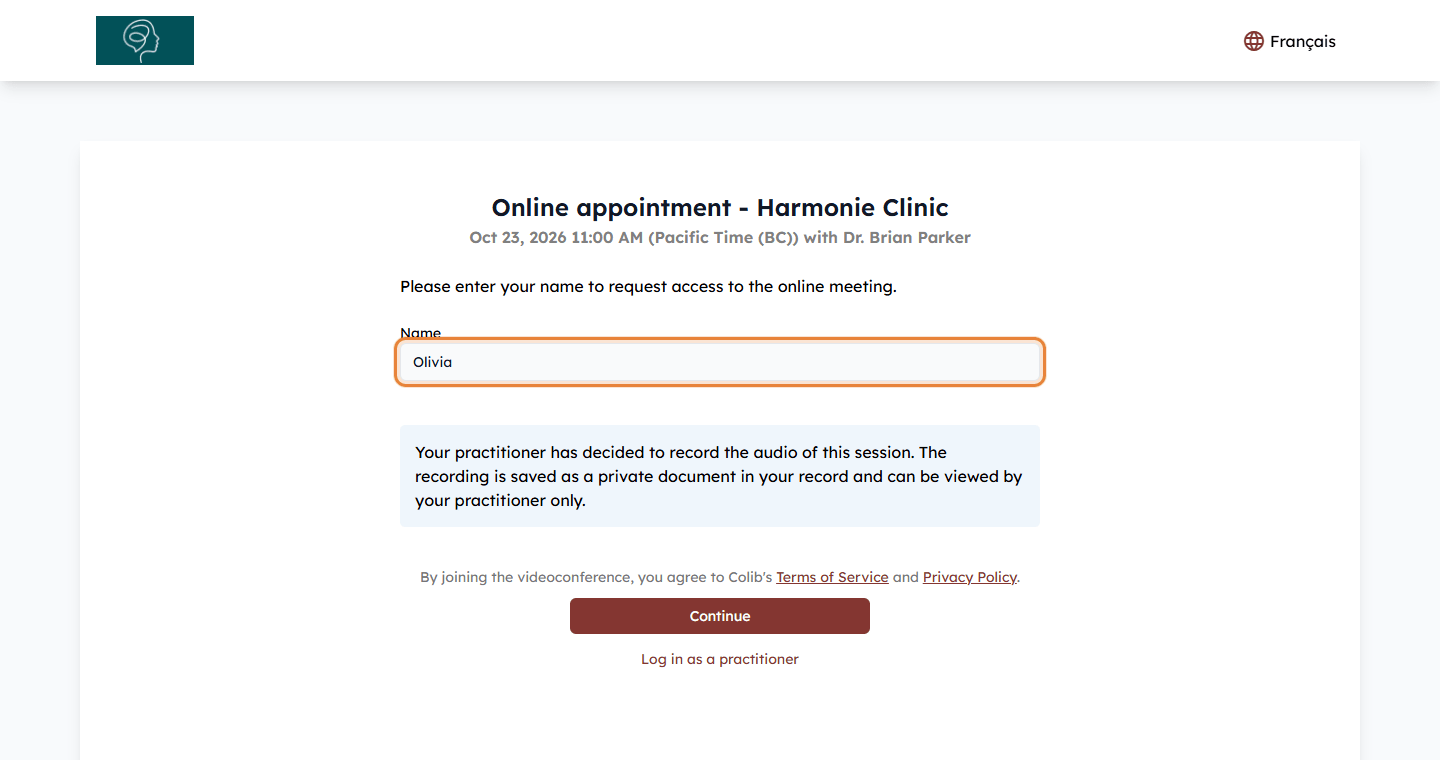
- Your client opens the meeting link (from the confirmation or reminder, or from the client portal). The page asks: Please enter your name to request access to the online meeting.
- They enter their Name and click Continue.
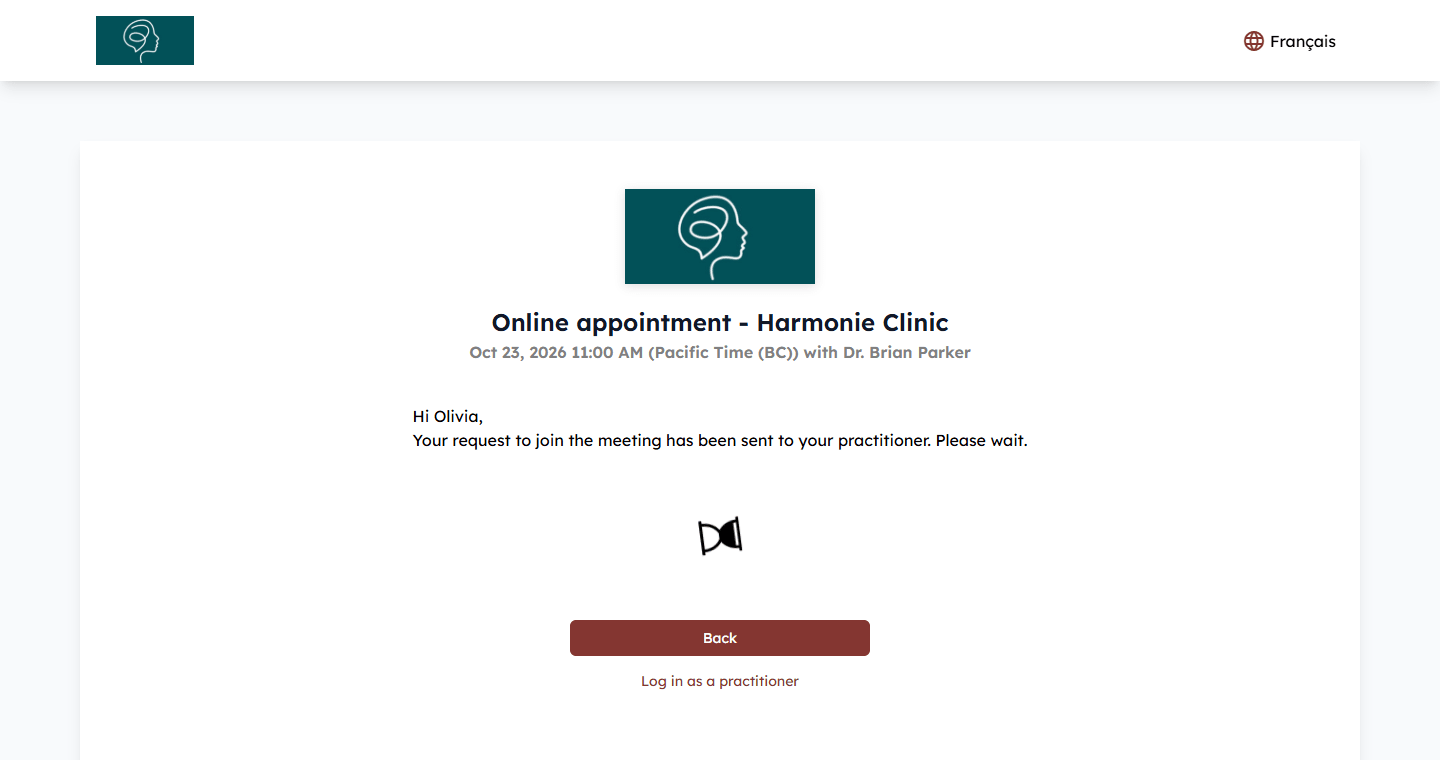
Your client then waits in the waiting room: Your request to join the meeting has been sent to your practitioner. Please wait.
- Request accepted — your client is redirected to the online meeting automatically. They do not need to refresh the page.
- Request refused — your client sees Sorry, your request has been rejected by the practice.
- Back — brings your client back to the meeting page, with their name already filled in, so they can send a new request.
- No answer — after one hour without an answer, the page goes back to the meeting page and your client can ask again.
3Accept or refuse your client
Requests are shown inside the online meeting, to practitioners who are logged in. To see them:
- Open the meeting from the appointment window in the scheduler (www.colib.io/scheduler). See How to automatically add telehealth conference links to appointments.
- Make sure you are logged in as a practitioner on the client portal (the website where the video meetings take place). If the meeting page shows Log in as a practitioner under the Continue button, you are not: click the link and sign in with your Colib account. You are brought back to the meeting.
- Join the meeting. As a logged-in practitioner, you never go through the waiting room yourself.
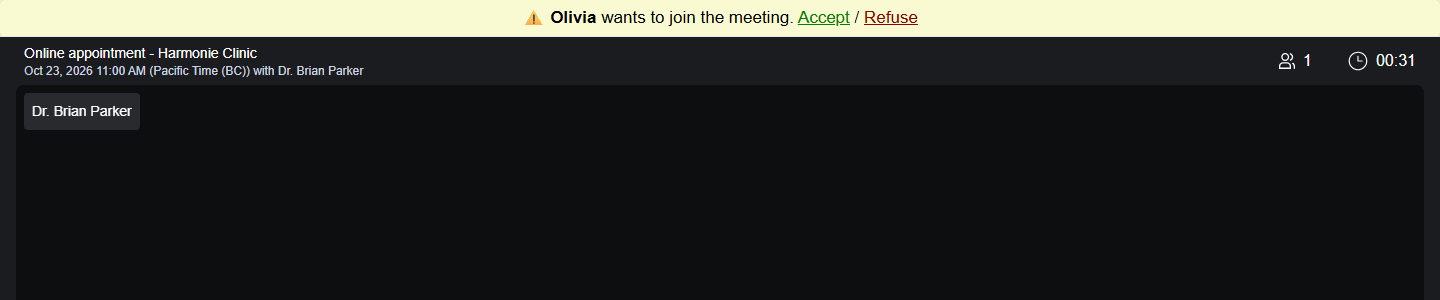
- When a client asks to join, a sound plays and a yellow banner appears at the top of the screen: Olivia wants to join the meeting. Accept / Refuse.
- Click Accept to let your client in, or Refuse to decline.
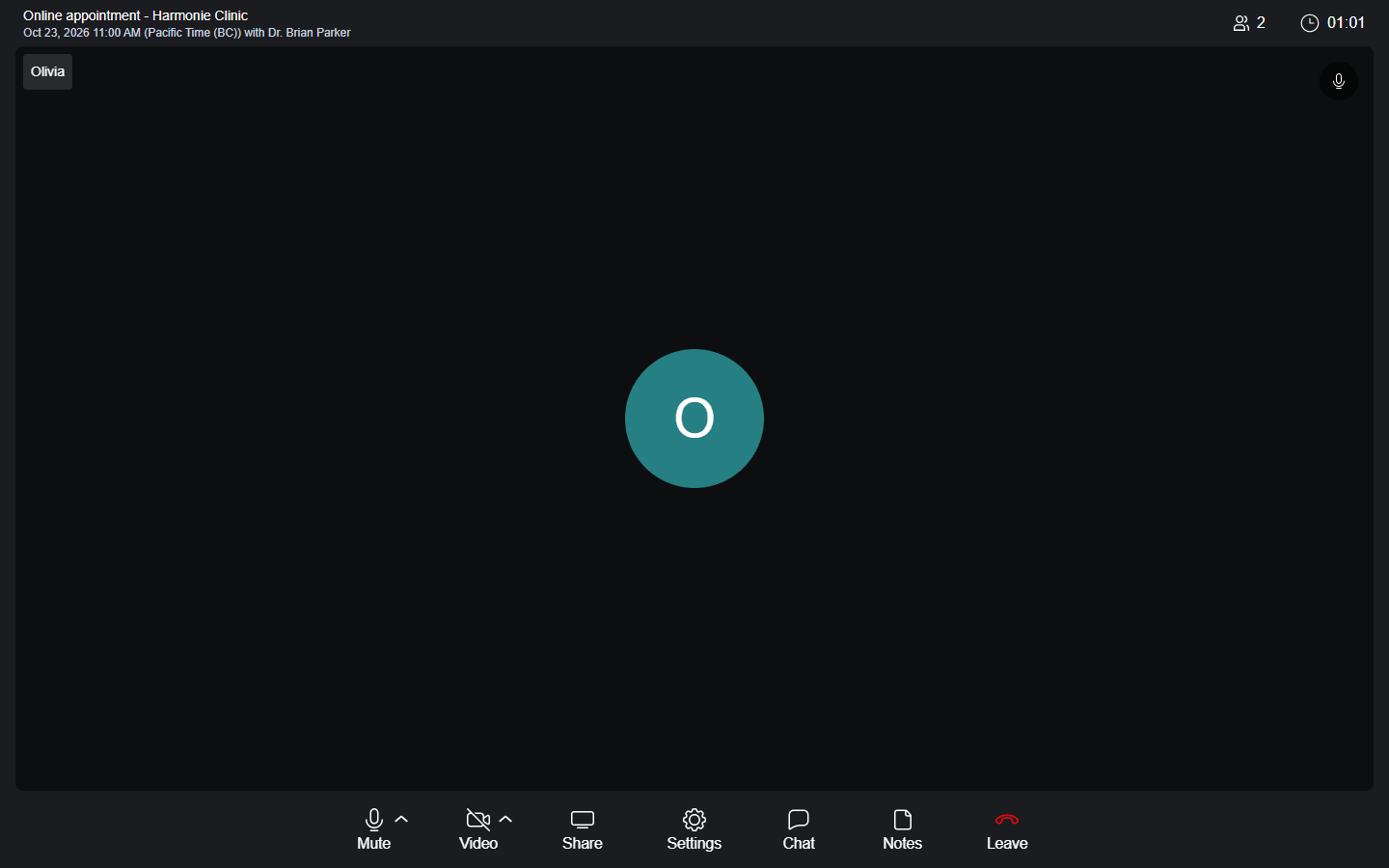
After Accept, Colib shows The client has been invited to join the conference. Your client is adjusting their settings and will join you soon. A few seconds later, your client appears in the meeting.
Good to know
- Requests are only visible in the meeting — keep the online meeting open (the camera and microphone selection screen is enough) to see your clients' requests. You do not receive a notification elsewhere in Colib.
- Any practitioner of the practice — every team member of your practice who is logged in to the meeting can accept or refuse a request, not only the practitioner of the appointment.
- Several clients — requests are shown one at a time, the oldest first. The next one appears once you have answered the current one.
- Consent and recording — if the session is recorded or transcribed, your client sees the notice (and, when required, gives consent) on the meeting page before sending the request.
- You do not see the requests? — see I cannot see requests from my clients in the waiting room.
Still have a question?
Write to us at support@colib.io, we will be happy to help.
Was this article helpful?
That’s Great!
Thank you for your feedback
Sorry! We couldn't be helpful
Thank you for your feedback
Feedback sent
We appreciate your effort and will try to fix the article