Who is this article for?
Colib's video sessions run directly in the web browser: there is nothing to install, for you or for your clients. This article is for practitioners and clients who want to know which browser gives the best experience, why Google Chrome is recommended rather than Safari, and how to display the session in full screen.
In short: on a computer, use a recent version of Google Chrome. Microsoft Edge and Firefox also work. There is no full-screen button in the session: use the full-screen mode of your browser (F11 on Windows, Control + Command + F on a Mac).
Which browser should I use?
| Browser | Video sessions | Subtitles of your own voice |
|---|---|---|
| Google Chrome (computer) | Recommended. | Yes, with a recent version. |
| Microsoft Edge or Firefox (computer) | Work well. | Use Google Chrome if you want your words shown as subtitles. |
| Safari (Mac) | Known video issues: the page suggests Google Chrome or Firefox. | No. |
| Phone or tablet browser | Works, with a simplified screen (see below). | No. |
Whatever the browser, everyone in the session can read the subtitles sent by the other participants. See How to use live subtitles during a video consultation.
Why Google Chrome rather than Safari?
- Subtitles — turning your speech into subtitles is done on your own computer, and only a recent desktop version of Google Chrome can do it. On another browser, the Subtitles tab of the session settings shows: Subtitles are not available on this browser. They require a recent desktop version of Google Chrome.
- Camera and microphone — Safari on a computer is known to have problems with video and with the choice of the camera and the microphone. When you open the meeting link with Safari on a computer, the page shows a warning and suggests Google Chrome or Firefox.
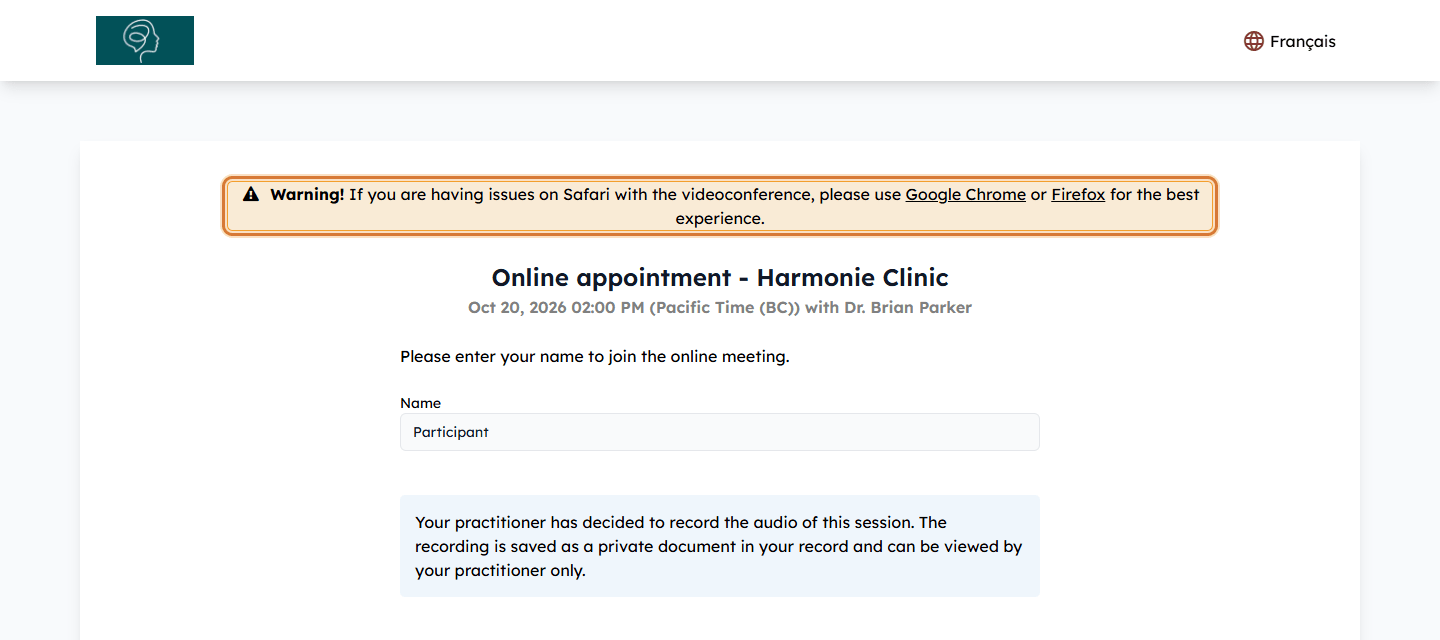
This warning only appears on the page where you enter your name (and in the waiting room). It does not stop you from joining: if the session works well on Safari, you can continue.
Tip for your clients: if a client tells you that the video or sound does not work on a Mac, ask them to open the meeting link again with Google Chrome or Firefox.
On a phone or a tablet
The session also opens in the browser of a phone or a tablet, with nothing to install. The screen is simplified on a phone:
- the Share button (screen sharing) and the Notes button are not shown;
- your words cannot be sent as subtitles (you still see the subtitles of the others);
- the screen always uses the split view (you and the other participants).
For screen sharing or note taking during the session, the practitioner should use a computer.
How to display the session in full screen
The session has no full-screen button of its own. To use the whole screen, switch your browser to full-screen mode once the session is open:
| Computer | Enter full screen | Leave full screen |
|---|---|---|
| Windows (Chrome, Edge, Firefox) | Press F11 (on some laptops, Fn + F11). | Press F11 again. |
| Mac (Chrome, Firefox) | Press Control + Command + F, or click the green button at the top left of the window. | Press Control + Command + F again. |
The browser bars and tabs disappear and the session takes the whole screen. The session buttons stay at the bottom.
Choose the view: split or speaker
Inside the session, the only display option is the view type:
- Click Settings in the bar at the bottom of the session (on a small or zoomed screen, it can be under More).
- In the General tab, choose the View Type:
- Speaker View — the screen focuses on the other participants. This is the default view.
- Split View — the screen is divided between you and the other participants, so you see both at the same time.
Your choice is remembered in this browser for your next sessions. The split view is used automatically while you are alone in the session, and always on a phone.
Good to know
- Camera and microphone — before you join, the Devices selection screen lets you choose the Camera source, the Microphone source and the Speaker source. Allow the browser to use the camera and the microphone when it asks. If access is blocked, you can still join, but the others will not see or hear you. For more help, see Troubleshooting video problems.
- Browser too old — if the page shows Your browser does not support video calls, update your browser or open the link with a recent version of Chrome, Edge, Firefox or Safari, then click Retry.
- Background blur and background image — these options appear next to the camera button only when your browser supports them.
- Tools during the session — see What features are integrated into the video conferences provided by Colib? for the tools available during the session.
Still have a question?
Write to us at support@colib.io, we will be happy to help.
Was this article helpful?
That’s Great!
Thank you for your feedback
Sorry! We couldn't be helpful
Thank you for your feedback
Feedback sent
We appreciate your effort and will try to fix the article