Who is this article for?
You want to check your schedule between two appointments, answer a client from your phone or work on a tablet? This article is for you. It explains how to use Colib on a phone or a tablet, what changes on a small screen, and how your clients use Colib on their own phone.
This is the Mobile-Friendly feature presented on our Features page: the same features on every type of device, and all you need is an internet connection.
Does Colib have an app?
No, and you do not need one. Colib is a web-based practice management software: it runs in the browser of your phone, your tablet or your computer, with nothing to download or install. It is always up to date, since there is no new version to install.
The same goes for the scheduler (Is there a mobile app for the Colib scheduler?): no app is needed. Your scheduler, your client files and your invoices are the same on every device, because they are all in your Colib account.
1Open Colib on your phone or tablet
- Open the browser of your phone or tablet (Safari, Chrome, Edge, Firefox...).
- Go to www.colib.io/login. From the home page of www.colib.io, open the menu of the page and tap Sign in.
- Sign in with your usual email address and password. If two-factor authentication is turned on for your account, enter the code you receive, as on a computer.
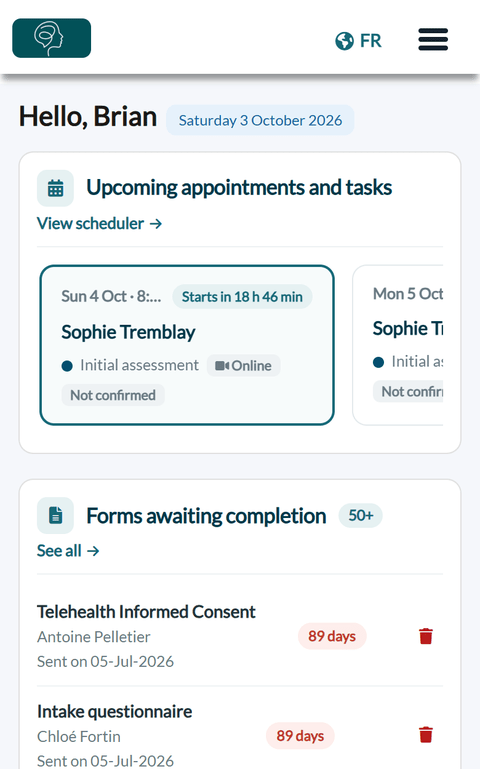
You land on the same home page as on your computer, with the same data: an appointment created on your phone appears right away in the scheduler of your computer, and the other way around.
2Use the menu button
On a narrow screen, the icons of the top bar are replaced by a menu button (three lines) at the top right.
- Tap the menu button.
- The menu opens with every section: Settings, Notifications, Home, Clients, Scheduler, Forms, Invoicing, and so on, as well as your Profile.
- Tap a section to open it, or tap the X to close the menu.
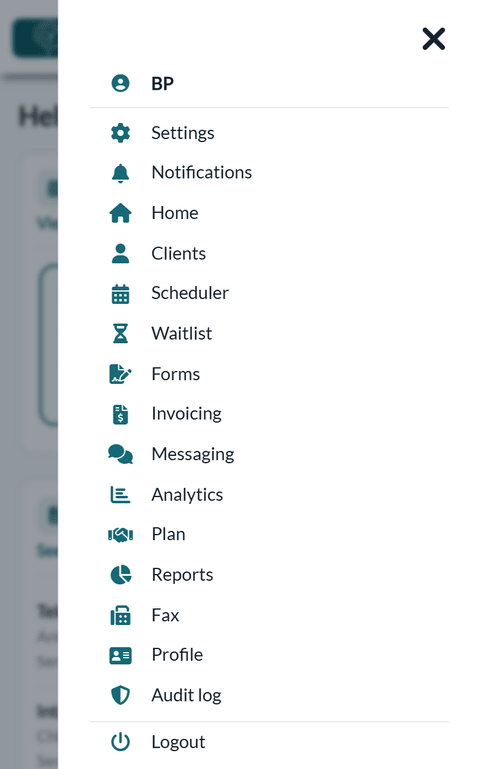
The sections you see depend on your access rights, exactly as on a computer. On a tablet, the top bar shows the icons or the menu button depending on the width of the screen. To understand how the menus adapt to the screen, please see the article titled "Why are the menu icons missing at the top of the screen?".
What changes on a small screen
The features are the same; only the layout adapts to the size of the screen.
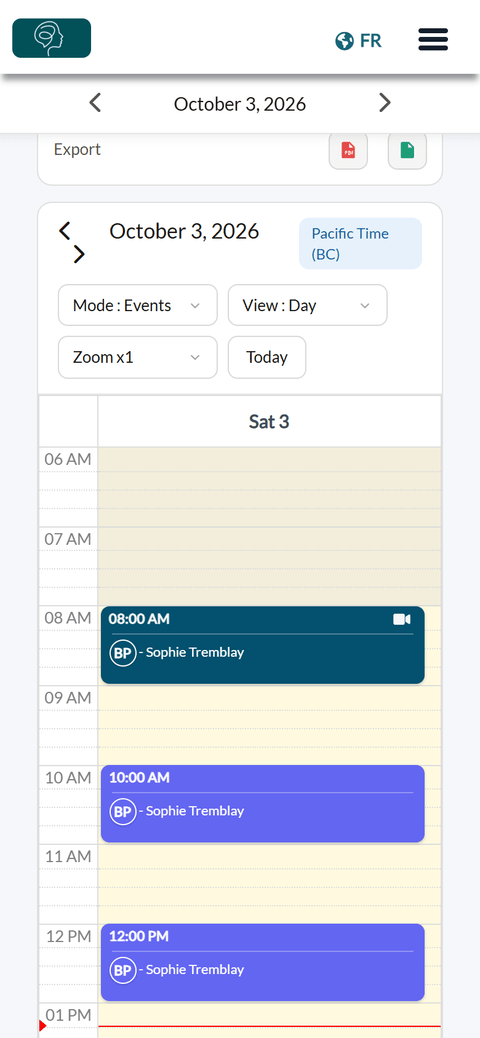
- Scheduler — on a phone, the scheduler opens in the Day view, with arrows to move from one day to the next. The filters and the Add appointment button are above the calendar. To change the view, please see the article titled "How do I change the scheduler view (day, week, month, list, by practitioner, room or clinic)?".
- Side menus — the menu on the left of some pages (Settings, Forms, Invoicing...) becomes a thin column of icons on a narrow screen.
- Video sessions — a video session opens in the browser of a phone or a tablet too. On a phone (narrow screen), the screen is simplified: no Share button for screen sharing and no Notes button. On a phone or a tablet, your own words usually cannot be sent as subtitles, because mobile browsers do not offer the speech recognition this requires. For screen sharing or note taking during the session, use a computer. Please see the article titled "Which browser to use for video sessions and how to go full screen".
Your clients use their phone too
Your clients do not need an app either. Everything opens in the browser of their phone, tablet or computer:
- Booking page — they book their appointments online from their phone. See How to set up the booking process in Colib.
- Client portal — they see their appointments, fill in their forms and find their invoices in their secure portal. See What is the client portal?
- Video sessions — they join a session from the link they receive, with nothing to install. Please see the article titled "How to join an online meeting".
Good to know
- All you need is an internet connection — Colib works with Wi-Fi or with your mobile data. Without a connection, Colib cannot be used.
- Nothing to update — every improvement of Colib is available on all your devices at the same time, without an update to install.
- Your security — when you use Colib on a phone that other people can use, sign out when you are done (Logout, at the bottom of the menu).
- Feature overview — see the Features page and, for the scheduler, the Scheduling page.
Still have a question?
Write to us at support@colib.io, we will be happy to help.
Was this article helpful?
That’s Great!
Thank you for your feedback
Sorry! We couldn't be helpful
Thank you for your feedback
Feedback sent
We appreciate your effort and will try to fix the article