Who is this article for?
This article is for practitioners, clinic administrators and team members. The Home page is the first page you see after signing in to Colib. It gathers everything that needs your attention: your next appointments, the forms your clients have not filled out yet, the appointments to document or to invoice, the overdue invoices, your draft notes, your messages and your notifications.
Where to find it: click the house icon (Home) in the top bar or the logo at the top left, or go to www.colib.io/establishmentadmin/home.
1Your next appointments and tasks
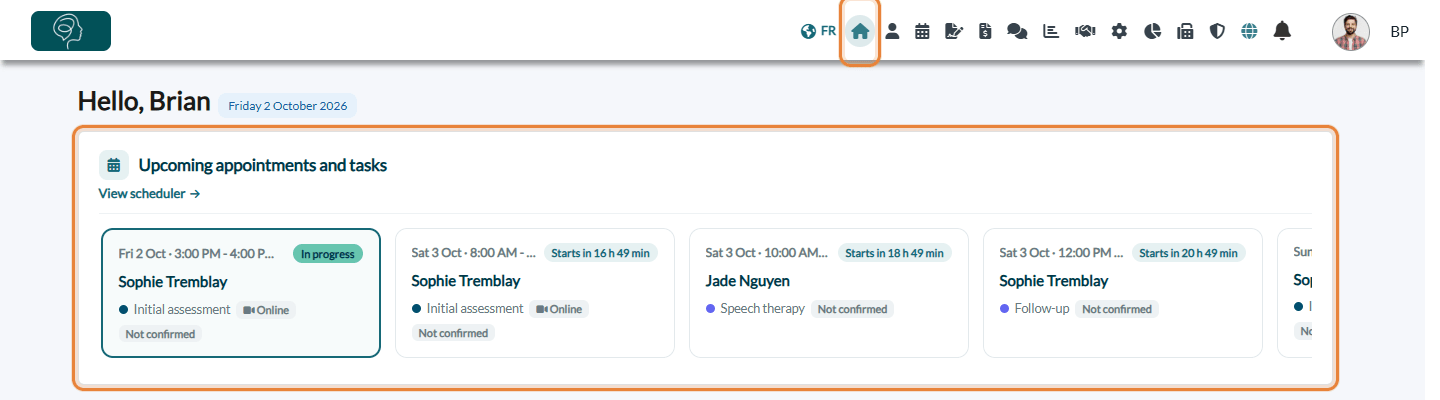
At the top, after the greeting and today's date, Upcoming appointments and tasks shows your next 5 appointments and tasks, in chronological order. Cancelled appointments are not shown. Scroll the strip sideways to see them all.
- Each card shows the date and time, the client, the appointment type and, when they apply, the tags Task, Online, the room and Not confirmed (the client has not confirmed the appointment yet).
- In progress marks the current appointment; Starts in shows the time left when the appointment starts within 24 hours.
- Click a card to open the appointment in the scheduler; click the client's name to open their record.
- View scheduler opens your scheduler (www.colib.io/scheduler).
If you have nothing planned, the block shows No upcoming appointment or task.
2What is left to do
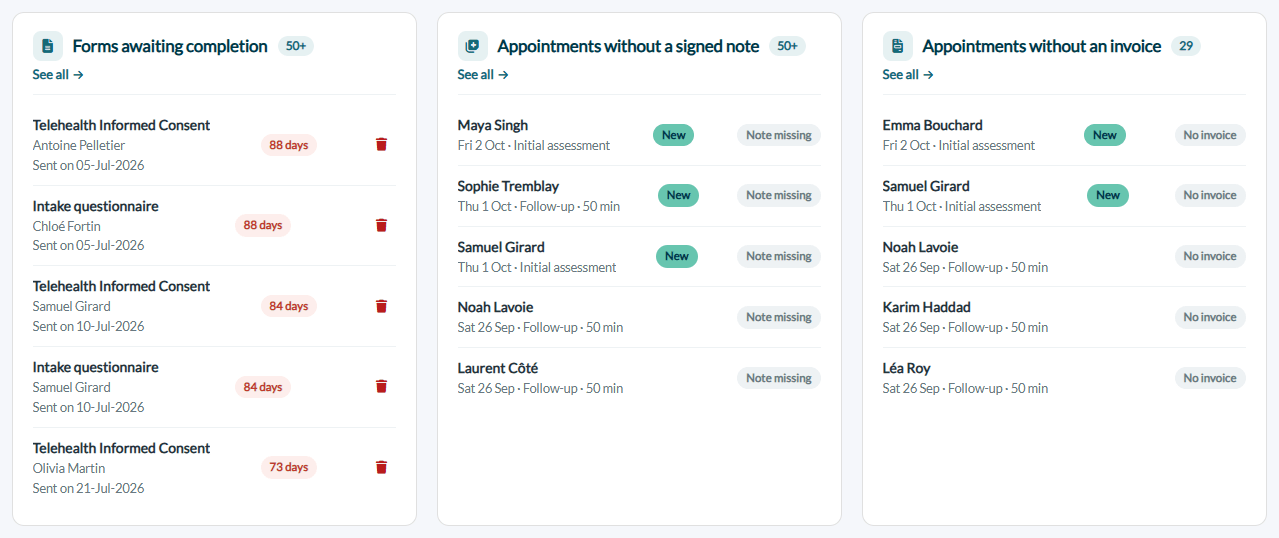
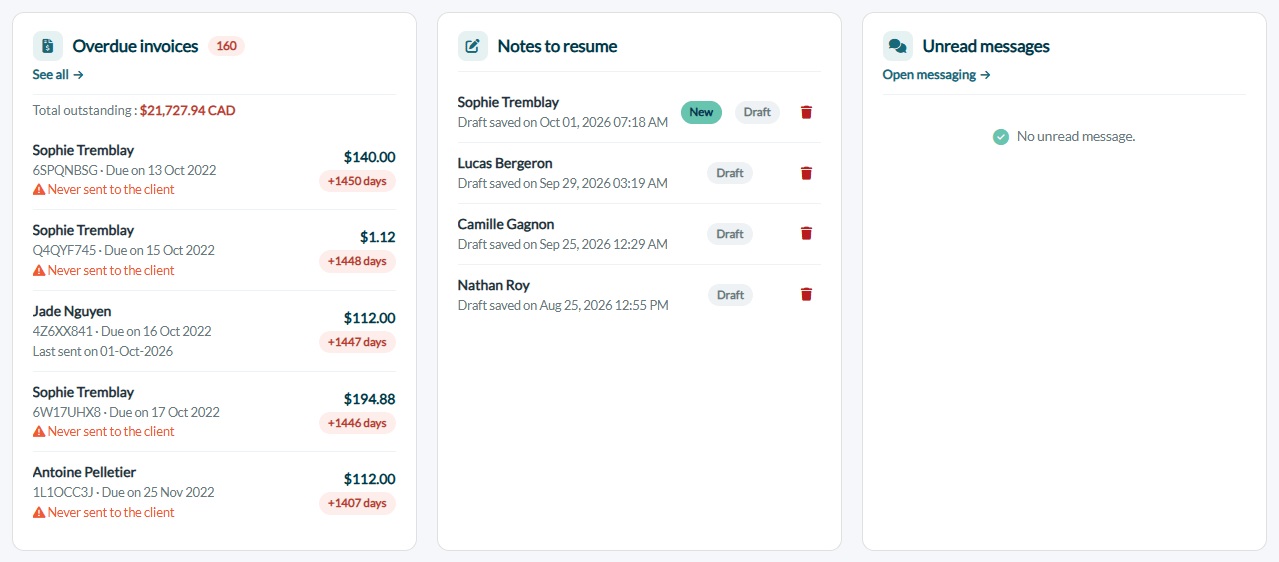
Below, each card lists up to 5 items, the most urgent first. The badge next to the title gives the total number (50+ above 50 for the first three cards). Click a row to open the related client, appointment or invoice; click See all to open the full list (for the two appointment cards, See all opens the scheduler).
| Card | What it shows |
|---|---|
| Forms awaiting completion | The forms sent to your clients in the last 90 days that have not been filled out yet, the oldest first. The badge gives the number of days since the form was sent (in red from 7 days). Click a row to open the client's record. See all opens the forms results (www.colib.io/forms?show=results). |
| Appointments without a signed note | Your past appointments of the last 100 days that have no signed note yet, the most recent first. Cancelled appointments, late cancellations and no-shows are not listed. New marks the appointments of the last 48 hours. Click a row to open the appointment. See all opens your scheduler (www.colib.io/scheduler). |
| Appointments without an invoice | Your past appointments of the last 100 days that have no invoice. A draft, cancelled or written-off invoice does not count. Cancelled appointments are not listed, but late cancellations and no-shows are (you may want to charge them). Click a row to open the appointment. See all opens your scheduler (www.colib.io/scheduler). |
| Overdue invoices | The invoices whose due date has passed and that are not fully paid (unpaid, in progress, on hold or partially paid), the oldest due date first. Each row shows the amount still due, the number of days late, and the date of the last sending or Never sent to the client. Total outstanding adds up the invoices in Canadian dollars. Click a row to open the invoice; See all opens www.colib.io/invoices. |
| Notes to resume | Your draft notes, the most recently saved first. Click a row to open the client's record and finish the note. This card only appears when you have at least one draft. |
| Waiting list | The active waitlist requests, in priority order. See all opens www.colib.io/waitlist. This card appears when the waitlist is turned on, for practices with a single clinic, if you can see the other practitioners' information. |
| Unread messages | Your conversations with unread messages from clients, with the number of unread messages. Open messaging opens www.colib.io/messaging. This card appears when private messaging is turned on. |
| Unread notifications | Your 5 latest unread notifications (new bookings, cancellations, payments...). Click one to open the related page; See all opens www.colib.io/notifications. |
When a card has nothing to show, it says so, for example All your past appointments have a signed note. or No overdue invoice.
3Act directly from the page
- Delete a form request — in Forms awaiting completion, click the trash icon of a row, then confirm. The form request is removed from your list and from the client's portal. This option requires full access to the forms.
- Delete a draft note — in Notes to resume, click the trash icon of a row, then confirm.
Important: both deletions are permanent and cannot be undone.
Good to know
- Your own data — the upcoming appointments and tasks, the appointments without a note or an invoice, the draft notes and the messages are always your own, never those of your colleagues.
- Depends on your access — each card only appears if your access level allows it (appointments, financial information, forms, notes). A team member who cannot see other practitioners' information only sees the forms of their own clients and their own overdue invoices. With several clinics, you only see the forms and invoices of your clinics. Access levels are set by an administrator in Settings > Team (www.colib.io/settings?show=team). See What are the different levels of rights/options for the members of my practice?
- Getting started checklist — for a new account, a Get started with Colib checklist is shown at the top of the page until your setup is complete. See also How to get started successfully on Colib.
- Go further — How to get notified when an appointment has no invoice attached, How to automate invoice payment reminders, How to automate form reminders, How to use tasks in your scheduler.
Still have a question?
Write to us at support@colib.io, we will be happy to help.
Was this article helpful?
That’s Great!
Thank you for your feedback
Sorry! We couldn't be helpful
Thank you for your feedback
Feedback sent
We appreciate your effort and will try to fix the article