Who is this article for?
This article is for practitioners and their teams who want to know what their clients find in the Colib client portal, and for clients who want to discover it.
The client portal (portal.colib.io) is a secure online space where your clients find everything related to their follow-up with your practice: appointments, invoices and receipts, documents, forms, notes and messages. They sign in with their email address and a password, from a computer, a tablet or a phone.
One account for every practice: the portal account is tied to the client's email address. If the same person is a client of several practices that use Colib with the same email address, they see all of them in the same portal. To learn how clients get their account, read Who can access the client portal?
What your clients can do in the portal
After signing in, the client lands on the Dashboard. The menu on the left gives access to each section:
| Section | What the client can do |
|---|---|
| Messages | Exchange secure messages with the practice and start a New conversation, if the practice has turned on secure messaging. |
| Appointments | See upcoming and past appointments with the practice's contact details, address and time zone. Under Show details & actions: Modify, Cancel and, for an online appointment, Join meeting. The Book appointment button opens your booking page. |
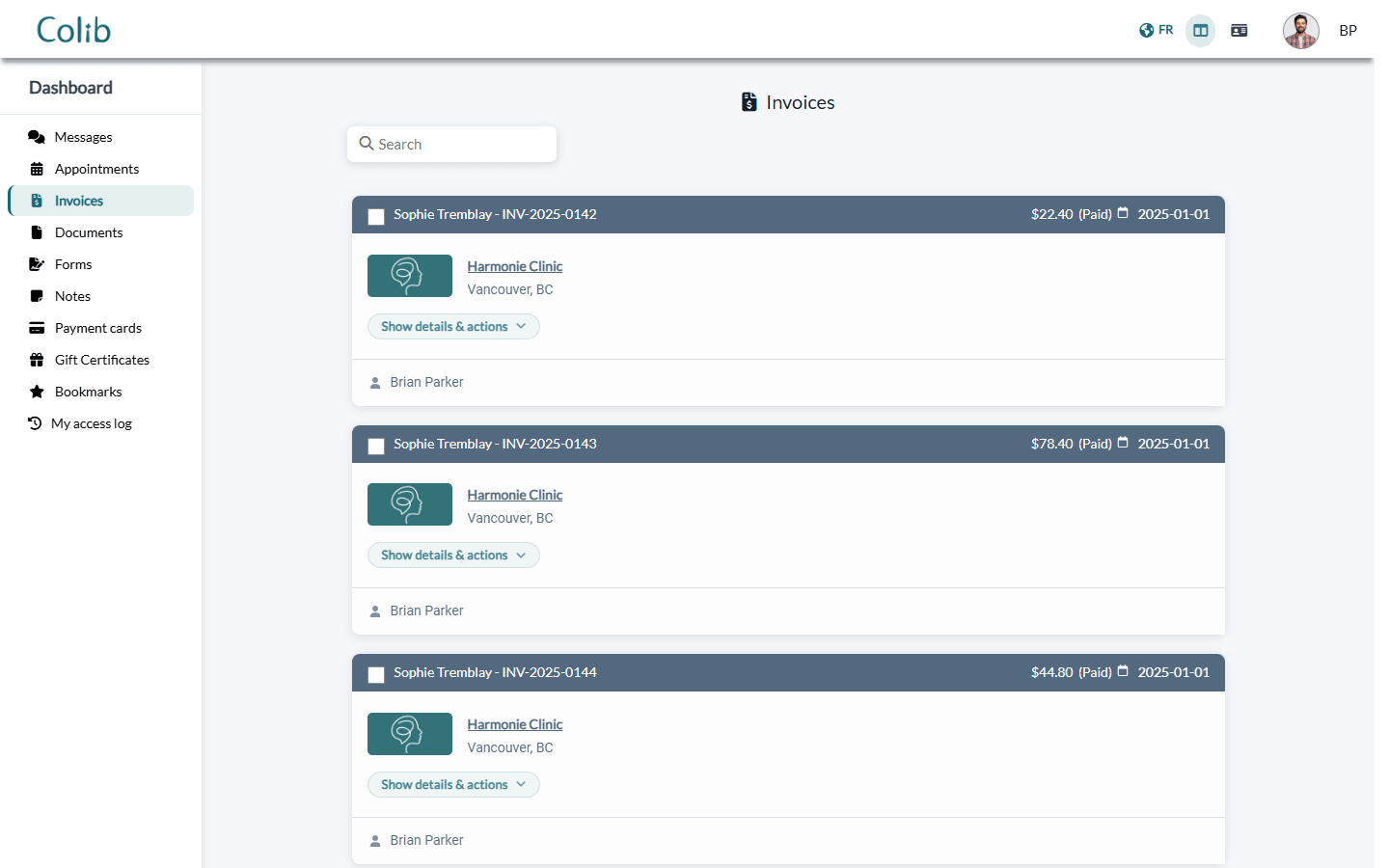
| Invoices | View and Download invoices and receipts, several at once with Download selected invoices. Pay invoice lets the client pay online when your practice accepts online card payments. |
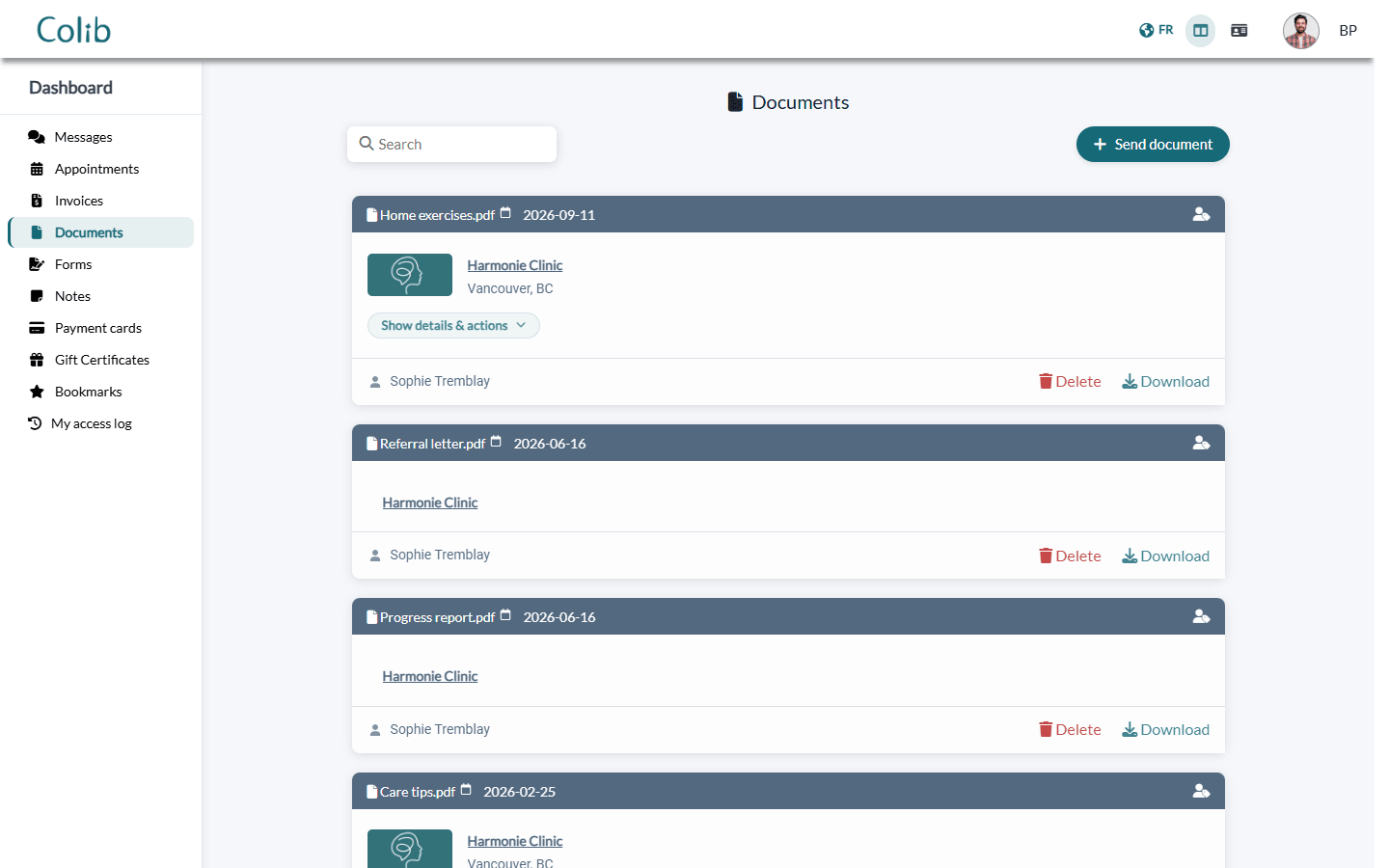
| Documents | Download the documents you shared, and send you a file with Send document. |
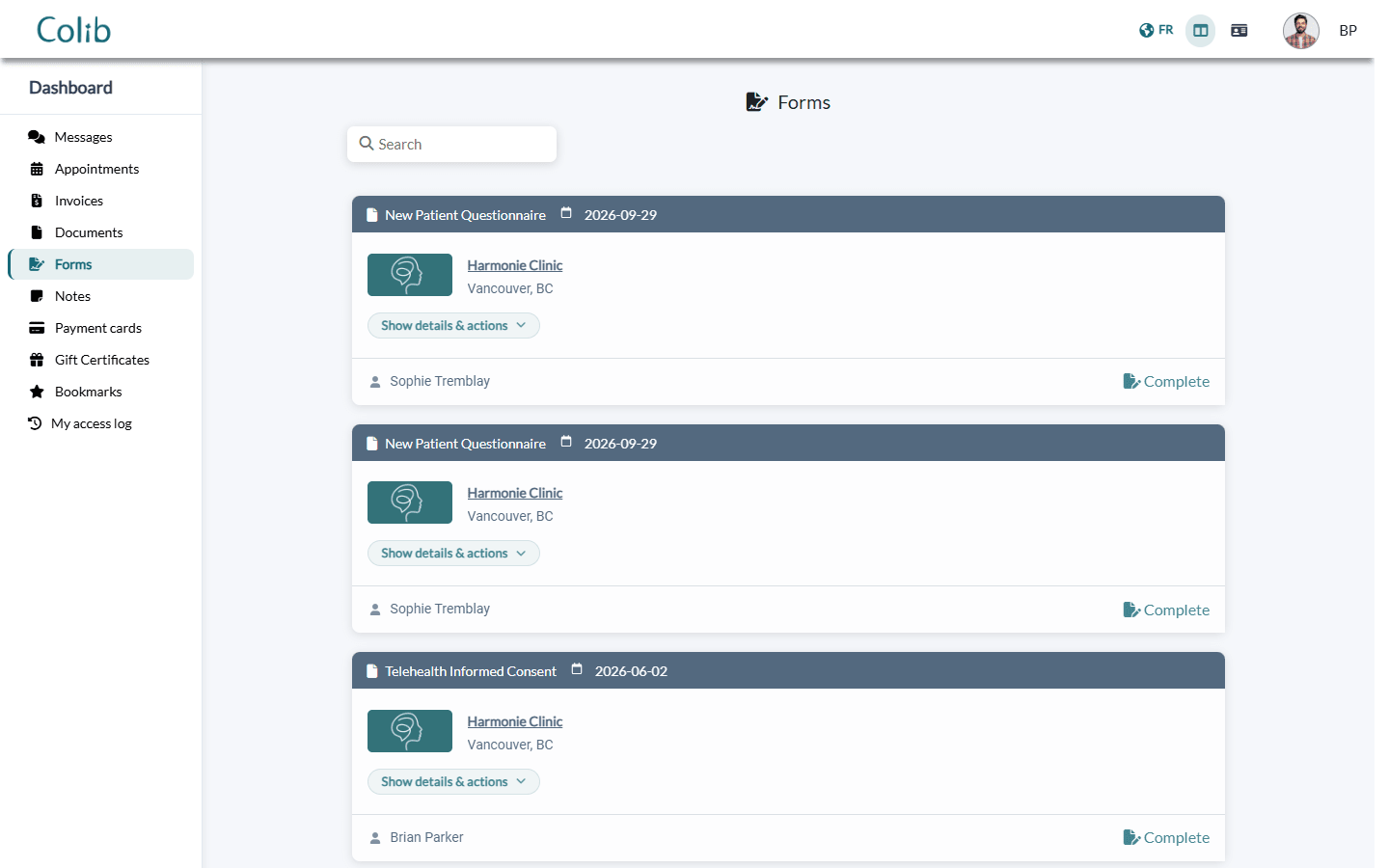
| Forms | Fill out the forms you sent with Complete, and download completed forms that your practice shares with clients. |
| Notes | Read and download the notes you chose to share. A label shows when artificial intelligence was used to write a note. |
| Payment cards | Save a card with Add card (when one of their practices accepts online payments) or delete a saved card. |
| Gift Certificates | See the gift certificates they bought or received, with their remaining value and expiration date. |
| Bookmarks | Find their favorite practices, their contact details and a Book appointment shortcut. |
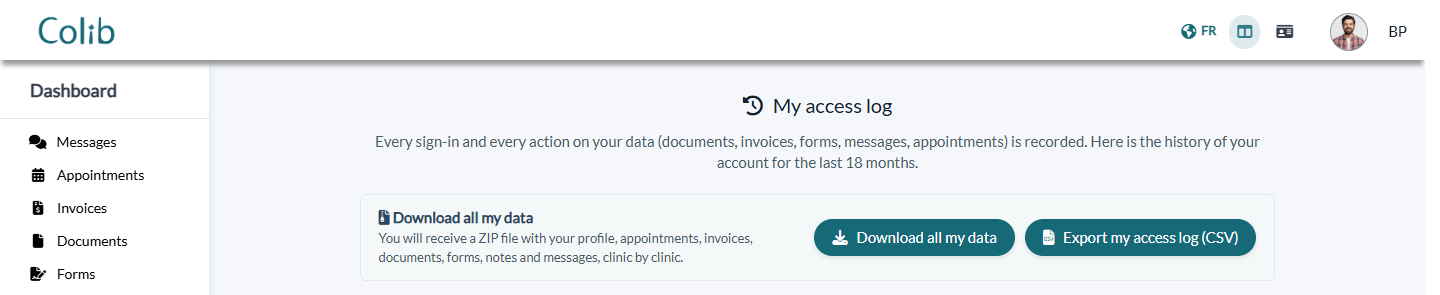
| My access log | See every sign-in and every action on their data over the last 18 months, Export my access log (CSV) and Download all my data (a ZIP file, practice by practice). |
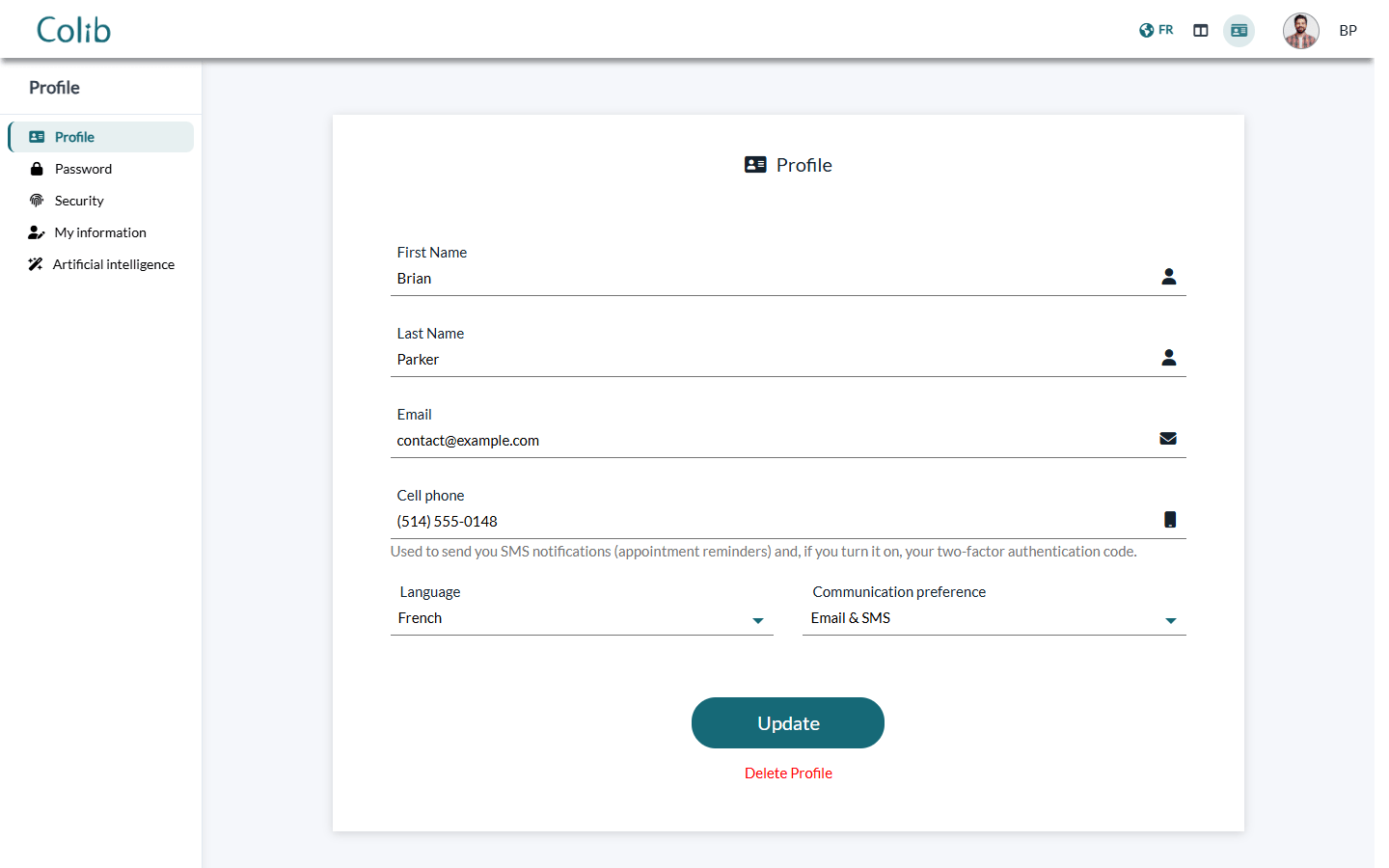
The Profile icon at the top right opens the client's account settings: personal information and notification preferences, Password, Security (two-factor authentication), My information (to ask the practice to correct their record) and Artificial intelligence (to withdraw their consent to AI note-taking). The client can also delete their portal account there.
Appointments
Each appointment shows its date, time and practice. Show details & actions displays the type of appointment, the practice's contact details and address, the time zone, the related invoices and documents, and the available actions.
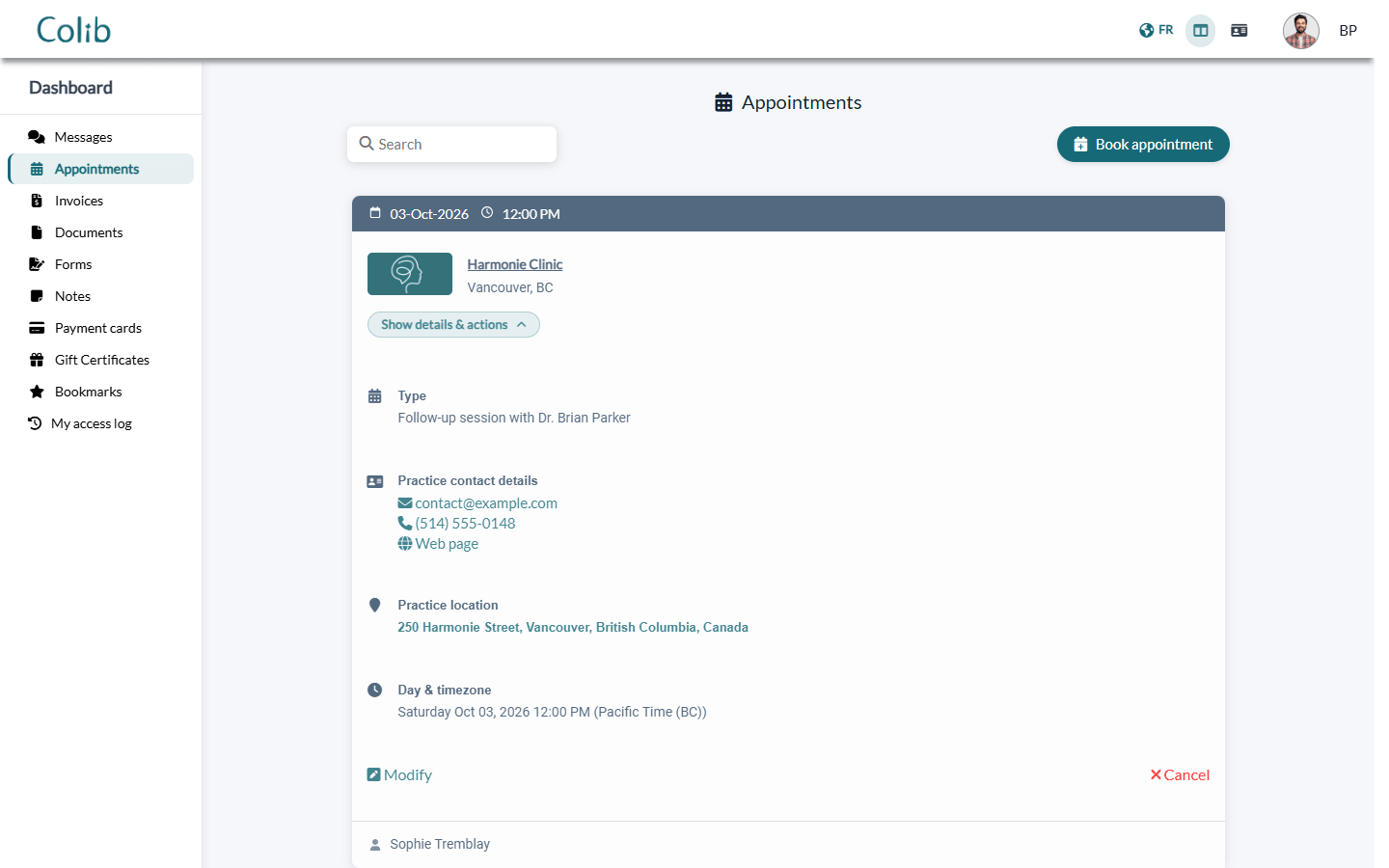
The actions depend on your settings:
- Modify: available for appointments the client booked online. For appointments created by your team, the client can modify them only if your practice accepts online booking and the Allow clients to edit appointments that were booked by practitioners option is on in Settings > Booking Page (www.colib.io/settings?show=bookingpage). See How to let clients edit appointments created by practitioners.
- Cancel: available only if Allow clients to cancel their appointments is on in Settings > Scheduler (www.colib.io/settings?show=scheduler). You are notified of every cancellation. See How to cancel an appointment.
- Join meeting: shown for online appointments that are not over yet.
- Cancelled and past appointments stay visible, without actions.
Invoices and payments
The client finds all their invoices and receipts, with the amount, the status and the date. Unpaid invoices are flagged Action required. When your practice accepts online card payments, the Pay invoice button lets the client pay directly.
Documents, forms and notes
Everything you share with a client from their record appears in their portal: documents (How to share a document with a client), notes (How can I securely share notes with my clients?) and forms (How can I send the form to my clients?). A document sent by the client from the portal appears in the Documents tab of their record.
Privacy and account
In My access log, the client sees every sign-in and every action on their data, and can download a copy of all their data at any time.
Good to know
- The portal is optional: clients who do not create an account keep receiving your emails and text messages and can still use the links they contain.
- Email address confirmation: a client must confirm their email address before their appointments, invoices, documents and other information are displayed.
- English or French: the client switches the portal language with the button at the top of the page.
- Messages: to let clients write to you, turn on secure messaging (How to activate the private secure messaging feature). See also How can a client send a message to a practitioner?
Still have a question?
Write to us at support@colib.io, we will be happy to help.
Was this article helpful?
That’s Great!
Thank you for your feedback
Sorry! We couldn't be helpful
Thank you for your feedback
Feedback sent
We appreciate your effort and will try to fix the article