Who is this article for?
The bar at the top of Colib gives you access to every section: Clients, Scheduler, Forms, Invoicing, Settings, and so on. This article is for you if the names of the menu have disappeared, if the icons are no longer there, or if the side menu of a page only shows icons.
In short: nothing is broken. The menus adapt to the width of your browser window. When the window is too narrow, often because the browser is zoomed in, Colib shows only the icons, then replaces the top bar with a menu button. Press Ctrl + 0 (Command + 0 on a Mac) to reset the zoom to 100 %, or make the window wider.
How the top bar adapts to your window
The same top bar has three looks, depending on the space available:
| Window | What you see at the top of the screen |
|---|---|
| Wide (large screen, zoom at 100 %) | The icons and the name of each section. |
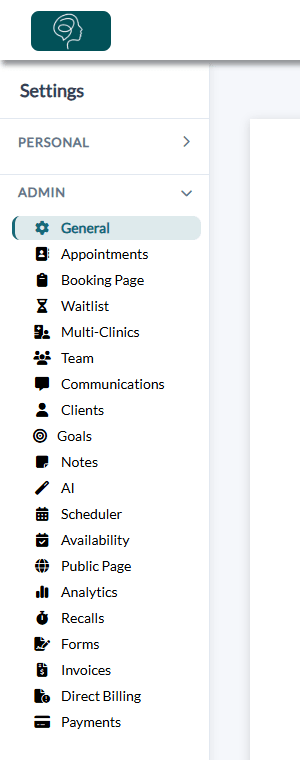
| Medium (laptop, or zoom a little higher) | The icons only, without their names. |
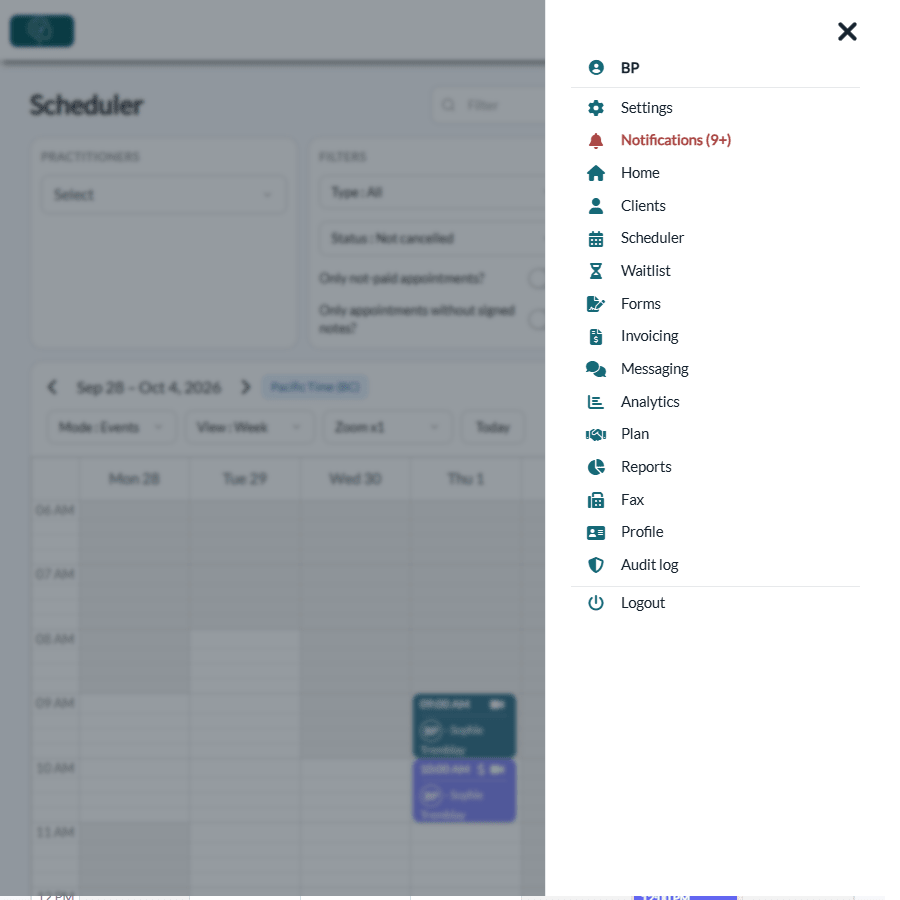
| Narrow (small window, strong zoom, tablet or phone) | No icons: only your logo, the language switch and a menu button (three lines) at the top right. |
Wide window: icons and names.

Medium window: the names disappear, the icons stay in the same order.

Narrow window: the icons are replaced by the menu button.

The width that counts is the width of the browser window as Colib sees it. Zooming in the browser reduces this width: a page zoomed to 150 % on a laptop is seen as a much narrower window.
1Bring the icons and their names back
- Reset the zoom of your browser: press Ctrl + 0 on Windows, or Command + 0 on a Mac. You can also open the menu of your browser (the three dots or three lines at the top right) and set the zoom back to 100 %.
- Zoom out if needed: press Ctrl and - (minus) on Windows, or Command and - on a Mac, until the icons, then their names, appear. Ctrl and + (Command and + on a Mac) zooms in again.
- Make the window wider: maximize the browser window (double-click its title bar), or close the panels that take space next to it.
The browser remembers the zoom level for each site: once Colib is back to 100 %, it stays that way the next time you open it in this browser.
Everything looks big even at 100 %? Your computer may be set to enlarge everything on the screen (for example, a display scale of 125 % or 150 % in the display settings of Windows). Colib then has less room, as if the browser were zoomed in. Zoom out in the browser (Ctrl and -) to get the full menu back without changing the settings of your computer.
2Or use the menu button
In a narrow window, on a tablet or on a phone, every section is still available:
- Click the menu button (three lines) at the top right of the screen.
- The menu opens on the right, with the name of each section: Settings, Notifications, Home, Clients, Scheduler, Forms, Invoicing, and so on, as well as your Profile and Logout.
- Click a section to open it, or click the X to close the menu.
The side menu only shows icons
Some pages have a menu on the left: Settings, Forms, Invoicing, Plan, Reports and Fax. It follows the same principle: in a wide window, it shows the names of the tabs; in a narrower window, it becomes a thin column of icons.
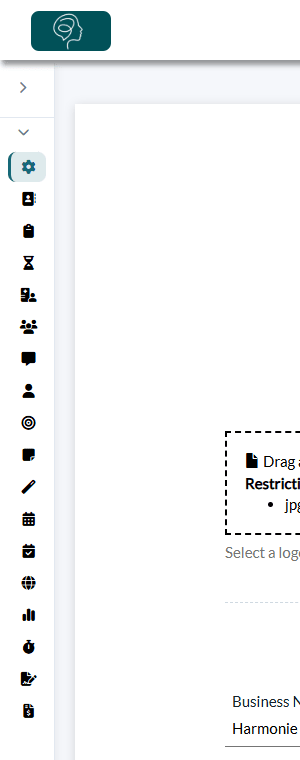
- Hover over an icon with the mouse: its name appears in a small bubble.
- To see the names again, reset the zoom (Ctrl + 0) or make the window wider, as explained above.
An icon is missing even in a wide window
If the names are displayed but one section is not there, it is not a display problem: the icons depend on your access rights and on the settings of the practice.
| Missing icon | Why |
|---|---|
| Clients, Scheduler, Forms or Invoicing | Your access level for this section is set to none in your team member profile (Access level for the client section, Access level for the appointments & waitlist, Access level for the forms & goals, Access level to the client's financial information). |
| Messaging | Private messaging with clients is not turned on for the practice (Enable private messaging with clients, in Settings > Communications), or it is turned off for your clinic(s). |
| Analytics and Plan | Only shown to users with the Administrator role. Analytics is not available with the Starter plan once the free trial is over. |
| Settings | Always shown. A user with the Staff role only sees the Personal part of the settings. |
| Reports | You need access to the client's financial information and the Access to the Reports section option. |
| Fax | Only shown once a fax number is set up for the practice, and to members who have the Access to the fax inbox option. |
| Audit | You need the Access level for the audit log. |
| Globe (your web page) | Only shown when your public page is turned on, or when clients can book directly online. |
The access rights of each member are set by an administrator in Settings > Team (www.colib.io/settings?show=team), by clicking the pencil icon of the member. See What are the different levels of rights/options for the members of my practice?
Good to know
- Nothing is lost — the size of the window only changes how the menus are displayed. Your data and your settings stay the same.
- Notifications and profile — in a narrow window, the bell and your profile picture are also inside the menu button (Notifications and Profile).
- Another computer, another zoom — the zoom is saved by each browser on each computer. If the menu is fine on one computer and not on another, reset the zoom on the second one.
Still have a question?
Write to us at support@colib.io, we will be happy to help.
Was this article helpful?
That’s Great!
Thank you for your feedback
Sorry! We couldn't be helpful
Thank you for your feedback
Feedback sent
We appreciate your effort and will try to fix the article