Who is this article for?
This article is for practitioners, administrators and team members who use the Colib scheduler every day. It explains how to switch between the day, week, month and list views, how to display one column per practitioner, per clinic or per room, and how to move through the dates.
Before you start: open your scheduler at www.colib.io/scheduler (calendar icon in the top bar). The view you choose only changes what you see: it never changes your appointments.
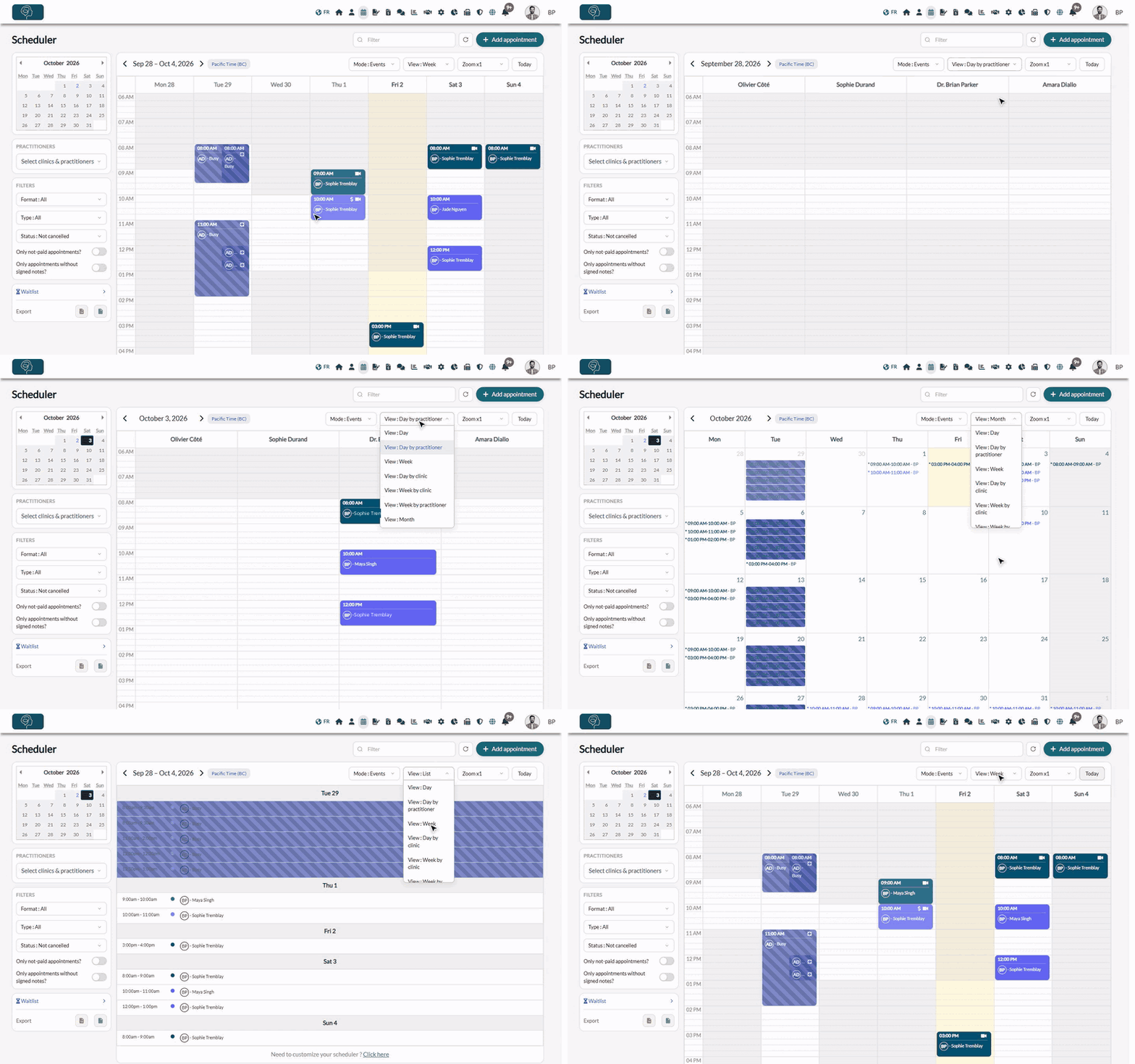
1Choose a view
- Go to www.colib.io/scheduler.
- Above the calendar, click the View list (it shows the current view, for example View : Week).
- Click the view you want. The calendar changes right away.
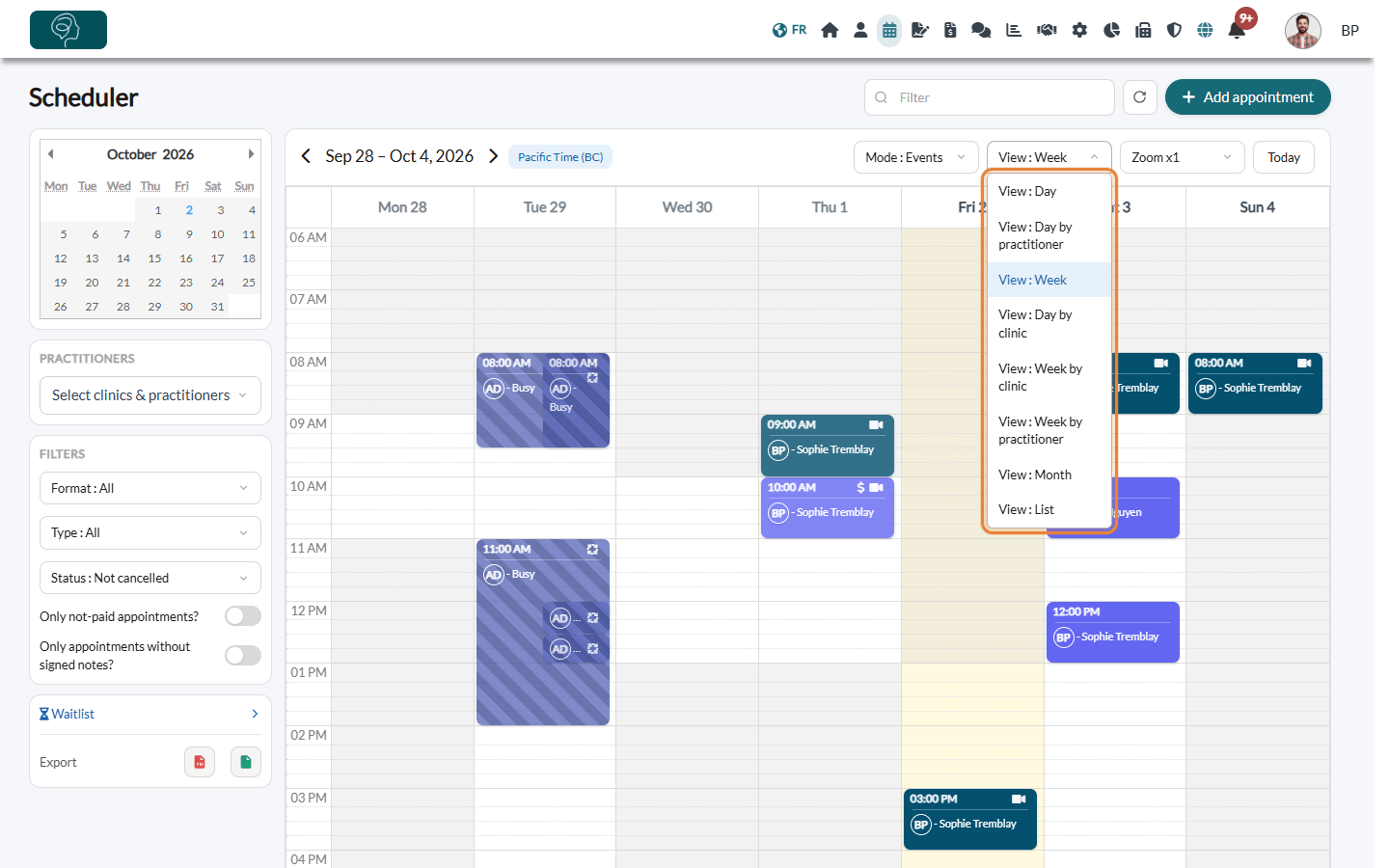
| View | What you see |
|---|---|
| Day | One day, hour by hour, with the appointments of all the selected practitioners in the same column. |
| Day by practitioner | One day with one column per selected practitioner. Ideal at the front desk to see who is free. |
| Week | Seven days, hour by hour. This is the default view. |
| Week by practitioner | Seven days, each day split into one column per selected practitioner. |
| Day by clinic / Week by clinic | One column per clinic, to compare your locations side by side. Only shown when your practice has several clinics. |
| Month | The whole month, with the start and end time of each appointment. When a day is full, a link shows the other appointments. |
| List | The appointments of the week as a list, grouped by day. Handy to read your day at a glance. |
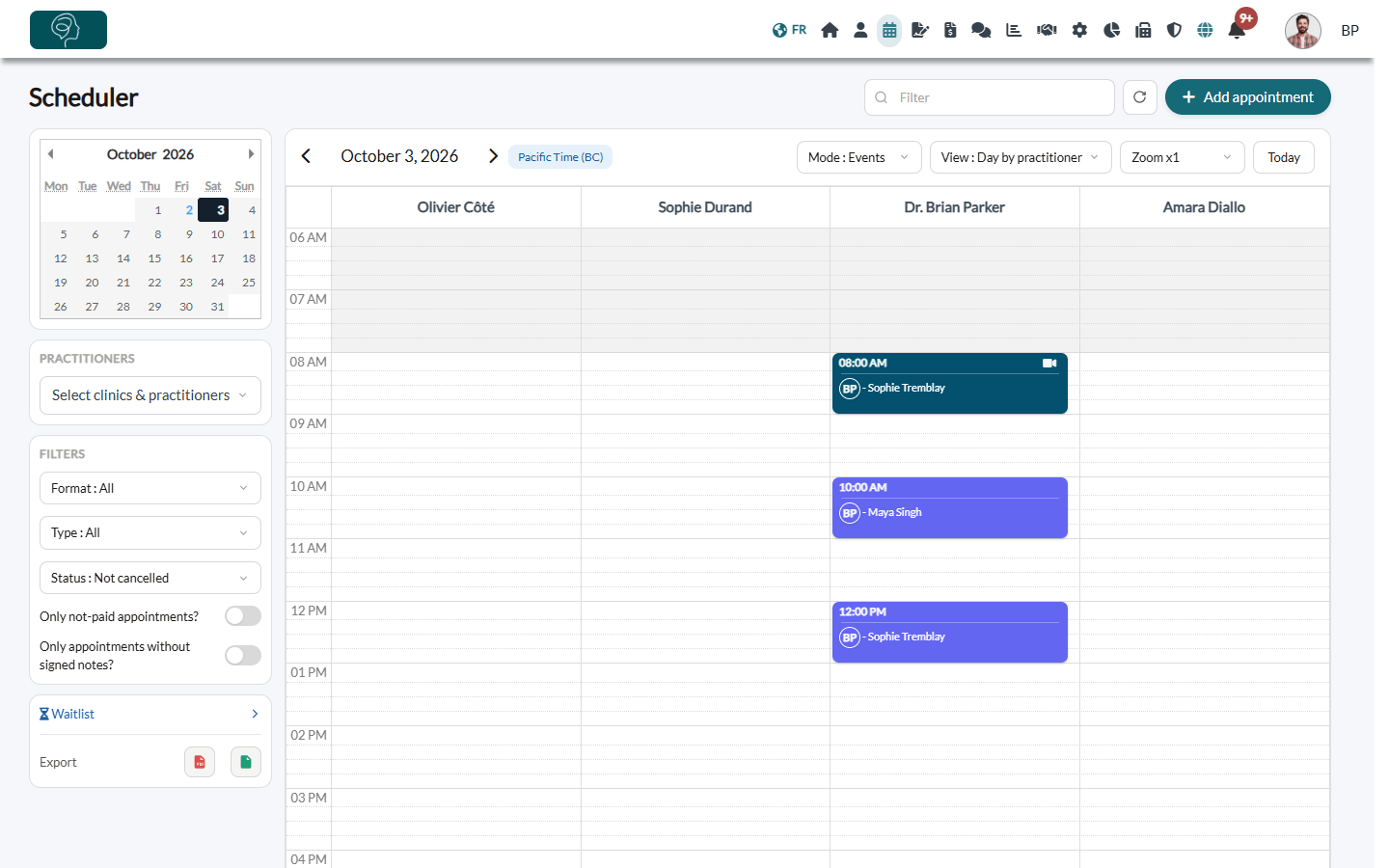
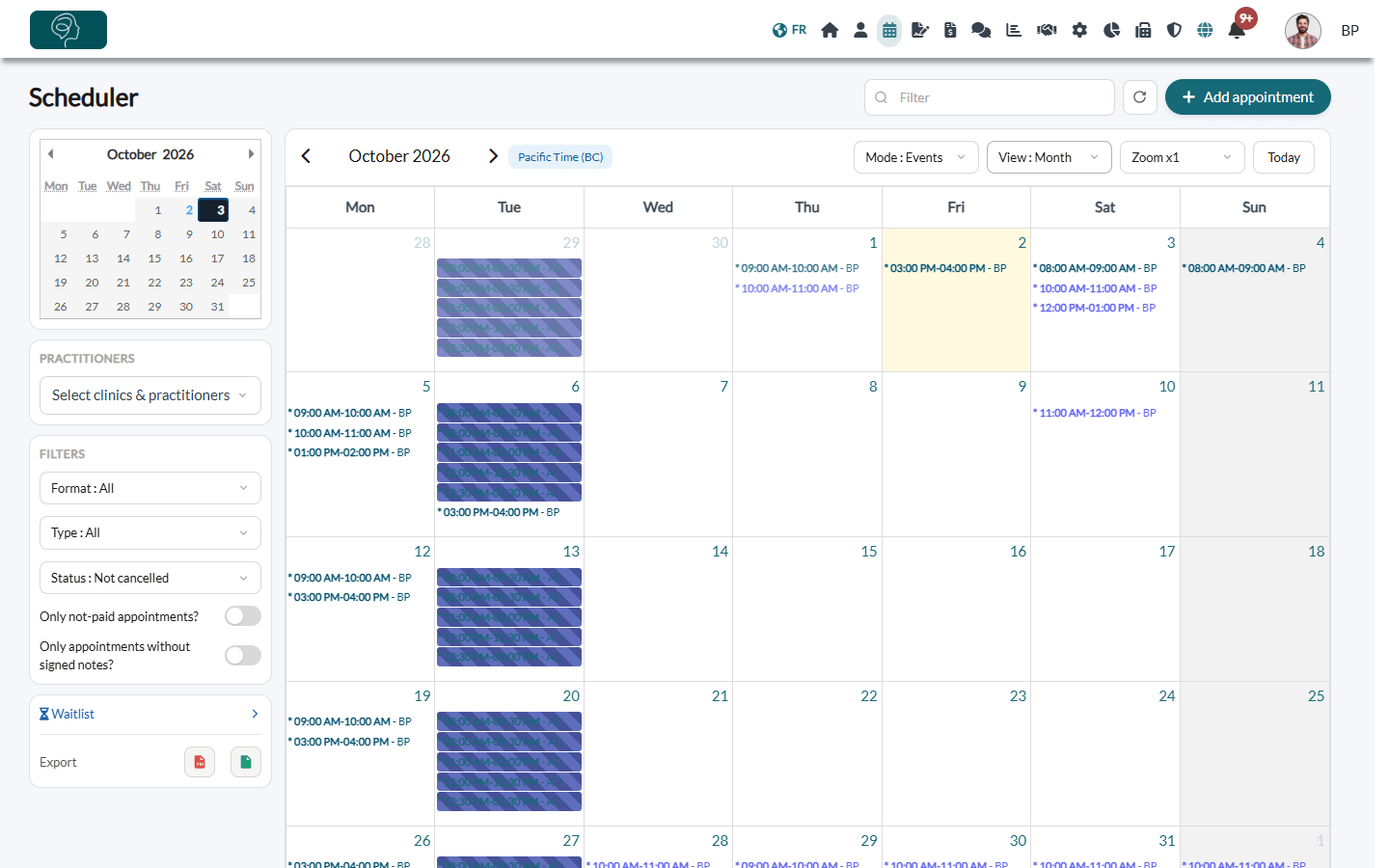
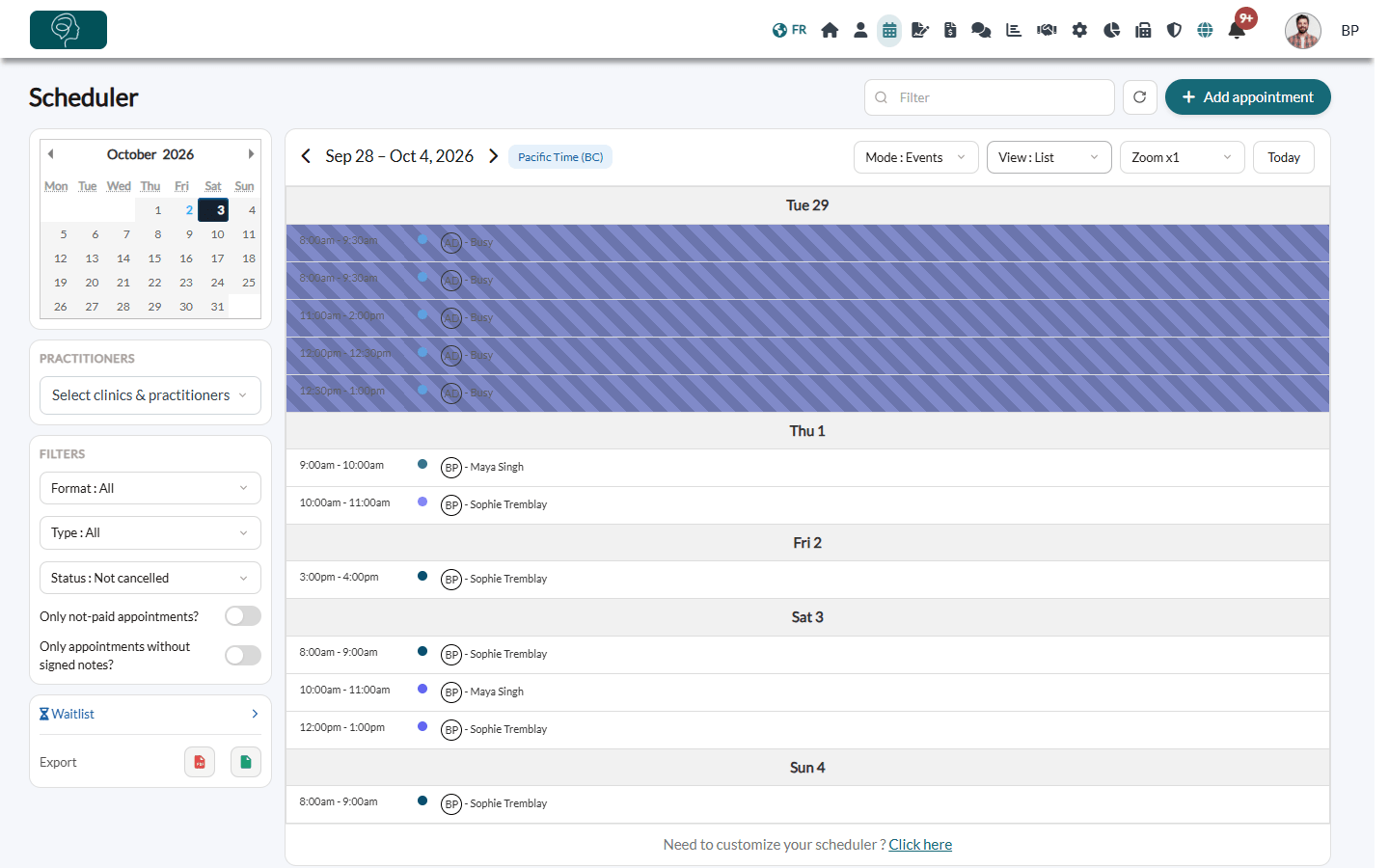
Click an appointment in any view to open it. In the hourly views, you can also click a free time slot to create an appointment at that time (see How to create an appointment).
2Move through the dates
- Arrows — the arrows on each side of the dates, above the calendar, show the previous or next day, week or month, depending on the view.
- Today — brings you back to the current date.
- Small calendar — on the left, click any date to jump to it. Use its arrows to change month.
- Day names — in the week and month views, click the name or number of a day to open that day.
The badge next to the dates shows the time zone in which the appointments are displayed. Click it to open your profile, where your time zone is set (see How to manage a multi-time zone practice?).
3Adjust the zoom
The Zoom list, next to View, changes the height of the time slots, from Zoom x0.25 (the whole day on one screen) to Zoom x4 (more room to read short appointments). Zoom x1 is the normal size.
4Switch to the Rooms or Availability mode
The Mode list, on the left of View, changes what the scheduler is organized around:
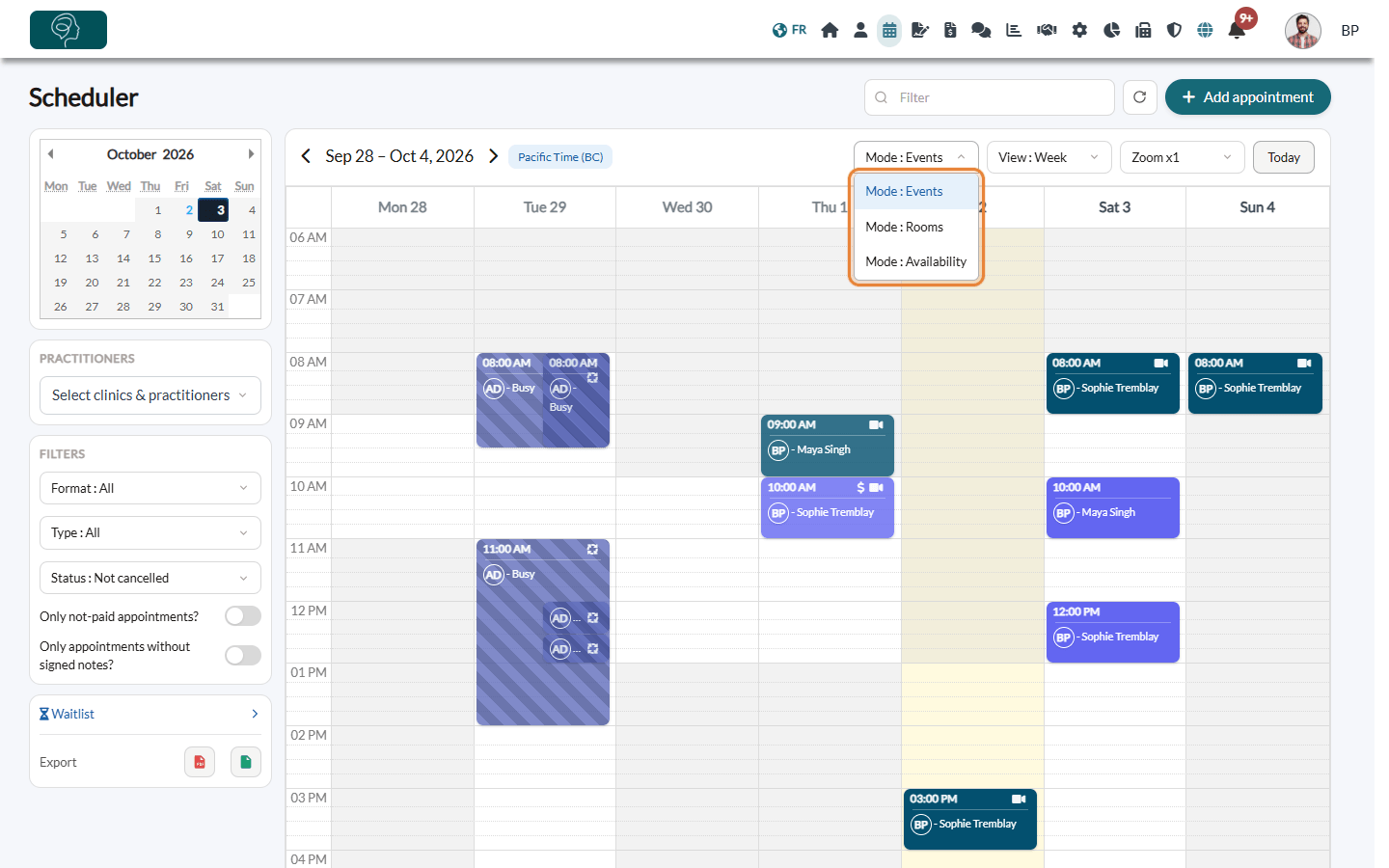
| Mode | Use it to |
|---|---|
| Events | See and manage the appointments, tasks and blocked time of the selected practitioners. This is the usual mode, with all the views above. |
| Rooms | See how your rooms are booked, with the Day by room and Week by room views (one column per room). Choose the rooms to display in the Rooms box on the left. The No room column shows the appointments that have no room. Only shown when your practice has rooms (see How to manage your practice rooms). |
| Availability | See and edit the shifts of one practitioner, chosen on the left. The Add appointment button becomes Add shift (see How to manage your shifts (extra availability)). |
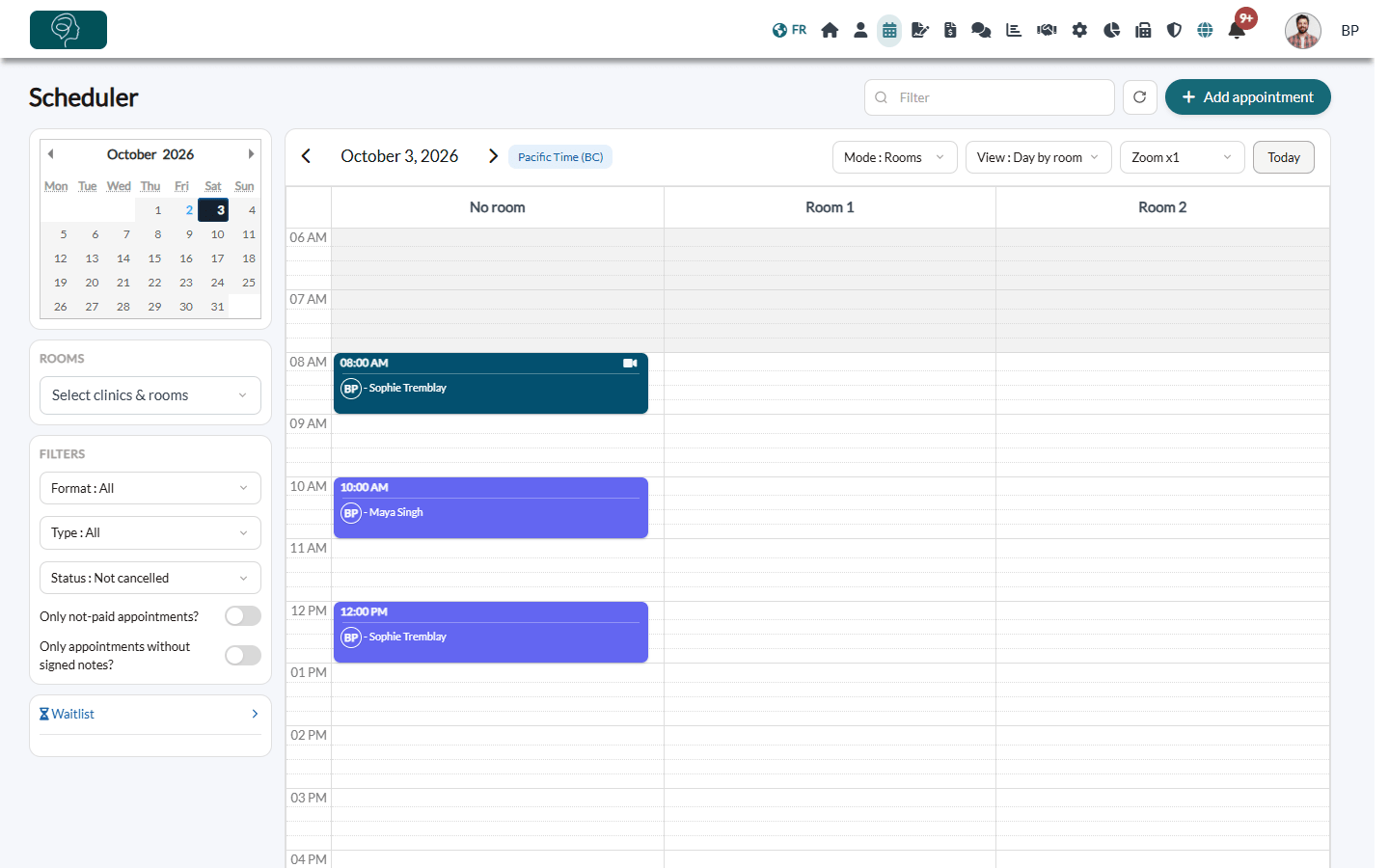
To come back to your appointments, choose Mode : Events.
Good to know
- Your view is remembered — Colib reopens the scheduler in the last view you chose, on the same computer and browser. On another device, you start again from the default view.
- Default view — the Week view. On a phone, the scheduler opens in the Day view.
- Which practitioners are shown — the "by practitioner" views show one column for each practitioner selected on the left. To choose them, and to filter by clinic, by type or by payment status, please see the article titled "How do I filter the scheduler (practitioners, clinics, unpaid appointments, appointments without a signed note)?".
- Hours displayed — by default, the hourly views go from 6 a.m. to 9 p.m. To show the whole day, use 24-hour times or start the week on Sunday, go to Settings > Scheduler (www.colib.io/settings?show=scheduler), or click Click here under the calendar (Need to customize your scheduler ?).
- Colors and icons — see Can I use the color code for different appointment types? and What do the icons on appointments represent?
- Several clinics — see How do filters change in Colib after creating several clinics?
Still have a question?
Write to us at support@colib.io, we will be happy to help.
Was this article helpful?
That’s Great!
Thank you for your feedback
Sorry! We couldn't be helpful
Thank you for your feedback
Feedback sent
We appreciate your effort and will try to fix the article