What is a shift?
A shift is a block of time during which a practitioner is available to take appointments. Think of it as an extra working window you add on top of your regular schedule. You can use them in addition to availability groups, which provide a weekly working-time framework.
Shifts are useful because they let you open availability without changing your regular opening hours or availability groups:
- A time slot that falls inside a shift becomes bookable online, even if it's outside your usual opening hours.
- You choose which appointment types can be booked during the shift (all of them, or a specific list).
- Shifts are ignored on days off: if the day is a holiday or you're marked absent, the shift does not open any availability.
- A slot inside a shift stays unavailable if you already have an appointment at that time (and, for appointment types that require a room, if no room is free).
▎ In short: shifts = additional bookable availability for a specific practitioner, on specific dates.
---
How to view/create/manage shifts ?
1. Open the Scheduler.
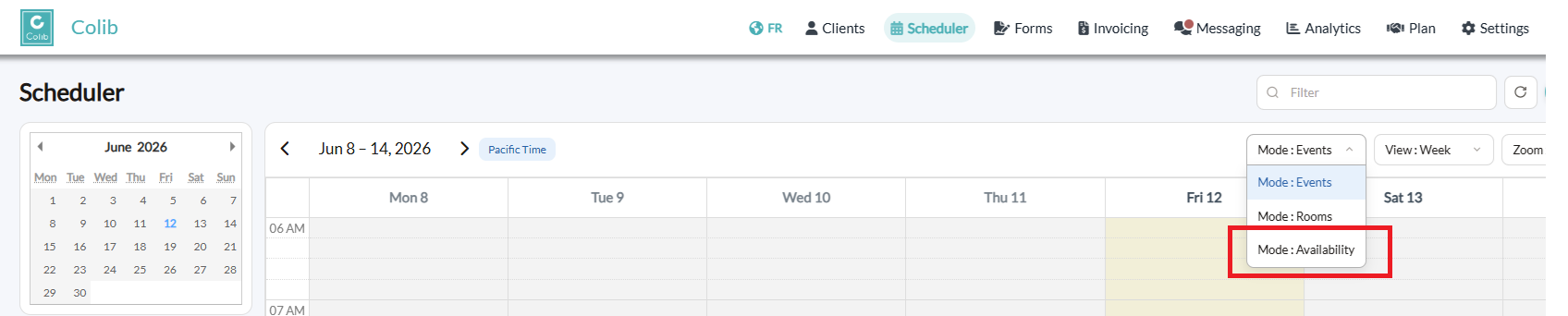
2. At the top of the calendar, open the Mode dropdown and choose Availability.
3. On the left, a Practitioner selector appears — pick the practitioner whose shifts you want to manage.
- You'll only see other practitioners if your account is allowed to (otherwise you manage your own shifts only).
4. The greyed-out areas show when the practitioner is not normally available; your existing shifts appear as coloured blocks.
---
Creating a shift
You have two ways to create a shift:
Option A — pick a time on the calendar
1. In Availability mode, click and drag over the desired time range directly on the calendar.
2. The shift window opens, pre-filled with that start and end time.
Option B — use the "Add shift" button
1. Click Add shift (top right). A new shift is started for the current day/time.
Then, in the shift window:
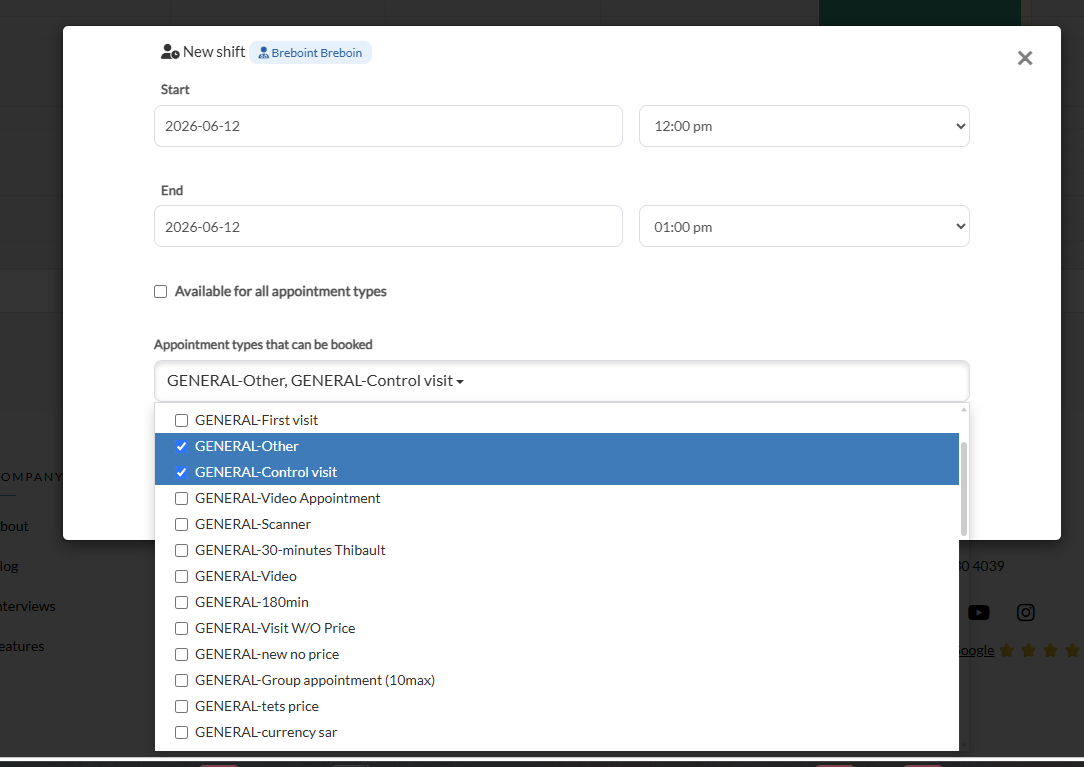
1. Check the start and end date/time (adjust with the date picker and the time dropdowns).
2. Available for all appointment types is on by default — leave it on if any appointment type can be booked during this shift.
3. To restrict it, uncheck that box: a list appears where you select the specific appointment types that can be booked.
4. Click Save.
The shift now appears on the calendar. A small ✱ icon indicates a shift open to all appointment types.
---
Viewing your shifts
- In Availability mode, your shifts are shown as coloured blocks on the calendar for the selected practitioner.
- Use the date navigation (previous/next, mini calendar) to browse other weeks; the shifts reload automatically.
---
Editing or moving a shift
- Edit details: click a shift to reopen the window, change the dates/times or appointment types, then Save.
- Move / resize: drag the shift to another time, or drag its edge to change its duration. The change is saved automatically (no confirmation needed).
---
Deleting a shift
1. Click the shift to open it.
2. Click Delete this shift.
The shift is removed and its availability no longer applies.
---
Good to know
- Shifts apply to one practitioner at a time.
- They add availability — they never remove your regular opening hours.
- They have no effect on days marked as absence or on public holidays.
- The extra availability created by shifts is used by the online booking so clients can book during those times.
Was this article helpful?
That’s Great!
Thank you for your feedback
Sorry! We couldn't be helpful
Thank you for your feedback
Feedback sent
We appreciate your effort and will try to fix the article