Who is this article for?
Colib has three ways to say when your clients can book online: the opening hours of the practice, the availability of each practitioner, and availability groups. This article explains what each one does, how Colib combines them to show the free time slots on your booking page, and which one to use for your situation.
In short: the opening hours are the default schedule of every practitioner. A practitioner who sets their own availability uses it instead of the opening hours. Availability groups let you give different hours to different appointment types. Shifts add occasional extra hours. All of this only applies to online booking: your team can always add an appointment by hand in the scheduler.
The options at a glance
| Option | What it does | Use it when |
|---|---|---|
| Opening hours Settings > General | The hours of the practice. They apply to every practitioner who has not set their own availability, and they are shown on your public page. | Everyone works the same hours, or you work alone. |
| Practitioner availability Settings > Personal > Availability | The weekly hours of one practitioner. They replace the opening hours for that person. | Your practitioners do not all work the same days or hours. |
| Availability groups Settings > Availability | Time windows linked to appointment types (and, if you want, to one practitioner or to dates). | The hours depend on the service: in-person on Monday and Tuesday, online on Thursday evening, assessments only in the morning... |
| Shifts Scheduler, Mode : Availability | An extra window, on a given date, during which a practitioner can be booked online, in addition to their usual hours. | A practitioner occasionally works outside their usual hours. |
Opening hours of the practice
- Go to Settings > General (www.colib.io/settings?show=general) and scroll down to Opening Hours.
- For each day, choose Open or Closed, then the start and end times. You can add one break per day.
- Click Save.
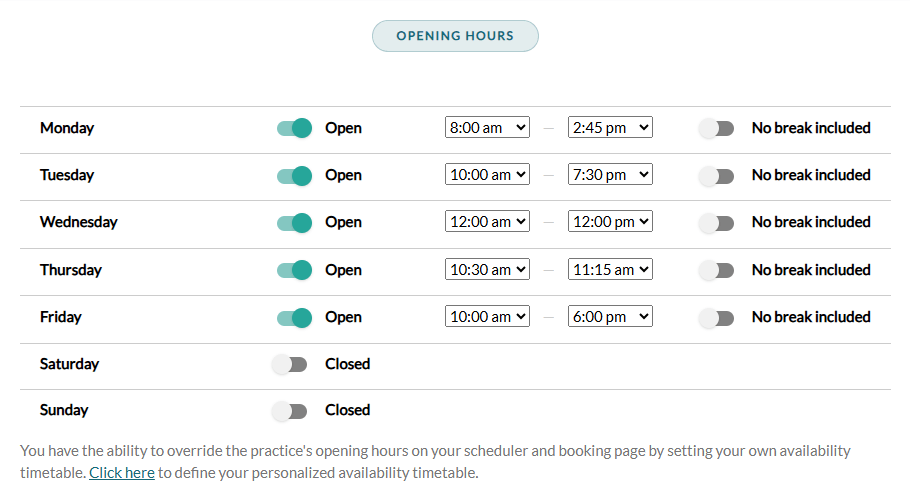
The opening hours also set the light and greyed areas in the background of your scheduler, and they are displayed on your public page. You need access to the practice settings to change them.
Availability of each practitioner
By default, every practitioner follows the opening hours of the practice. To set a practitioner's own schedule, from their account:
- Go to Settings > Personal > Availability (www.colib.io/settings?show=personalscheduler).
- Turn off Use the practice opening hours. The Booking Availability grid appears.
- Set the days and hours (one range per day, with one optional break), in the time zone shown under the grid, then save.
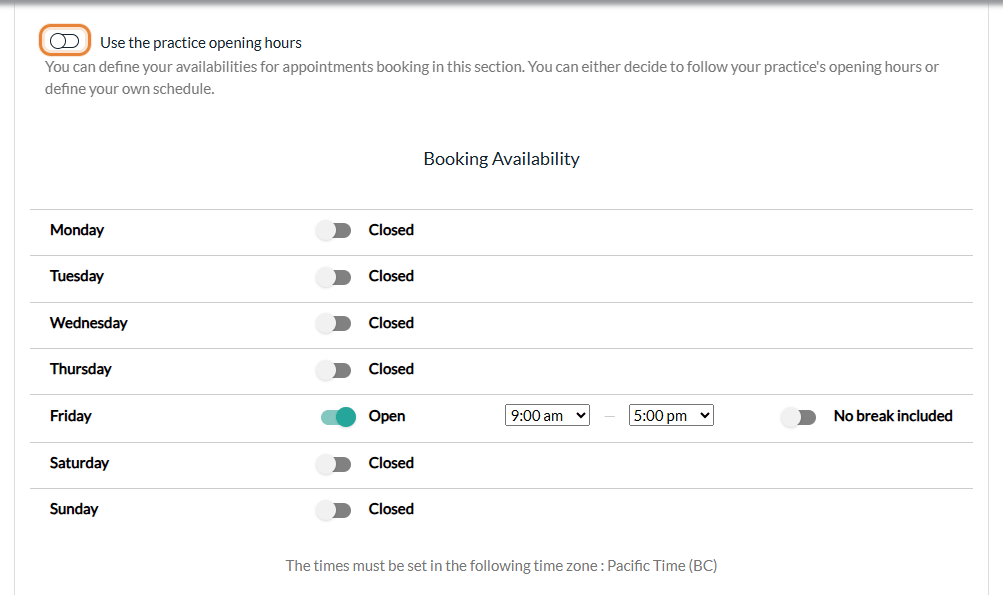
An administrator can do the same for a team member: Settings > Team (www.colib.io/settings?show=team), pencil icon of the member, Availability section. The Daily maximum number of authorized appointments, on the other hand, is only on the practitioner's own Settings > Personal > Availability page, not in the team member window.
Replace, not add up: once a practitioner has their own availability, the opening hours of the practice no longer apply to them for online booking. If the practice is open on Saturday but the practitioner's own schedule is closed that day, clients cannot book them on Saturday, and the other way around. Turning Use the practice opening hours back on and saving deletes the practitioner's own schedule.
See also How can I update the days/hours that I work?
Availability groups
Availability groups are for practices whose hours depend on the appointment type. They are set in Settings > Availability (www.colib.io/settings?show=availability), section Availability Groups.
- Turn on Enable Availability Groups.
- Choose whether to turn on Ignore the opening hours of the clinic and of the practitioners (see the next section).
- Click Add group. Give the group a name, set its weekly hours, choose its Applicable appointment types, and optionally a practitioner (no practitioner = all practitioners) and dates (Is temporary ?).
- Click Save.
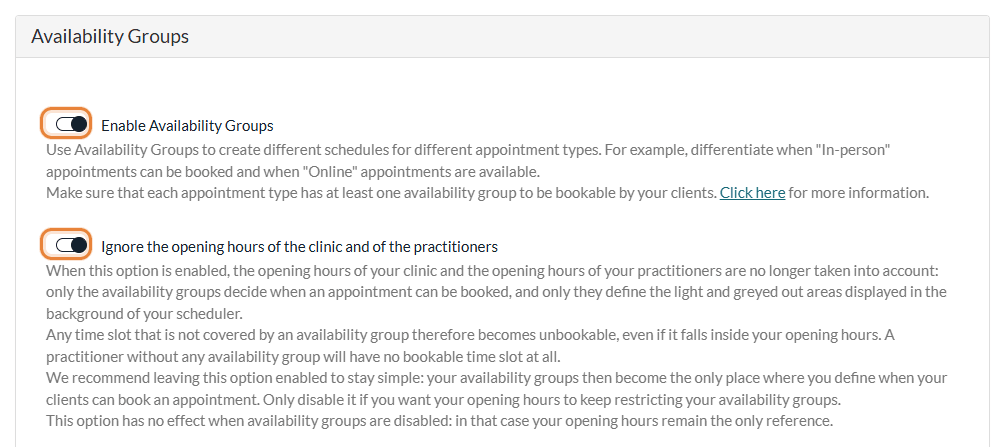
Important: once availability groups are turned on, an appointment type with no group can no longer be booked online, and a practitioner with no group has no bookable time slot. Check that each bookable appointment type has at least one group.
For the full procedure, see How can I customize my availability with availability groups?
How Colib combines them
For each practitioner and each day, the free time slots of your booking page come from:
| Your settings | Hours offered to your clients |
|---|---|
| Availability groups turned off | The practitioner's own availability if they have one, otherwise the opening hours of the practice. |
| Groups on, Ignore the opening hours... on | Only the availability groups. The opening hours and the practitioners' availability are no longer taken into account (they also stop setting the greyed areas of the scheduler). |
| Groups on, Ignore the opening hours... off | Only the times that are both in a group of the appointment type and in the practitioner's hours (their own availability, otherwise the opening hours). |
Then, in every case:
- Shifts are added on top, even on a day that is otherwise closed. See How to manage my shifts — and what is it?
- Some times are removed: statutory holidays (unless Allow bookings during national and provincial statutory holidays is on), pauses (How to configure pauses/absences?), days when the practitioner has reached their daily maximum, and the times already taken by an appointment or another event of the practitioner, including the buffer times of the appointment type.
- The booking window of the appointment type (how long in advance clients can book) and the Time between available appointment slots of your booking page decide which start times are shown. See Time intervals for my online calendar availability.
Which one should I use?
| Your situation | What to set |
|---|---|
| You work alone, or the whole team works the practice's hours | The opening hours only. |
| Each practitioner has their own days and hours | The opening hours for the practice, and each practitioner's own availability. |
| Some services are only offered at certain times (online vs in person, assessments, groups...) | Availability groups. Keeping Ignore the opening hours... on is the simplest: the groups are then the only place where you set when clients can book. |
| You work a split day (morning and evening, for example) | Use the break of the day in the opening hours or in the practitioner's availability, or create availability groups. |
| A practitioner adds hours from time to time | A shift on that date. |
| Vacation or time off | A pause (whole days), in Settings > Availability > Appointment Pauses. |
Good to know
- Online booking only — these settings decide what your clients can book online and on the waitlist. They do not stop your team from creating an appointment by hand in the scheduler outside these hours.
- One window per slot — with availability groups, a time slot must fit entirely inside one window of a group. With two groups from 9:00 to 12:00 and from 12:00 to 15:00, a one-hour appointment at 11:30 is not offered.
- Several clinics — the opening hours, the practitioners' availability, the availability groups, the shifts and the pauses are shared by the whole account: each practitioner has a single weekly schedule for all the clinics, and an appointment in one clinic makes the practitioner unavailable in the others at that time. Only the Time between available appointment slots can be set per clinic. See How to configure a multi-clinic (multi-location) practice?
- A practitioner does not appear on the booking page at all? — the hours are not the only reason: check that the practitioner is available for online booking and authorized for the appointment type.
Still have a question?
Write to us at support@colib.io, we will be happy to help.
Was this article helpful?
That’s Great!
Thank you for your feedback
Sorry! We couldn't be helpful
Thank you for your feedback
Feedback sent
We appreciate your effort and will try to fix the article