Who is this article for?
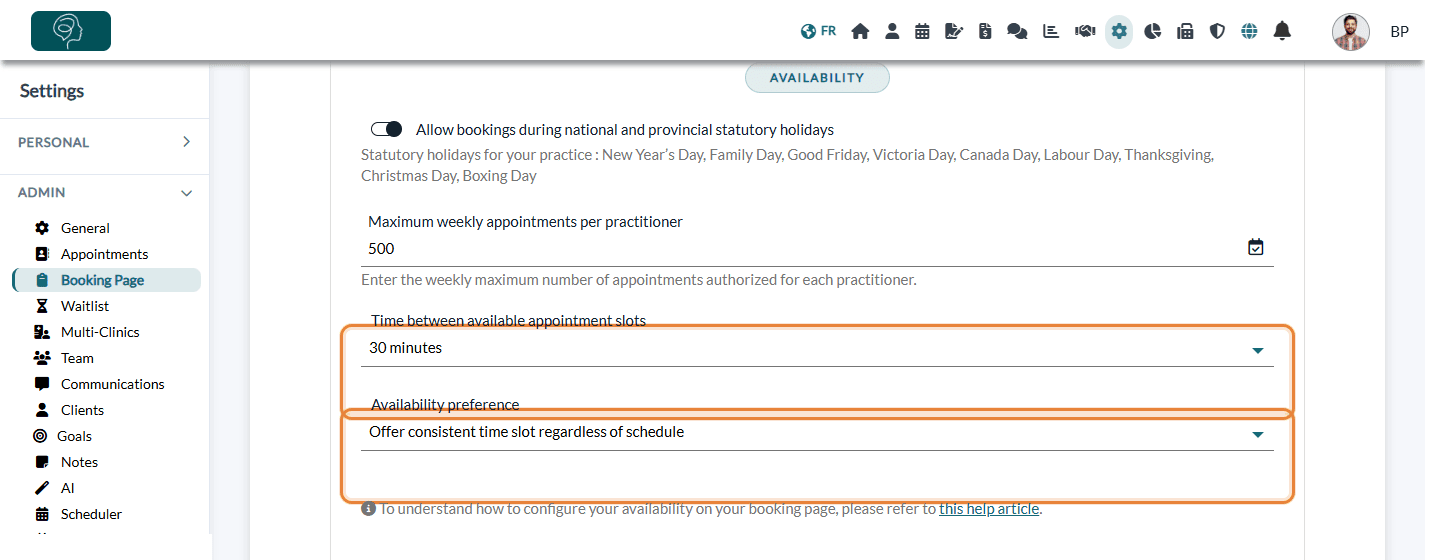
On your online booking page, Colib offers your clients start times at regular intervals: for example 9:00, 9:30, 10:00... You choose this interval. A short interval offers more choice; a longer one gives a tidier schedule.
This article explains where to set this interval, how Colib uses it to build the times offered, and the setting that lets you offer a time right after an existing appointment.
Before you start: these settings are only visible when the Client booking type is Online booking by client (Settings > Booking Page, www.colib.io/settings?show=bookingpage). See How do I set up the booking process in Colib?
1Choose the time between slots
- Go to Settings > Booking Page (www.colib.io/settings?show=bookingpage).
- Open the Direct Booking section and scroll down to Availability.
- In Time between available appointment slots, choose a value between 5 and 240 minutes.
- Optionally, choose your Availability preference (see below).
- Click Save at the bottom of the page.
2How the times are calculated
Colib starts at the beginning of each availability period (opening hours, availability group, end of a break) and then moves forward by the interval you chose. A time is offered only if the whole appointment, including its buffers, fits in the availability and does not overlap another appointment.
Example: availability from 9:00 to 12:00, interval of 30 minutes, appointment of 50 minutes. Your clients are offered 9:00, 9:30, 10:00, 10:30 and 11:00. 11:30 is not offered, because the appointment would end after 12:00.
3Availability preference
| Option | What your clients see |
|---|---|
| Offer consistent time slot regardless of schedule | Always the same regular times (9:00, 9:30, 10:00...), whatever the appointments already booked. A time that overlaps an existing appointment is simply not offered. |
| Offer a time slot as soon as it's available | Colib also offers a time right when an existing appointment ends. For example, if an appointment ends at 10:15, 10:15 is offered and the next times follow from there. This fills the gaps in your day. |
Practices with several clinics
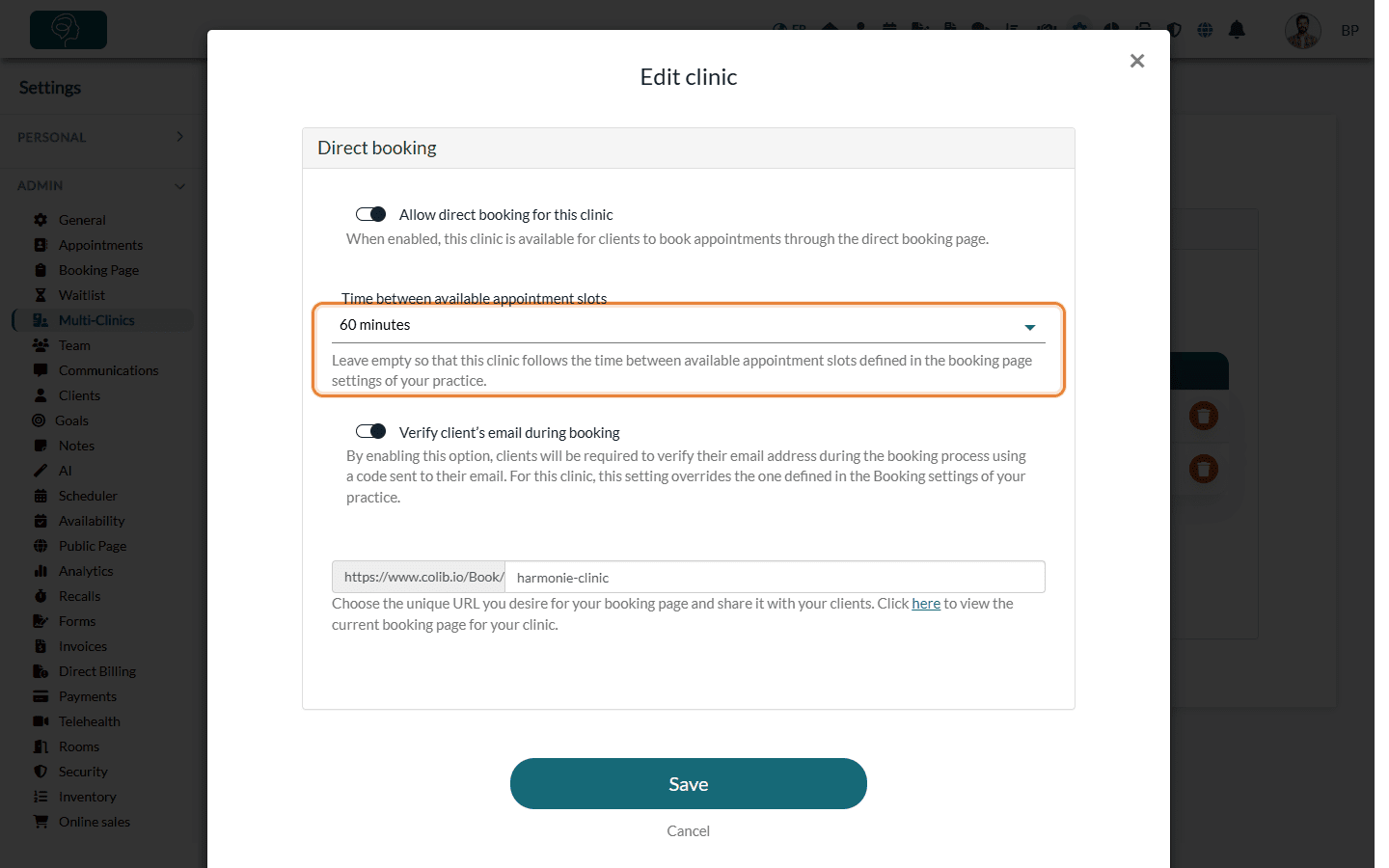
Each clinic can have its own interval. Go to Settings > Multi-Clinics (www.colib.io/settings?show=clinics), click the pencil icon of the clinic, open Direct booking and choose a value in Time between available appointment slots. Leave Use the practice setting to keep the interval of the Booking Page settings.
Good to know
- Only the booking page — this interval only applies to the times offered to your clients online. In the scheduler, your team can still create an appointment at any time.
- Group classes — for appointment types booked as classes, the interval does not apply: clients see the sessions you created in the scheduler, at their own start time.
- Shape your availability — to offer certain appointment types only on some days or times, use availability groups: How can I customize my availability with availability groups?
- Avoid last-minute bookings — the booking window and the buffers before and after an appointment are set on each appointment type: How can I manage the timing of client bookings?
Still have a question?
Write to us at support@colib.io, we will be happy to help.
Was this article helpful?
That’s Great!
Thank you for your feedback
Sorry! We couldn't be helpful
Thank you for your feedback
Feedback sent
We appreciate your effort and will try to fix the article