Who is this article for?
You sometimes work outside your usual hours: an extra Saturday morning, an evening, a replacement? A shift lets you open these extra time slots to online booking, without changing your regular opening hours or your availability groups. This article explains what a shift is and how to create, view, edit and delete your shifts.
What is a shift?
A shift is a block of time during which a practitioner is available to take appointments. Think of it as an extra working window you add on top of your regular schedule. You can use shifts in addition to availability groups, which provide a weekly working-time framework.
- A time slot that falls inside a shift becomes bookable online, even if it is outside your usual opening hours.
- You choose which appointment types can be booked during the shift: all of them, or a specific list.
- Shifts are ignored on days off: on a day covered by an appointment pause, or on a public holiday (unless your clinic allows bookings on public holidays), the shift does not open any availability.
- A slot inside a shift stays unavailable if the practitioner already has an appointment or an event at that time (and, for appointment types that require a room, if no room is free).
In short: shifts = additional bookable availability for a specific practitioner, on specific dates.
1Open the Availability mode
- Go to your Scheduler (www.colib.io/scheduler).
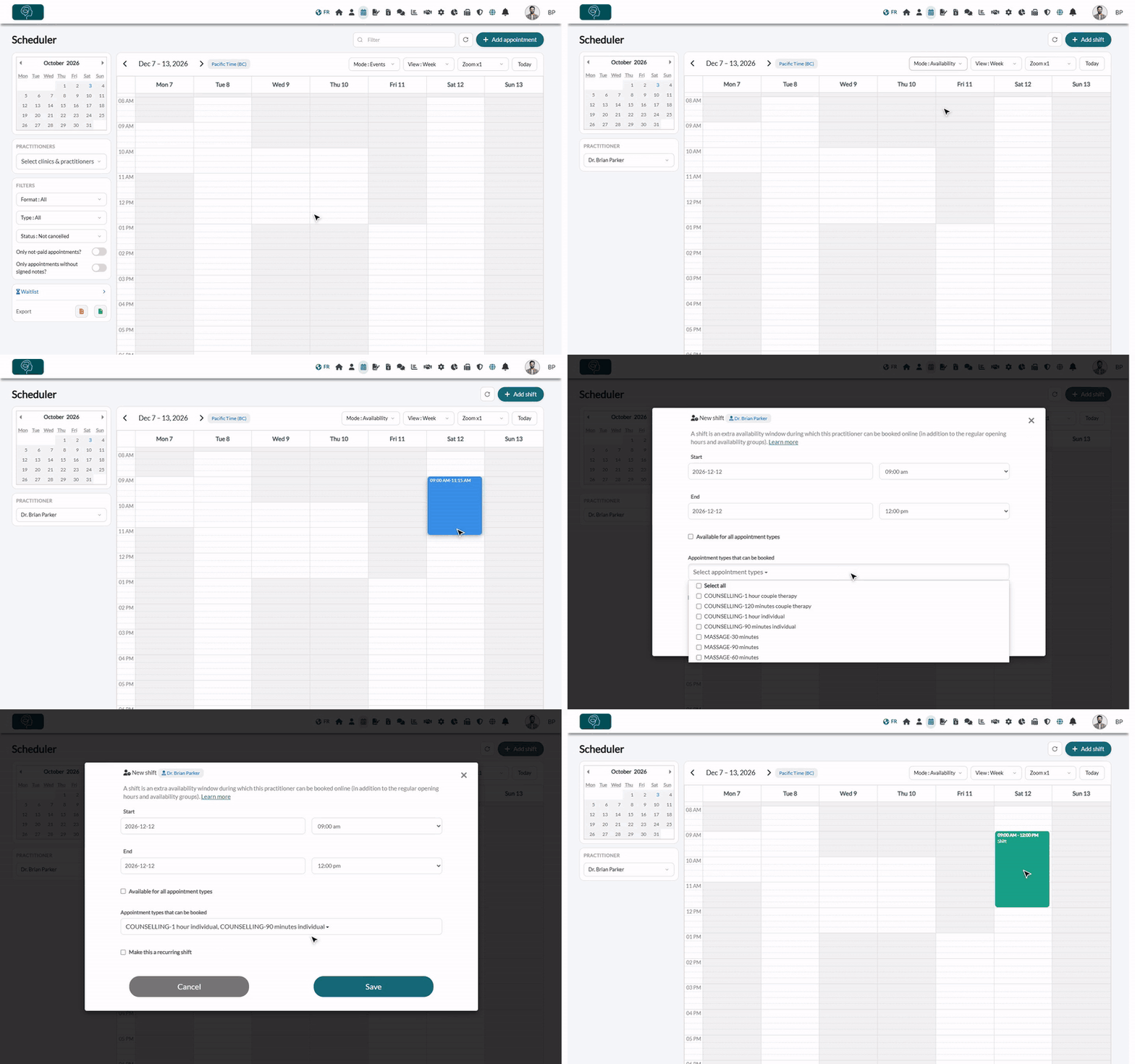
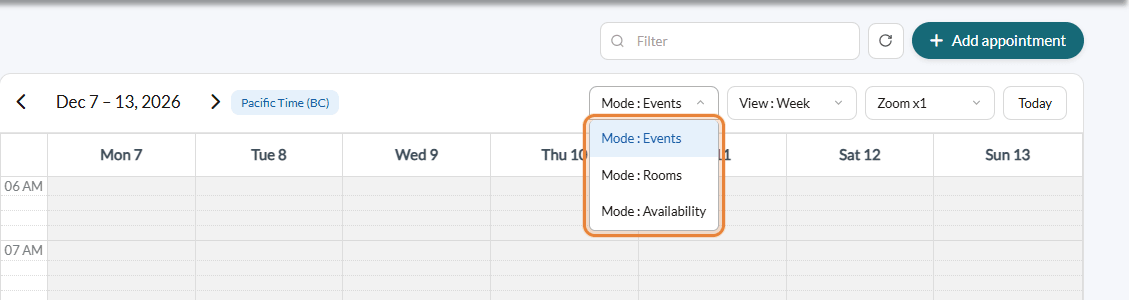
- At the top of the calendar, open the Mode list and choose Mode : Availability.
- On the left, a Practitioner selector appears: pick the practitioner whose shifts you want to manage. You only see the other practitioners if your account is allowed to manage them (administrator who can see the data of the other practitioners); otherwise you manage your own shifts only.
- The greyed-out areas show when the practitioner is not normally available; the existing shifts appear as colored blocks. The Add appointment button becomes Add shift.
2Create a shift
You have two ways to create a shift:
- Option A — pick a time on the calendar: click and drag over the desired time range directly on the calendar. The shift window opens, pre-filled with that start and end time.
- Option B — use the button: click Add shift (top right). A new shift is started for the current day and time.
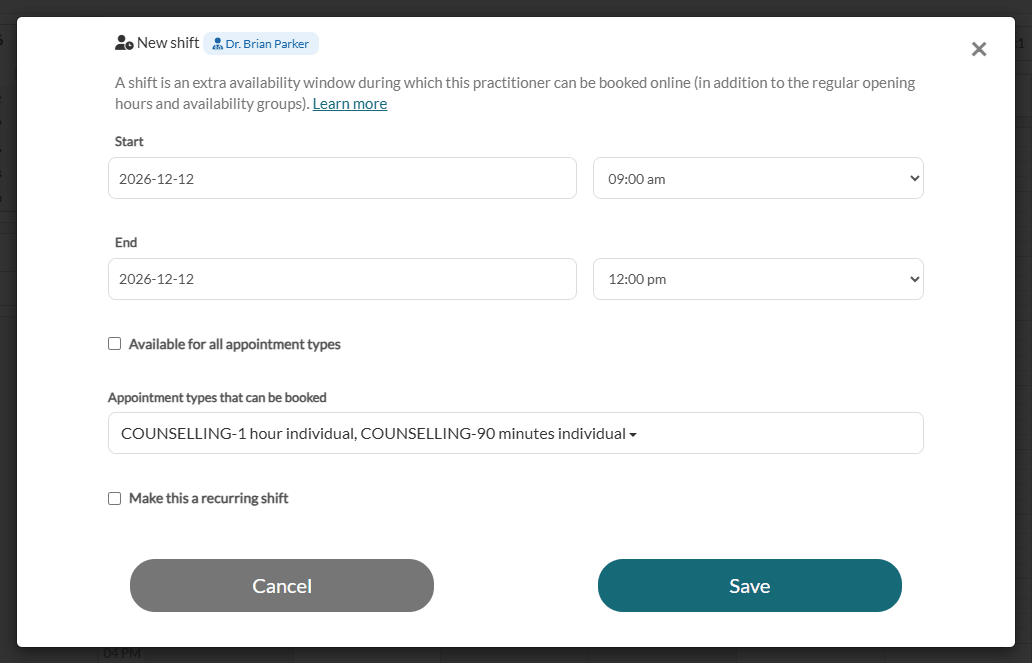
Then, in the shift window:
- Check the Start and End date and time (adjust them with the date picker and the time lists).
- Available for all appointment types is checked by default: leave it checked if any appointment type can be booked during this shift.
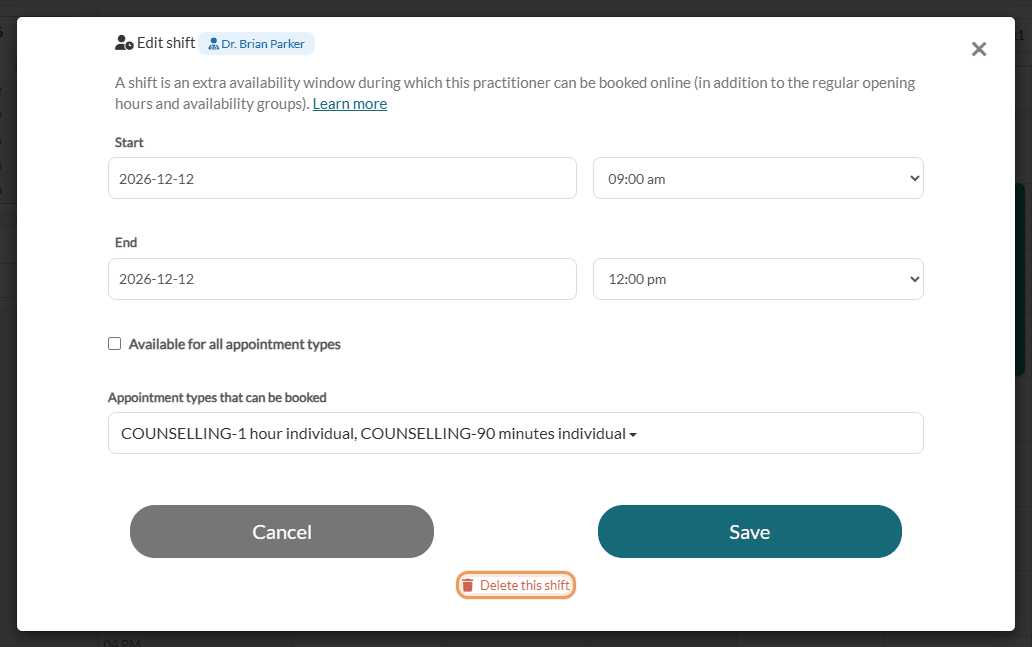
- To restrict it, uncheck that box: the Appointment types that can be booked list appears, where you select the specific appointment types.
- Click Save.
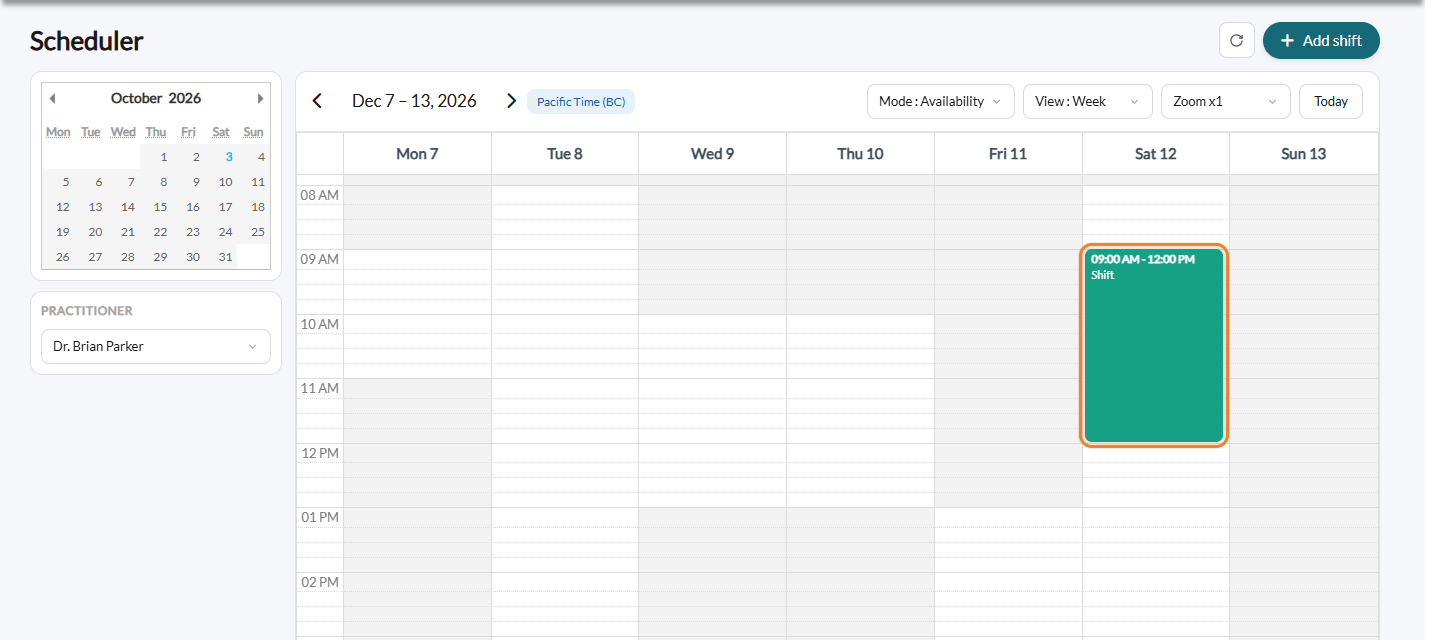
The shift now appears on the calendar. A small asterisk (✱) at the beginning of a shift indicates a shift open to all appointment types.
3Repeat a shift (optional)
If you work the same extra hours regularly, create a recurring shift instead of adding each one by hand. This option is only available when you create a shift:
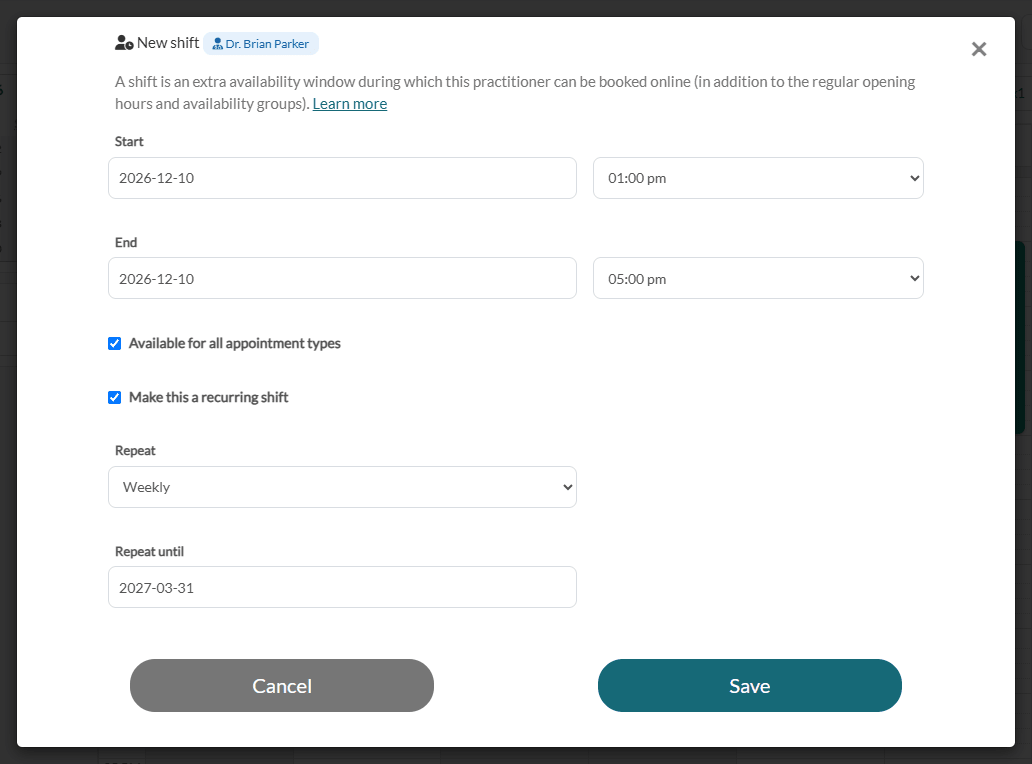
- In the new shift window, check Make this a recurring shift.
- In Repeat, choose how often: Daily, Weekly, or every 2 to 8 weeks.
- In Repeat until, choose the date of the last shift, then click Save. All the shifts of the series are created at once, with the same hours and appointment types.
4View, edit, move or delete a shift
- View — in the Availability mode, the shifts of the selected practitioner are shown as colored blocks. Use the date navigation (previous/next, small calendar) to browse other weeks: the shifts reload automatically.
- Edit details — click a shift to reopen the window, change the dates, times or appointment types, then click Save.
- Move or resize — drag the shift to another time, or drag its bottom edge to change its duration. The change is saved automatically (no confirmation needed).
- Delete — click the shift to open it, then click Delete this shift and confirm. For a shift that is part of a series, choose This shift only or All upcoming shifts. The shift is removed and its availability no longer applies.
Good to know
- One practitioner at a time — a shift applies to one practitioner only.
- Shifts only add availability — they never remove your regular opening hours. To stop bookings on some days, use an appointment pause: see How to pause online bookings (vacations, absences, closures).
- Online booking — the extra availability created by shifts is used by the online booking, so clients can book during those times.
- Events mode — when a single practitioner is displayed in the Mode : Events view, the hours of their shifts appear as available (light) areas.
- Regular hours — to change the hours you work every week, see How can I update the days and hours that I work? and How to customize your availability with availability groups
Still have a question?
Write to us at support@colib.io, we will be happy to help.
Was this article helpful?
That’s Great!
Thank you for your feedback
Sorry! We couldn't be helpful
Thank you for your feedback
Feedback sent
We appreciate your effort and will try to fix the article