Who is this article for?
Your working days and hours tell Colib when clients can book an appointment with you online. They also draw your scheduler: the light areas are the times when you work, the greyed areas are outside your hours.
You can either follow the opening hours of your practice, or set your own weekly schedule. This article explains how to change your days and hours in both cases, and what to check if your clinic uses availability groups.
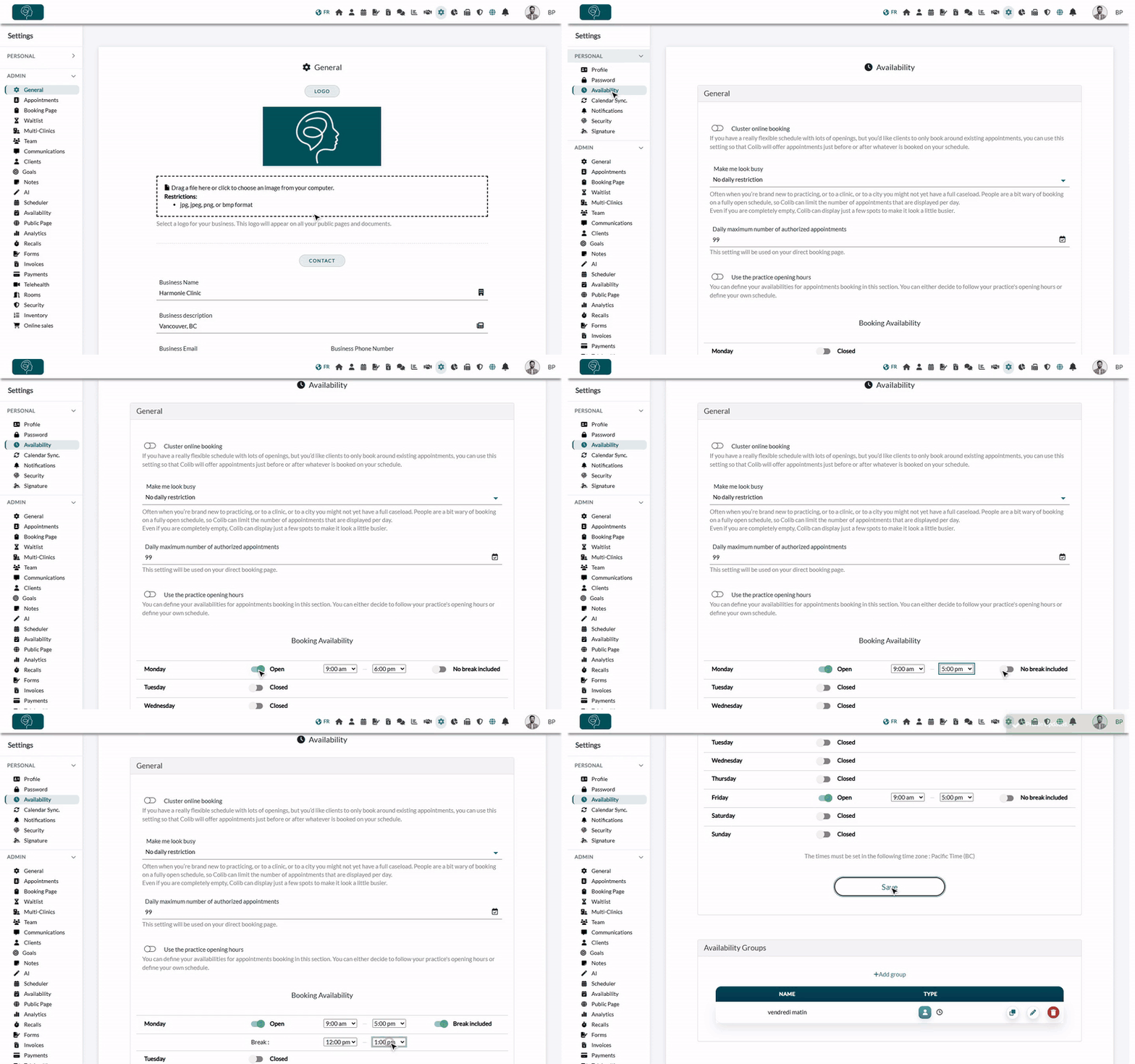
1Open your availability
- Go to your availability tab: www.colib.io/settings?show=personalscheduler. You can also click the Settings icon (gear) in the top bar, open the Personal menu on the left, then click Availability.
- Look at the Use the practice opening hours switch in the General section. There are 2 possibilities depending on this option (see steps 2 and 3).
2If you do not use the practice opening hours: edit your own schedule
When Use the practice opening hours is turned off, you edit your booking availability directly on this tab, in the Booking Availability table:
- For each day, use the switch to choose Open or Closed.
- For an open day, choose the start and end times (by steps of 15 minutes), or All day in the first list.
- To exclude a lunch break, turn on Break included: a Break line appears below the day, where you choose the start and end of the break.
- Click Save. The message Profile Updated. confirms the change.
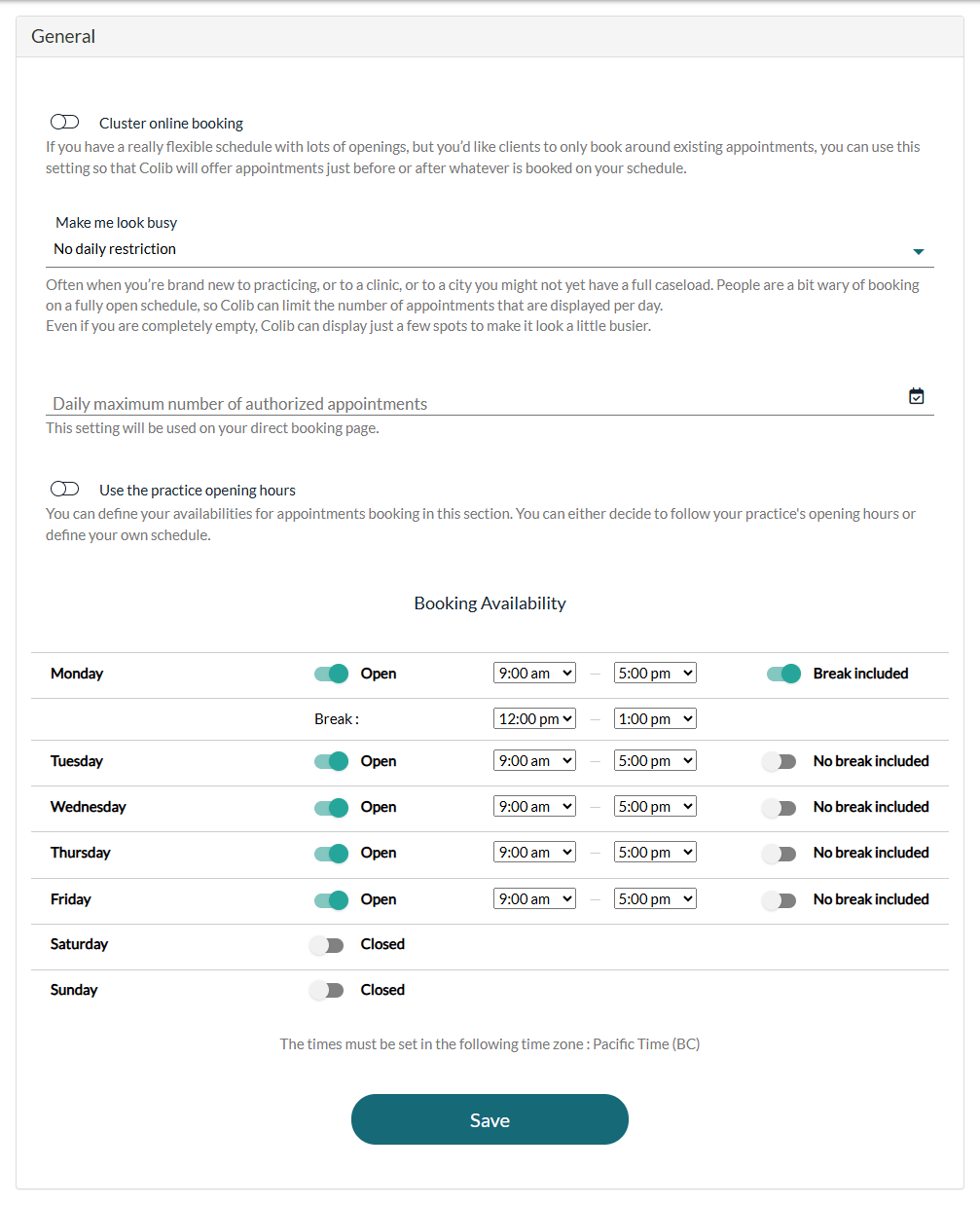
Time zone: the times are set in the time zone of your practice, displayed under the table (for example, Pacific Time (BC)).
3If you use the practice opening hours: edit the opening hours of your practice
When Use the practice opening hours is turned on, the table is hidden: your availability follows the opening hours of your practice. To change them (administrators of the practice only):
- Go to Settings > General (www.colib.io/settings?show=general), in the Admin menu.
- Scroll down to the Opening Hours section and set each day the same way (Open or Closed, times, break).
- Click Save at the bottom of the page.
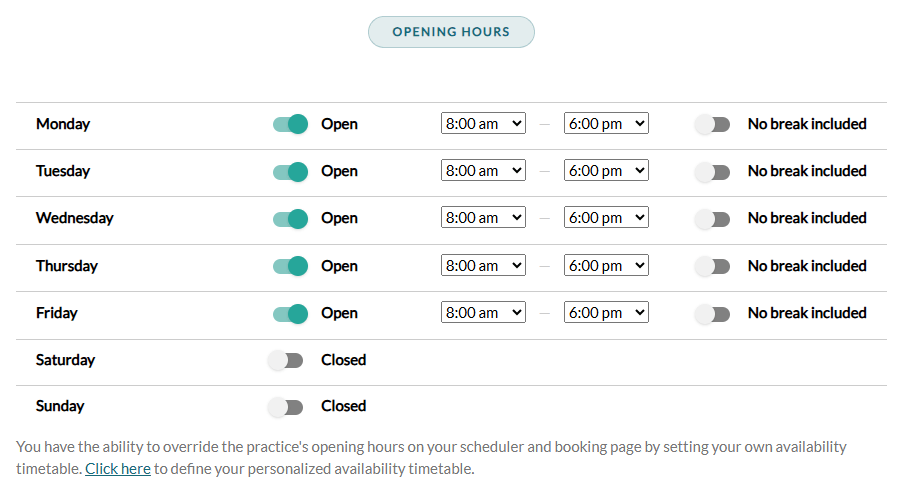
These opening hours apply to every practitioner who uses the practice opening hours. A practitioner who wants different hours turns off Use the practice opening hours and sets their own schedule (step 2).
If your clinic uses availability groups
Availability groups let a clinic define different schedules for different appointment types. They are turned on in Settings > Availability (www.colib.io/settings?show=availability) with Enable Availability Groups.
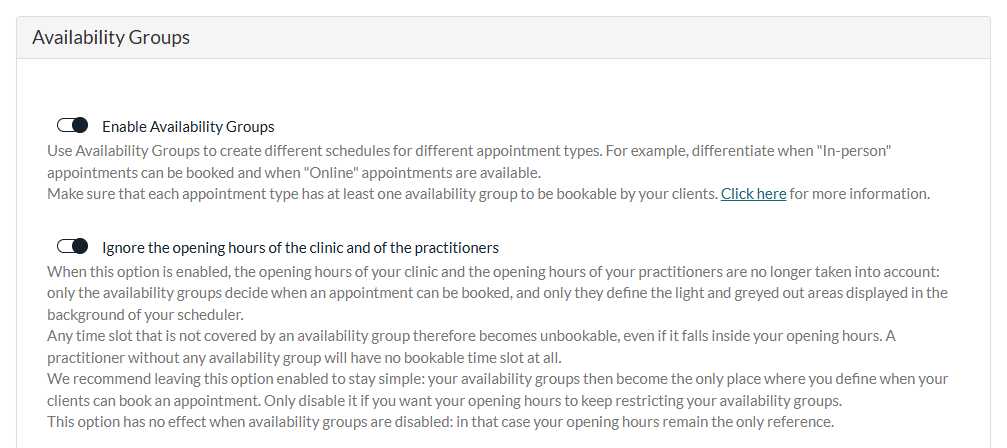
- When Ignore the opening hours of the clinic and of the practitioners is turned on, your opening hours are no longer taken into account: only the availability groups decide when an appointment can be booked and draw the light areas of your scheduler. To change your working hours, edit your availability groups instead.
- When it is turned off, a time slot must be both inside your opening hours and inside an availability group to be bookable.
- Your groups are also listed in the Availability Groups section of your availability tab.
See How to customize your availability with availability groups
Good to know
- For a team member — an administrator can change the hours of another practitioner in Settings > Team (www.colib.io/settings?show=team): edit the member, then open the Availability section (same switch and same table).
- Other options of the tab — Cluster online booking only offers clients the times just before or after your existing appointments; Make me look busy limits the number of time slots displayed per day on your booking page; with Daily maximum number of authorized appointments, once you have that number of appointments in a day, no more time slots are offered online for that day.
- Occasional extra hours — to work outside your usual hours on a given date, add a shift instead of changing your weekly schedule: see How to manage your shifts (extra availability).
- Days off and vacations — to stop bookings on given days, create an appointment pause: see How to pause online bookings (vacations, absences, closures). To block a few hours only, see How can I block time on my scheduler?
- Booking time slots — to choose the interval between the times offered online, see Time between available slots on your booking page.
Still have a question?
Write to us at support@colib.io, we will be happy to help.
Was this article helpful?
That’s Great!
Thank you for your feedback
Sorry! We couldn't be helpful
Thank you for your feedback
Feedback sent
We appreciate your effort and will try to fix the article